

If your service site is slow, it doesn’t just deliver a bad user experience. It costs calls, form leads, and trust, while hurting search engine rankings. A plumber page that loads late, a clinic site that jumps around, or a law firm header that blocks the screen all push people back to Google.
In 2026, Core Web Vitals still come down to three things: how fast your main content appears, how quickly the page reacts to taps, and how stable the layout stays. This guide focuses on WordPress-first fixes for real service sites, not perfect demo scores.
You’ll get quick wins, then a practical path for LCP, INP, and CLS, plus common widget fixes (maps, chat, cookie banners, sticky CTAs).
What Core Web Vitals mean for WordPress service sites in 2026
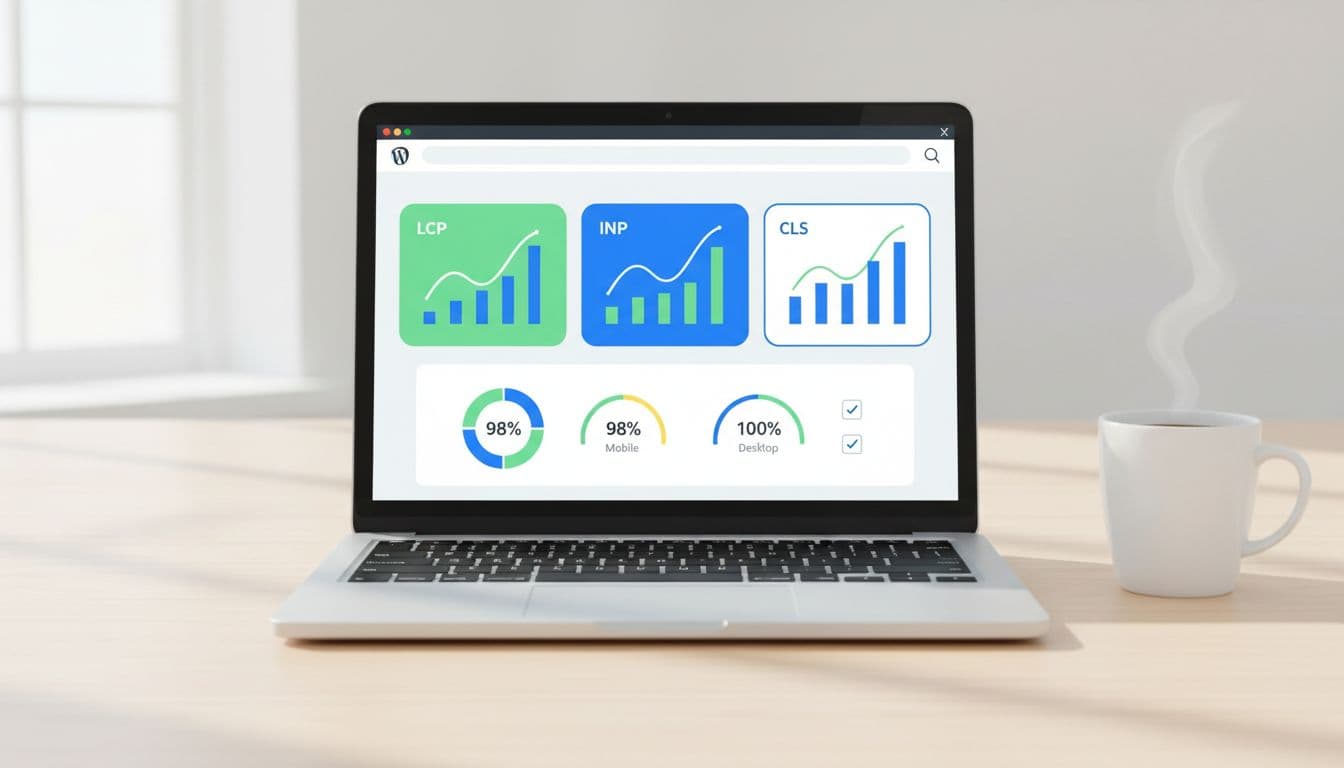
As of March 2026, the targets most teams work toward are Largest Contentful Paint (LCP) under 2.5 seconds, Interaction to Next Paint (INP) under 200 ms, and Cumulative Layout Shift (CLS) under 0.1. INP matters more than many site owners expect because it measures real interaction delay across the visit (it replaced First Input Delay (FID) in 2024).
On “service” layouts, the biggest problems repeat:
- A huge hero image (or slider) becomes the LCP element.
- Too many scripts fight for the main thread (page builder add-ons, reviews, chat, analytics).
- Sticky headers, cookie banners, and late-loading embeds cause layout shifts.
If you want a deeper platform-specific view, this Core Web Vitals for WordPress optimization guide is a solid reference for what typically holds WordPress back. Managed WordPress hosting can solve some infrastructure issues related to these metrics.
Quick wins: improve scores in under 30 minutes
Start with changes that improve real-user data quickly, without redesigning templates. Before anything else, test your homepage and top service page in Google PageSpeed Insights to check mobile performance, then fix the biggest bottleneck.
Here’s a simple impact vs effort snapshot to prioritize.
| Fix | Helps most | Impact | Effort |
|---|---|---|---|
| Enable page caching (plugin or host) | LCP, INP | High | Low |
| Image optimization: convert hero image to WebP/AVIF and compress | LCP | High | Low |
| Turn off heavy sliders and autoplay video above the fold | LCP, INP | High | Medium |
| Delay chat, reviews, and tracking until after interaction | INP | High | Medium |
| Reserve space for header, banners, and embeds | CLS | High | Low |
| Reduce fonts to 1 family, 2 weights | LCP, CLS | Medium | Low |
| Switch to a lightweight WordPress theme (for complex sites) | LCP, CLS | High | Medium |
If you need a broader speed checklist for WordPress, this internal guide on how to increase WordPress website speed pairs well with the steps below.
Step-by-step: fix Largest Contentful Paint (LCP) on service pages
For most WordPress service sites, First Contentful Paint serves as a precursor to Largest Contentful Paint, which is the hero section. Treat it like the front door. If it sticks, nothing else matters.
-
Make the hero an actual image, not a CSS background. WordPress can then generate
srcsetand pick a smaller size on mobile. -
Ship a smaller hero by default. A common win is replacing a 2500 px wide upload with a 1600 px version (and letting
srcsethandle the rest). Also switch to WebP image format or AVIF via ShortPixel, Imagify, or EWWW. -
Avoid “busy” heroes. Sliders, video backgrounds, and rotating testimonials often add scripts and delay LCP.
-
Preload only what matters. Many performance plugins can preload the LCP image and critical CSS, while enabling lazy loading images for non-critical assets. If you control your theme enqueue, set a defer strategy for non-critical scripts:
wp_enqueue_script('site', get_template_directory_uri().'/site.js', [], null, ['in_footer'=>true,'strategy'=>'defer']); -
Generate critical CSS, then stop loading unused CSS. WP Rocket, LiteSpeed Cache, and similar tools can help, but Time to First Byte and a Content Delivery Network are vital for server-side LCP improvements. Keep it simple: critical CSS for above-the-fold, then remove unused CSS site-wide.
If your LCP element is a giant block of text, check fonts first. Web font delays can make text “appear late,” even when the server is fast.
Cut Interaction to Next Paint (INP) delays without breaking features
Interaction to Next Paint (INP) issues feel like tapping a button and nothing happens. On service sites, render-blocking resources like third-party scripts and page builder extras contribute to these interaction delays.
First, delay JavaScript execution for non-essential scripts. Most caching plugins now offer “Delay JS execution.” Put these in the delay list when safe: chat widgets, review widgets, popups, heatmaps, and marketing tags that don’t affect the first view. To further free up the main thread, minify CSS and JavaScript and remove unused CSS.
Next, unload scripts on pages that don’t need them. Perfmatters or Asset CleanUp can disable plugin assets per page. For example, don’t load slider scripts on every service page if only the homepage uses them.
If you need a tiny theme-side fix for one stubborn script, add a targeted defer tag (single handle only): add_filter('script_loader_tag', fn($t,$h)=>$h==='reviews-widget'?str_replace(' src',' defer src',$t):$t, 10, 2);
For more background on safe, staged improvements, this guide on improving Core Web Vitals without breaking your site has a good risk-aware mindset.
Stop Cumulative Layout Shift (CLS) from headers, banners, and embeds
Cumulative Layout Shift is that annoying “page jump” that disrupts visual stability and harms user experience, right when someone tries to tap Call Now. It’s also common on WordPress because widgets load late.
Start with the basics:
- Always reserve space for images, videos, and iframes. WordPress does this for images, but embeds and page builder blocks often need manual sizing.
- Set a fixed header height using critical CSS to stabilize it and render above-the-fold content early if you use a sticky header. Avoid “shrinking header on scroll” effects unless you keep the layout height stable.
- Use
font-display: swapon self-hosted fonts, so text doesn’t jump in late. In your font-face rules, ensurefont-display: swap;is present.
Also watch for consent banners. Many cookie tools inject a banner that pushes the whole page down. Prefer banners that overlay without resizing content, or reserve a fixed-height slot from the start.
Optimize common service-site elements (sticky CTAs, Google Maps, chat, reviews)

Service sites need conversion tools, but you don’t need all of them on first paint.
Embedded Google Maps: Replace the live embed with a static map image and a click-to-load map (or a simple “Open in Google Maps” button). This usually improves LCP and INP fast, especially for mobile performance.
Sticky phone CTA and header: Keep them, but make them light. Use one icon, one line of text, and fixed dimensions for visual stability. Avoid loading extra icon packs; an SVG is often enough.
Review widgets: Many load large scripts and fonts. Widgets that pull dynamic data benefit from database optimization and improved server response times. If you can, render reviews server-side (cached) or load the widget only after scroll.
Chat: Don’t load it on every page view at once. Delay it until a user scrolls, taps, or spends 10 seconds on page, which supports better mobile performance.
If you want another perspective on balancing performance with modern search visibility, this article on improving Core Web Vitals for WordPress covers the same tradeoffs from an AEO angle.
Measure and verify your Core Web Vitals fixes (workflow that sticks)
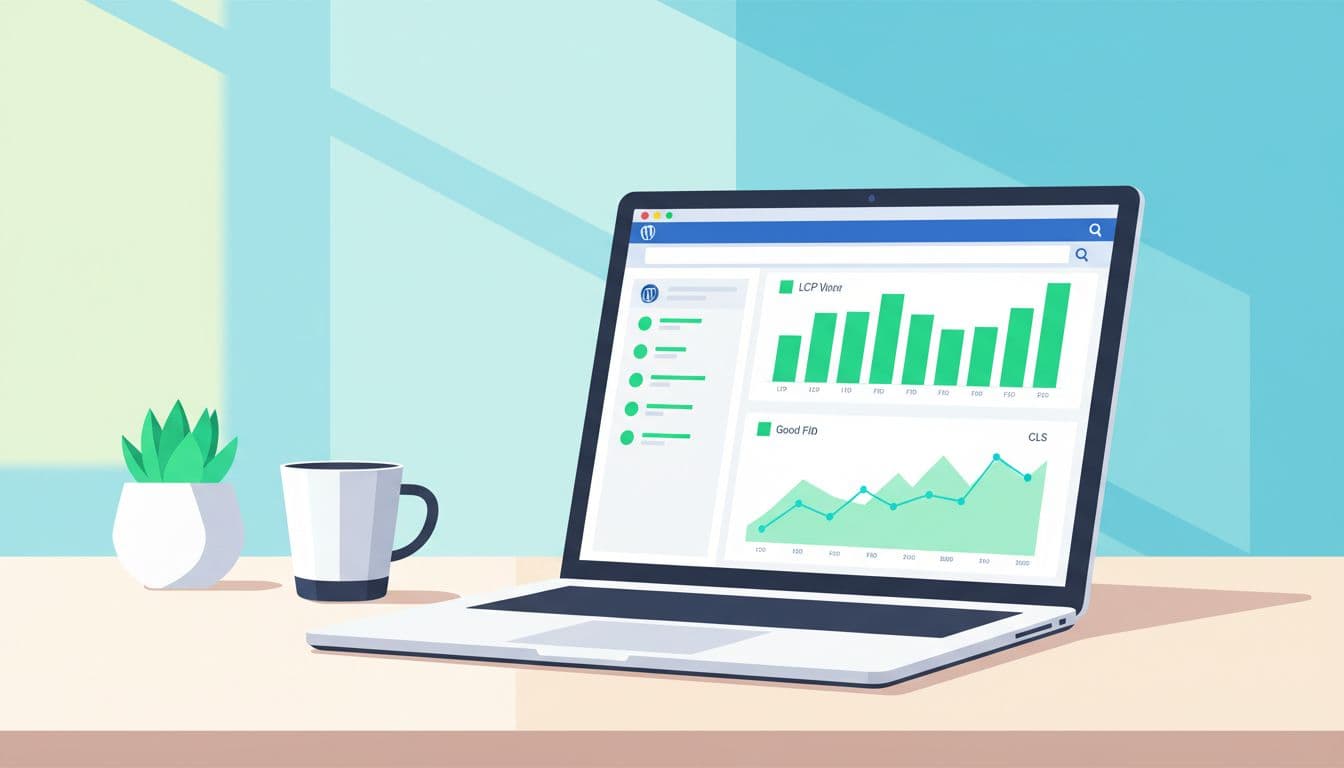
Lab tests are helpful, but rankings and leads follow real-world field data from the Chrome User Experience Report. Use a repeatable workflow:
- Pick 3 templates (home, service detail, contact or location page). Fix templates, not single URLs.
- Run Google PageSpeed Insights on mobile (powered by Google Lighthouse), note the LCP element, total blocking time, and layout shift sources.
- Check Google Search Console CWV report for “Poor” groups, then validate after shipping changes.
- Re-test in Chrome DevTools using throttling, then click the page like a real user (menu, form, CTA).
- Wait for field data to update (often days to weeks). Keep shipping small, safe improvements.
When performance is stable, tie it back to growth work. A faster site supports everything in your wider plan to rank #1 on Google, because it improves user experience so users stick around long enough to convert.
Conclusion
A service site shouldn’t feel like a heavy door. When you fix Largest Contentful Paint, Interaction to Next Paint, and Cumulative Layout Shift in the right order, the whole user experience gets calmer, faster, and easier to trust.
Start with the 30-minute wins, then handle the hero, scripts, and layout stability on your top templates. Once you see core web vitals wordpress improvements in Search Console and better search engine rankings, keep going, because speed work is never “done,” it’s maintained.