Server-Side GTM Setup for Lead Gen Websites in 2026

If your ads report 50 leads but your CRM shows 37, the missing 13 often vanished before the hit left the browser.

In 2026, browser limits, stronger blockers, and tighter consent rules make browser-only tracking less dependable. A solid server-side GTM setup gives lead gen websites cleaner conversion data, better attribution, and more control over what gets shared.

That matters most when every form fill, call, and qualified lead can change budget decisions.

Why server-side GTM matters on lead gen sites

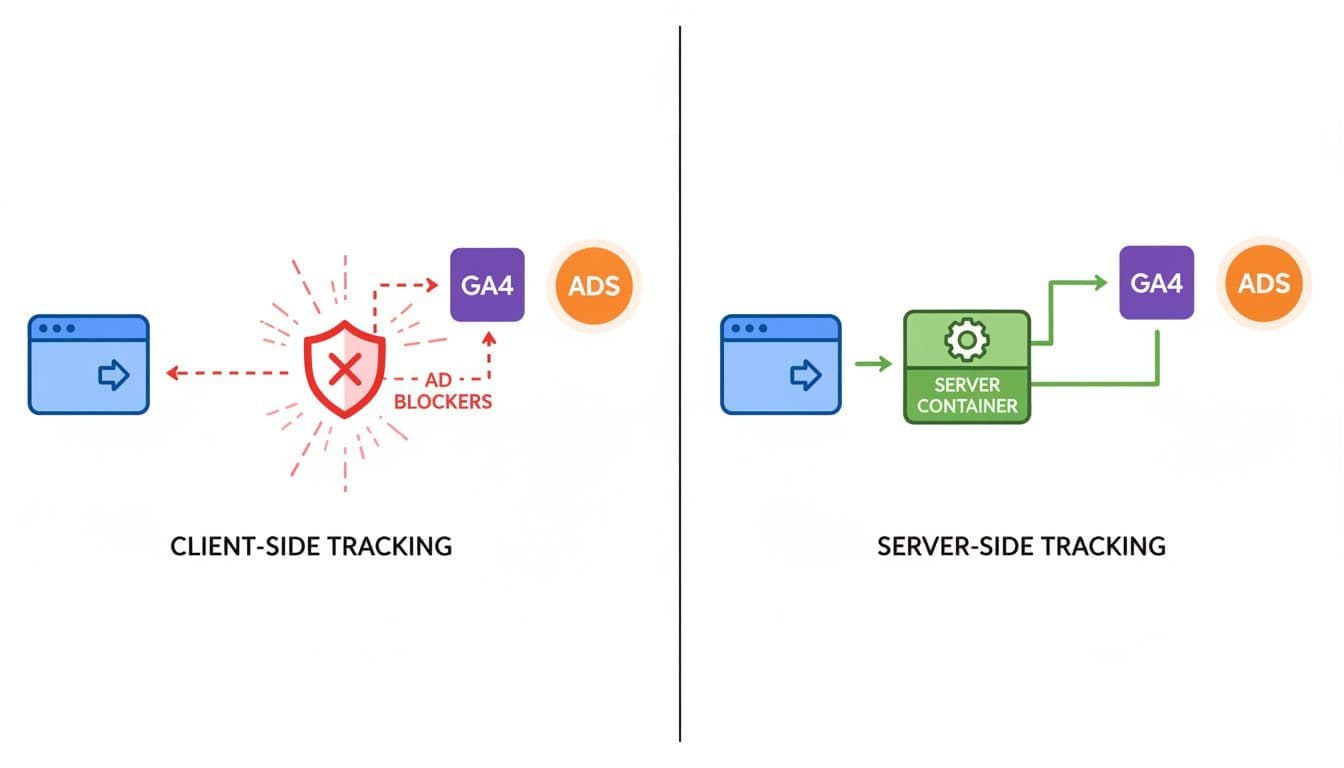
A server-side GTM setup sends tracking data to a server container you control, then forwards it to GA4, Google Ads, Meta, LinkedIn, or other tools. That extra stop often cuts data loss and reduces messy duplicate logic.

Diagram comparing client-side vs server-side GTM tracking flows for lead gen websites: left side shows browser sending data directly to vendors with blockers; right side shows browser to server container then to vendors using clean lines, icons, and bright colors.

For lead gen sites, the gain is simple. You protect high-value actions like successful form submits, click-to-call events, and later-stage qualified leads. You also get a cleaner path between analytics and CRM reporting, which makes a GA4 lead tracking checklist far easier to keep stable.

Recent server-side tagging best practices for 2026 point to the same issue: browser-side loss is growing, not shrinking. For small teams, DIgital Marketing, SEO, Performance Marketing, Social Media Marketing, and Website Development all depend on the same source data. When that data breaks, every report starts to argue with the next one.

Server-side tracking won't make data perfect, but it removes a lot of avoidable loss.

What you need before you touch the container

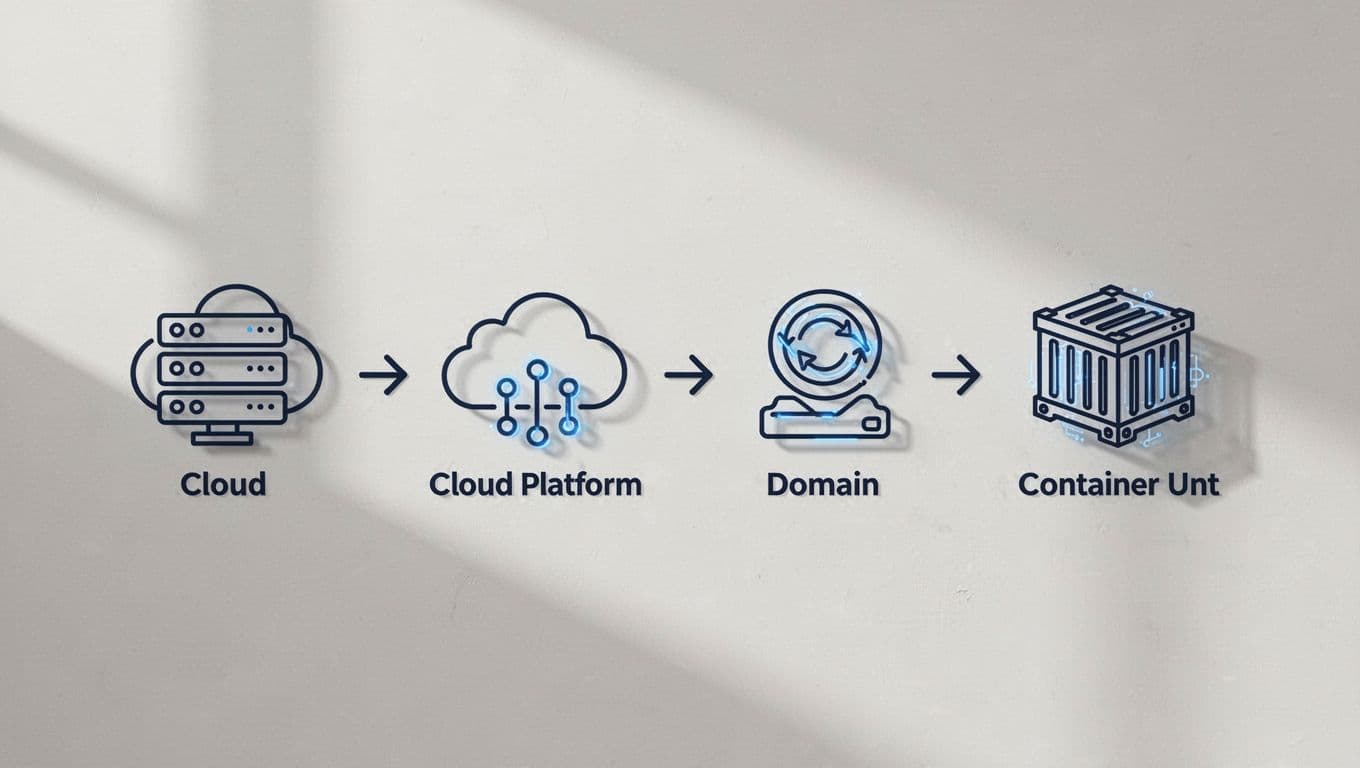
Start with a clean base. You need one web GTM container, one new server container, a GA4 property, and a plan for where lead data should end up after the website collects it.

Icons diagram of prerequisites for server-side GTM including cloud server, domain setup, and GTM containers, arranged in a checklist flow with simple line art in professional tech style.

Hosting choice matters too. Managed options like Stape are faster for small teams. Google Cloud Run gives more control, but it asks more from your technical setup. Either way, use a same-site subdomain such as analytics.yoursite.com, not a third-party hostname. That keeps tracking closer to your own domain and helps first-party context.

Also decide three things before launch: your consent rules, your event names, and your lead_id strategy. If the lead record in your CRM can't match the web event later, attribution still breaks. For a broader reference, Trackingplan's sGTM guide is a useful outside read.

The core server-side GTM setup steps

The actual build is not hard, but the order matters.

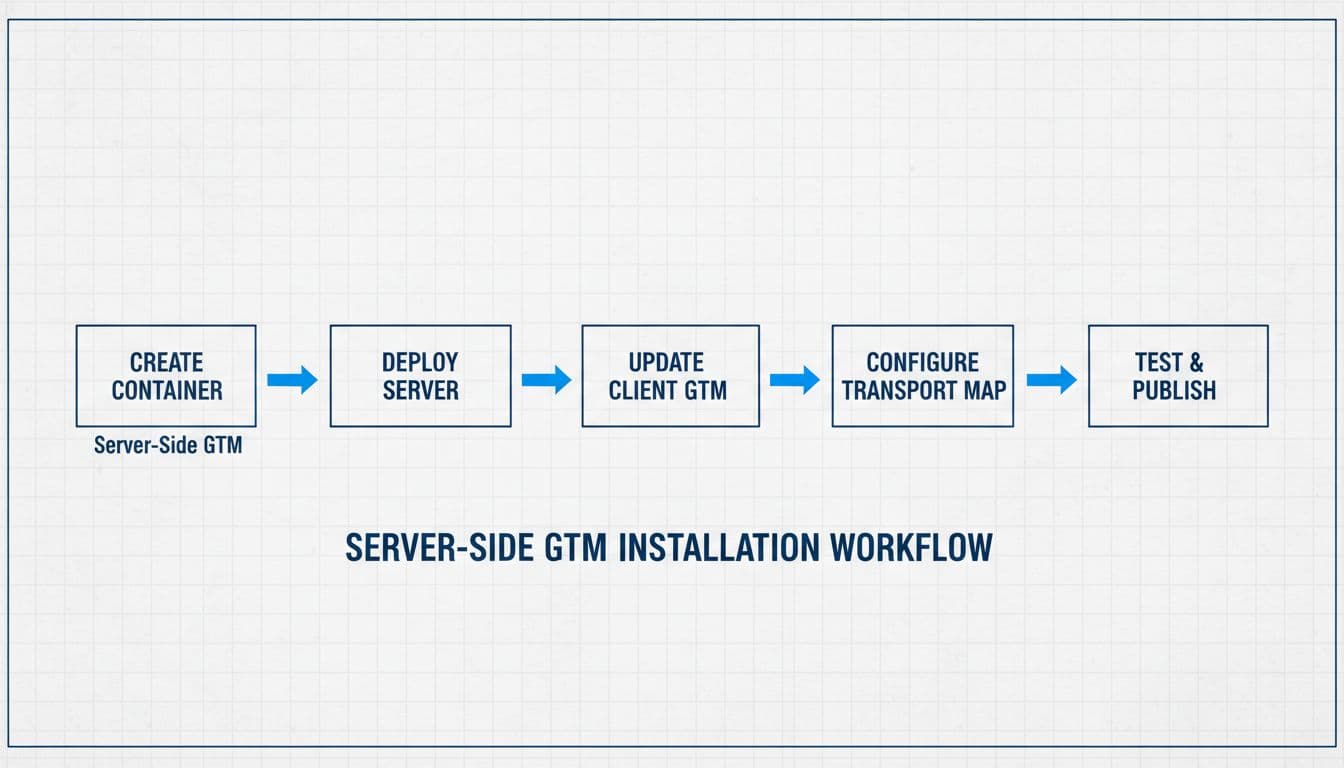
Clean blueprint-style flowchart showing the main path for server-side GTM container installation: create container, deploy server, update client GTM, transport map, with arrows connecting empty boxes in monochromatic tones with accents.
  1. Create a new Server container in GTM.
  2. Deploy it to your chosen host, then connect your custom subdomain.
  3. In the server container, confirm the GA4 client is available and receiving requests.
  4. In your web container, update the GA4 tag so hits route through the server endpoint, commonly with server_container_url.
  5. Preview both containers before you publish anything.

If your team last touched server-side tagging a while ago, review current templates and client behavior. A lot changed during 2025, so old screenshots can mislead. After the server receives GA4 traffic, keep your web container light. Let the browser capture intent, and let the server decide what each vendor should receive.

A practical build walk-through for lead capture flows is available in this GA4 server-side tracking for lead generation guide.

Configure tags for real lead events, not vanity actions

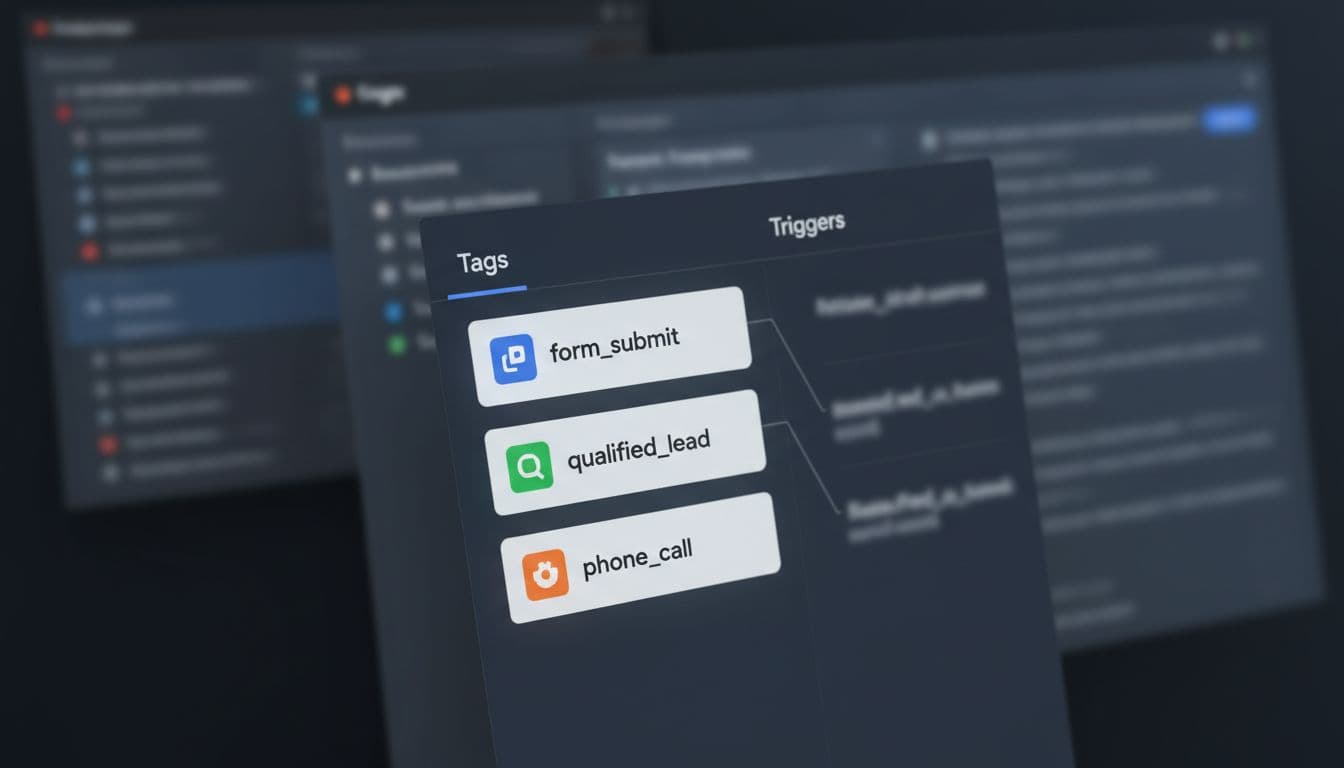
This is where many setups go off track. Fire on success, not on hope. A form button click is not a lead if validation fails or the request never reaches the backend.

GTM dashboard mockup showing three configured tags for lead events: form_submit, qualified_lead, and phone_call. Blurred screens with focus on tag list and triggers in realistic angled UI screenshot style.

Use this simple event map:

EventFire whenHelpful parameters
form_submitSuccess message, thank-you page, or confirmed XHRform_id, lead_type, page_type, lead_id
phone_callClick on tel: or connected call from call platformplacement, page_type, call_source
qualified_leadCRM or backend marks the lead as validlead_id, value, currency, lead_stage

Keep personal data out of GA4. Don't send names, email addresses, or phone numbers there. If you need stronger ad matching, pair the setup with enhanced conversions setup for Google Ads leads. For qualified_lead, send the event from your CRM or backend into the server container, then forward it where needed.

Test consent and data flow before launch

Preview mode is not optional. Test the web container, the server container, and the final hit in GA4. Then test again on mobile, because click-to-call behavior often differs from desktop.

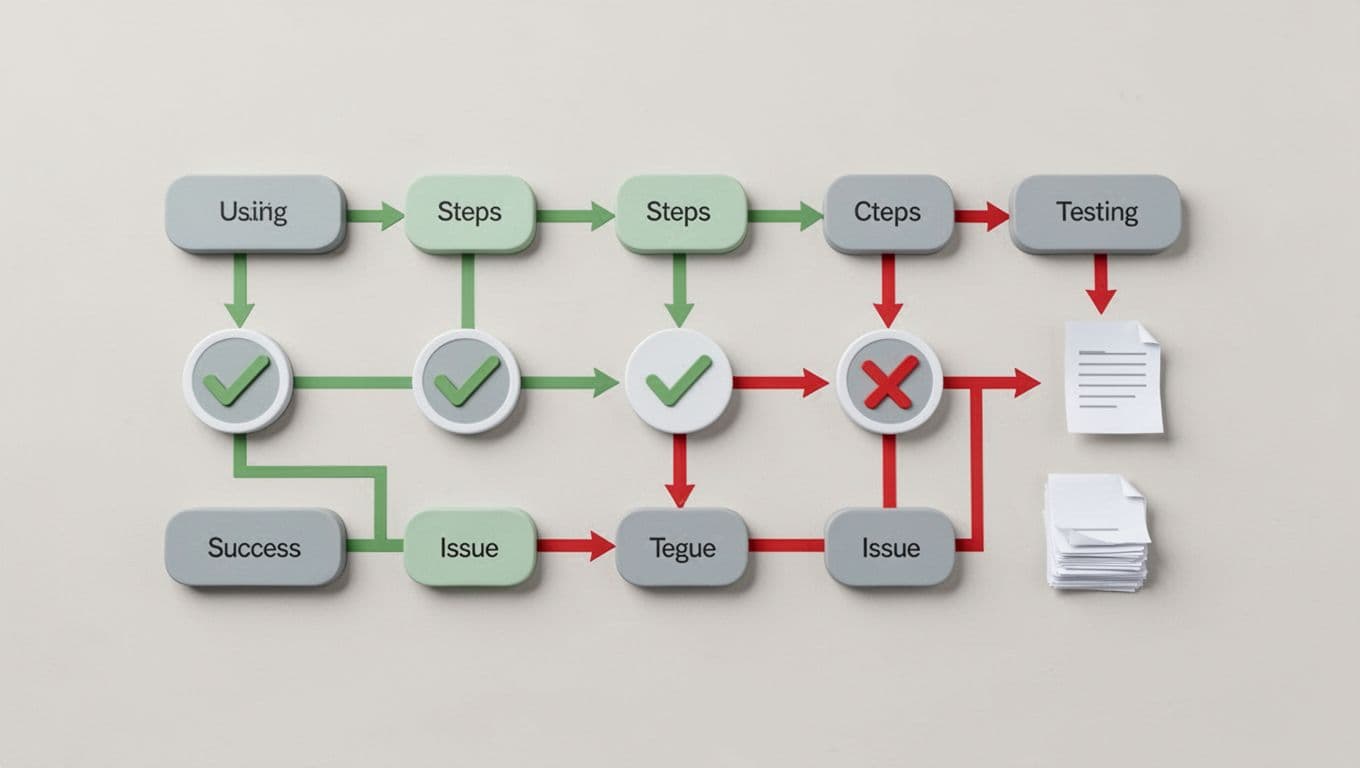
Infographic flowchart depicting the server-side Google Tag Manager (GTM) testing process, including preview mode, debug requests, and GA4 event validation with sequential steps, checkmarks, green/red paths, and tool icons.

Check four things every time: the event fires once, the right parameters are present, consent state is respected, and no self-referrals appear from booking or form tools. Consent Mode v2 still matters with server-side tagging. Your server can filter and control data better, but it should not ignore consent choices. This 2026 Consent Mode v2 guide is a helpful comparison point.

If a redesign is coming, keep this website migration SEO checklist nearby, because new templates often break working triggers.

What gets better after launch

After launch, watch the gap between platform leads, GA4 leads, and CRM leads. The goal is not perfect matching. The goal is a smaller, explainable gap.

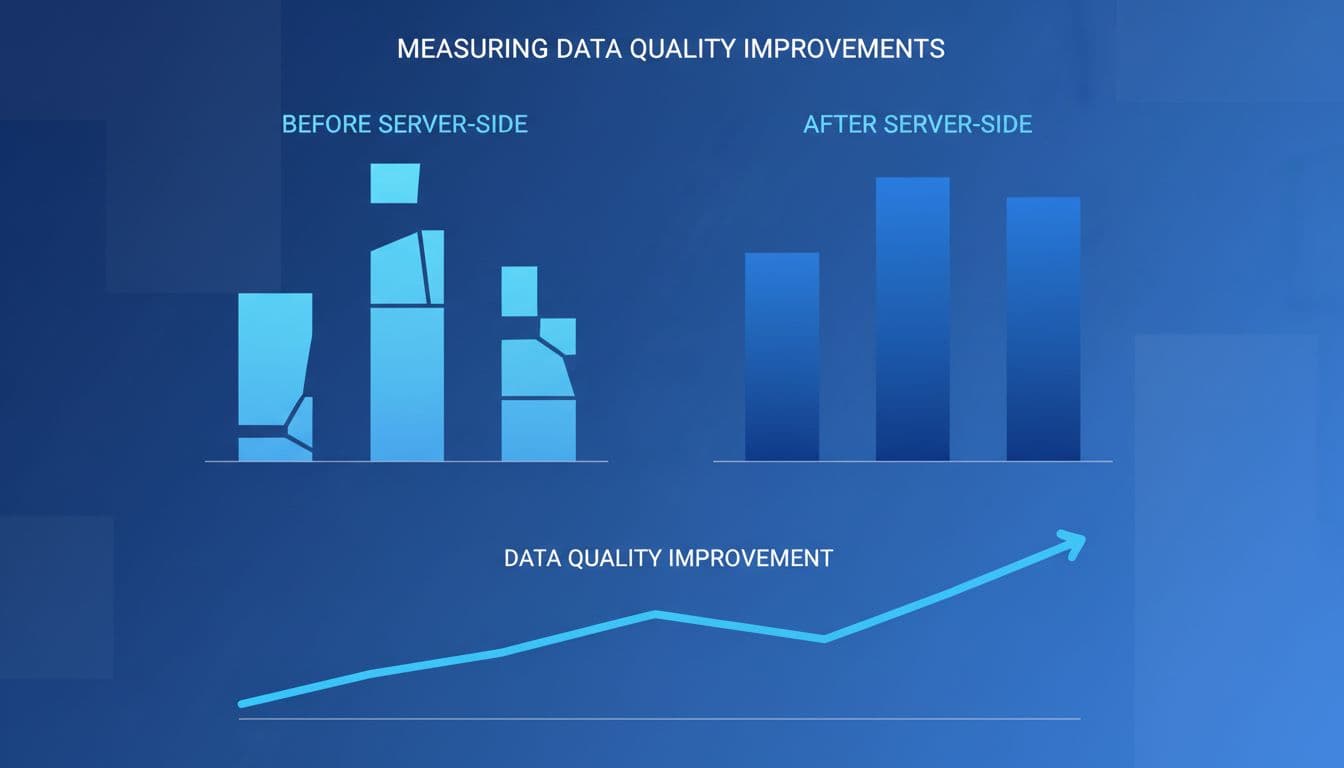
Side-by-side before-and-after charts in dashboard style: left bar chart with gaps showing poor data accuracy, right with full bars for improved attribution; rising line graph for data quality, blue tones, professional, no labels.

A good server-side GTM setup usually improves lead capture consistency, reduces unassigned traffic, and gives ad platforms cleaner conversion signals. It also gives you more control over privacy filtering before data leaves your stack. When reporting still disagrees, use a GA4 CRM reconciliation guide to find whether the problem sits in attribution, identity, or sales-stage logic.

The missing leads from the start of this post usually come from setup gaps, not campaign failure. Fix the tracking path, and your numbers become much easier to trust.

If you want help building or auditing the setup, Get In Touch With Us before the next form update or campaign launch.

GA4 Cross-Domain Tracking for Lead Gen Funnels in 2026

If your ads send visitors to one domain, your form lives on another, and your thank-you page sits somewhere else, GA4 can split one visit into pieces. That means bad attribution, inflated direct traffic, and reports you can't trust.

For small businesses spending on GA4 cross-domain tracking and lead generation, this is no small bug. It affects DIgital Marketing, SEO, Performance Marketing, Social Media Marketing, and Website Development because every team ends up reading different numbers. The fix is simple in theory, but details matter.

Why cross-domain tracking matters in lead gen funnels

When GA4 is set up well, it treats a visitor moving from domain A to domain B as one journey. In 2026, that still depends on one core rule: use the same GA4 Measurement ID and web stream across every domain in the funnel.

A small business owner at a desk in a cozy home office looks at a laptop screen showing an analytics dashboard with multiple website domains and lead funnel charts. Natural daylight from a window illuminates the realistic scene with one person only.

GA4 now passes the _gl linker parameter automatically when your domains are configured correctly, so the same client ID can follow the user across sites. Google's own cross-domain measurement guide explains that flow clearly.

A common lead funnel looks like this: a landing page on your main site, a booking form on a separate scheduling domain, then a thank-you page on another branded domain. Without cross-domain setup, GA4 often starts a new session in the middle. Your ad click gets credit for the first page, but the lead may show up as direct or as a referral from your own site.

If your own booking domain shows up as a top referrer, your funnel is broken.

What you need in place before setup

Start with the boring stuff. It saves hours later.

Top-down photorealistic view of a clean setup checklist on a notepad next to a computer keyboard and mouse, listing items like GA4 property, domains, and GTM container in a bright office setting with no readable text or extra objects.

Use one GA4 property for the whole funnel. Put the same Measurement ID on every domain involved. If you're using Google Tag Manager, keep naming and firing rules consistent across containers. If these are only subdomains, GA4 usually handles them with the same tag, so extra cross-domain rules may not be needed.

Next, confirm that your consent tool can share consent across domains. In 2026, that matters more because denied consent can create gaps that look like broken attribution. Many teams now pair this with server-side GTM for better reliability.

Also, make sure your CSP allows Google Analytics requests on every domain. For a broader event structure, this GA4 lead tracking checklist is a useful companion before you touch the funnel.

How to set up GA4 cross-domain tracking step by step

The setup is short, but each step carries weight.

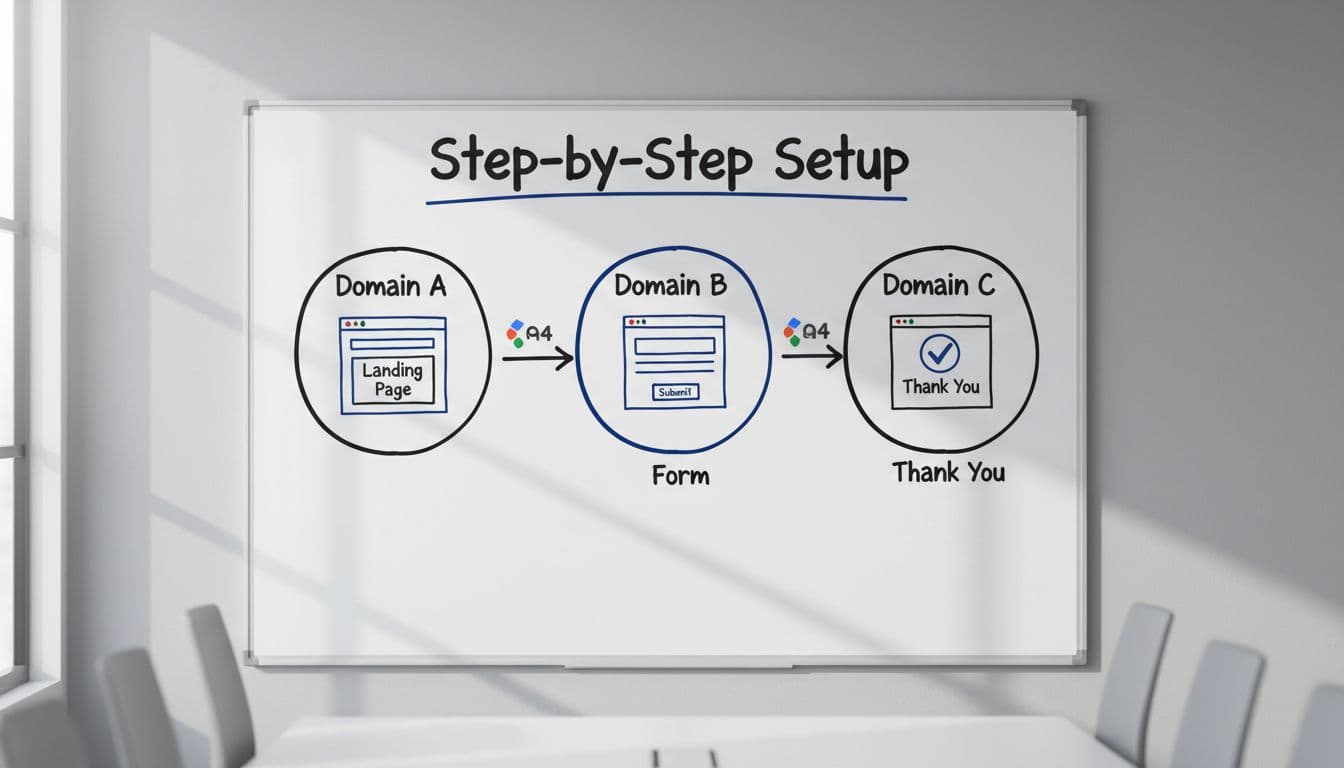
Hand-drawn whiteboard diagram in a conference room showing the tracking flow from domain A landing page to domain B form to domain C thank you page, connected by arrows with GA4 icons.

Go to GA4, then Admin -> Data Streams -> your web stream -> Configure tag settings -> Configure your domains. Add every root domain used in the funnel. “Contains” is usually enough for small business setups.

Then add those same domains to List unwanted referrals. This second step matters because cross-domain setup alone doesn't always stop self-referrals. A recent GA4 cross-domain setup walkthrough shows the full path.

After that, check your links. When a visitor clicks from one domain to the next, GA4 should append _gl to the URL for the handoff. You do not need to build old-school manual linker code like Universal Analytics often did.

Finally, protect attribution beyond GA4. Send utm_source, utm_medium, utm_campaign, click IDs, and a unique lead_id into your CRM at form submit. Otherwise, GA4 may look clean while your sales data still falls apart. This is where a solid UTM governance template pays off.

A practical multi-domain funnel example

Picture a paid search campaign driving traffic to offersite.com. The visitor clicks “Book a demo” and moves to bookingportal.com. After submitting, they land on thankyoubrand.com, and the lead pushes into HubSpot or Salesforce.

Three devices on a modern office table showing a lead funnel sequence: laptop with landing page ad, phone with booking form, and desktop with CRM dashboard success, arranged sequentially with soft lighting.

A strong setup tracks the same session across all three domains, fires the lead event only on real success, and passes campaign data into the CRM. Google's lead generation form reporting guide is helpful for mapping the right funnel steps in GA4.

This matters when you run Google Ads, Meta ads, or email at the same time. If the CRM only stores the final touch, your Performance Marketing team may overvalue branded search. If it stores nothing, Social Media Marketing may look weak even when it started the journey.

Keep both first-touch and latest-touch values in the CRM. Also, never add UTM tags to internal links between your own pages. That rewrites source data and breaks attribution by force.

How to fix broken sessions, self-referrals, and attribution loss

Most problems come from three causes: different Measurement IDs, missing referral exclusions, or bad CRM handoff.

A frustrated analyst in a dimly lit late-evening office highlights error logs with red marks on a computer screen showing graphs of broken sessions, illustrating debugging cross-domain problems. Realistic scene with one person, relaxed hands on keyboard, and blurred screen details.

If sessions break between domains, verify the same GA4 ID loads everywhere. If self-referrals appear, update the unwanted referrals list. If leads show as direct in the CRM, inspect the form and hidden fields, not GA4 alone.

A few quick checks help fast:

  • Preview tags in GTM and confirm page views fire once, not twice.
  • Open both domains and compare the GA4 client ID during a test journey.
  • Watch DebugView while moving from landing page to form to thank-you page.
  • Check whether the lead record stores UTMs, click IDs, and lead_id.

If your tracking issues keep touching ad spend, reporting, and site changes at once, a full-service digital marketing partner can help connect the media and measurement pieces.

Testing habits that keep the data clean in 2026

A smiling analyst in a bright modern workspace reviews a validation dashboard across dual monitors showing unified sessions and green checkmarks for successful testing verification. The back view captures hands on the desk with screens slightly out of focus and no visible text.

Run one live test every time you launch a new landing page, new form tool, or new thank-you domain. That includes Website Development changes, because a small redirect tweak can break a clean handoff.

Check Realtime, DebugView, and the CRM record on the same test. Then repeat on mobile, because consent banners and browser privacy settings often behave differently there. For extra implementation detail, this step-by-step GA4 guide from DevriX is a solid reference.

Clean cross-domain data isn't about making GA4 prettier. It's about knowing which campaigns create leads, which pages close the form, and which channels deserve more budget. When one visit stays one visit from click to CRM, the whole funnel gets easier to trust.

Website Migration SEO Checklist for Lead Gen Sites in 2026

A website migration can hurt leads faster than it hurts rankings. If forms fail, call tracking breaks, or your best service pages vanish, the pipeline slows before your traffic chart catches up.

For lead generation sites, a redesign, CMS switch, domain change, or URL cleanup is never “just” a dev task. A solid website migration SEO checklist protects rankings, local visibility, attribution, and the pages that bring in real enquiries.

Before the new site goes live, get clear on what must not break.

A simple priority view keeps teams aligned:

AreaWhat to protect firstPriority
Lead pagesTop service, location, and landing pagesCritical
TrackingForms, phone calls, GA4 events, thank-you flowsCritical
Technical SEO301s, canonicals, robots, sitemap, HTTPSCritical
Post-launch checksIndexing, crawl errors, INP, local signalsHigh

That table is the whole job in one glance: save the pages, save the tracking, then watch the launch closely.

Benchmark what matters before any build starts

A migration without a baseline is like moving a store without counting stock first. You need to know which pages drive leads, not only visits.

Pull the last 12 months of data from GA4 and Google Search Console. Mark pages with the most form fills, calls, organic clicks, backlinks, and assisted conversions. For many small businesses, a short list of pages drives most revenue.

On real projects, DIgital Marketing, SEO, Performance Marketing, Social Media Marketing, and Website Development often collide in one messy timeline. Pick one owner who can say “no” when a launch-ready page still fails SEO or tracking QA.

A professional marketer at a modern office desk reviews SEO audit reports on dual monitors for a lead generation website, with charts displaying rankings and traffic data, coffee mug nearby, natural daylight lighting.

Benchmark Core Web Vitals too, especially INP, because slow forms and sticky scripts can damage both rankings and conversion rate. If you want a stronger pre-launch review, start with this lead-gen SEO audit checklist. For a broader outside reference, Shopify's SEO site migration checklist is useful for replatforming projects.

Map old URLs to new pages with one clear destination

This is where many migrations go sideways. Teams spend weeks on design, then rush redirects the night before launch.

Every old URL needs one best new match. Don't point ten retired service pages to the homepage. That wastes link equity and confuses users. Keep redirects one-to-one with 301 redirects wherever the page intent still exists.

Realistic laptop screen displaying a spreadsheet mapping old to new URLs for website migration, featuring redirect arrows between columns and notes on priority pages, on a clean conference room desk with soft lighting.

Update internal links too. Navigation, body links, canonicals, XML sitemaps, paid landing page URLs, and PDF links should point straight to the final page, not through redirect chains.

Lead gen sites also need extra care on location pages. If you change slugs, preserve local intent, unique copy, and city-level proof. Keep thank-you pages out of the index. Preserve any page that already ranks for “near me” or service-plus-city terms. Recent 2026 migration write-ups, including O8's prioritized site migration tasks, keep making the same point: traffic value matters more than URL count.

Protect forms, phone tracking, and attribution before launch

A ranking dip is painful. Broken lead capture is worse.

Test every form on staging, then test it again on the live site. That includes contact forms, quote forms, booking tools, chat widgets, sticky call buttons, and any CRM handoff. Use the same GA4 event names and parameters after launch, or your reports split into old and new versions of the same conversion.

A web developer tests forms and GA4 tracking on a staging website preview on a computer screen, showing a blurred form submission success message and open analytics dashboard in a quiet professional workspace with plants and warm lighting.

Phone tracking needs the same discipline. Confirm the correct number swaps on organic visits, click-to-call events fire on mobile, and offline lead records still pass source data into your CRM.

Do not launch if any of these are still failing:

  • Main form submissions fail on mobile
  • GA4 fires on button click instead of successful submit
  • Call tracking numbers replace your main number incorrectly
  • Thank-you pages are indexable or missing

If tracking breaks during migration, you can lose attribution even when rankings hold steady.

Keep local SEO, schema, and page speed intact in 2026

Lead gen sites rarely win on traffic alone. They win when the right visitor sees the right local page and converts fast.

Keep your NAP details consistent across the site, schema, and Google Business Profile landing pages. Preserve LocalBusiness and FAQ schema only when it matches visible page content. In 2026, clean structured data and direct answers also help your pages stay useful for AI overviews.

Side-by-side mobile and desktop views of a fast-loading lead generation landing page with prominent contact form, subtle Core Web Vitals metrics overlay, bright modern design, performance graphs in background, and realistic angled UI mockup.

Speed matters most on money pages. Aim for strong mobile performance and keep INP under 200ms where possible. Trim heavy scripts, compress media, lazy-load below-the-fold assets, and review third-party tools from Social Media Marketing or chat plugins that can slow the page. If your business depends on longer sales cycles, these data-driven B2B SEO services show how technical fixes and lead quality tie together.

Treat launch day and the next 30 days as a live recovery window

Launch during a low-traffic period. Then crawl the live site the same day.

Check robots.txt, noindex tags, canonicals, redirect rules, HTTPS, mixed content, and the XML sitemap. Verify both old and new properties in Search Console, then submit the new sitemap right away. Watch impressions, indexed pages, 404s, form conversion rate, and call volume every day for at least a month.

Large monitor displaying SEO dashboard with GSC traffic rankings and impressions post-migration, featuring green upward arrows, resolved alerts, and blurred team high-fiving in modern control room.

Don't compare launch weekend to your best month. Compare like-for-like days and page groups. Use rank tracking, Search Console, and lead reports together. If you need help building that view, these keyword rank tracking tools can help after launch.

Most migrations don't fail because of one big mistake. They fail because small misses stack up. Protect the pages that sell, keep tracking intact, and treat the first 30 days like part of the project, not the finish line.

If your launch date is close and the checklist still has gaps, Get In Touch With Us before the move, not after the traffic drop.

Google Search Console Setup for Lead Gen Websites in 2026

One small mistake in your google search console setup can hide the pages that bring calls and form leads. Service pages may never index, while thank-you pages can slip into Google and waste crawl attention.

If you handle DIgital Marketing, SEO, Performance Marketing, Social Media Marketing, and Website Development for your business, you need clean search data. This setup gives you that, and it helps you focus on pages that turn visits into leads.

Why Google Search Console matters for lead gen sites

Google Analytics shows what people do after they arrive. Search Console shows how Google sees your site before they arrive. That difference matters for lead generation.

A modern office desk with a laptop screen displaying Google Search Console dashboard highlighting performance metrics for a lead generation website, coffee mug nearby, clean composition focused on screen and hands resting on keyboard in bright natural lighting.

For a lead gen website, GSC helps you spot four things fast: whether your money pages index, which queries bring buyers, where mobile issues hurt conversions, and which low-value URLs should stay out of search. It also gives you a clean way to review search changes after Google updates. Keep in mind, GSC tracks search visibility, not closed deals, so pair it with GA4 and call tracking for the full picture.

Create your GSC account and add the right property

Start inside Search Console and add a new property. If you want one clean view of your whole site, choose a Domain property. That pulls in http, https, www, non-www, and subdomains in one place. Google explains the options in its property setup help.

Person at a clean desk using laptop to create Google account and add website property in Search Console, with relaxed hands on keyboard in a simple modern office setting.

Use a URL-prefix property only when you need to track one section, such as a subfolder or staging copy. For most small businesses, domain-level tracking is the safer choice because it reduces blind spots. Also, add access with a business-owned Google account, not only your freelancer's or old agency's login.

Verify your website property the durable way

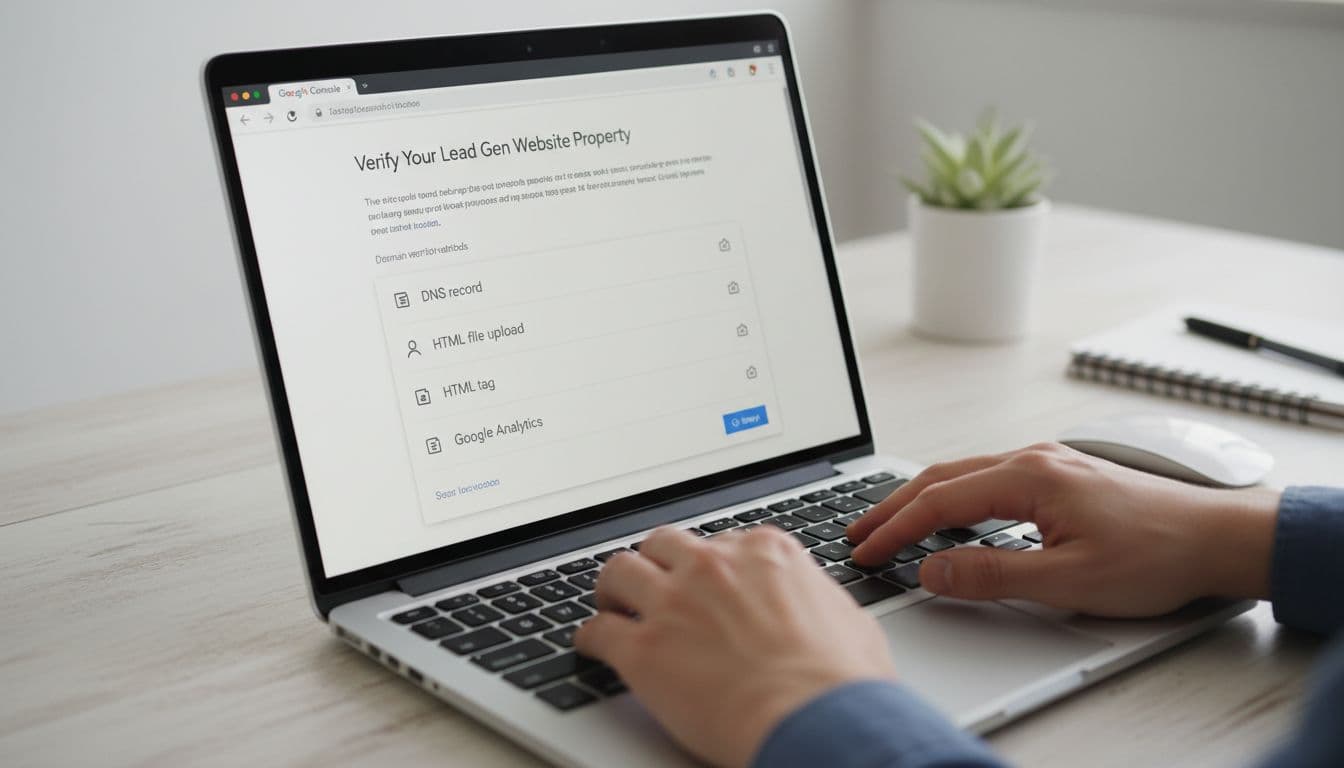
DNS verification is usually the best option. It lives at the domain level, so it survives theme edits, plugin changes, and many redesigns.

Close-up of a laptop screen displaying domain verification methods in Google Search Console, such as DNS record and HTML tag, in a modern workspace with notebook, plant, and hands resting nearby.

If your host manages DNS, ask them to add the verification record. Then confirm the property and save a note in your internal docs. That small step prevents headaches later.

Verify with DNS if you want your Search Console access to survive future site changes.

Once verified, wait a day or two for initial data. If your site already existed, GSC may start filling with useful history quickly.

Submit a sitemap and control which URLs can index

Next, submit your XML sitemap in the Sitemaps report. Only include URLs you want Google to crawl and rank. A messy sitemap creates messy reporting.

Clean dashboard view of sitemap upload success in Google Search Console on a laptop in a bright contemporary office, with focused composition, modern digital-marketing style, soft shadows, coffee cup beside, and one person's relaxed hands visible.

This quick rule helps:

URL typeIndex?Why
Service pagesYesThese bring buyer-intent traffic
Location pagesYes, if uniqueGood for local leads
Thank-you pagesNoThey add no search value
Filter, search, or UTM URLsNoThey create clutter and duplicates

For more background, Google's getting started guide is still useful. On lead gen sites, thank-you pages should stay noindex, because they can show thin content and confuse reporting.

Check indexing for service and location pages

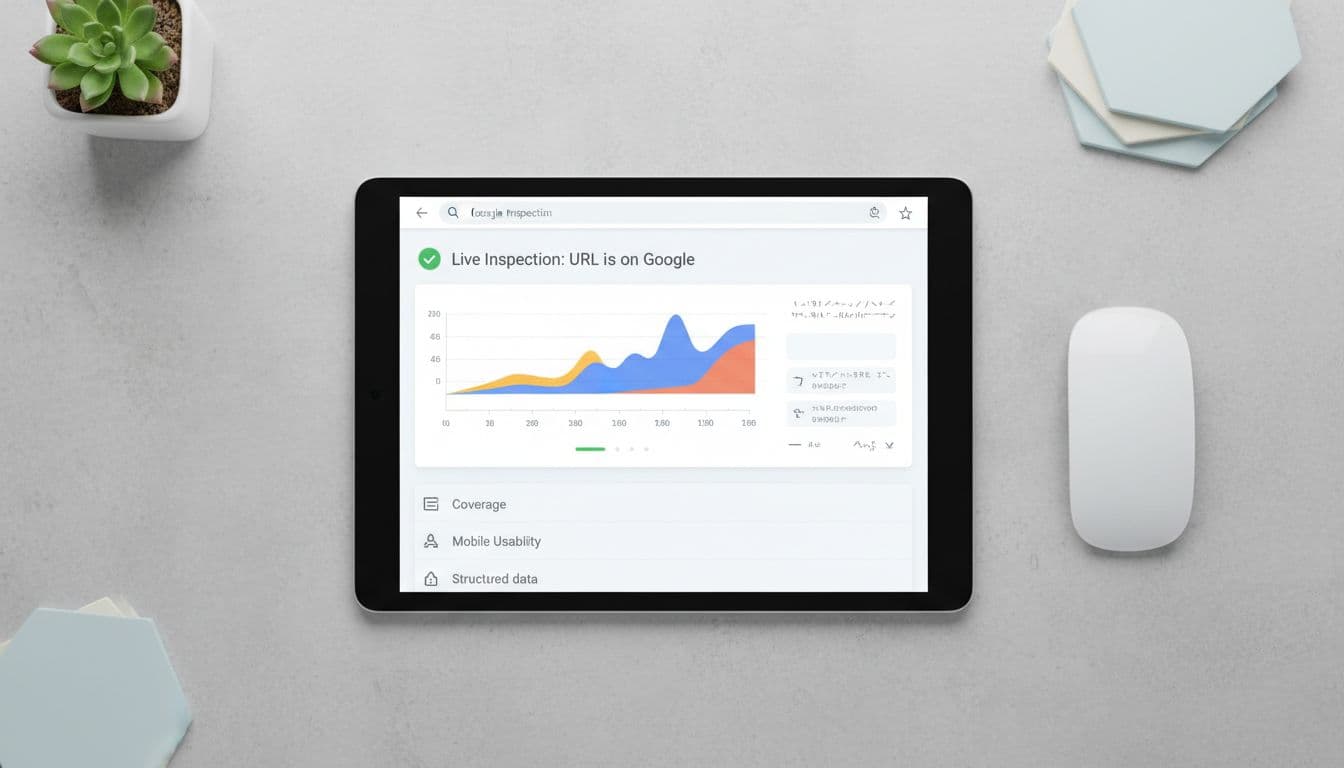
Use URL Inspection on your top service pages, core location pages, and key landing pages. This tells you whether a page is indexed, when Google crawled it, and what blocked it.

Screenshot-like view of the URL Inspection tool in Google Search Console checking a service page's indexing status, shown on a tablet in a modern flat lay desk setup with mouse, centered on live results graph.

If a lead page is missing, check for noindex tags, wrong canonicals, weak content, or duplicate location pages. Many local pages fail because they swap city names and nothing else. Phone-call-driven pages need enough unique copy, trust proof, and local detail to stand on their own. After setup, a broader lead-gen site SEO audit helps catch template-level issues faster.

Optimize Core Web Vitals on lead pages

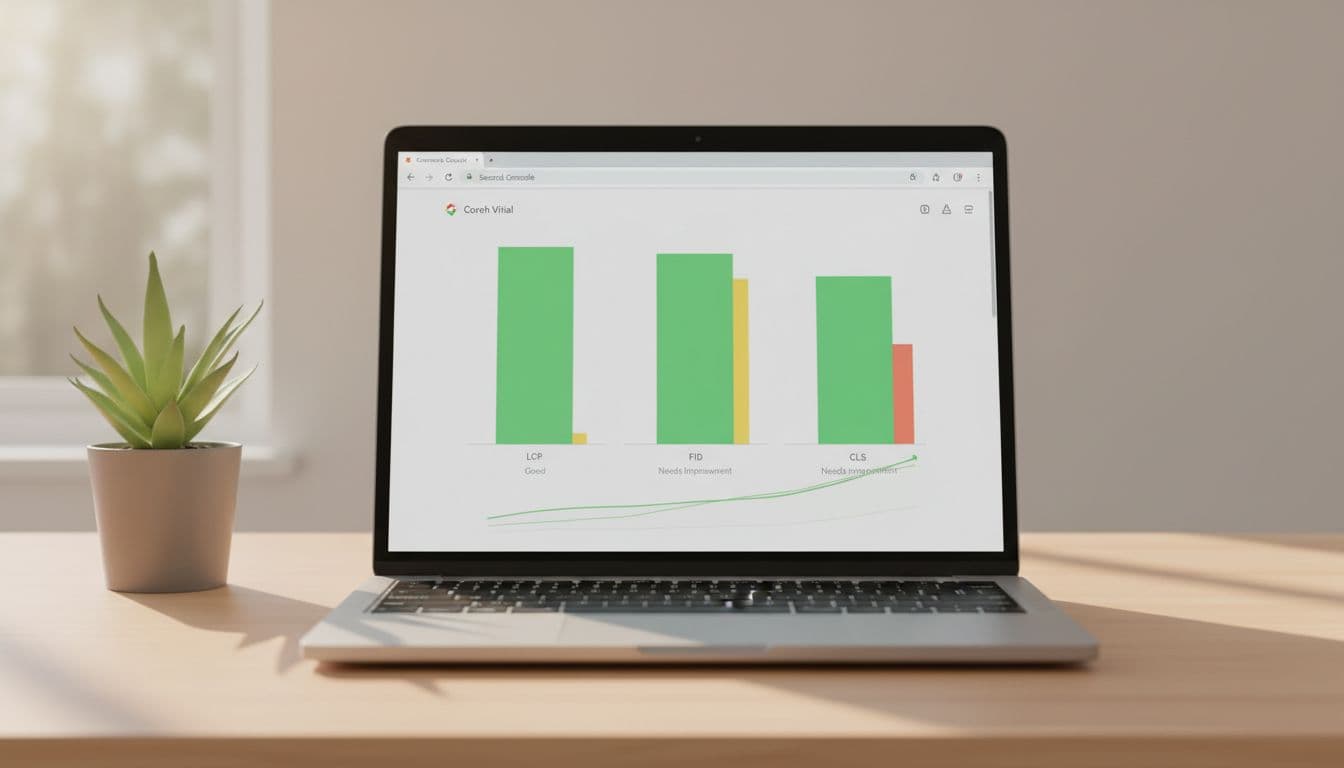
Search Console's Core Web Vitals report is where many lead leaks show up. Slow mobile pages, sticky banners, heavy chat tools, and clunky forms often hurt calls and form fills before rankings drop.

Graph charts of Core Web Vitals metrics in Google Search Console for a fast-loading lead gen page, displayed on a laptop in a minimalist workspace with green plant, highlighting good vitals scores in clean modern digital-marketing style.

Focus on templates, not random pages. If one service page template is slow, dozens of pages may share the same problem. That's why GSC is useful after any Website Development change. Fix the form, speed up the mobile layout, and make sure call buttons respond fast on tap.

Use performance reports to turn clicks into leads

The Performance report is where setup turns into action. Filter by page, query, device, and country. Then look for pages with high impressions but weak clicks. Those are often quick wins.

Tablet on contemporary desk displaying Google Search Console performance report with clicks and impressions for lead keywords like service pages. Wide composition in clean modern digital-marketing style with crisp daylight, charts without readable text, no people shown.

In 2026, two features matter a lot for lead gen teams. First, the branded queries filter helps you separate people searching for your business name from new prospects. Second, the AI-powered report builder can surface patterns like “high impressions, low clicks” or local terms such as “near me.” That saves time, especially for small teams.

Still, GSC doesn't track lead quality by itself. Match it with GA4, CRM data, and phone tracking. If you also run paid campaigns, this guide to Meta Conversions API for lead tracking helps close the attribution gap.

A strong google search console setup protects the pages that matter most. When service pages index, thank-you pages stay out, and performance data connects to real leads, search becomes much easier to manage.

Review GSC every week, especially after site edits. Small fixes on the right pages often bring more leads than a full redesign.

What Is llms.txt and Does Your Website Need It?

People now discover brands through AI answers, not only search results. If ChatGPT, Gemini, or another tool describes your business, you want it to pull from the right pages.

That's why llms.txt is getting attention. It's a simple file placed at the root of your website to help AI tools find your most useful content faster. To see where it fits, it helps to look at what it is, how it works, and whether it deserves a spot on your site now.

What the llms.txt file is, and what it is meant to do

An llms.txt file is a plain Markdown document, usually published at /llms.txt, that gives large language models a cleaner map of your website. Instead of making an AI system sort through menus, scripts, sidebars, and repeated template code, you point it toward the pages that matter most.

The idea was proposed by Jeremy Howard in September 2024. Since then, it has picked up interest as AI search and answer engines have grown. As of April 2026, llms.txt is still an unofficial proposal, not a formal web standard. Still, adoption is moving up. One March 2026 study found llms.txt on 7.4% of Fortune 500 sites and about 10.13% of 300,000 checked domains. Several tech companies and documentation-heavy sites already use it.

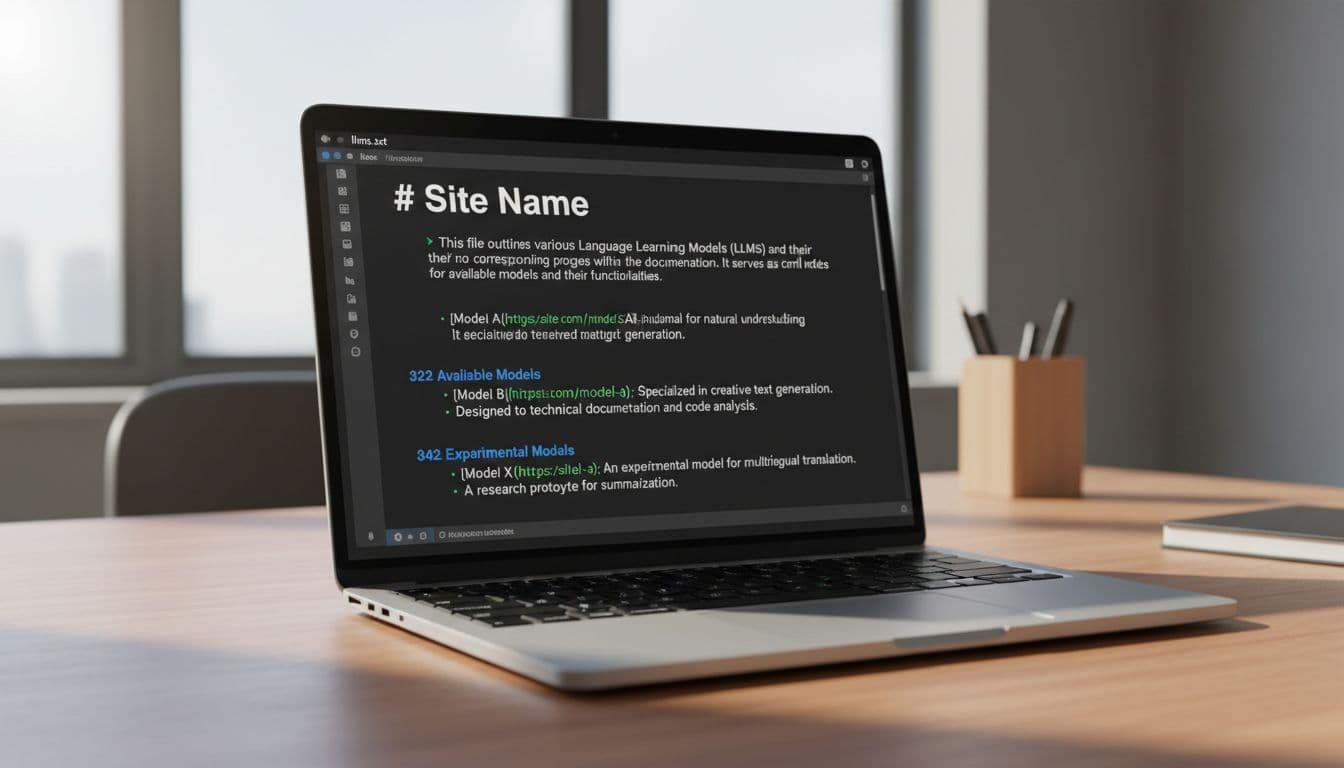
Clean modern code editor on a laptop screen displaying an open llms.txt file in Markdown format with H1 title, blockquote summary, and H2 sections with bullet points. Realistic office desk setting with soft natural light, dark theme, sharp focus on content, no distractions.

Why AI tools need a simpler version of your website

Modern websites are busy. They include navigation bars, pop-ups, tracking code, repeated footer links, tabs, and dynamic elements. Humans can ignore that clutter. AI systems often have a harder time.

A curated file cuts through the noise. It tells the model, “Start here, these are the pages worth reading.” That can help AI tools build cleaner summaries, pull better citations, and describe your business with fewer mistakes.

This matters most when your site has a lot of pages. Without guidance, an AI system might focus on old posts, thin pages, or low-value archives instead of your strongest content.

How llms.txt is different from robots.txt and sitemap.xml

These three files serve different jobs. They work better together than alone.

Here's the simplest way to compare them:

FileMain purposeWho it helps most
robots.txtTells crawlers what they can or can't accessSearch engine and bot crawlers
sitemap.xmlLists URLs you want search engines to know aboutSearch engines
llms.txtHighlights your best pages and adds context for AI systemsAI answer tools and LLMs

robots.txt is about access. sitemap.xml is about discovery. llms.txt is about guidance.

llms.txt is a guide, not a gatekeeper. It doesn't replace robots.txt, and it doesn't force AI tools to obey it.

Why your website may need llms.txt now

If your site publishes useful content, llms.txt is worth paying attention to now. That includes service pages, product pages, help docs, knowledge bases, category pages, and original articles. Those are the assets AI tools often summarize, cite, or use to build answers.

This is where llms.txt connects with AI SEO, GEO, and AEO. The names differ, but the goal is similar: help machines understand your content well enough to mention it correctly. If you want a broader view of those shifts, this guide on GEO vs SEO vs AEO lays out how each one fits.

The business value is simple. You're not trying to stuff more pages into an AI system. You're trying to steer attention toward your current, high-value pages instead of the weak ones.

It can improve how AI answers describe your brand

When AI tools can quickly find your core pages, they have a better shot at describing your company accurately. That may lead to stronger summaries, cleaner citations, and fewer strange mismatches between what you do and what the AI says you do.

That doesn't mean guaranteed traffic or rankings. Results are still mixed, and some AI providers may ignore the file. A February 2026 test from OtterlyAI found no major crawler behavior change. Still, giving AI a clearer path is better than leaving it to guess.

This is also why brands are paying more attention to AI Overviews SEO for service businesses. AI answers often shape the first impression before a user ever clicks a website.

It helps you highlight your best pages, not your whole site

The strength of llms.txt is that it's selective. Think of it like handing someone a short reading list instead of your whole library.

That means you should include your top service pages, best product pages, strongest blog posts, useful guides, documentation, and key trust pages. Skip thin tag pages, duplicate URLs, expired promos, and low-value archives.

This is especially useful for growing websites. Once a site has dozens or hundreds of URLs, the best pages can get buried. llms.txt helps bring them back to the front.

How to create an llms.txt file without overcomplicating it

The common format is simple. Start with an H1 for your site name. Add a short blockquote or summary that explains what the site is about. Then organize your key pages under H2 section headings, with bullet links and short descriptions.

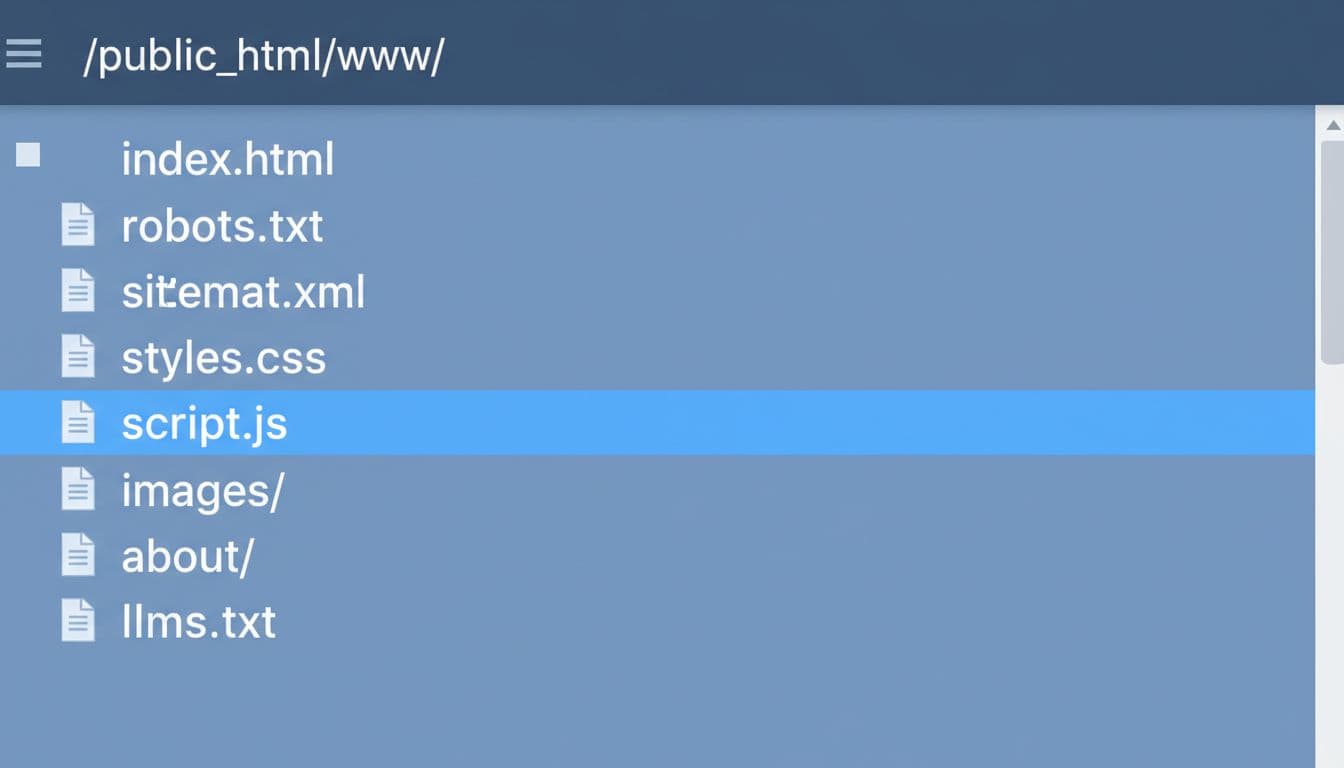
Most sites write the file in Markdown and upload it to the root of the domain so it loads at yourdomain.com/llms.txt. If you can, serve it with a normal 200 OK response and plain text output. Some sites also publish llms-full.txt or clean Markdown versions of important pages, but those are optional extras, not the starting point.

Simple web server file manager view of a site's root directory listing files like index.html, robots.txt, sitemap.xml, and highlighted llms.txt. Clean interface in professional blue tones with focused composition on the files list.

What to include in the file

Keep it tight and useful. Most sites only need a small set of strong links.

  • A short homepage summary that explains what the business does
  • Core service or product pages
  • Important guides, tutorials, or blog posts
  • Key category pages or collections
  • Documentation, help center, or knowledge base pages
  • Contact, about, or trust pages when they add context

Each listed page should be live, helpful, and worth sending an AI system to. Use clear labels and one short description per link. If the wording sounds like ad copy, trim it.

Common mistakes to avoid when building llms.txt

A lot of websites miss the point by turning llms.txt into a second sitemap. That weakens the file.

Avoid these common mistakes:

  • Listing too many pages
  • Using vague descriptions like “Learn more” or “Read this”
  • Linking to old, thin, or outdated content
  • Forgetting to update the file as pages change
  • Stuffing keywords into every line
  • Treating it like a tool that blocks AI access

The goal is clarity. If a page isn't one of your best sources, leave it out.

Best practices, limits, and whether llms.txt is worth it for your site

llms.txt is easy to create, easy to maintain, and low risk. That makes it attractive. Still, it isn't magic. It won't control every AI tool, and it won't fix weak content.

Use it alongside strong SEO basics: a clear site structure, fresh content, internal linking, and schema where it helps. If your core pages are messy or thin, fix those first. A clean file can point AI toward good content, but it can't turn bad content into good answers. This is why your broader SEO strategy for top rankings still matters.

Who should add it first

The best early candidates are content-rich websites. That includes SaaS companies, agencies, publishers, ecommerce brands with strong guides, support centers, product docs, startups, and service businesses that want better visibility in AI-generated answers.

On the other hand, a tiny site with five simple pages may see less value right away. It can still add llms.txt, but the upside is usually bigger for sites with more content and more room for AI confusion.

A simple rule for deciding if it is worth your time

Use this test: if your site has pages you want AI tools to understand and cite correctly, llms.txt is worth adding.

If your content is thin, old, or unclear, improve that first. Then publish the file. In other words, llms.txt supports content quality, it doesn't replace it.

AI answers are becoming part of how people choose brands. A simple guide file helps you shape that process instead of leaving it to chance.

llms.txt is not a silver bullet, but it is a smart housekeeping move. It points AI systems to your best content, reduces confusion, and fits the way online discovery is shifting.

For most content-rich websites, adding it now makes sense. It's simple to implement, easy to update, and well aligned with a web where AI often speaks before your homepage does.

GTM Tracking Plan Template for Local Service Websites (2026)

If you run a local service business, your website has one job: turn intent into calls, form leads, chats, and booked jobs. Yet many teams still track the wrong things, or they track the right things twice.

This GTM tracking plan template, a critical component of your go-to-market strategy for local business growth, is built for GA4 in 2026, with privacy rules, booking tools, and consent banners in mind. You'll get ready-to-use tables for event planning, naming, Google Tag Manager build mapping, and QA, plus practical notes that prevent messy data.

What to track on a local service website in 2026 (GA4-first)

Clean professional office desk with open laptop showing blurred GA4 events list for local plumber website tracking including form_submit, phone_click, booking, chat_initiate, and directions, with subtle floating icons, notebook, pen, coffee mug, and blurred person reviewing in background.

Start with conversions that match real revenue and align with your target audience and ideal customer profile. For a plumber, HVAC tech, dentist, or law firm, that usually means lead capture, not “scroll 90%.”

In GA4 within Google Analytics, keep Enhanced Measurement for basics (page_view, outbound clicks), but rely on event tracking via custom events in GTM for lead actions. As a result, you control when events fire and what details you send. If you need a second perspective on local business event tracking, this guide on advanced GA4 tracking for local businesses is a useful comparison.

Recommended GA4 key events (conversions) for local services, which map to stages in the buyer journey:

  • form_submit (lead form success, not just validation)
  • click_to_call (tap-to-call on mobile, or click on desktop)
  • booking_completed (scheduler success page or confirmed callback)
  • chat_lead (chat started or first message sent)
  • directions_click (tap address or “Get directions”)

Keep parameters small and helpful, like lead_type (emergency, routine, quote), service (drain_cleaning, root_canal), and placement (header, sticky, contact_page). Avoid personal data (no names, emails, phone numbers).

Your GTM tracking plan template (copy, fill, ship)

Modern workspace featuring a laptop displaying a blurred Google Sheets table structure for a GTM tracking plan with columns for Event, Trigger, Tags, Parameters, and Status, mouse pointer hovering, notepad with checklist nearby, soft office lighting.

A tracking plan should read like a work order, aligning your setup with business goals and KPIs. Each row answers: what's the action, what proves success, where does it fire, and what could break it?

Use this as your master sheet, an essential component of your marketing plan template:

Business goalsGA4 event nameFires when (success definition)Primary GTM triggerKey performance metrics (examples)Mark as key event?Notes (common pitfalls)
Contact leadform_submitThank-you view, success DOM state, or XHR 200 responseCustom event or element visibility on success messageform_id, lead_type, service, location_areaYesDon't use generic “Form Submission” if validation fails often
Phone leadclick_to_callClick on tel: linkClick trigger (Just Links) filtered to Click URL starts with tel:placement, service, page_typeYesDon't pass the phone number, it's unnecessary risk
Booked appointmentbooking_completedScheduler confirms booking (return URL or callback)Page view (thank-you URL) or custom event from schedulerbooking_provider, service, booking_typeYesCross-domain schedulers can create self-referrals
Chat leadchat_leadFirst message sent, or chat started if that's all you can detectCustom event from chat API, or click trigger for chat launcherchat_provider, placement, serviceYesSome widgets fire multiple opens, dedupe it
Directions intentdirections_clickClick/tap address or Maps linkClick trigger filtered to maps URL or address elementplacement, location_areaOptionalGood proxy for in-person intent (clinics, offices)
Lead quality (optional)lead_qualifiedCRM marks lead as qualifiedServer-side event or Measurement Protocollead_id, lead_type, value, currencyYesBest event for ad optimization when available

If your leads also come from Maps, track those link clicks and align them with on-profile actions, then pair it with Google Business Profile optimization so your direction and call intent actually grows.

Event and parameter naming conventions your team won't fight over

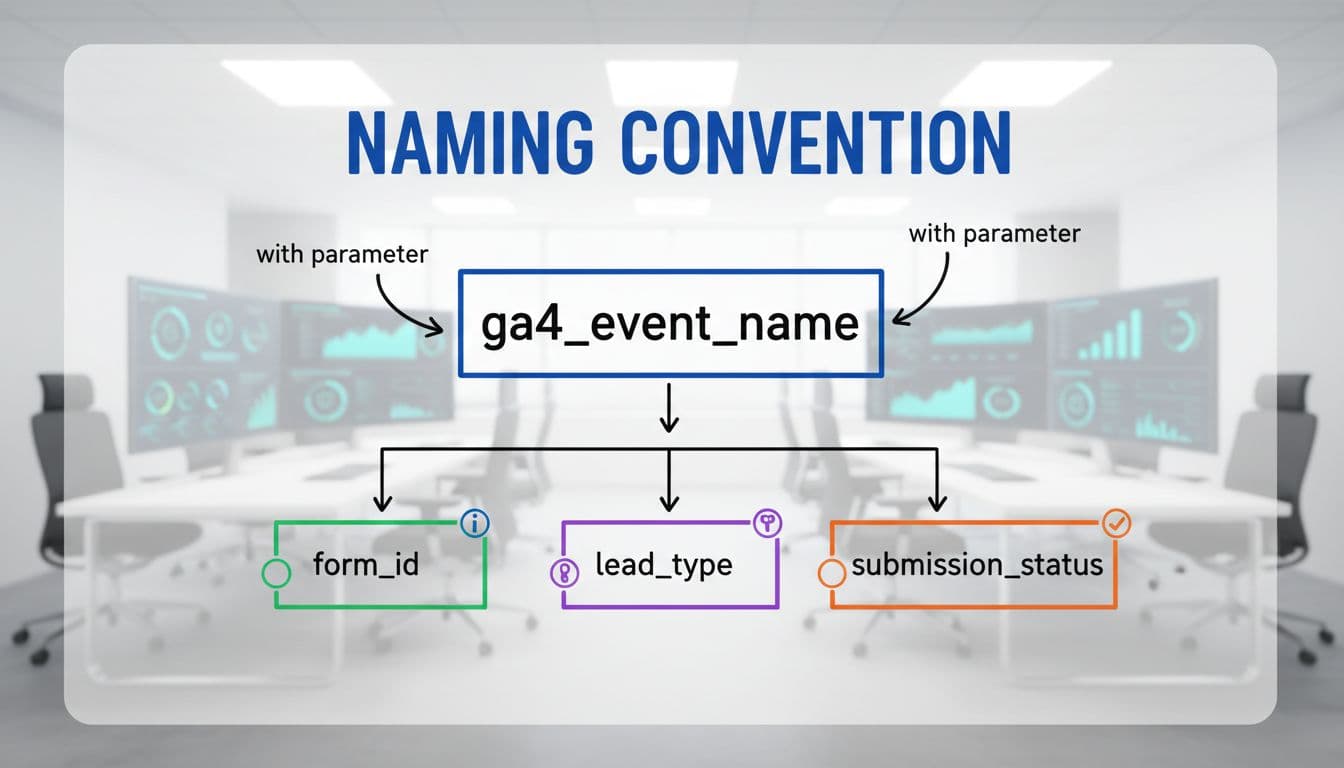
Simple clean graphic of GA4 event naming convention flowchart using ga4_event_name with parameters like form_id and lead_type, on digital whiteboard style background in modern analytics room with marker icons.

Naming is boring until you need to audit 40 tags on a Friday, especially when cross-functional teams and stakeholders clash over inconsistent labels. Set rules once for seamless collaboration and effective project management that prevents technical debt and simplifies long-term oversight, then stick to them.

Use lowercase, underscores, and stable meanings (not button colors or UI labels). Also, pick one “family” of terms and keep it consistent across trades (plumber, dentist, HVAC, legal).

ItemConventionGood exampleAvoid
GA4 event nameverb_noun (stage-based)form_submit, click_to_callSubmitForm1, blue_button_click
Lead typefixed enumemergency, routine, quotefree text like “ASAP!!!”
Serviceservice slugwater_heater_repair, teeth_whitening“Service Page 2”
Placementwhere it happenedheader, sticky_footer, contact_page“top area”
Form IDstable IDcontact_main, estimate_requestDOM-generated random IDs
Dedupe keyevent identifierevent_idrelying on “hope it fires once”

After you ship, register the parameters you care about as GA4 custom definitions so they show in reports. Keep it tight, because too many custom dimensions slows decisions.

GTM trigger and tag matrix (so nothing double-fires)

Blurred laptop screen preview of GTM interface featuring trigger tag matrix table for form submit and phone click events matching, on a desk with keyboard, mouse, calendar, and phone props. Exactly one screen with hands resting naturally, professional lighting, landscape orientation, sharp focus without readable text or UI details.

The cleanest GTM setups look “boring”: one GA4 config tag, clear triggers, and events fired only on success. In addition, write version notes in GTM as part of your strategic roadmap so you can roll back fast.

Use this matrix as a checklist for a successful product launch to map what you'll build and support your launch activities:

GA4 tagTriggerKey filtersData sourceDedupe note
GA4 ConfigurationInitialization, All PagesnoneConstant Measurement IDOnly one config per experience, avoid duplicate installs
GA4 Event: form_submitCustom event dl_form_success (preferred)form_id equals targetData Layer variablesFire once per success, not per button click
GA4 Event: click_to_callJust Links clickClick URL starts with tel:Click variables + lookup for placementExclude repeated clicks within 2 seconds if needed
GA4 Event: booking_completedPage viewThank-you path matchesPage URL + optional query paramsCross-domain: confirm same session (linker)
GA4 Event: chat_leadCustom event from widgetprovider equals expectedData Layer or custom JSMany widgets emit open and message, pick one
GA4 Event: directions_clickJust Links clickmaps URL contains google.com/mapsClick URL + placementTreat as intent, not a guaranteed visit

If you want a broader GA4 plus GTM refresher, this GA4 and GTM setup guide for 2026 covers the core build steps end to end.

Consent-aware tracking in 2026 (Consent Mode v2 in GTM)

A tablet held in hands displays a blurred consent banner with accept and reject options alongside a faded GTM consent mode settings panel on a subtle plumber service homepage.

Consent changes how your tags behave, so it belongs in the tracking plan, not as an afterthought. Industries like SaaS and B2B heavily rely on consent-aware tracking for compliance. In GTM, set a default consent state (often denied where required), then update it when the visitor chooses.

Consent Mode v2 typically involves analytics_storage and ad_storage, plus ad_user_data and ad_personalization for ads features. When consent is denied, GA4 may send limited pings, and reporting can include modeled data that helps market research fill insight gaps. Meanwhile, ad tags should stay blocked or restricted based on the consent state.

If your CMP fires after your GA4 config tag, you can record “phantom” pageviews. Put consent defaults early, then load GA4.

For a practical implementation walkthrough, see this Consent Mode v2 setup guide.

QA checklist before you trust the numbers (GTM + GA4)

Analyst workspace with dual monitors: one blurred GTM preview, one GA4 debugview with subtle checklist overlay and low-opacity thumbs up icon. Cozy evening office light, coffee, notepad, one person with relaxed hands on keyboard.

QA is where most “mystery drops” get prevented, ensuring accurate data for competitive analysis against industry benchmarks. Test with GTM Preview, GA4 DebugView, and real devices, especially iPhones (tap-to-call behavior differs). Back up your GTM container by exporting it as a json file to share configurations easily during the QA process.

TestWhere to testPass conditionFix if it fails
GA4 config fires onceGTM PreviewOne config load per pageRemove duplicate GA4 installs (plugin plus GTM)
Consent defaults applyGTM Preview + browser storageTags respect consent stateMove consent initialization earlier
Form fires only on successGTM Preview + site formNo event on validation errorsSwitch to success message, XHR, or thank-you
Phone click tracks correctlyMobile device testclick_to_call fires on tapFilter to tel: and confirm link markup
Booking completion worksEnd-to-end bookingFires on confirmation onlyAdd cross-domain linker, use return URL
No double eventsGA4 DebugViewOne event per actionDisable competing auto-tracking, add dedupe guard
Parameters populateGA4 DebugViewservice, lead_type, placement presentFix Data Layer push or variable mapping
Key events setGA4 AdminOnly true leads marked key eventsUnmark noisy events, keep conversions strict
Self-referrals removedGA4 reportsBooking tool isn't top referrerConfigure cross-domain and referral exclusions

For a deeper audit workflow, have your product manager verify the final data output using ClickyOwl's GA4 lead tracking checklist and this guide to track website conversions in Google Analytics.

Conclusion

A local service tracking setup should feel like a receipt, not a guess. Define a small set of lead events that align with your customer journey map, standardize names, and map every GTM tag to a clear success signal. Then add consent-aware controls and QA before you scale spend across marketing channels. Once your tracking is stable, refine your value proposition and messaging strategy; clarify pricing strategy and milestones with accurate data. Your next question gets better: which service and area produces the best jobs, not just the most clicks from marketing channels? Scale confidently for your product launch.

Core Web Vitals WordPress Fix Guide for Service Sites (2026)

If your service site is slow, it doesn't just deliver a bad user experience. It costs calls, form leads, and trust, while hurting search engine rankings. A plumber page that loads late, a clinic site that jumps around, or a law firm header that blocks the screen all push people back to Google.

In 2026, Core Web Vitals still come down to three things: how fast your main content appears, how quickly the page reacts to taps, and how stable the layout stays. This guide focuses on WordPress-first fixes for real service sites, not perfect demo scores.

You'll get quick wins, then a practical path for LCP, INP, and CLS, plus common widget fixes (maps, chat, cookie banners, sticky CTAs).

What Core Web Vitals mean for WordPress service sites in 2026

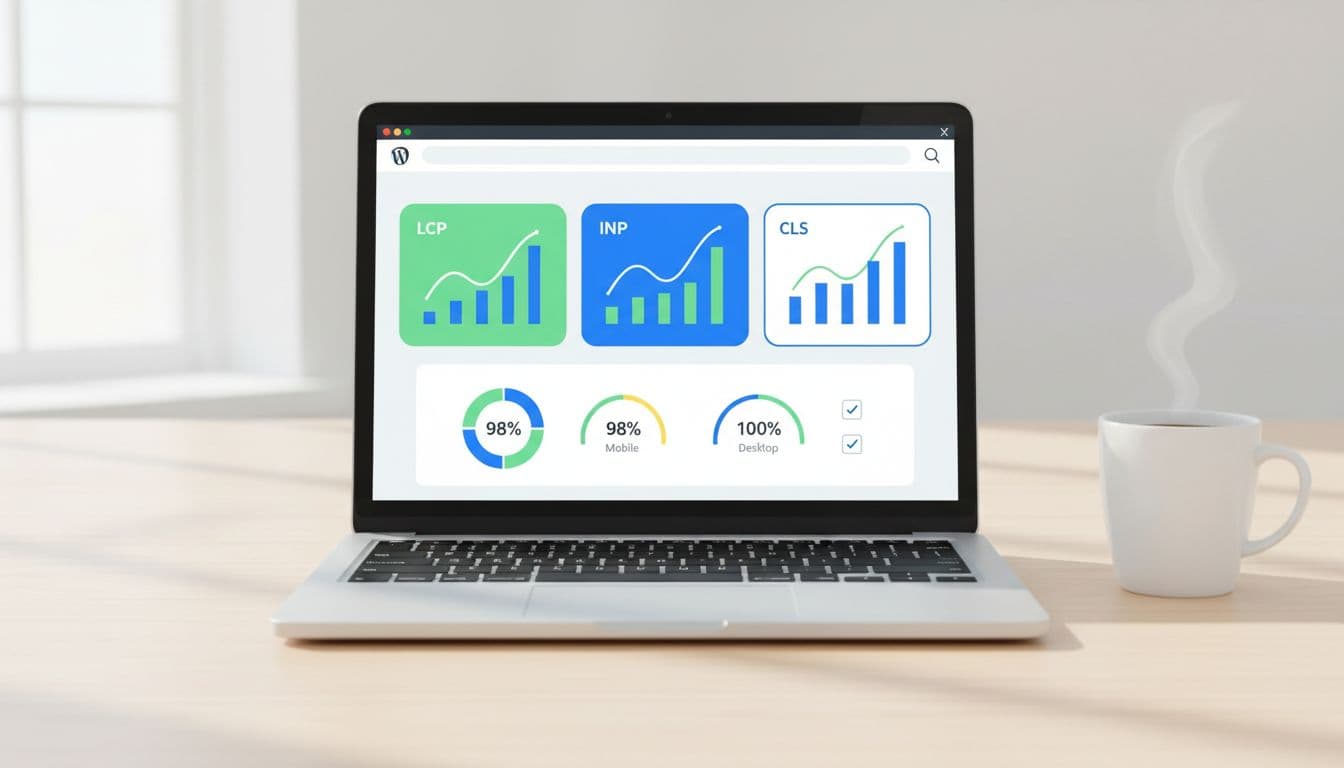
Modern flat illustration of a WordPress performance dashboard highlighting Core Web Vitals metrics like LCP, INP, and CLS on a laptop screen viewed from above. Clean office desk with coffee mug nearby, soft natural lighting, vibrant blues and greens.

As of March 2026, the targets most teams work toward are Largest Contentful Paint (LCP) under 2.5 seconds, Interaction to Next Paint (INP) under 200 ms, and Cumulative Layout Shift (CLS) under 0.1. INP matters more than many site owners expect because it measures real interaction delay across the visit (it replaced First Input Delay (FID) in 2024).

On “service” layouts, the biggest problems repeat:

  • A huge hero image (or slider) becomes the LCP element.
  • Too many scripts fight for the main thread (page builder add-ons, reviews, chat, analytics).
  • Sticky headers, cookie banners, and late-loading embeds cause layout shifts.

If you want a deeper platform-specific view, this Core Web Vitals for WordPress optimization guide is a solid reference for what typically holds WordPress back. Managed WordPress hosting can solve some infrastructure issues related to these metrics.

Quick wins: improve scores in under 30 minutes

Modern flat illustration of quick WordPress optimization steps like cache enabling and image compression icons on a laptop screen, set on a clean workspace desk with soft lighting and vibrant blues and greens.

Start with changes that improve real-user data quickly, without redesigning templates. Before anything else, test your homepage and top service page in Google PageSpeed Insights to check mobile performance, then fix the biggest bottleneck.

Here's a simple impact vs effort snapshot to prioritize.

FixHelps mostImpactEffort
Enable page caching (plugin or host)LCP, INPHighLow
Image optimization: convert hero image to WebP/AVIF and compressLCPHighLow
Turn off heavy sliders and autoplay video above the foldLCP, INPHighMedium
Delay chat, reviews, and tracking until after interactionINPHighMedium
Reserve space for header, banners, and embedsCLSHighLow
Reduce fonts to 1 family, 2 weightsLCP, CLSMediumLow
Switch to a lightweight WordPress theme (for complex sites)LCP, CLSHighMedium

If you need a broader speed checklist for WordPress, this internal guide on how to increase WordPress website speed pairs well with the steps below.

Step-by-step: fix Largest Contentful Paint (LCP) on service pages

Modern flat illustration of Largest Contentful Paint optimization in WordPress, featuring a hero image loading fast on a laptop screen on a desk with a clock showing quick time, soft lighting, and vibrant blues and greens.

For most WordPress service sites, First Contentful Paint serves as a precursor to Largest Contentful Paint, which is the hero section. Treat it like the front door. If it sticks, nothing else matters.

  1. Make the hero an actual image, not a CSS background. WordPress can then generate srcset and pick a smaller size on mobile.

  2. Ship a smaller hero by default. A common win is replacing a 2500 px wide upload with a 1600 px version (and letting srcset handle the rest). Also switch to WebP image format or AVIF via ShortPixel, Imagify, or EWWW.

  3. Avoid “busy” heroes. Sliders, video backgrounds, and rotating testimonials often add scripts and delay LCP.

  4. Preload only what matters. Many performance plugins can preload the LCP image and critical CSS, while enabling lazy loading images for non-critical assets. If you control your theme enqueue, set a defer strategy for non-critical scripts: wp_enqueue_script('site', get_template_directory_uri().'/site.js', [], null, ['in_footer'=>true,'strategy'=>'defer']);

  5. Generate critical CSS, then stop loading unused CSS. WP Rocket, LiteSpeed Cache, and similar tools can help, but Time to First Byte and a Content Delivery Network are vital for server-side LCP improvements. Keep it simple: critical CSS for above-the-fold, then remove unused CSS site-wide.

If your LCP element is a giant block of text, check fonts first. Web font delays can make text “appear late,” even when the server is fast.

Cut Interaction to Next Paint (INP) delays without breaking features

Modern flat illustration depicting smooth button click responses and fast-loading interactive elements on a laptop screen in a WordPress context for better INP performance.

Interaction to Next Paint (INP) issues feel like tapping a button and nothing happens. On service sites, render-blocking resources like third-party scripts and page builder extras contribute to these interaction delays.

First, delay JavaScript execution for non-essential scripts. Most caching plugins now offer “Delay JS execution.” Put these in the delay list when safe: chat widgets, review widgets, popups, heatmaps, and marketing tags that don't affect the first view. To further free up the main thread, minify CSS and JavaScript and remove unused CSS.

Next, unload scripts on pages that don't need them. Perfmatters or Asset CleanUp can disable plugin assets per page. For example, don't load slider scripts on every service page if only the homepage uses them.

If you need a tiny theme-side fix for one stubborn script, add a targeted defer tag (single handle only): add_filter('script_loader_tag', fn($t,$h)=>$h==='reviews-widget'?str_replace(' src',' defer src',$t):$t, 10, 2);

For more background on safe, staged improvements, this guide on improving Core Web Vitals without breaking your site has a good risk-aware mindset.

Stop Cumulative Layout Shift (CLS) from headers, banners, and embeds

Modern flat illustration of a stable WordPress page layout on a laptop screen with reserved image spaces to prevent Cumulative Layout Shift (CLS), featuring a clean desk, soft lighting, and vibrant blues and greens.

Cumulative Layout Shift is that annoying “page jump” that disrupts visual stability and harms user experience, right when someone tries to tap Call Now. It's also common on WordPress because widgets load late.

Start with the basics:

  • Always reserve space for images, videos, and iframes. WordPress does this for images, but embeds and page builder blocks often need manual sizing.
  • Set a fixed header height using critical CSS to stabilize it and render above-the-fold content early if you use a sticky header. Avoid “shrinking header on scroll” effects unless you keep the layout height stable.
  • Use font-display: swap on self-hosted fonts, so text doesn't jump in late. In your font-face rules, ensure font-display: swap; is present.

Also watch for consent banners. Many cookie tools inject a banner that pushes the whole page down. Prefer banners that overlay without resizing content, or reserve a fixed-height slot from the start.

Optimize common service-site elements (sticky CTAs, Google Maps, chat, reviews)

Modern flat illustration depicting a WordPress laptop screen with optimized service site elements like sticky header, Google Maps embed, and chat widget on a stable layout, clean desk with soft lighting and vibrant blues and greens.

Service sites need conversion tools, but you don't need all of them on first paint.

Embedded Google Maps: Replace the live embed with a static map image and a click-to-load map (or a simple “Open in Google Maps” button). This usually improves LCP and INP fast, especially for mobile performance.

Sticky phone CTA and header: Keep them, but make them light. Use one icon, one line of text, and fixed dimensions for visual stability. Avoid loading extra icon packs; an SVG is often enough.

Review widgets: Many load large scripts and fonts. Widgets that pull dynamic data benefit from database optimization and improved server response times. If you can, render reviews server-side (cached) or load the widget only after scroll.

Chat: Don't load it on every page view at once. Delay it until a user scrolls, taps, or spends 10 seconds on page, which supports better mobile performance.

If you want another perspective on balancing performance with modern search visibility, this article on improving Core Web Vitals for WordPress covers the same tradeoffs from an AEO angle.

Measure and verify your Core Web Vitals fixes (workflow that sticks)

Modern flat illustration of verifying Core Web Vitals with Google tools on a WordPress dashboard laptop screen, featuring charts with green good scores on a clean desk with soft lighting and vibrant blues and greens.

Lab tests are helpful, but rankings and leads follow real-world field data from the Chrome User Experience Report. Use a repeatable workflow:

  1. Pick 3 templates (home, service detail, contact or location page). Fix templates, not single URLs.
  2. Run Google PageSpeed Insights on mobile (powered by Google Lighthouse), note the LCP element, total blocking time, and layout shift sources.
  3. Check Google Search Console CWV report for “Poor” groups, then validate after shipping changes.
  4. Re-test in Chrome DevTools using throttling, then click the page like a real user (menu, form, CTA).
  5. Wait for field data to update (often days to weeks). Keep shipping small, safe improvements.

When performance is stable, tie it back to growth work. A faster site supports everything in your wider plan to rank #1 on Google, because it improves user experience so users stick around long enough to convert.

Conclusion

A service site shouldn't feel like a heavy door. When you fix Largest Contentful Paint, Interaction to Next Paint, and Cumulative Layout Shift in the right order, the whole user experience gets calmer, faster, and easier to trust.

Start with the 30-minute wins, then handle the hero, scripts, and layout stability on your top templates. Once you see core web vitals wordpress improvements in Search Console and better search engine rankings, keep going, because speed work is never “done,” it's maintained.

Service Area Pages Template for Multi-Location Service Businesses (2026)

A multi-location service business owner stands over a large city map on a desk with pins marking service areas in a modern office, centered composition focusing on the map and relaxed hands, realistic style with warm natural lighting.
Pins on a city map, a simple visual for planning coverage and page structure, created with AI.

If you serve multiple cities, your website can't treat every location the same. People don't search that way for home services. They look for a service, then they look for proof you'll show up where they live. This behavior drives local SEO.

A strong service area pages template helps you publish faster without shipping a pile of near-duplicate pages. It also keeps your service area pages focused on one job as high-converting landing pages: turning local intent into calls, bookings, and quote requests.

This guide gives you a ready-to-use template (with placeholders), word-count targets, custom content ideas per city, and checks to avoid doorway-page trouble.

What service area pages need to accomplish in 2026

Clean blueprint wireframe of a service area webpage layout with sections for intro, services, map, and FAQs, displayed on a digital tablet screen at a slight angle in a minimalist office desk setting. Top-down composition in technical blueprint style with soft blue lighting, no text, logos, or people.
An at-a-glance page layout, showing the key sections a location page should include, created with AI.

In March 2026, many local searches end on the search results page. People tap to call, read reviews, or pick from the map pack. So to compete with strong local search visibility, your service area page has to do two things well: match local intent fast, and reduce doubt fast.

For a service area business, unlike traditional brick and mortar setups, that means clear coverage (where you serve), clear scope (what you do there), and clear next steps (call, booking, quote). It also means your page should support your Google presence, especially your profile details and reviews. Matching these acts as one of many trust signals that can improve the conversion rate. If your on-site claims and profile details don't match, trust drops.

For a practical refresher on the profile side, see this Google Business Profile optimization guide.

Reusable pieces vs what must be customized (with word-count targets)

Split scene comparing a generic template on the left with a customized location page on the right, featuring abstract icons for services and a map in a modern graphic design studio setting, vibrant illustrative style.
Generic structure versus local customization, shown side by side, created with AI.

Think of location landing pages like store shelves. The shelf shape can match, but the products can't be identical. Reuse structure, CTA styling, and compliance language. Customize the localized content that proves you actually serve that area.

Here's a simple range to keep pages useful without turning them into long essays:

Page sectionRecommended wordsReusable?Must customize per location?
Above-the-fold intro + trust line70 to 120StructureCity, main pain point, local proof
Services list (scannable)80 to 140StructureService priorities, local exclusions
Neighborhoods / suburbs served60 to 120StructureReal coverage only
Service radius + boundaries40 to 80PartialRadius, landmarks, edge cases
Customer reviews / proof snippet60 to 120PartialCustomer reviews tied to that area when possible
FAQs (3 to 6)150 to 250PartialLocal pricing, timing, access, parking
CTA block40 to 90YesCity, tracking number, offer (if any)

Takeaway: reuse the frame, but change the “unique content.” Unique content is what keeps pages from looking cloned. Localized content is key to avoiding duplicate content issues.

The ready-to-use service area pages template (copy, paste, fill)

Photorealistic laptop centered on a wooden desk in a cozy home office, displaying a slightly blurred blank service area page template with placeholders and a coffee mug nearby under soft daylight. No people, hands, readable text, or additional devices are present, with content filling the entire frame.
A clean starting point for a location page draft, created with AI.

Use this as your go-to service area pages template. Keep the headings consistent across cities, then fill the placeholders with real details.

Page H1: [Primary Service] in [City], [State]
URL slug idea: /[primary-service]-[city]/

1) Above the fold (70 to 120 words)
[2 to 3 sentences on the main job you solve in City.]
[1 sentence on response time or scheduling window.]
[1 trust line: licensing, warranty, years, or “local team.”]
Explicitly include contact information such as phone details.
Call to action button label: [Get a Quote] / [Call Now] / [Book a Visit]
Call to action link: [CTA URL]
Phone: [City tracking number or main number]

Sample intro block (paste and edit):
Serving [City], we help with [Primary Service] when you need it done right the first time. You'll get clear pricing, tidy work, and updates you can understand. Most [service type] jobs in [City] can be scheduled within [time window], and urgent requests get priority when available.

2) Services in [City] (80 to 140 words)
List your top services for this location. Keep it honest.

  • [Service 1]: [One short line on what's included]
  • [Service 2]: [One short line]
  • [Service 3]: [One short line]

Sample service list block:

  • [Primary Service]: Diagnosis, parts, and fix on the same visit when possible.
  • [Secondary Service]: Replacement options with clear warranty coverage.
  • [Maintenance]: Seasonal checks to prevent repeat problems.

3) Neighborhoods and nearby areas served (60 to 120 words)
Neighborhood specific details; Neighborhoods: [Neighborhood 1], [Neighborhood 2], [Neighborhood 3]
Nearby: [Suburb 1], [Suburb 2]
Service boundary note: We don't serve [Not served area] from this location.

Sample neighborhoods block:
We regularly serve [Neighborhoods], plus nearby areas like [Nearby suburbs]. If you're near [Landmark], you're usually within our normal route.

4) Reviews and local proof (60 to 120 words)
[2 short review snippets or a summary line.]
Review source: [Google / industry platform]
Optional proof: [Before/after photos], [case note], [team member in City]

5) FAQ for [City] (150 to 250 words)
Add 3 to 6 questions that people in this city actually ask.

  • Do you serve [Neighborhood]? [Answer]
  • What does [Service] cost in [City]? [Range + what changes it]
  • How fast can you arrive? [Realistic timing]
  • Do you handle permits/parking/building access? [Answer]

6) Map embed + service radius (40 to 80 words)
Google Map embed placeholder: [Google Map embed]. Cross-reference the Google Map embed and Google Business Profile links for consistency.
Service radius: [X miles or X km]
Coverage notes: [Rivers, bridges, tolls, traffic constraints]

7) Internal linking (placeholders, keep relevant)
Internal link placeholder: [Core service page URL]
Internal link placeholder: [Pricing page URL]
Internal link placeholder: [Contact or booking URL]

Unique content ideas for each location (so pages don't blur together)

Interactive city map embed with service radius circles and pins next to a prominent call-to-action button mockup on a responsive desktop webpage in clean modern flat design.
A map-and-CTA layout that helps visitors confirm coverage and act fast, created with AI.

If every city page says the same thing, Google and customers notice, especially since service area pages are essential for mobile businesses. Landing pages should vary across regions. Instead, rotate in location-specific “proof blocks” that are still easy to produce:

  • Localized content on local job patterns: common issues in that area (older buildings, hard water, seasonal demand).
  • Route logic: how you schedule that city (days, zones, typical arrival windows).
  • Building types: apartments, gated communities, industrial parks, coastal homes.
  • Photos that match reality: team, vehicles, tools, and real before/after from that city.
  • Local policies: parking, permits, access rules, or HOA restrictions.

When you plan topics and page targets, a simple location keyword map helps. This local SEO keyword research template can speed up the planning.

Compliance: avoid doorway-page signals and duplication issues

A realistic balance scale on a neutral conference room table tips towards unique content outweighing duplicate pages, surrounded by SEO compliance icons under bright overhead light in symmetrical composition with no text, people, or devices.
Unique content outweighing duplicates, a simple reminder to avoid thin, cloned pages, created with AI.

Doorway pages usually look like this: lots of cities, same copy, same promises, and no real differences. This duplicate content can hurt your search engine rankings, and it can confuse customers.

Unique content is the primary defense against being flagged for doorway pages.

Keep these rules tight:

  • Only publish a location page if you can actually serve that area at normal quality and speed.
  • Don't fake offices. If you're a service-area business, say so clearly.
  • Avoid swapping only the city name. Change the proof, the FAQs, and the coverage detail.
  • Use honest boundaries. A giant radius “just in case” looks suspicious and creates bad leads.

If a page can't answer “Can you help me here, with this problem, today?” in 10 seconds, it's not ready.

Final publish checklist (and a clean wrap-up)

Clipboard featuring a printed checklist for publishing service pages with checkmarks, held relaxed by one partially visible hand on a marketer's desk. Blurred laptop in office background, close-up photorealistic composition with natural window light.
A quick pre-publish checklist on a desk, created with AI.

Before you publish, run this quick pass:

  • Page targets one city (or one tight region), not a whole state.
  • Intro mentions [City] naturally, plus one real local detail.
  • Neighborhood list matches your actual dispatch coverage.
  • Service radius notes include at least one boundary or landmark.
  • FAQs include at least one city-specific pricing or timing answer.
  • Reviews or proof feel real, not generic.
  • Map embed loads and matches the coverage claim.
  • Schema markup is implemented for local business structured data.
  • Call to action appears above the fold and near the bottom.
  • Phone and booking links work on mobile.
  • Internal links point to the most relevant next step.
  • Title tag and meta description aren't copy-pasted across cities.

If you want help building this system across dozens of locations, start with a clear process like these local SEO services teams use to keep pages consistent and measurable.

In the end, a good service area pages template should feel like a reliable checklist, not a content factory. This strategy boosts organic traffic and local SEO performance for landing pages. Keep the structure repeatable, keep the proof local, and your pages will earn trust before the call even starts.

Consent Mode v2 GA4 Setup Guide for 2026 (GTM, gtag, CMP, Testing)

Cookie consent for website visitors in 2026 feels like traffic lights at a busy junction. If the signals are wrong, everything still moves, but you can't trust the counts.

Consent Mode v2 GA4 is the practical way to keep measurement useful while respecting user choice and ensuring GDPR compliance. It doesn't replace your cookie banner, it connects it to Google tags so GA4 and Google Ads behave correctly.

This guide is a step-by-step, checklist-first setup for Google Tag Manager and gtag.js you can hand to a marketer, analyst, or developer, then QA with confidence.

What Consent Mode v2 GA4 is, and why it matters in 2026

Clean, modern landscape hero illustration for a 2026 technical guide, featuring a central shield with cookie icon, consent signals (analytics_storage, ad_storage, ad_user_data, ad_personalization) flowing via arrows to GA4 chart and Ads server icons, with a bottom consent banner in flat-isometric hybrid style.
An overview of how consent signals flow from a banner to GA4 and ad measurement, created with AI.

Consent Mode v2 is an API that tells Google tags what they're allowed to do, based on the visitor's consent choice. In practice, it controls whether GA4 and ads storage can write cookies, and whether ad data can be used for personalization.

In v2, you manage four consent signals:

  • analytics_storage (GA4 measurement cookies)
  • ad_storage (ad cookies)
  • ad_user_data (sending user data to Google for ads)
  • ad_personalization (remarketing and ad personalization)

Why it matters in 2026: for EU, European Economic Area (EEA), and UK traffic, Google has required advertisers to pass these consent signals to keep key ads features like Personalized advertising and Remarketing working since the March 2024 deadline, and that expectation continues. If you don't implement it, you may lose parts of remarketing, conversion measurement, or personalization workflows. For a policy-level summary and what teams typically lose when consent signals are missing, see this Consent Mode v2 implementation guide on the EU user consent policy. This approach is essential for a Privacy-centric strategy.

Consent Mode has two behaviors you'll hear a lot:

  • Basic Consent Mode: blocks tags until consent. If the user denies, you collect nothing.
  • Advanced Consent Mode: tags load, but behave safely when consent is denied (cookieless pings). Google can model gaps. Advanced Consent Mode enables Behavioral modeling and Conversion modeling to recover data.

The biggest win in 2026 is trend stability. With Advanced Consent Mode, your reporting doesn't flatline when users say “no”.

Prerequisites checklist (before you touch GTM or code)

Clean, modern landscape hero illustration for the prerequisites section of a Google Consent Mode v2 setup guide for GA4, featuring checklist icons with checkmarks for GA4 property, GTM container, CMP banner, Measurement ID tag, and server, connected by data flow arrows with shield and cookie icons in a flat-isometric hybrid style.
The core items you need ready before implementation, created with AI.

Before setup, lock down the basics. Consent Mode problems often come from timing and duplicates, not the consent banner design.

Prerequisites you should confirm

  • A GA4 property and web data stream: you need the Measurement ID, and a clear plan for which domains you track. Google's developer docs are a good reference point for the tagging side of GA4: Google Analytics for developers.
  • One tagging approach per site area: pick Google Tag Manager or hardcoded gtag.js for the main site experience. Avoid double installs (CMS plugin plus GTM).
  • A Consent Management Platform that can update Consent Mode v2: ideally a Google-certified CMP if you run Google Ads in regulated regions. This short overview helps explain why CMP choice matters: Certified CMP and reporting accuracy.
  • A consent decision model: decide what “Accept all”, “Reject all”, and “Save preferences” mean in your banner.
  • A rollback plan: publish changes in a versioned way (GTM workspace or release branch).

If your GA4 foundation is shaky, fix that first. This internal guide pairs well with consent work because it focuses on stable conversions and clean tags: GA4 lead tracking checklist.

Consent mapping you'll implement

Set expectations with stakeholders using a simple mapping like this:

Banner choiceanalytics_storagead_storagead_user_dataad_personalization
Reject alldenieddenieddenieddenied
Accept allgrantedgrantedgrantedgranted
Analytics onlygranteddenieddenieddenied
Ads only (rare)deniedgrantedgrantedgranted

The takeaway: if your CMP offers category toggles, you must map them cleanly to the four core Consent signals.

Google Tag Manager implementation checklist (recommended for most teams)

Clean, modern hero illustration of GTM panel with consent configuration template, default denied settings, triggers to GA4 tag and CMP event, featuring cookie shield, checkmarks, and data flow icons in flat-isometric style.
Google Tag Manager handling default consent and tag firing rules, created with AI.

Google Tag Manager is usually the easiest way to control timing, because you can centralize consent defaults, tag sequencing, and debugging.

Step-by-step GTM setup

  1. Turn on GTM Consent Overview (Admin). This lets you see and manage consent requirements per tag.
  2. Set the Default consent state early using the Consent Initialization trigger. Your goal is “default denied before any Google tag runs.”
    • Default: analytics_storage=denied, ad_storage=denied, ad_user_data=denied, ad_personalization=denied.
  3. Configure your GA4 tags to respect consent.
    • GA4 Configuration and GA4 Event tags should require analytics_storage.
    • Google Ads tags should require ad_storage, plus the v2 signals as applicable.
  4. Listen for CMP events and update consent.
    • Most CMPs push an event or dataLayer state (for example, cmp_consent_update).
    • When the user accepts, use the “Update consent state” action to set to granted for the mapped signals.
  5. Choose Basic Consent Mode vs Advanced Consent Mode behavior intentionally.
    • If you use Advanced Consent Mode, you still set defaults to denied, but allow Google tags to load and send cookieless signals.
    • If you use Basic Consent Mode, block the tags entirely until consent.

Default denied vs granted (what “good” looks like)

  • Before choice: GA4 may send cookieless pings (Advanced Consent Mode), but it should not set analytics cookies when consent is denied.
  • After Accept all: GA4 can set cookies, enable full data collection, and measure normally, and ads signals can support remarketing and conversion measurement.

A common gotcha: teams set defaults inside a tag that fires after the GA4 config tag. That's too late.

Treat consent defaults like a seatbelt. Put it on before you start the engine, not at the first turn.

gtag.js implementation checklist (when you can't use GTM)

Clean, modern landscape hero illustration for gtag implementation in Google Consent Mode v2 setup for GA4, showing code snippets for consent default and update, GA4 config tag, arrows to browser and server, shield-protected cookie, checkmark, in flat isometric hybrid style with subtle gradients and Google-like accents.
A code-first setup where default consent and updates wrap GA4 tagging, created with AI.

If your site hardcodes tags, you can still implement Consent Mode v2 reliably with gtag.js. The key is placement and timing.

Step-by-step gtag setup (minimal, correct order)

  1. Load gtag.js as you normally do.
  2. Set the Default consent state immediately after the gtag init, before config calls. Use a single default call that sets all four signals to denied.
    • Example shape (keep yours exact): gtag('consent','default', {analytics_storage:'denied', ad_storage:'denied', ad_user_data:'denied', ad_personalization:'denied'});
  3. Fire GA4 config after defaults.
  4. On CMP choice, call consent update to provide the Update consent state using your mapping. Optionally add the wait_for_update parameter (like 'wait_for_update': 500) to improve data accuracy by delaying tags until consent processes.
    • Example shape: gtag('consent','update', {analytics_storage:'granted', ad_storage:'granted', ad_user_data:'granted', ad_personalization:'granted'});
  5. Avoid manual “resend hits” hacks. In Advanced mode, Google can reprocess hits on the same page after consent is granted. Simo Ahava explains this behavior clearly: Consent Mode v2 for Google tags.

Validation checklist (GTM or gtag)

Use two quick layers of checks, then one deeper check. Proper implementation prevents measurement loss in GA4.

  • Tag Assistant / GTM Preview: confirm consent state shows denied on first load, then flips after interaction.
  • GA4 DebugView: confirm events appear when expected, and don't double-fire.
  • Network checks (browser dev tools): open requests to Google endpoints and verify consent parameters change after choice (look for the gcd parameter attached to requests).

Common errors and fixes (fast triage)

  • Default consent fires late: move the default call earlier, or fix GTM firing order.
  • Only two signals mapped: update your CMP mapping to include ad_user_data and ad_personalization.
  • Duplicate GA4 installs: remove the extra plugin or tag. Then re-test DebugView.
  • Consent never updates: your CMP event name or dataLayer keys don't match. Confirm the exact event in the console.
  • Regions mis-handled: apply stricter defaults for EU/EEA/UK traffic if needed, but keep logic simple so you can test it.

What to expect in GA4 reporting, and how to monitor

After rollout, don't panic when numbers shift. With more users declining cookies, observed sessions and conversions can drop. At the same time, trends often become smoother with modeling (more so in ads platforms).

Monitor like this:

  • Add an annotation date for the rollout.
  • Compare key events week over week, not day over day.
  • Watch audience sizes and conversion counts in both GA4 and Google Ads.
  • Keep a single source of truth for conversions. This internal guide helps align GA4 events with business outcomes: track conversions in Google Analytics.

Conclusion

Consent Mode v2 GA4 is less about banners and more about signal quality. Set defaults to denied, map all four signals, and make updates fire instantly on choice. Then validate with Preview, DebugView, and a quick network check.

Once it's stable, you can finally trust your GA4 trends again, even when consent rates swing. This setup ensures responsible data collection and helps businesses navigate the evolving privacy landscape.

SEO Audit Checklist For Lead Gen Websites In 2026

If your website is a lead-gen machine, SEO isn't the paint job, it's the engine. A ranking bump means nothing if forms break, pages don't index, or GA4 can't tie organic visits to pipeline.

This seo audit checklist is built for 2026 realities: AI-powered search overviews, higher standards for brand trust, Core Web Vitals with INP as the responsiveness metric, and less tolerance for spammy patterns. Each check includes clear pass/fail criteria and how to verify it with tools your team already uses.

The 2026 SEO audit checklist (with pass/fail criteria)

Use this as your baseline. Then prioritize fixes by impact on indexing, conversions, and attribution.

Audit areaCheckPassFailHow to verify
CrawlabilityImportant pages accessibleService and lead pages return 200, not blocked4xx, 5xx, blocked by robots, soft 404Screaming Frog or Sitebulb crawl, GSC Pages report
Indexing controlIndexation matches intentMoney pages indexed, thank-you pages noindexLead pages not indexed, thank-you pages indexedGSC Pages, site: spot checks, Screaming Frog “Indexability”
CanonicalsCanonicals are consistentSelf-referential on clean URLsCanonicals point to wrong page or parameter URLScreaming Frog Canonicals report
Internal linkingMoney pages within 3 clicksService, location, comparison pages linked from hubsOrphan pages, deep pages, generic anchorsScreaming Frog “Crawl depth” + “Orphan URLs” (GSC integration)
CWV (INP focus)Responsive interactionsINP “Good” (aim under 200 ms)INP needs improvement or poorPageSpeed Insights, GSC Core Web Vitals
SpeedFast main pagesLCP “Good” on key templatesSlow LCP on service or location pagesPSI + Lighthouse on top landing pages
Mobile UXNo mobile frictionTaps, forms, menus work on mobileLayout shifts, sticky overlays, tiny tap targetsChrome DevTools mobile emulation + Lighthouse
FormsForms submit reliablyValidations work, no blocked requestsJS errors, blocked third-party endpointsChrome DevTools Console + Network, QA on real devices
AnalyticsOrganic-to-lead tracking worksForm submit and call events fire with sourceLeads show as “(direct)” or missingGA4 DebugView, Tag Manager Preview, GA4 conversions
Structured dataSchema valid and relevantNo errors, matches visible contentErrors, spammy FAQ, mismatchGSC Enhancements, Rich Results test, Schema validator

For deeper technical checklists to cross-reference, keep these handy: technical SEO audit checklist for lead-gen sites and technical SEO audit 2026 checklist.

If Google can't crawl and index your lead pages cleanly, everything else is just guessing.

Audit your lead-gen page templates (service, location, comparison, case study)

Lead-gen sites usually win or lose on a small set of templates. Audit by template first, not by URL count.

Service pages (money pages).
Pass when each service page targets one clear intent, loads fast, and has a single primary CTA above the fold. Fail when one page tries to rank for five services, or when the CTA sits below a wall of text. Verify with GA4 landing page reports (engagement rate, scroll, conversion rate) and GSC query patterns (are you attracting buyers, not students?).

Location pages (the duplicate-content trap).
Pass when each location page has real proof and local detail: service area boundaries, photos, reviews, case snippets, unique FAQs, and clear contact options. Fail when pages are near-copies with just city names swapped. Verify by running a Sitebulb duplicate-content report, then review the worst clusters manually.

If you need a reference for what strong local intent can look like, compare against a real outcome-driven example like this pet grooming local SEO case study.

Comparison pages (high intent, high scrutiny).
Pass when claims are sourced, language is precise, and the page shows who it's for. Fail when it reads like vendor bashing or makes unverifiable promises. Verify by checking SERP intent and making sure the page answers “Which should I pick?” quickly, then backs it up.

Case studies (trust builders that also rank).
Pass when each case study includes constraints, actions, and measurable outcomes, plus links to related services. Fail when it's a vague success story with no numbers or timeline. Verify with on-page content review and internal linking depth, then look for assisted conversions in GA4. A practical example is this SEO case study for business consultants.

Lead-gen tracking and attribution checks (organic to lead to pipeline)

In 2026, reporting “organic sessions are up” won't satisfy anyone. You need clean attribution from organic click to lead event, then to CRM if possible.

Start with the basics: one primary conversion per lead type (demo, contact, quote, call). Then confirm those events fire reliably across templates and devices.

Here's a quick mini-audit for attribution hygiene:

Tracking itemPassFailVerify
Form submission trackingGA4 event fires on successful submitFires on button click, or doesn't fireGA4 DebugView, Tag Manager Preview
Thank-you page handlingThank-you page is noindexThank-you page ranks or shows in GSCGSC Pages, robots meta checks
Call trackingCalls attributed to sourceCalls show as direct or unassignedCall tracking platform logs + GA4 events
Organic landing page mappingTop GSC pages mapped to CTAsHigh-traffic pages have weak CTAsGSC Landing pages + on-page review
Bot and spam filteringLead spam controlledGA4 polluted, CRM floodedServer logs, GA4 filters, reCAPTCHA or alternatives

One more practical tip: if forms fail only sometimes, check browser console errors and blocked requests in DevTools. Ad blockers and strict tracking settings can break form libraries and call widgets.

AI Overviews, entity trust, and spam risks you can actually audit

AI-powered results reward sites that are easy to interpret and hard to doubt. That doesn't mean writing for robots, it means writing like a specialist who expects scrutiny.

Pass when your site shows consistent brand details (name, address, phone, leadership, author bios where relevant), and content matches what your schema claims. Fail when content looks mass-produced, thin, or mismatched (for example, FAQ schema that isn't visible on the page).

Verify trust signals with a quick sweep:

  • In Screaming Frog, extract structured data and look for errors or irrelevant types.
  • In GSC, review Enhancements and manual actions.
  • In content, check if key claims have proof (case studies, testimonials, certifications).

If your team is adapting content for AI visibility, align your review process with what AI-focused audits check, for example this AI SEO audit checklist for 2026.

If you publish pages at scale, make sure each one earns its existence, otherwise spam policies can turn “more pages” into “more risk”.

Remediation roadmap (0 to 30 days, 31 to 90, 90+)

Fix the blockers first, then tighten relevance, then build trust and depth.

TimelineWhat to fix firstDeliverable
0 to 30 daysIndexing, robots, canonicals, 4xx and 5xx, broken forms, GA4 conversion eventsClean crawl, stable tracking, top templates passing CWV checks
31 to 90 daysTemplate improvements (service, location, comparison), internal linking to money pages, schema cleanupHigher conversion rate per landing page, fewer duplicates, stronger SERP alignment
90+ daysCase study pipeline, authority content, partnerships and quality links, ongoing CWV workCompounding growth in qualified leads and brand visibility

Conclusion

A lead-gen site doesn't need a perfect audit score, it needs fewer leaks and clearer proof. Run this seo audit checklist quarterly, and re-check after every template or tracking change. When you can connect crawlability, speed, intent, and attribution, you stop chasing rankings and start building predictable organic lead flow.