


Your strongest service page can look perfect to visitors and still be missing from Google. A misplaced noindex directive can block it from search results, reducing site visibility and organic traffic.
A noindex audit is a practical site audit for search engine optimization. It checks which lead-generation pages should appear in search and whether site rules prevent Google from seeing them. For a lead generation website, start with the pages that bring in calls and form submissions.
Key Takeaways

- List the service, location, and other lead-generating pages you expect Google to index.
- Check both HTML meta tags and HTTP response headers; either can contain
noindex. - Compare crawler findings with Google Search Console before changing a site-wide setting.
- Keep intentional exclusions, such as thank-you pages, while fixing blocked lead pages.
- Confirm each fix on the live URL and monitor the next crawl.

Define which lead generation pages need indexing

Before opening an audit tool, decide what each page is for. A “Not indexed” status is a problem for a valuable service page. For a form confirmation page, it may be exactly right.
As part of your site audit, record each priority URL’s business purpose, intended search query, preferred canonical URL, and conversion action. Add recent organic clicks and qualified leads if you have them. ClickyOwl’s lead-generation SEO audit checklist can help place indexing decisions alongside conversion checks.
Keep valuable service pages indexable
Prioritize valuable pages with ranking potential, such as service, location, industry, comparison, and consultation pages that answer a buyer’s search. A Kolkata service-area page with useful local details and a clear enquiry path may deserve a place in search. If its template carries noindex, every page built from that template could be affected.
Useful, distinct service and location pages should remain eligible for indexing. Near-identical city pages may create duplicate content, so review their quality as well as their directives.
Identify pages that should stay out of search

Thank-you pages, internal search results, and some campaign variants may need to remain accessible without appearing in search. Mark these as intentional exclusions in your inventory so nobody removes their directives during cleanup.
Noindex isn’t access control. If a page contains customer details or confidential files, protect it with authentication rather than relying on a search directive.
Run the noindex audit crawl and collect directive data

Crawl the public site with a tool such as Screaming Frog, Semrush Site Audit, or Sitechecker. Include the XML sitemap and a separate list of important lead pages. A normal crawl can miss a valuable URL with no internal links.
Export each URL’s status code, indexability, robots directive, canonical, and page title. Keep the crawl date and environment with the export, especially around a redesign or migration. Review the site audit findings for any crawl block directive in the robots.txt file. It prevents crawling, but doesn’t itself remove a URL from search results.
Check both HTML and HTTP response headers

A meta tag in the HTML source code can set a noindex tag with <meta name="robots" content="noindex">. An X-Robots-Tag: noindex can also appear in the HTTP response header. Google’s noindex documentation explains both delivery methods and why Google must crawl the URL to see the rule.
Check the final response after redirects. A directive found on a staging URL doesn’t prove the live destination has the same setting. Likewise, a clean HTML source doesn’t rule out a server-level header. A crawl block directive can also prevent Google from seeing a page-level noindex rule.
Segment URLs by template and business value
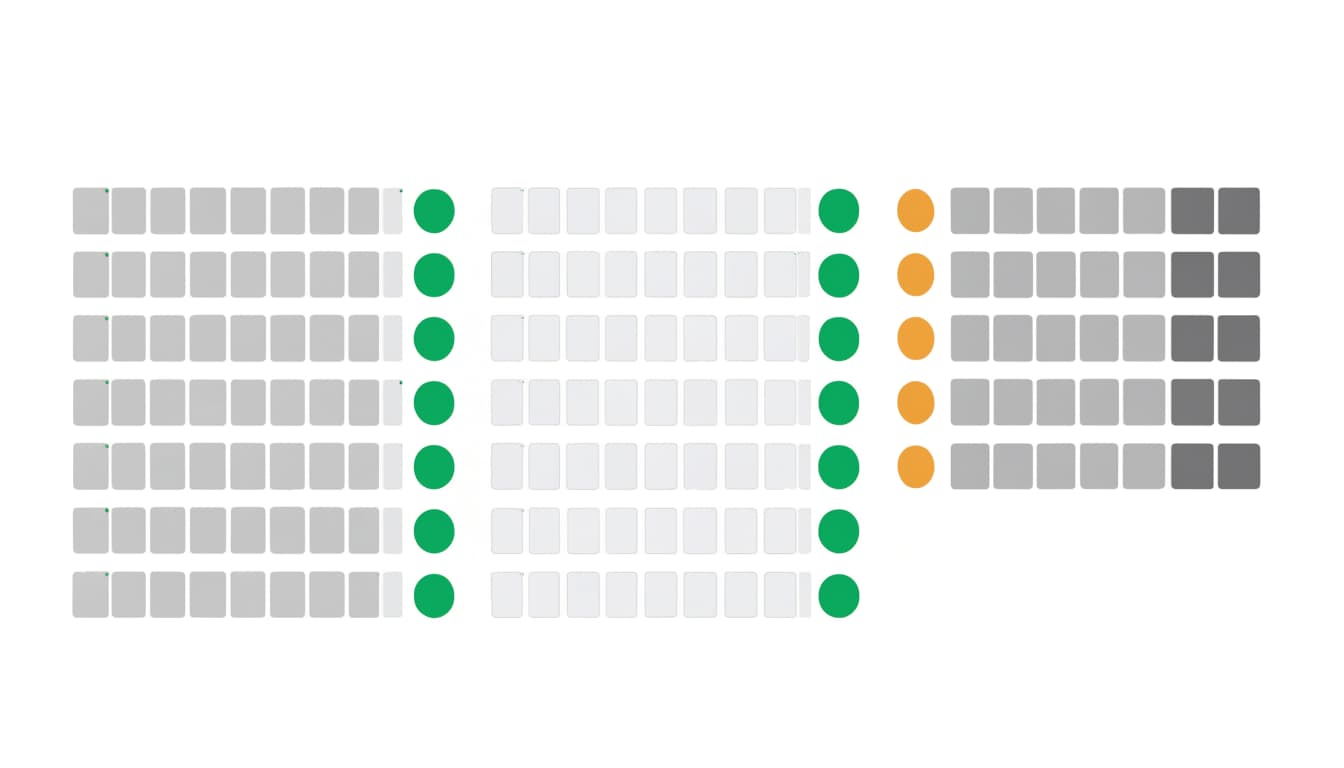
Group findings into service, location, case study, campaign, and conversion-confirmation templates. Then sort unexpected exclusions by likely lead value. One noindexed quote page deserves faster attention than dozens of intentionally excluded form confirmations.
Look for patterns before fixing URLs individually. If every newly published service page has the same directive, inspect the shared template or publishing settings. If only one page is affected, start with its page-level controls.
Compare the crawl with Google Search Console

Your crawler shows what it can fetch now. Google Search Console shows how Google has classified URLs it knows about. Compare both views rather than treating either as a complete account of the other. A crawl block directive can limit what Google fetches and assesses, but it doesn’t by itself remove a URL from results.
If you haven’t verified the right property or submitted a sitemap, start with Google Search Console setup for lead generation sites. Check that the property covers the live host you’re auditing.
Use the Page Indexing report to spot patterns

Open Pages in Search Console and review URLs reported as excluded by noindex. Compare the examples with your inventory: are they thank-you pages, or pages meant to bring in leads? ClickyOwl’s Google Search Console indexing report guide gives more context for the other statuses you may see.
Check the report’s trend around launches and migrations. A jump in excluded service URLs after a template release is more useful evidence than an isolated count. Remember that Search Console reporting can lag behind a live-site change.
Inspect affected URLs one by one
Use the URL inspection tool for a few high-value pages from each affected template. Review Google’s known indexing status, indexing permission, and canonical selection. Then run a live test to check the current version.
Record the index status beside the crawler finding in your site audit. If the live test no longer detects noindex but the report still shows an exclusion, Google may not have processed the change yet. If both still detect it, keep investigating. Once the live test confirms the URL is eligible, request indexing.
Trace unexpected noindex to its source

Find where the rule is generated before editing it. During your site audit, check whether it comes from a page directive, the robots.txt file, or a response header. A crawl block directive prevents crawling, but doesn’t remove a URL from search results. Otherwise, a page-level change may be overwritten by a template, plugin, or deployment. Save an affected URL and its response details for the person making the fix.
Check CMS and SEO plugin settings
In your content management system, inspect the site’s search visibility setting and the affected page’s controls. On WordPress, check Yoast SEO or Rank Math, both WordPress plugins. Also review page-level SEO settings, content-type, and taxonomy settings if a whole group of pages is excluded. Change only the setting responsible for the affected URLs.
After saving, clear relevant caches and inspect the live page again. An editor screen showing the right option doesn’t confirm what Googlebot receives.
Review templates, server rules, and deployments

For a template-wide problem, review templates, middleware, server configurations, and CDN rules that can add headers. Compare production with staging and check recent releases. Staging often needs exclusion, but that rule must not follow the site into production.
On larger sites, server logs can help confirm whether Googlebot has requested affected URLs since a release. Use Google Search Console Crawl Stats to review broader Googlebot request and server-response patterns.
Fix misconfigured directives safely

Remove an accidental noindex only from pages you want indexed, and leave deliberate exclusions in place. After each change, validate fix against the live response. Confirm the URL loads, remains crawlable, and no longer sends noindex in HTML or headers. Record the change in your site audit.
Don’t use a robots.txt file as a fix for an indexing issue. It controls crawling, but a crawl block directive doesn’t remove a URL from search engine results. It can also stop Google from reading a page’s noindex directive. The MDN robots meta documentation notes that the directive takes effect when a crawler revisits the page.
For duplicate content, decide whether both pages need to exist. Use canonical tags to identify a preferred crawlable URL, or redirect an old URL that no longer serves a purpose. Use noindex when a page should remain available but stay out of search, not to force Google to choose another canonical.
If CMS settings, server headers, and migration rules overlap, Get In Touch With Us to identify the source before changing more pages.
Verify the fix and monitor future releases
Validate fix effectiveness by recrawling the affected template group after deployment. Test at least one service page, location page, and intentionally excluded page where those types exist. This catches fixes that restore indexing to lead pages but accidentally expose thank-you pages. Confirm intended-to-index pages aren’t blocked by a crawl block directive.
Next, run a live URL Inspection test on priority pages and select Request indexing where appropriate. A request asks Google to recrawl, but doesn’t guarantee indexing, a ranking, or an immediate update. Keep corrected, canonical lead pages in your XML sitemap and leave noindexed pages out.
Watch the page indexing report and index status over subsequent crawls. Assess SEO performance by comparing organic traffic, impressions, and clicks in the Google Search Console Performance report. Then check whether enquiries reach your CRM. An indexed page helps only if visits can turn into qualified leads.
Make directive checks part of every template change, migration, and major campaign launch. A periodic site audit can catch older problems, while release checks catch new ones closer to their source.
Frequently asked questions
What does “Excluded by noindex tag” mean? Google found a directive telling it not to index the URL. Check whether that matches the page’s purpose before removing anything.
Can a header noindex a page without an HTML tag? Yes. An X-Robots-Tag HTTP response header can carry the directive. The robots meta and X-Robots-Tag guide explains how the two methods differ.
Why might a URL still appear after adding noindex? Google must crawl and revisit the URL to read noindex. Blocking it in a robots.txt file with a crawl block directive doesn’t remove it from search results, and processing takes time.
Should duplicate landing pages use noindex or canonical? If you want Google to understand which similar URL you prefer, use a canonical signal. Reserve noindex for a URL you don’t want indexed at all.
Conclusion

A sound audit protects the pages that bring in enquiries while leaving deliberate exclusions alone. Start with page purpose, trace unexpected directives to their source, and test the live response after each fix.
That turns a hidden indexing problem into a repeatable check your team can run as part of a site audit whenever the website changes.