
Google Merchant Center free listings let your online store show products across Google without paying for clicks. You need accurate product data, a claimed website, clear store policies and eligible products.
For a Kolkata business, this offers an additional sales channel without an advertising budget. However, approval gives you eligibility, not guaranteed traffic, so start with a reliable setup and measurement.
Key Takeaways
- Free listings don’t use bids, daily budgets or cost-per-click charges.
- New accounts normally have free listings enabled, but products still need approval.
- Accurate pricing, stock information, shipping and identifiers matter more than uploading a large catalog quickly.
- Measure impressions and clicks in Merchant Center, then use GA4 to understand website behaviour and sales.
How Google Merchant Center Free Listings Work

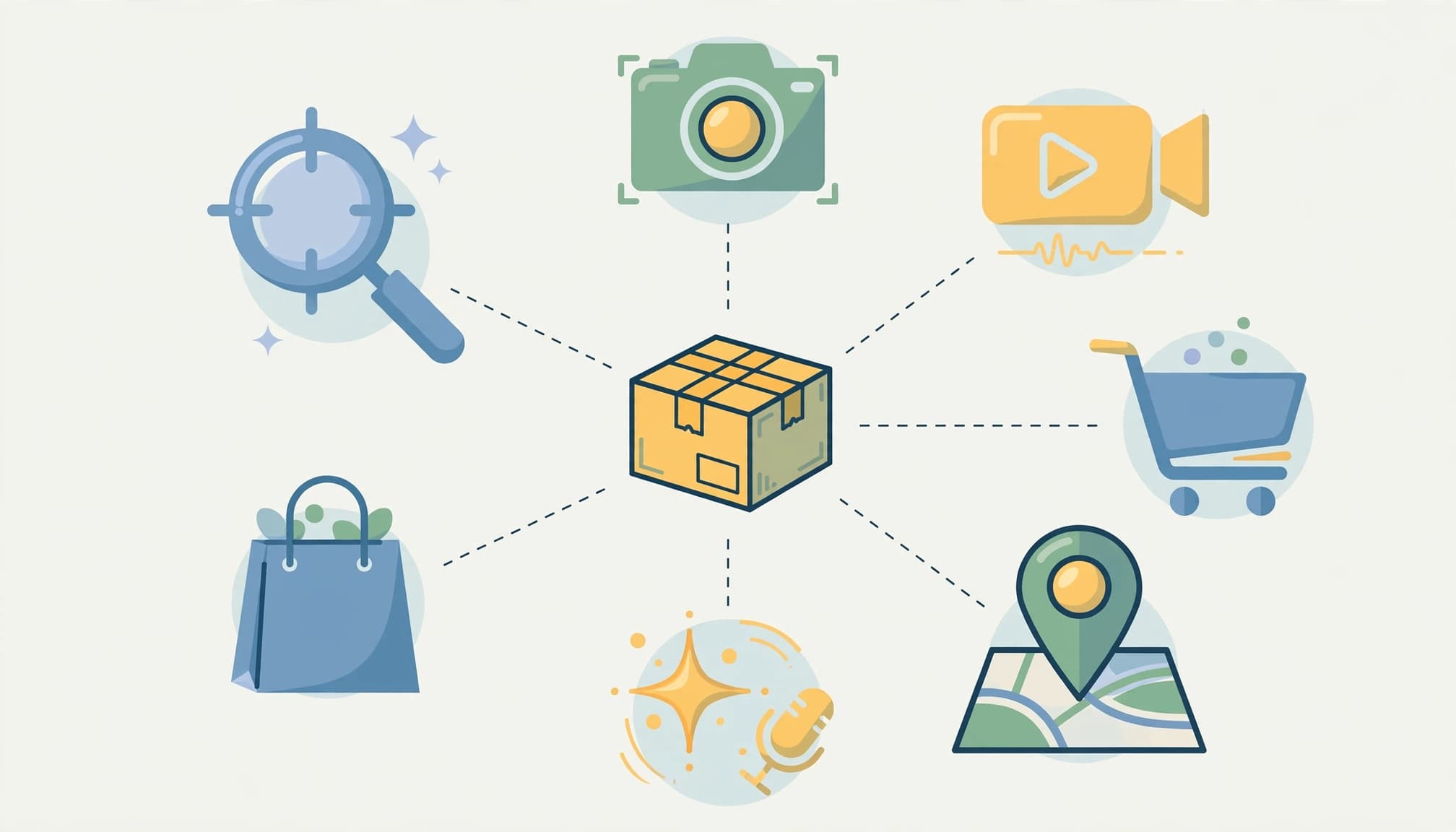
According to Google’s free listings guidance, eligible products can appear in Google Shopping and other organic shopping placements across Google Search, the Shopping tab, Google Images, Google Lens, YouTube, Gemini, Google Maps and the products module on Business Profile.
Google Shopping visibility through unpaid placements isn’t guaranteed. Eligibility varies by country, product and surface, so your catalog won’t automatically appear everywhere.
Eligible retailers can also use free local listings to show in-store availability where the option is available and local setup requirements are met.
Here’s the practical difference between unpaid listings and advertising.
| Feature | Free listings | Shopping ads |
|---|---|---|
| Click charges | None | Paid advertising |
| Bids and budgets | Not required | Campaign-controlled |
| Google Ads account | Not required | Required |
| Visibility | Based on eligibility and relevance | Also depends on campaign delivery |
Both use Merchant Center product data. However, enabling free listings doesn’t create a paid campaign.
SEO and feed quality help Google understand your products, but neither guarantees placement.
Prepare Your Account and Store Policies

Use a Google account controlled by your business. Keep administrator access even when an agency manages the setup.
Before submitting products, your website should have working checkout, accessible contact information and clear purchasing terms.
Step 1: Verify and Claim Your Website
Create your Merchant Center account and enter your business details, country and storefront URL.
Verification establishes that you control the website. Claiming connects it to your Merchant Center account. Only an administrator can verify and complete the website claim in Merchant Center Next.
Use the verification method offered for your account, such as your ecommerce platform connection or website verification.
Product links must lead to the claimed store. The product shown on the landing page must match the submitted item and variant.
Step 2: Add Shipping and Returns
Configure shipping services in Merchant Center’s shipping settings or submit shipping costs through product data. Shipping information is required in India and countries including the United States, United Kingdom, Canada and Australia.
For an India-focused store, use INR pricing and accurate delivery coverage. Don’t promise nationwide delivery if your courier setup excludes certain PIN codes.
Publish your return window, eligibility conditions, fees and refund process on your website. Also add these details in Merchant Center’s shipping and return policy settings.
Your policies and checkout charges should agree.
Connect Products and Enable Free Listings
Once your store details are ready, connect a product source and confirm participation.
- Connect your catalog. For Shopify, install the Google & YouTube channel and connect the correct Merchant Center account. Other stores can use supported integrations, files, or the Merchant API.
- Select the target market and synchronize your products. For domestic sales, submit India-focused availability, INR prices, and matching landing pages.
- Open Marketing, then Marketing methods. Find the Free listings card and review its status.
- Resolve account and product issues before evaluating traffic. A connected catalog can still contain disapproved items.
Free listings are enabled by default for new accounts in most cases. An active status allows Google to show eligible products, but it doesn’t guarantee impressions.
Shopify’s free product listings instructions describe its supported connection.
After synchronization, compare several live products with their Merchant Center records. Check variants, stock, and prices before treating the upload as complete.
Build Product Data Google Can Match

A product feed needs ongoing maintenance. Google uses these details to match items with relevant shopping searches.
Include Required Attributes and Identifiers
The core fields are id, title, link, image_link, price, description and availability.
For branded products, provide brand and the manufacturer’s gtin when assigned. Use mpn where the product has no GTIN. Never invent identifiers.
Google’s product data specification also defines conditional requirements. Submit condition for used or refurbished products. Apparel and Accessories need color and size, alongside applicable age-group and gender information.
Keep variant details consistent across the feed, product page and checkout. Each submitted size or colour must lead shoppers to the correct purchasable item.
Improve Titles and Product Images
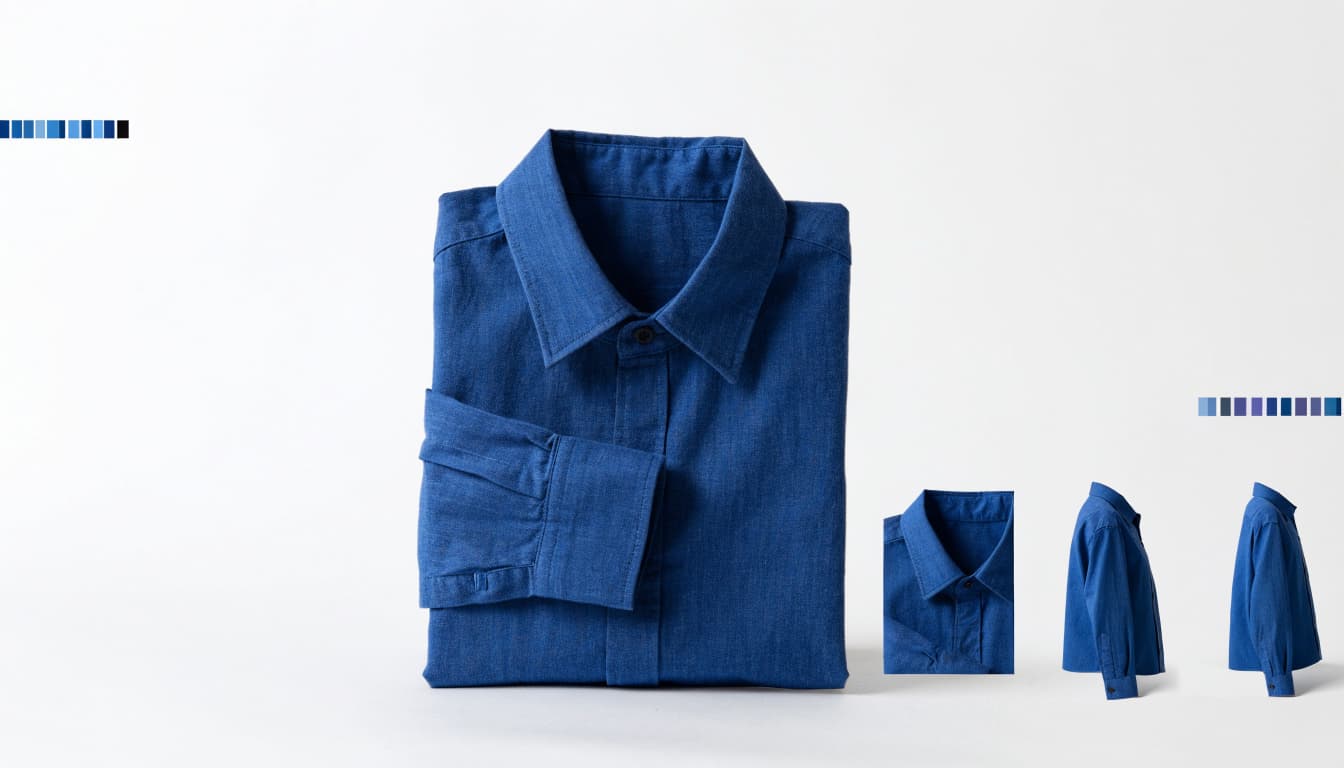
For product titles, identify the product, material, and relevant variant. A saree listing should describe its fabric and colour rather than rely on a vague collection name.
Google’s product title requirements explain how to identify items clearly. Avoid keyword repetition and promotional claims.
Use clean product images without watermarks, borders or promotional overlays. You can provide up to 10 additional images per product.
If Shopify data keeps conflicting with Merchant Center, our guide to fixing Shopify product feed errors covers common mismatches.
Diagnose Missing Impressions and Disapprovals
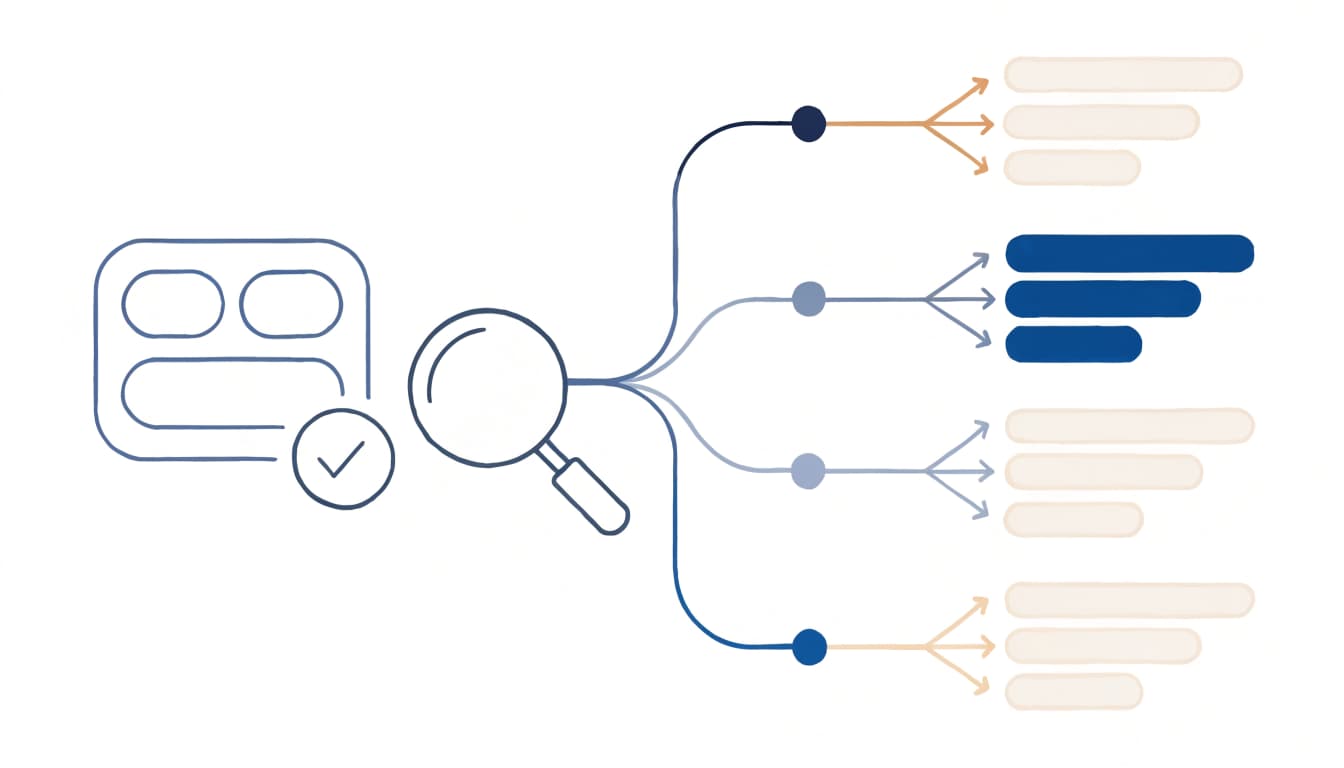
First, separate disapproval from low visibility. Disapproved products need corrections, while approved products may lack relevant exposure. Check current item-level issue details with product diagnostics in the Products area.
For zero impressions, inspect free-listing eligibility, target country, stock, product identifiers, and title relevance. Impressions without clicks can point to weak relevance, imagery, or an uncompetitive offer.
Approval confirms eligibility. Google still needs enough relevant product information to match an item with shoppers.
Resolve Duplicate Merchant Center Accounts
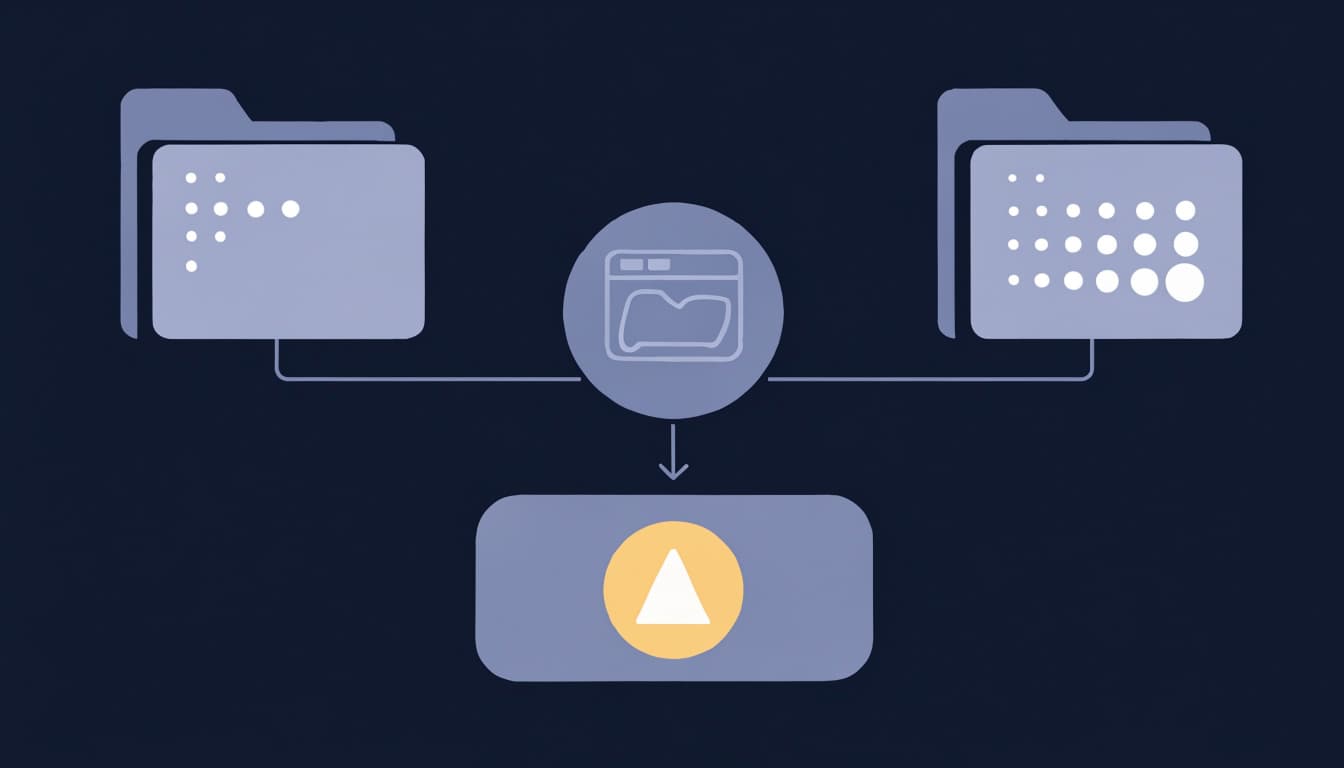
Multiple Merchant Center accounts submitting products for one domain can cause free-listing disapprovals. Google automatically selects the account with the most uploaded products for this purpose.
Check for accounts created by previous agencies, platform integrations, or former staff. Choose which account should manage the catalog, then resolve conflicting submissions.
Creating another account as a workaround can leave the ownership and duplication problem unresolved.
Request a Review After Fixing Issues
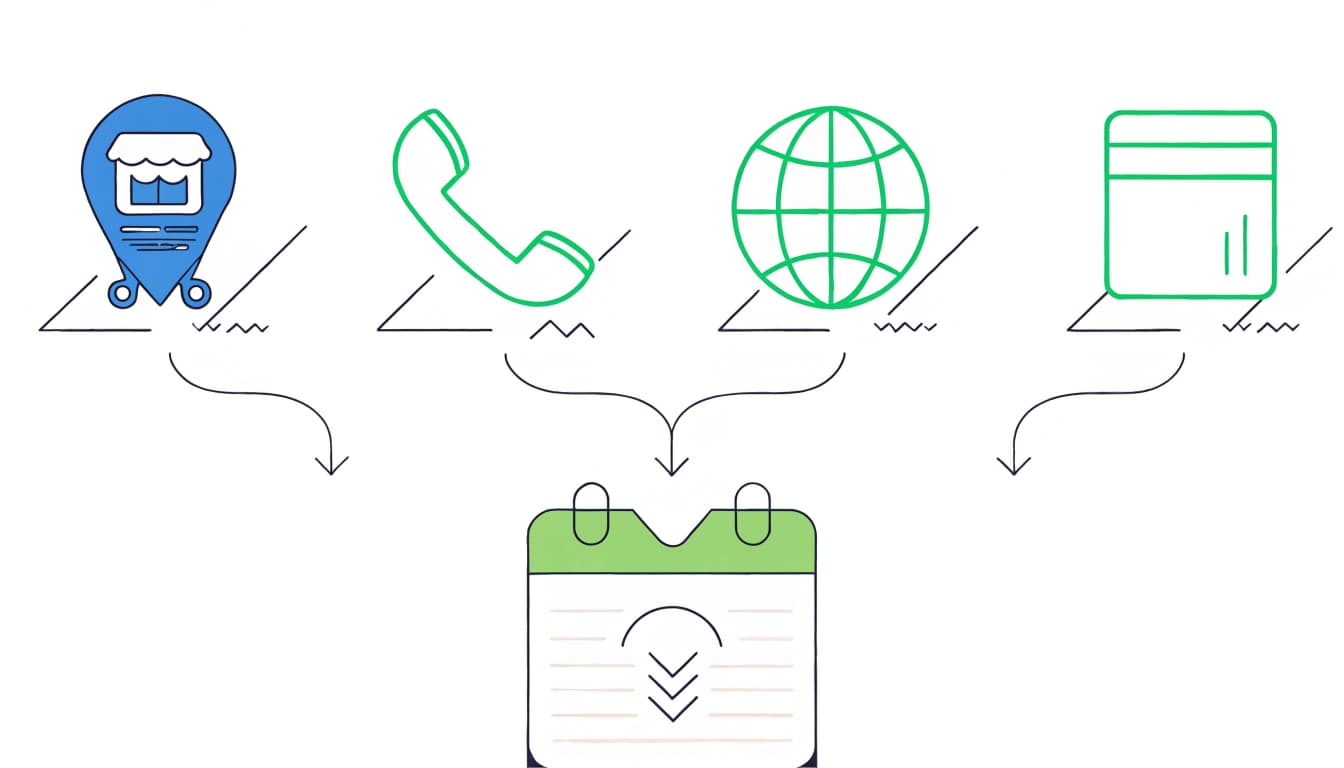
Before requesting a free-listings review, provide your business address, verify your phone number, claim your website, and upload products.
Fix the underlying policy or data problem first. A one-week cooldown applies before you can request another review.
For price and availability errors, compare the submitted feed with the live product page and checkout. For business-policy issues, update the website rather than repeatedly resubmitting unchanged products.
Measure Clicks and Sales Separately

Open Merchant Center’s Performance page and filter for free listings. Compare their impressions, clicks and click-through rate separately from paid Shopping and Performance Max campaigns.
Connect Merchant Center and GA4
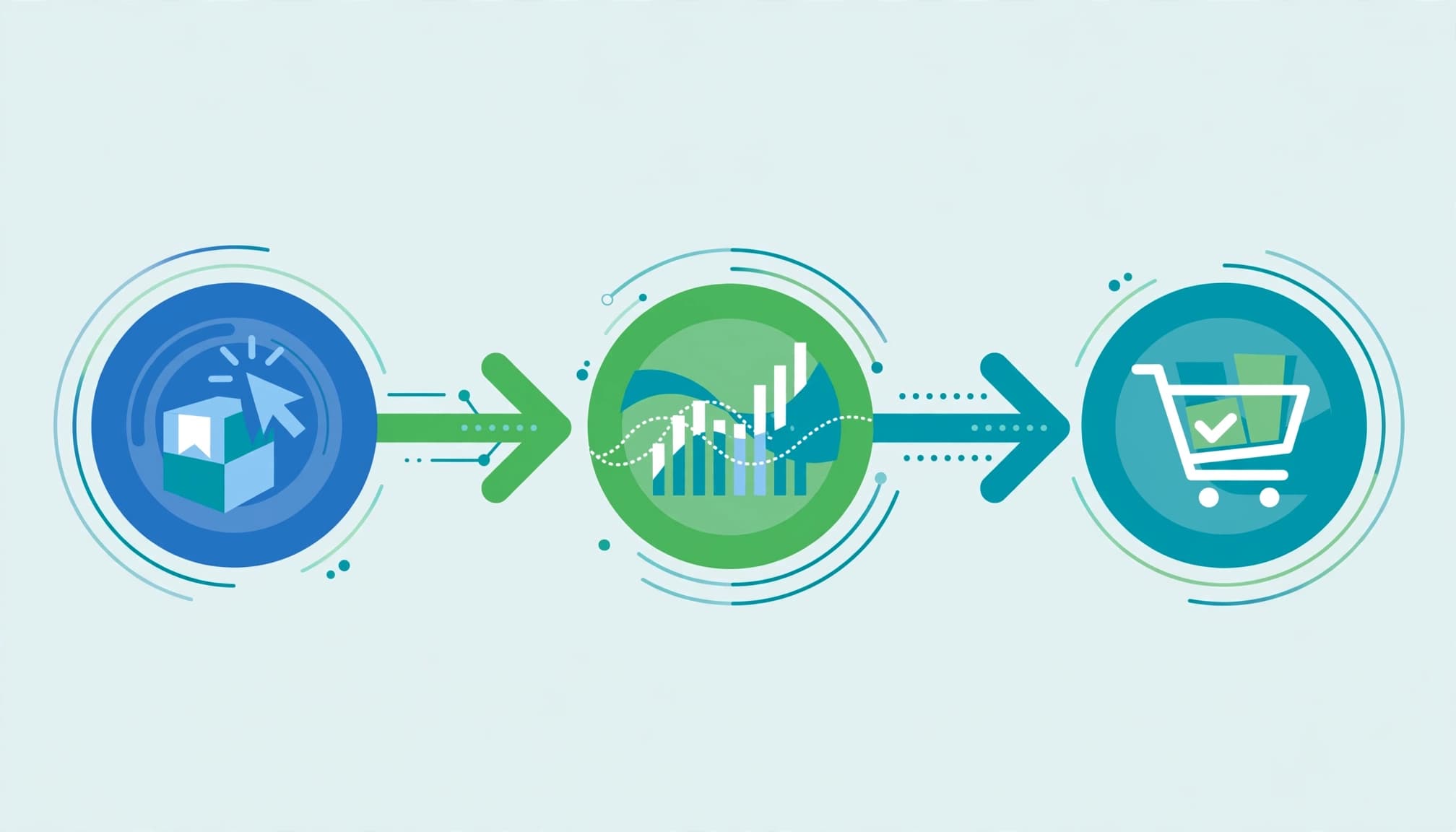
Link your Google Analytics 4 property to Merchant Center and configure ecommerce tracking. Account linking alone doesn’t create purchase events or repair broken attribution.
For Shopify, start with the Google & YouTube channel’s native GA4 connection. Use one purchase-event sender to avoid duplicate orders.
Test a completed purchase in GA4 DebugView. Inspect transaction_id, value, currency and items. INR orders should report INR.
Also test UPI, cards and cash on delivery where offered. A cash-on-delivery purchase event records an order, not collected payment.
Use Shopify as the order record and GA4 for acquisition and behavioural analysis. Their totals won’t always match.
Set Realistic Expectations for Results

Merchant anecdotes on Reddit range from zero unpaid clicks to free listings contributing 3% to 10% of sales. These are self-reports, not reliable forecasts.
Judge the channel against maintenance effort, relevant visits and profitable orders. If clicks arrive without purchases, investigate checkout and delivery costs before uploading more products.
Keep local advertising figures separate. Google reported 21% more store visits and 9% more online conversions for in-store products among retailers using local inventory ads alongside Shopping ads. The data covered July 2023 to July 2024, not free listings alone.
Update Older Feed Integrations

Google plans to sunset the Content API for Shopping on August 18, 2026. Developers who maintain custom integrations should migrate to the Merchant API.
For programmatic free-listing status, use the freelistingprogram.get method.
Most small retailers can use their platform’s supported integration instead of building a custom one. If a custom feed stops refreshing, Merchant Center may show outdated stock or pricing.
Frequently Asked Questions
Do I need Google Ads to use free listings?
No. Free listings don’t require a Google Ads account or advertising spend. Your platform, feed software or agency may charge separately.
Can a Kolkata store sell across India through free listings?
Yes, provided its products, website and shipping coverage meet the relevant requirements. Accurate delivery coverage matters more than the business’s home city.
Will paying for Shopping ads fix free-listing disapprovals?
No. Advertising spend doesn’t remove policy violations, ownership conflicts or incorrect product data.
Start With an Accurate, Measurable Catalog
Free listings give your store another route to shoppers without click charges. Start with accurate product data, complete policies and trustworthy purchase tracking.
Then use impressions, clicks and actual orders to decide where further effort belongs.
If you need help connecting your catalog and measuring results, Get In Touch With Us.