

Your lead numbers can look strong while booked calls stay flat. That is often not growth; it is the same form fill counted twice, sometimes three times, across GA4, Google Ads, and your CRM.
That mismatch hurts faster in 2026 because most lead gen stacks are more layered. Consent mode, GTM, native form integrations, server-side tagging, and offline imports can all touch the same event. These duplicate events often stem from complex implementation overlaps. The fix starts with finding the one path that should own each conversion to resolve these GA4 duplicate conversions once and for all.
Key Takeaways
- Identify the source of truth: Compare GA4 lead counts against your CRM or email logs to confirm if inflation is due to technical duplication rather than an actual increase in lead volume.
- Establish single-event ownership: Prevent overlap by assigning one specific system (like GTM or a server-side endpoint) to own the conversion event, ensuring other systems only listen rather than trigger their own events.
- Implement unique transaction IDs: Use unique identifiers for every lead—similar to ecommerce transaction IDs—to prevent duplicate submissions or page reloads from firing redundant events.
- Audit GTM and tag configurations: Remove hardcoded tags that conflict with GTM containers, refine triggers to ensure one action leads to exactly one tag, and limit access to tag management to maintain data integrity over time.
Why duplicate leads are more damaging in 2026
GA4 now labels conversions as key events, but lead teams still judge success by conversion counts. When those counts are inflated, cost per lead looks better than reality. Sales blames lead quality, while the real problem sits in tracking. Unlike the reporting structures common in Universal Analytics, modern tracking often suffers from double counting that distorts your performance metrics.
Broken measurement also spills into channel planning. It skews digital marketing decisions across SEO, performance marketing, social media marketing, and website development. A landing page can look like a winner in organic search, paid search, or AI-assisted discovery when it simply fires duplicate events twice. This lack of data accuracy forces teams to make high-stakes budget decisions based on phantom metrics.
Inflated leads also corrupt automated bidding. If Google Ads learns from imported duplicate events, it chases the wrong clicks. That can hide poor query fit for weeks and ruin the integrity of your conversion funnel.
False wins hurt content teams, too. Pages built for SEO, GEO, and AEO need clean lead data. Otherwise, the wrong page gets more budget, more links, and more copy updates.
Lead gen sites feel this harder than ecommerce in one way. Many leads do not have a neat transaction record. Instead, you might rely on a form tool, call tracking platform, booking app, and CRM. If those systems are not aligned, GA4 becomes the loudest voice in the room, even when it is wrong.
The good news is that these conversion errors usually come from a short list of issues. You can isolate them, fix them, and keep attribution intact.
Confirm the problem before touching tags
First, compare GA4 against a source of truth. For forms, that is usually the form backend, CRM lead table, or email log. For calls, use answered calls that hit your quality threshold. If GA4 is consistently higher, you likely have duplication.
This quick check helps separate tracking inflation from a real lead spike.
| Compare | Healthy pattern | Red flag |
|---|---|---|
| GA4 form_submit vs CRM records | Counts stay close after normal lag | GA4 runs far higher |
| GA4 phone leads vs call log | Similar totals after spam filtering | GA4 counts extra short calls or repeat fires |
| GA4 thank-you views vs submitted forms | Nearly one to one | Thank you page reloads create extra conversions |
Then test one conversion by hand. Use GTM preview mode and GA4 DebugView to verify your setup. If you want a refresher on debugging conversion tracking in GA4 and GTM, that walkthrough matches the same process. Submit one form, then watch how many events fire and which tags within Google Tag Manager trigger them.
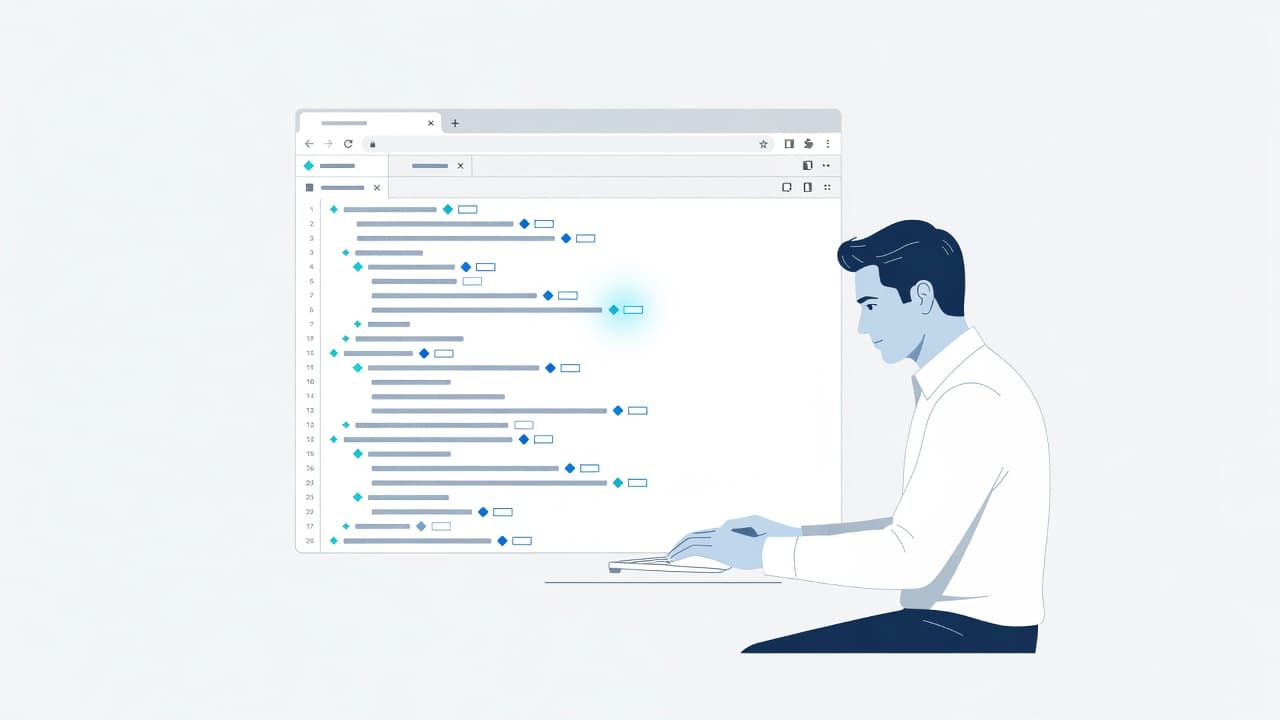
If you export GA4 data to BigQuery, check your BigQuery export for duplicate events with the same name from the same user within a short window, often 30 seconds or less. That pattern often exposes duplicate events that standard reports hide. Also open the browser Network tab and look for redundant requests to Google Analytics tied to the same lead action.
Don’t start editing tags the moment you spot a mismatch. Capture the current setup first. Save screenshots of tags, triggers, event names, imports, and thank you page behavior. A change log will save you later if one fix creates a new gap.
The usual causes behind GA4 double counting
The most common issue is double tagging, where a site sends data from both hardcoded GA4 and Google Tag Manager. Because each system operates independently, both report the same lead.
Another frequent problem is overlapping logic inside GTM. If you have improperly configured tag triggers, one tag might fire on a form submit, another on a button click, and a third on a thank-you page. A single user interaction then registers as multiple conversions. When these duplicate events are imported into Google Ads, reporting data becomes unreliable. If one lead triggers via a submit click, form success, and page view events, you have a tracking issue rather than three distinct leads.
Custom GA4 configurations can also collide with built-in features. The GA4 Create event feature may replicate an event that GTM is already sending, while Enhanced Measurement can add another layer of complexity if you are also tracking the same click or page interaction manually. On some sites, a redundant GTM container loads twice after a redesign or CMS migration, causing various tracking snippets to conflict.
CMS plugins often inject tracking code automatically, which can result in GA4 being added to every page while a manual GTM configuration tag performs the same task. This overlap happens more often than teams admit after a site migration.
Lead gen sites contain a few extra traps. Form vendors often ship native GA4 events that conflict with your setup. Call tracking platforms may post leads server-side while the website simultaneously fires a front-end event. Furthermore, teams sometimes import a GA4 conversion into Google Ads while keeping the native Ads tag live. A recent guide to fixing Google Ads conversion tracking covers how these duplicate events create massive discrepancies across platforms.
How to fix the duplicate path without losing attribution
The cleanest repair starts with one owner per lead action. Decide which system fires the primary event. For most sites, Google Tag Manager or a server-side endpoint should own it. Everything else should listen, not create duplicate events.
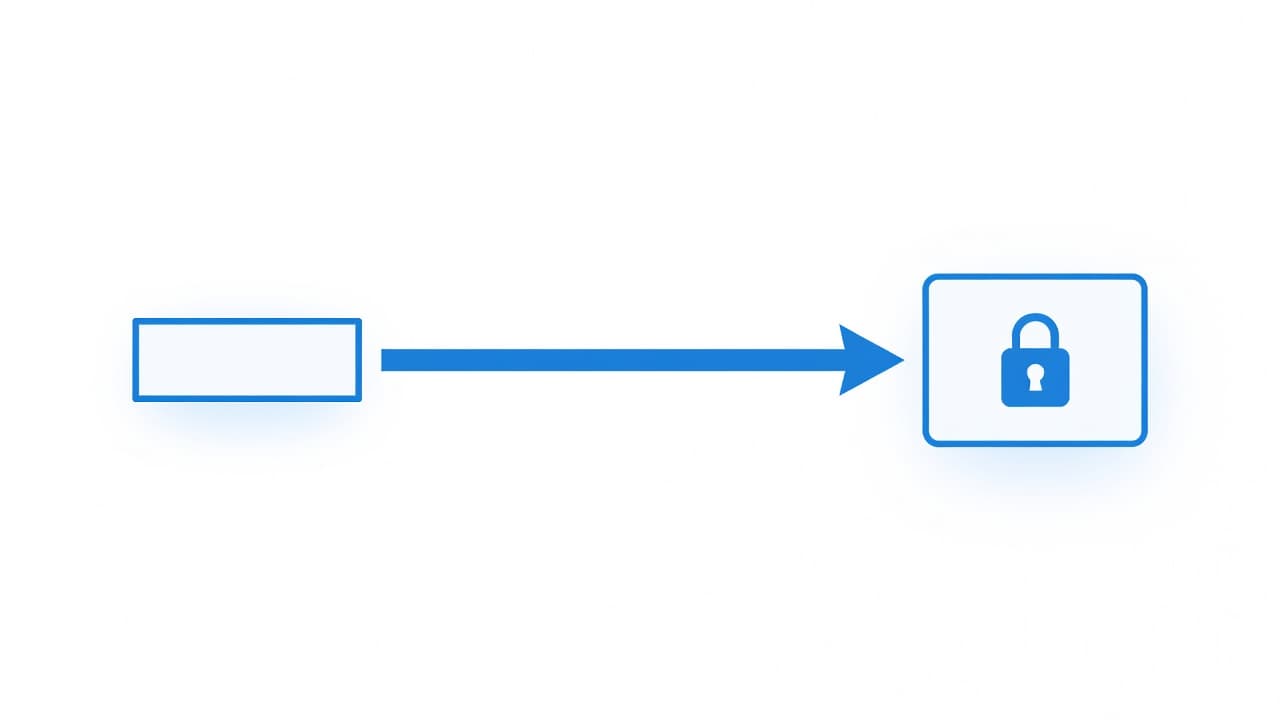
Next, give every lead a unique ID. Ecommerce uses a transaction ID, and you should adopt this same logic for lead generation. Use a form submission ID, a CRM lead ID, or a server-generated transaction ID, and pass it into the dataLayer.push event. If the same ID appears twice, your system should reject the second fire, effectively preventing duplicate events from inflating your data.
A practical fix usually follows this order:
- Remove hardcoded GA4 tags if Google Tag Manager already handles them.
- Tighten tag triggers so one action matches one tag.
- Delete GA4 create-event rules that clone an existing event.
- Turn off overlapping Enhanced Measurement options.
- Stop importing the same lead through two ad-platform paths.
If reported leads drop after the fix, you probably removed inflation, not demand.
Refresh behavior needs special care on lead gen sites. A confirmation page should not fire a fresh conversion every time someone reloads it. To mitigate thank you page reloads, use tag sequencing to ensure tags fire in the correct order, or store the lead ID in the browser to block redundant signals. For single-page applications, monitor state changes carefully to ensure your tag triggers only fire once per interaction.
If you handle lead tracking across multiple platforms, use the Measurement Protocol to verify server-side signals and ensure your attribution remains accurate. If your GA4, Google Ads, CRM, and landing pages all disagree, the problem is larger than one tag. That is when it helps to Get In Touch With Us before more edits cause further duplicate events to spread into your reports.
Validate the repair and keep it from coming back
After implementing your fix, run the same lead test three ways. Submit the form, refresh the confirmation page, then hit the back button to submit again. GA4 should count exactly one conversion. Use GA4 DebugView and GTM preview mode to confirm that the trigger fires only once. You should see a single conversion event, rather than duplicate events, and verify that your CRM shows only one lead record.
When testing, distinguish between purchase events and page view events. If you are tracking lead submissions as purchase events, ensure your JavaScript cookies are correctly flagging the session to prevent double counting. This is especially critical for single-page applications where page view events might not trigger a full browser reload.
Then, validate reporting across systems. Compare daily GA4 lead counts with CRM totals for a full week. Lag is common, and checking a larger sample size helps identify if duplicate events are still slipping through. If you use Google Ads, confirm your imported conversion action and the native Ads tag are not both marked as primary. Additionally, check if Enhanced Measurement is automatically capturing form interactions, as this often conflicts with custom tag triggers and leads to inflated numbers.
Teams often fix the tag but ignore governance, which is why issues return after a site update. Secure your GTM container by limiting who can change your Google Tag Manager setup, tag triggers, and configuration. Maintain an audit trail with the tag name, event name, date, and approver. This habit is vital when a website development release changes a form or a new campaign launches.
If your reporting stack is under a privacy review, compare privacy-focused analytics alternatives before adding more tools. Adding complexity does not fix broken ownership; a clean source of truth does.
Clean conversion data makes channel decisions sharper. You can accurately judge which landing pages drive real leads, which paid campaigns deserve more budget, and which content earns trust in search and AI answers. That is the ultimate goal of fixing GA4 duplicate conversions.
Frequently Asked Questions
How can I tell if my GA4 conversions are duplicates?
Compare your GA4 conversion counts against your actual lead records in your CRM or email inbox over a specific time period. If GA4 consistently reports significantly higher numbers than your confirmed lead volume, you are likely experiencing tracking duplication.
Why does refreshing a thank-you page cause duplicate conversions?
If your conversion tag is configured to fire on a page view of a ‘thank-you’ or confirmation page, every time a user refreshes or revisits that URL, the browser re-triggers the tag. You should instead use GTM triggers that look for specific interaction events or implement session-based storage to ensure the tag only fires once per unique lead ID.
Does disabling enhanced measurement in GA4 help?
It might, especially if you have custom GTM tags already tracking the same form submissions or clicks. Enhanced Measurement can sometimes automatically capture these interactions, creating a conflict; disabling it is a common step when cleaning up redundant event triggers.
How do duplicate conversions affect Google Ads bidding?
Google Ads uses conversion data to inform its automated bidding algorithms. If you feed it inflated, duplicate conversion data, the system optimizes for phantom leads, potentially wasting your budget on low-quality traffic and preventing the AI from accurately learning what a real lead looks like.
Conclusion
Duplicate conversions do more than inflate a dashboard. They push bad decisions into bidding, content, and sales follow-up, creating a persistent headache for marketers who grew accustomed to the simpler tracking logic of Universal Analytics.
The fix is usually simple once you trace the event path. By ensuring you pass a unique transaction ID and utilizing the Measurement Protocol to filter incoming data, you can successfully eliminate duplicate events at the source. When your purchase events are properly deduplicated and verified against a real source of truth, every channel report finally starts telling the same consistent story. Keep your data clean, and your optimization strategy will be far more effective.