

Shopify products aren’t showing on Google because their pages haven’t been indexed, aren’t ranking for your searches, or aren’t eligible for Shopping listings. These are separate problems, and each needs a different fix.
A live Shopify store doesn’t automatically make every product discoverable. Start with one affected product URL, then trace whether the problem sits in Search Console, your store settings, or Merchant Center.
Follow these checks in order so you fix the cause before changing apps or spending on ads.
1. Identify Which Google Result Is Missing
Separate organic results, free listings, and ads
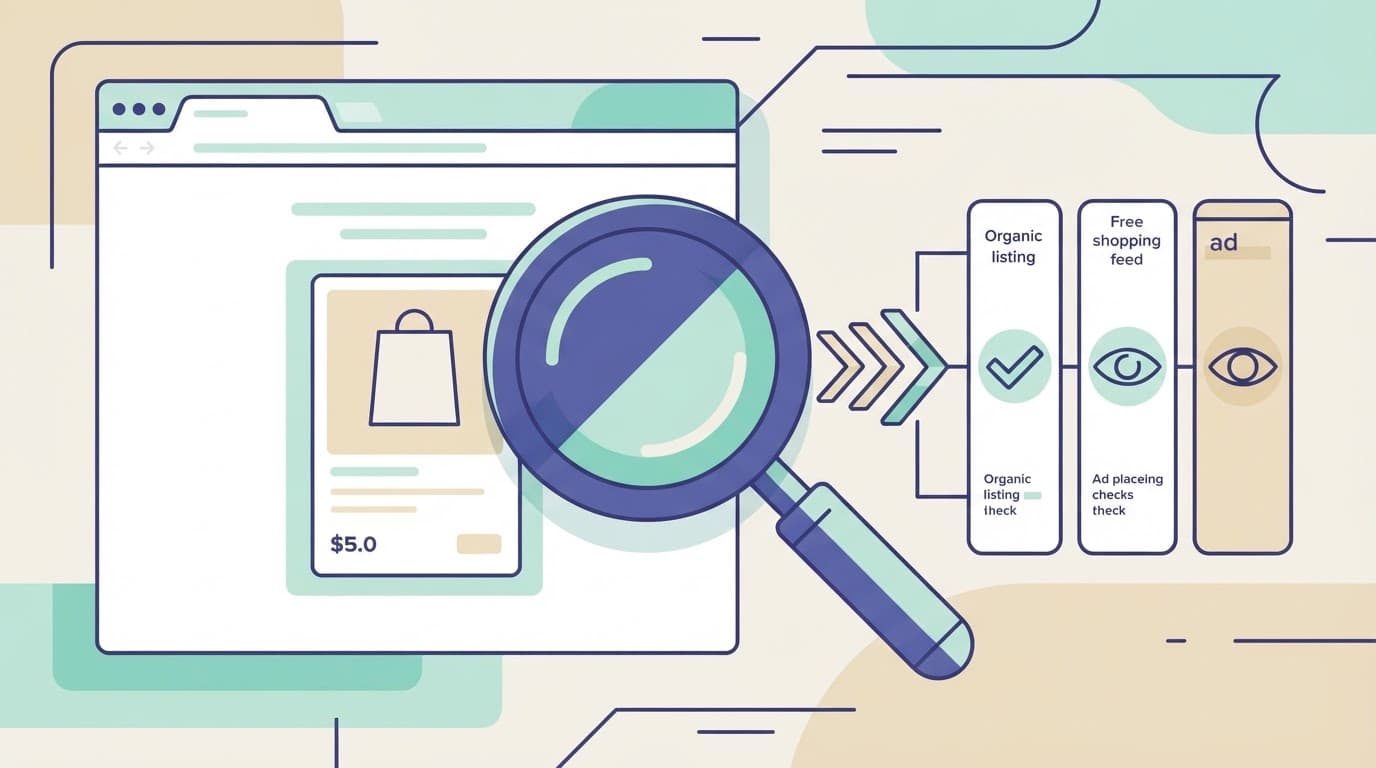
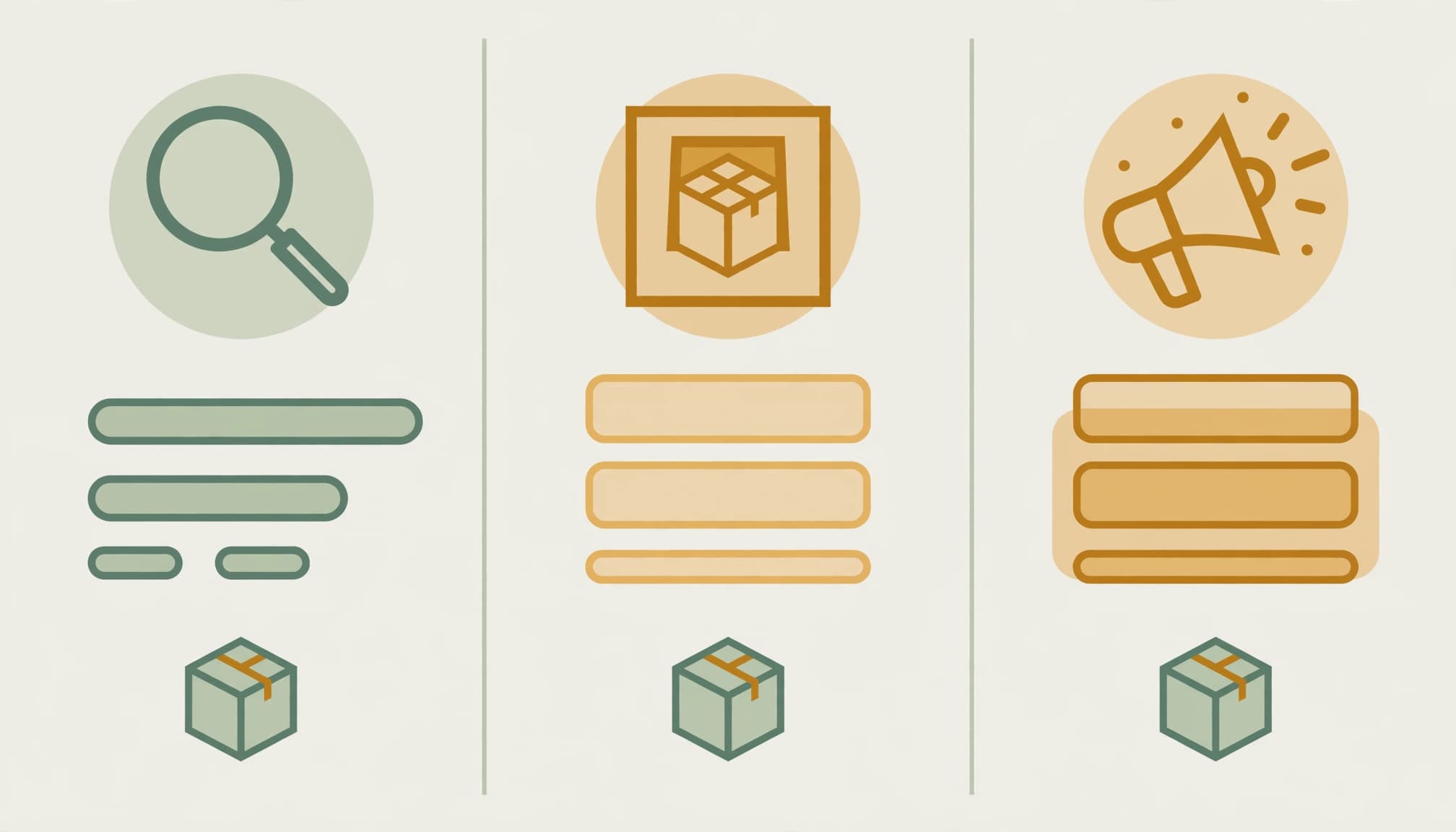
Organic search results depend on Google discovering, crawling, and indexing your product pages. Ranking then determines which searches bring those pages visibility.
Google Shopping free listings depend on product eligibility and Merchant Center data. Shopping ads also require a working Google Ads setup, including campaign eligibility and billing.
Therefore, an approved Merchant Center product can still rank poorly in ordinary search. Similarly, an indexed product page can have a disapproved Shopping offer.
Test the product URL directly
Search Google using site:yourdomain.com for a quick indication of indexed pages. However, this search isn’t a complete inventory.
For a clearer answer, paste the exact product URL into the URL Inspection tool in Google Search Console.
If it isn’t indexed, follow steps two and three. If it’s indexed but receives few impressions, move to step four. If Shopping is missing, use step five.
For products that disappeared suddenly, also review recent theme changes, redirects, and Search Console’s Manual actions report. Duplicate content alone doesn’t establish a penalty.
2. Remove Blocks Preventing Product Indexing

Make the storefront publicly accessible

Turn off storefront password protection in Shopify admin before expecting Google to crawl your products. Then open the product URL in an incognito window. It should load without a password or customer login.
Also confirm the product is published to the Online Store sales channel.
Shopify’s Unlisted status deliberately hides products from internet search, the store sitemap, Shopify-powered search results, and collection pages. According to Shopify’s product status documentation, these products remain accessible through their direct URLs. Change the status if public discovery is your goal.
Find noindex and robots.txt blocks
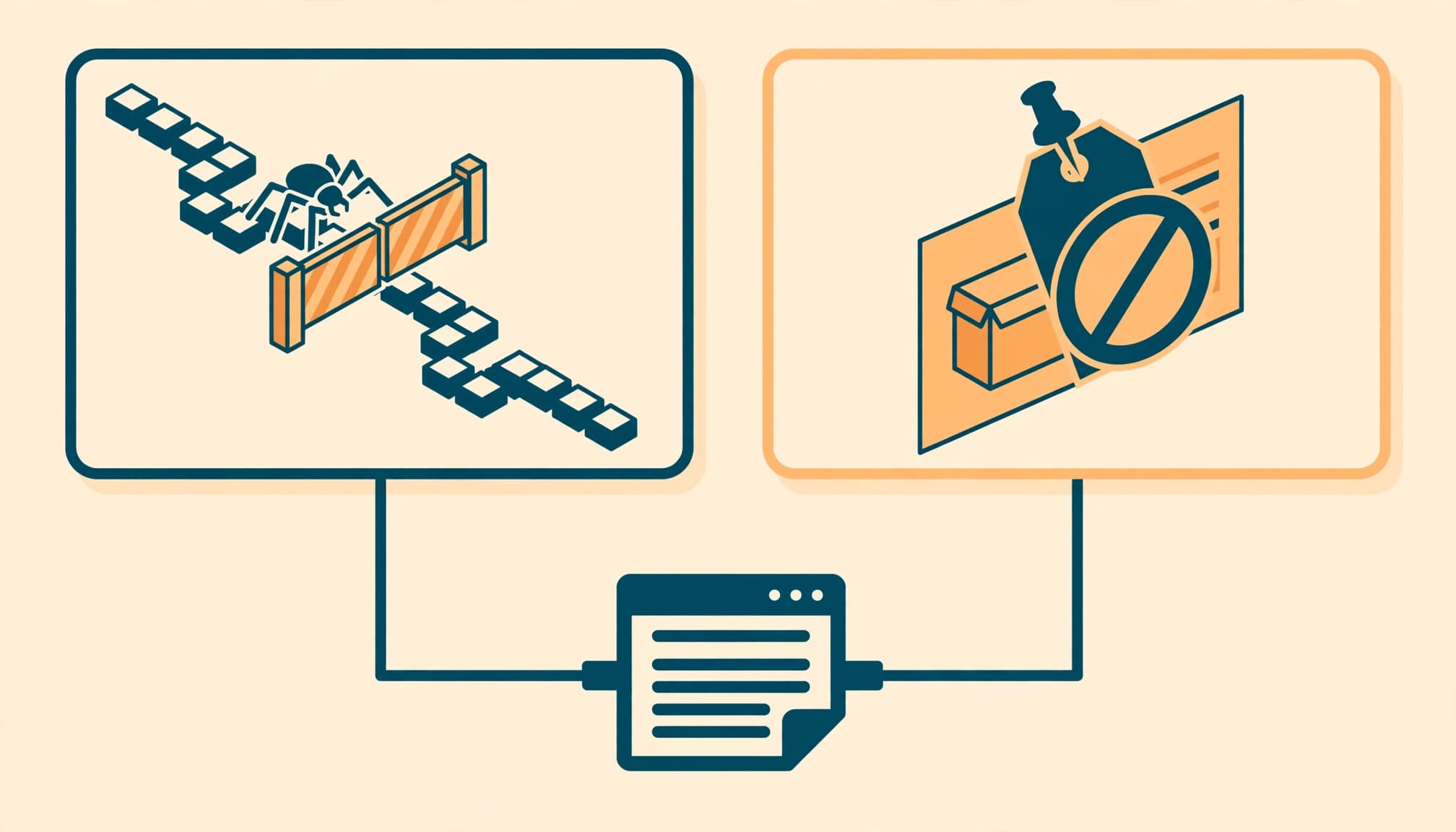
Inspect the product’s HTML for an unexpected noindex directive. Check HTTP headers too, because an X-Robots-Tag can block indexing.
Next, examine yourdomain.com/robots.txt for custom rules blocking product URLs. Themes and SEO apps can introduce unwanted directives after updates.
These controls have different jobs: robots.txt restricts crawling, while noindex prevents indexing. Google must be able to crawl a page to process its noindex directive.
Remove accidental blocks at their source rather than deleting Shopify’s default robots.txt rules wholesale. Also repair product URLs that return errors or redirect to unrelated pages.
3. Submit Shopify’s Sitemap and Align URL Signals

Verify Search Console and submit sitemap.xml
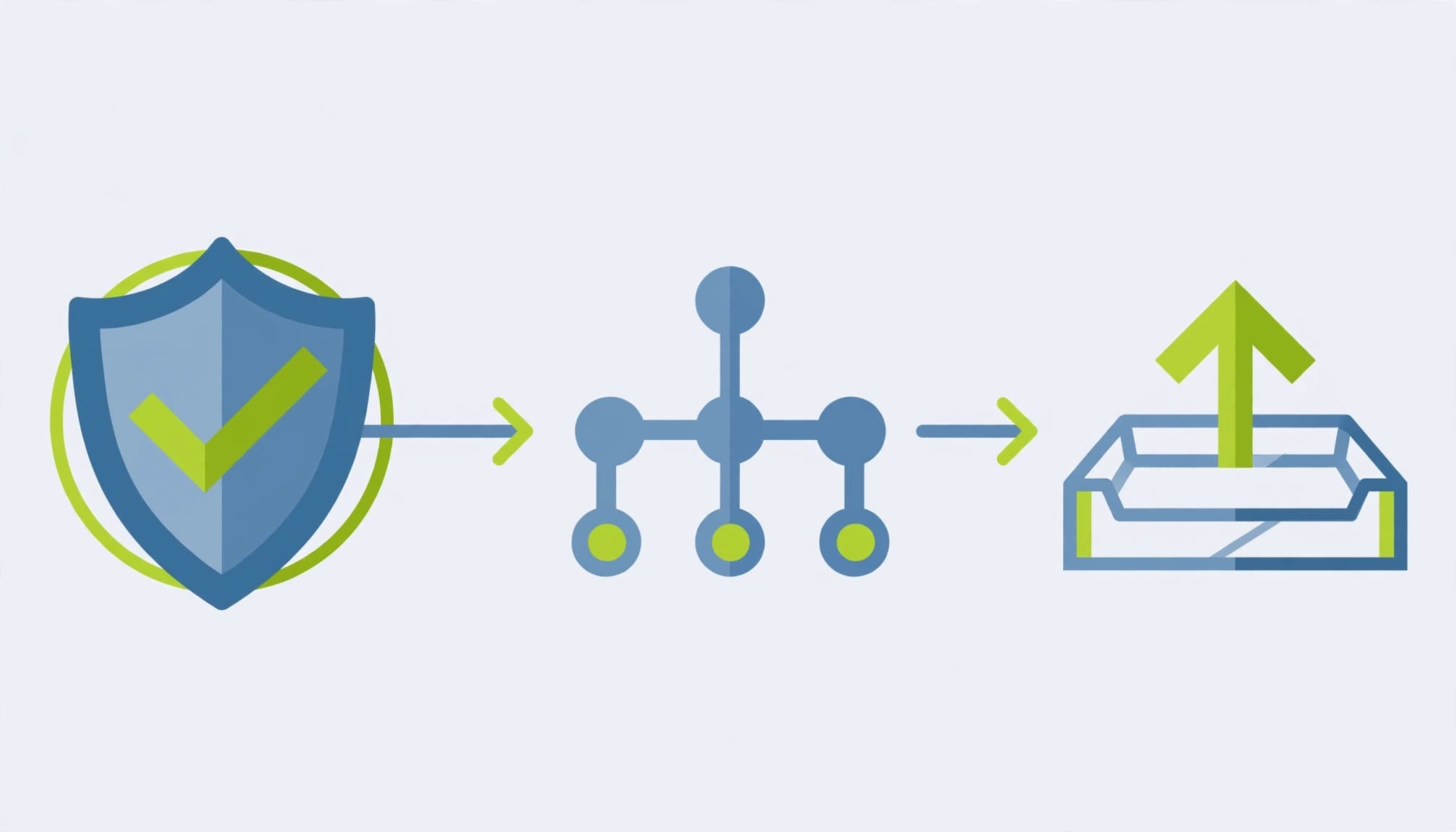
Shopify automatically generates sitemap.xml. It includes products, primary product images, pages, collections, and blog posts.
First, verify ownership in Search Console. Google offers HTML-file uploads, homepage HTML-tag verification, and eligible Google Analytics tracking-code verification. On Shopify, use a supported method such as adding the HTML tag to your theme or verifying DNS, rather than assuming root-file uploads are available.
Then open Indexing > Sitemaps, enter sitemap.xml, and submit it. Shopify’s sitemap submission instructions describe the process.
Submission helps discovery; it doesn’t guarantee indexing.
Align canonical tags and internal links
Use the URL Inspection tool to compare the user-declared canonical with Google’s selected canonical. Google can choose a different URL when signals conflict.
Your canonical tags, sitemap entries, and internal links should consistently favour one preferred product URL. Our canonical tag audit guide covers conflicting signals.
Also link products through relevant collections and related-product sections. A product accessible only through a direct URL has a weak discovery path.
Variant selection URLs don’t automatically need separate indexed listings. Preserve separate pages only when they serve a useful search purpose.
4. Improve Indexed Products That Don’t Rank

If Search Console confirms the product page is indexed, repeatedly requesting indexing won’t solve weak rankings. Use product-level Shopify SEO to filter the Performance report by product URL and review its queries, impressions, and average position.
Make the title describe the actual product. Add original details about materials, dimensions, care, fit, and delivery where relevant. Supplier descriptions often leave shoppers without enough information to choose.
For Kolkata businesses selling across India, explain domestic delivery and availability clearly. Add location wording only when it genuinely describes the offer.
Broader searches may suit a collection page better than an individual item. Our Shopify collection SEO guide explains how to give those pages distinct buying purposes.
Then address mobile performance and page speed. Shopify has cited a 1.65-second average load time for first-page websites, but that isn’t a Google ranking threshold.
Use PageSpeed Insights and Search Console’s Core Web Vitals guidance to identify slow loading, poor responsiveness, and layout shifts. Prioritize oversized product images and unnecessary app scripts.
Accurate structured data also helps Google understand the offer. Our product schema markup guide explains how to align markup with visible product details. Passing validation doesn’t guarantee rich results.
Finally, earn relevant backlinks through genuine supplier relationships, coverage, or useful resources. Buying links won’t repair technical exclusions or weak product information.
5. Troubleshoot Products Missing From Google Shopping
Confirm channel connection and product sync
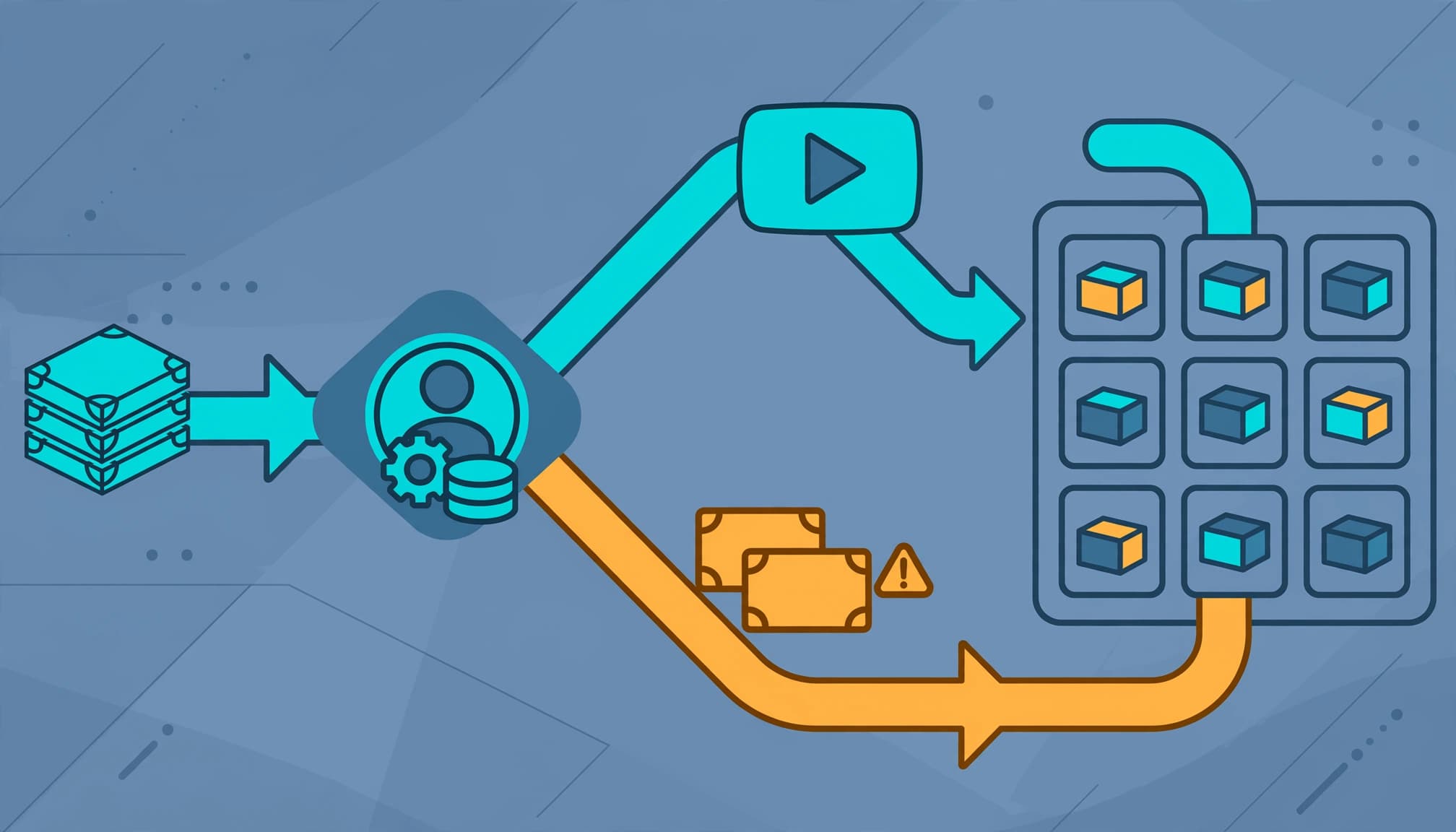
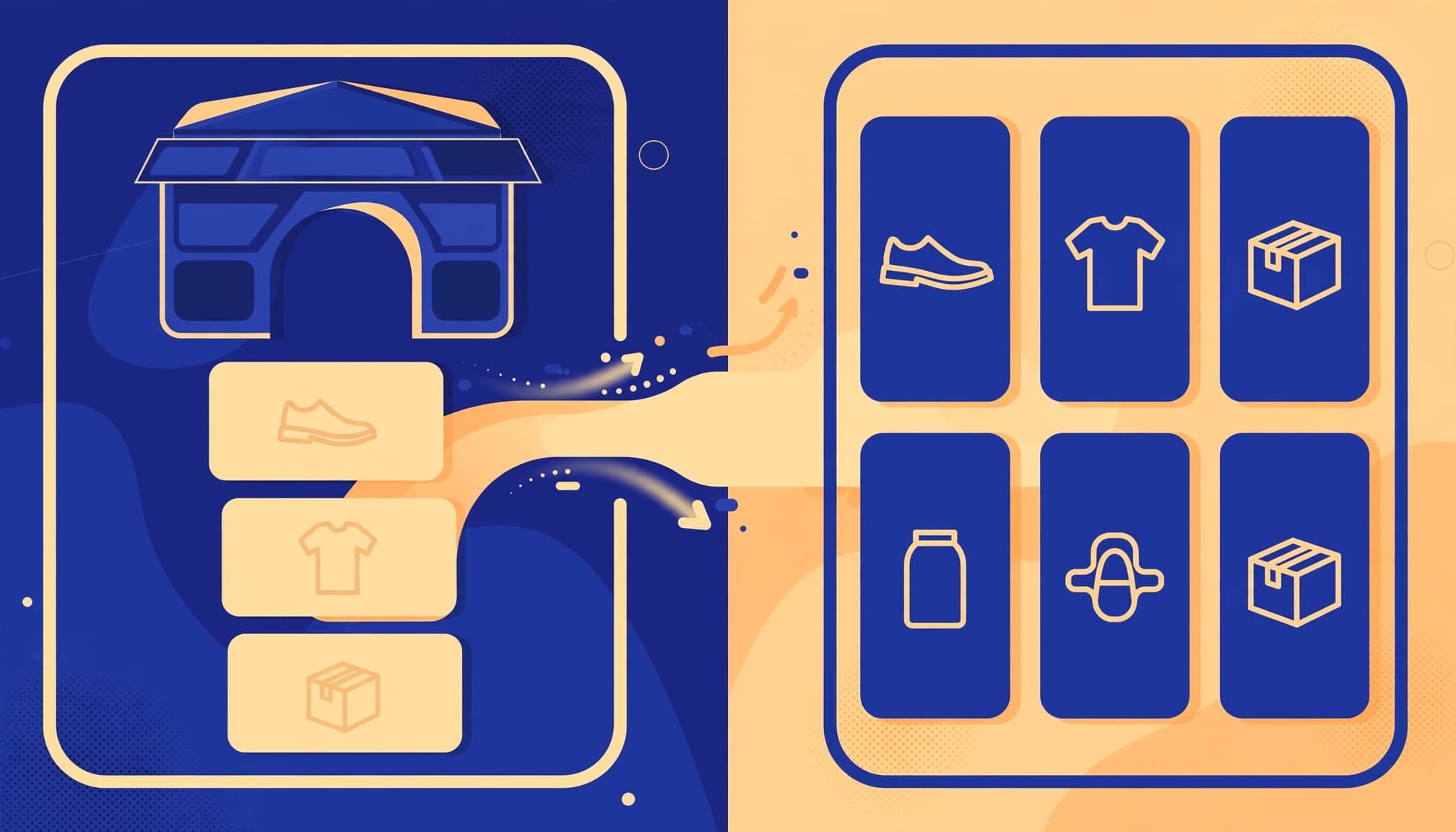
In Shopify, connect the Google & YouTube channel to the correct Google Merchant Center account. Confirm that affected products are available to the channel and have synced.
For domestic sales, use India targeting, INR prices, and matching landing pages.
A third-party sync app running alongside the official channel can submit the same product twice under different item IDs. Identify the intended source before removing duplicate submissions. Reinstalling apps blindly can complicate the problem.
Match submitted data to the landing page
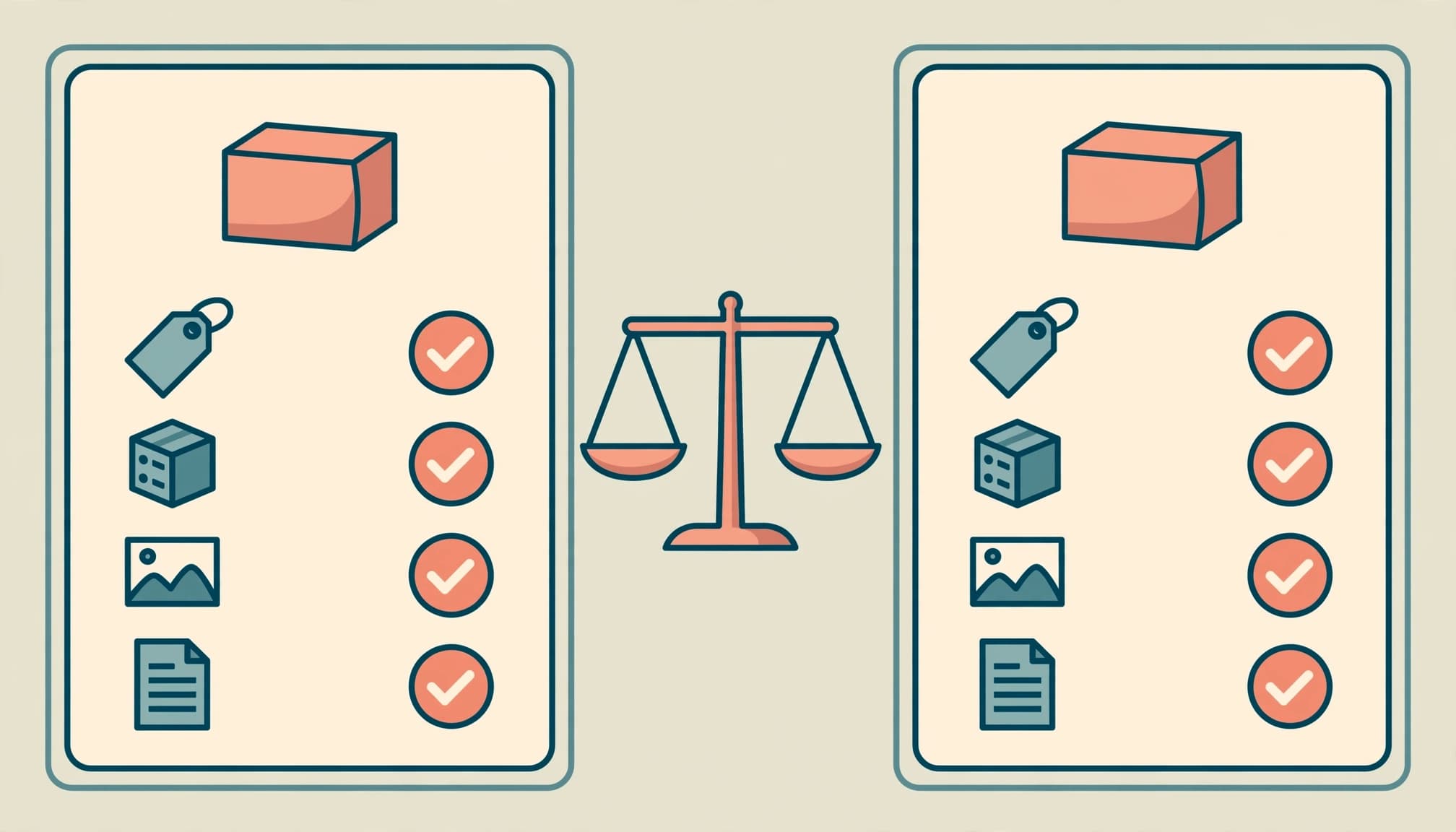
Merchant Center’s product visibility statuses help identify the next action.
| Status | What it means |
|---|---|
| Processing | Submitted data is being processed. |
| Under review | Google is evaluating eligibility. |
| Approved | Merchant Center approval establishes eligibility, but doesn’t guarantee exposure. |
| Limited | Visibility has restrictions. |
| Not approved | An issue prevents eligibility. |
Open Products > Needs attention for the exact reason. Prioritise blocking errors before warnings.
Compare the affected variant across Shopify, the submitted product feed, the landing page, and structured data. Review price, currency, availability, URL/domain, image, GTIN, and category. Item group IDs connect variants, but each submitted item still needs accurate attributes.
Google identifies inconsistent price information as a disapproval cause. Fix Shopify’s source field, then re-sync and inspect the exact variant in an incognito browser.
Never invent GTINs. Use manufacturer-assigned identifiers where available and accurately declare products without them.
Key Takeaways
- Start with URL Inspection to separate missing indexing from poor rankings.
- Remove accidental access restrictions, submit the sitemap, and align canonical signals before rewriting your catalog.
- For Shopping problems, repair the exact Merchant Center issue across the selected variant, feed, landing page, and structured data.
Approval confirms eligibility, not guaranteed impressions. Likewise, indexing doesn’t promise a high position. Measure organic search performance and Shopping performance separately so one system’s success doesn’t hide another’s problems.
FAQ: Shopify Product Visibility

How long does Google take to index a new Shopify store?
Brand-new websites can remain invisible for a couple of days. However, indexing can take longer and isn’t guaranteed. Remove blockers first, then monitor the affected URLs in Search Console.
Can I request indexing directly?
Yes. Inspect the product URL, run the live test, and select Request indexing when available. Submit after fixing the page. Repeated requests don’t guarantee faster processing.
How long do Merchant Center fixes take?
Corrected data may be re-crawled within 24 to 72 hours. Manual reviews can take up to seven business days. Three-day first-fetch and three-to-five-day re-review estimates aren’t guaranteed deadlines; processing depends on the review involved.
Why are approved products getting almost no clicks?
Approved products can receive limited exposure because of relevance, competition, targeting, or weak product information. Examine impressions first. Approval or one recorded click also doesn’t prove that product images will appear in Google Images.
What if products keep getting disapproved?
Group affected variants by error, correct the shared source problem, and keep a change log. Request another review only after the feed and live page agree. If the issue concerns business policies, repair the website or account information too.
Fix the Cause Before Changing the Store

Start with one missing product and check whether Google can’t index it, doesn’t rank it prominently, or hasn’t approved its Shopping offer. This distinction keeps repairs focused.
Once you identify the cause, correct the underlying settings or data before applying the fix across your catalog.
If you need help connecting technical SEO with Merchant Center troubleshooting, Get In Touch With Us. We can help you identify which system needs attention.