


Your shop is busy, but your Instagram page hasn’t changed in weeks. A social media content calendar helps you stay visible without inventing a post every morning.
Start with one manageable plan, a free spreadsheet, and a posting frequency you can maintain. Build content around real customer questions. For Kolkata businesses, local events and timely replies matter as much as attractive visuals.
First, give every planned post a clear purpose.
What a Social Media Content Calendar Does

This forward-looking plan organizes posts by publish date, publish time, and network. It records what you’ll publish, who prepares it, and whether it’s ready.
A general content calendar covers wider marketing activity, including website articles, email campaigns, and events. Your social calendar focuses on posts across networks.
Use a monthly view to spot gaps and campaign clashes. Then switch to a weekly view for production, approvals, and scheduling. Sprout Social recommends this combination for managing multiple networks.
Regular publishing gives customers more opportunities to notice and interact with your business. However, the calendar also needs room for customer questions and unexpected changes.
Set Goals and Find Useful Topics

Set a Realistic Posting Goal

Choose one business outcome for the next month: appointment enquiries, product orders, or visits to a service page. Record last month’s result as a baseline.
Our guide to local social media goals connects everyday posts with measurable business outcomes.
Choose networks where your customers already spend time. Instagram suits visual products, while LinkedIn can suit business services. Worcester’s guidance ties posting frequency to your goals and available resources. Set a posting schedule you can maintain, with time for creating posts and replying to customers.
Mark Holidays and Listen to Customers

Add launches, closures, Durga Puja promotions, and neighbourhood events first. Plan announcements ahead of each event, including ordering deadlines and changed opening hours.
Collect recurring questions from comments, DMs, reviews, and sales conversations. Social listening can reveal trending topics, content gaps, and cultural moments worth discussing.
Before each quarter, review whether audience sentiment supports each content pillar. If delivery questions dominate conversations, create delivery guidance before adding another promotional post. Use Bengali or English according to your customers’ preferences, rather than translating every post automatically.
Build a Calendar That Holds Every Detail
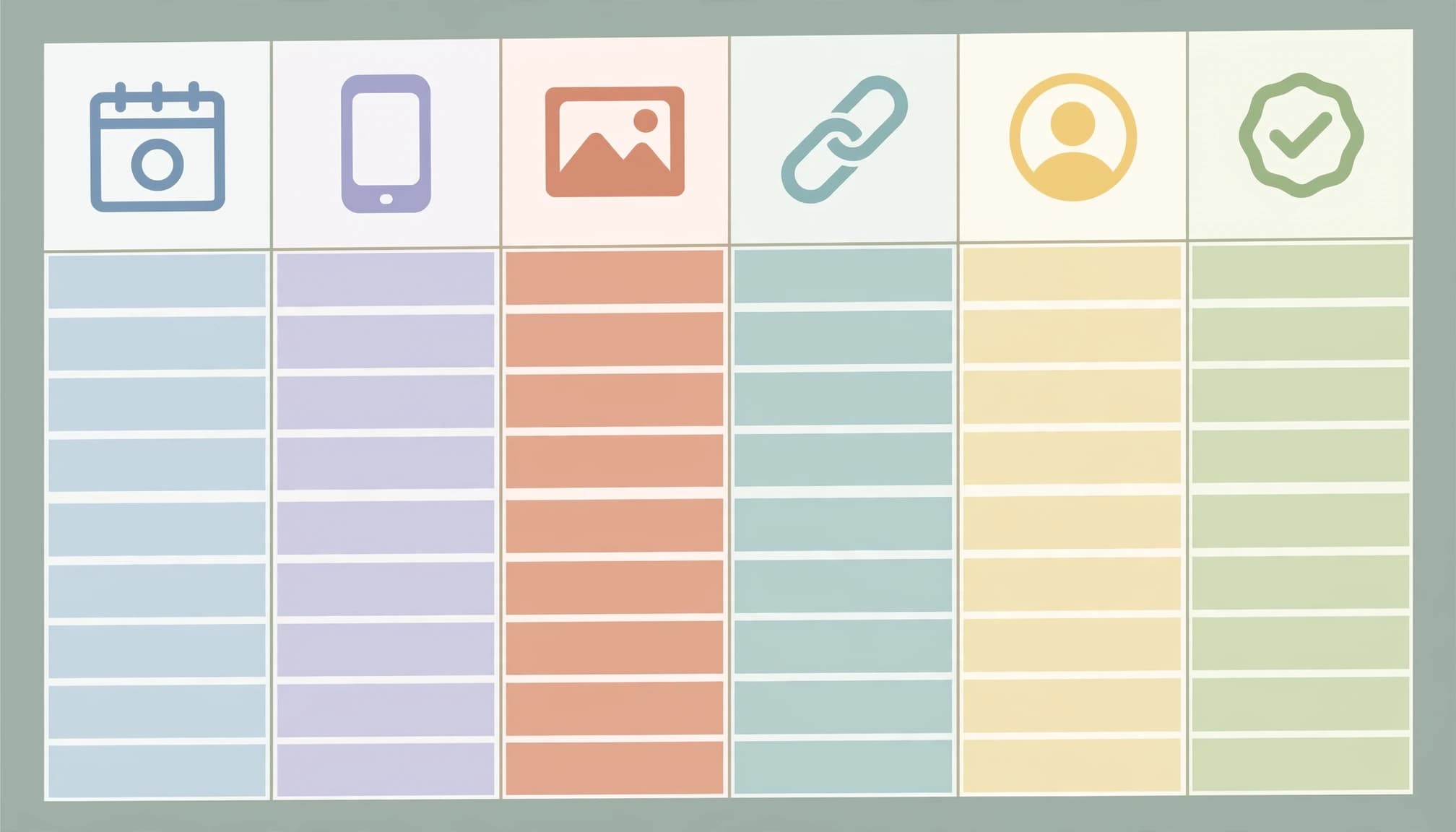
Give each post its own row. For cross-platform content, create separate rows when the caption, format, or publishing time differs.
Use a content planner with three practical column groups:
- Record the publish date, publish time with timezone, platform, and post format.
- Add caption or copy, creative asset, destination link, CTA, campaign or content pillar, and tags.
- Assign an owner, status, and approval notes so unfinished work stays visible.
Make Each Calendar Row Publishable

For the Day 9 FAQ post below, use this entry as a starting point.
| Publish date and time | Platform and format | Caption and CTA | Owner and status |
|---|---|---|---|
| Day 9, 6 pm IST | Instagram carousel | “Answers to your common questions. Save this guide.” | Business owner; Draft |
Complete the remaining fields with the FAQ carousel asset, the education content pillar, and approval notes covering answer accuracy. Add relevant tags, including your locality when appropriate.
Because this post asks for saves, its destination-link field can say “None.” The example time is a planning choice, not a claim about peak engagement.
Track Status and Approval

Use Draft, In Review, Approved, Scheduled, and Published. Worcester uses Planning, In-progress, Scheduled, and Live; either system works when everyone understands it.
A clear approval workflow connects each post’s owner, review, and status. Keep one owner responsible for each post. Approval notes should capture decisions about prices, permissions, deadlines, or wording.
For multiple clients, separate calendars, asset folders, and approval access. Add a client field to your master view, so a client’s draft stays out of another client’s publishing queue and outstanding approvals are easy to find.
Days 1 to 14: Prepare and Build Trust

This 30-day work plan includes preparation, publishing, and engagement days. Daily posting isn’t required. Adjust the posting frequency and move activities around existing business commitments and key dates.
Week One: Introduce and Explain

Start with information customers need before buying. Use real products, premises, and processes rather than generic stock imagery.
| Day | Action |
|---|---|
| 1 | Choose your goal and record baseline results. |
| 2 | Use social listening to review recent posts and collect customer questions. |
| 3 | Add key dates and choose content pillars. |
| 4 | Photograph products and record a short demonstration. |
| 5 | Publish an introduction with location and ordering details. |
| 6 | Answer comments and collect follow-up questions. |
| 7 | Draft and approve next week’s content. |
Keep reusable photos in a shared folder, labeled by product or service, so each creative asset is easy to find. Future posts won’t depend on files buried in message threads.
Week Two: Show Proof and Process

Now explain how your business works. Customer feedback needs permission, while process content should show your actual work.
| Day | Action |
|---|---|
| 8 | Publish a behind-the-scenes video. |
| 9 | Share a carousel answering common questions. |
| 10 | Respond to enquiries and note missing information. |
| 11 | Publish a customer review with permission. |
| 12 | Show a product demonstration or service process. |
| 13 | Turn a useful website answer into a Story. |
| 14 | Review saves, clicks, enquiries, and production effort. |
A strong website answer can support both social content and SEO. Our service business content plan connects customer questions with useful website pages.
Days 15 to 30: Connect and Refine

Use the second half of the month to respond to feedback. Carry useful topics forward instead of starting the brainstorming process again.
Week Three: Invite Conversation

Ask questions that help customers make buying decisions or improve your service. Acknowledge their responses so they know their input matters.
| Day | Action |
|---|---|
| 15 | Publish a practical buying or maintenance tip. |
| 16 | Run a Story poll about customer preferences. |
| 17 | Reply to responses and note recurring themes. |
| 18 | Explain a relevant local event or seasonal change. |
| 19 | Answer the strongest question raised by the poll. |
| 20 | Publish an approved offer with clear terms. |
| 21 | Compare enquiries and clicks with your baseline. |
If seasonal hours change, align social announcements with Google Business holiday hours. Conflicting information can waste a customer’s journey.
Week Four: Convert and Review

Make the next step easy for interested customers. Keep deadlines accurate, and use urgency only when an offer genuinely expires.
| Day | Action |
|---|---|
| 22 | Explain who your product or service suits. |
| 23 | Repurpose a useful post in another format. |
| 24 | Review unanswered comments and messages. |
| 25 | Publish ordering or booking instructions. |
| 26 | Address a common buying hesitation. |
| 27 | Capture fresh photos for next month. |
| 28 | Publish a genuine deadline reminder, if applicable. |
| 29 | Compare formats against your business goal. |
| 30 | Keep useful themes and draft the next calendar. |
Record production effort alongside results. If content takes hours but generates little interest, try a different approach next month.
Choose a Tool That Fits Your Budget

Start with the cheapest setup that fits your workflow. Planning and automated publishing are separate functions, so choose a content planner based on what you need to manage.
| Tool | Budget information | Useful capability |
|---|---|---|
| Google Sheets | Free | Collaborative, template-ready planning |
| Microsoft Excel | Free web version; paid desktop options | Familiar spreadsheet calendar |
| Airtable | Free version available | Social Media Calendar template with status, platforms, graphics, links, and comments |
| Meta Business Suite | Free | Facebook and Instagram scheduling |
| Adobe Express | Free plan available | Content Scheduler, up to 1,000 posts monthly according to Adobe |
| Canva Content Planner | Paid-plan feature | Scheduling and performance tracking |
| Nuelink | Reddit-reported $18 monthly for one client; Premium from $48 | Paid scheduling option |
For straightforward Facebook and Instagram needs, Google Sheets plus Meta Business Suite is a practical starting combination.
Airtable’s social media template can track post status, platforms, graphics, links, and comments. The Airtable template may suit teams that need more structure than a spreadsheet.
Adobe says Express Premium connects up to three accounts per channel. Canva supports Facebook, Instagram, X (Twitter), and LinkedIn, with impressions, clicks, likes, and comments tracked together.
Metricool offers paid scheduling plans and analytics. CoSchedule provides marketing-calendar tools, while Sprout Social combines scheduling, analytics, and engagement management. Compare Metricool with these tools based on the features your team uses.
Sprout Social reports a 60% reach lift through Optimal Send Times. This vendor-reported figure isn’t a forecast for a small Kolkata business. Sprout Social also cites a Forrester TEI study reporting $1.1 million in time savings over three years and 268% ROI. Metricool and Sprout Social both offer paid features, so assess their costs against your workload.
Choose paid software when approvals, account volume, or reporting consume substantial time. Metricool may be worth comparing if scheduling and analytics are priorities.
Schedule Posts Without Ignoring Replies

Batch captions and creative assets, then schedule approved posts. Use Instagram Insights or Facebook audience data to set an initial posting schedule. Treat Sprout Social’s “Optimal Send Times” as a suggestion to test against your own results.
A creator video shared on Reddit argues that scheduling doesn’t reduce Instagram reach, while ignoring comments and DMs does. Treat that as practical advice, not a universal algorithm rule.
Scheduling handles publication; it doesn’t handle a customer’s unanswered booking question.
Reserve time for replies, especially after an offer goes live. Use social listening to spot customer feedback and inform future content. Pause scheduled content when stock, prices, or business circumstances change.
During the weekly review, track website clicks, calls, orders, and booked appointments alongside engagement. A modest-view post that brings enquiries may deserve another version.
Key Takeaways

- Start with a business goal and a calendar your team can maintain.
- Give every post complete publishing details, an owner, and a clear status.
- Include production and reply time, then judge results by customer actions rather than likes alone.
Frequently Asked Questions

What’s the best free starting setup?
Google Sheets works well for collaborative planning. Pair it with Meta Business Suite when your publishing needs centre on Facebook and Instagram. Airtable suits owners who prefer visual records and attached assets.
Can I reuse content across networks?
Yes, but adapt the opening, format, and CTA. Keep separate rows when publishing details differ, and review each version before scheduling it.
Build a Calendar You Can Keep Using

A useful social media content calendar makes your next action clear. Keep the plan manageable, answer real questions, and protect time for customer conversations.
If production and replies exceed your capacity, our social media marketing services can support your business.
For help putting this 30-day plan into practice, Get In Touch With Us.