

A bad lead doesn’t only waste sales time. It also trains your ad account to chase more bad leads.
That’s why spam lead filtering matters more in 2026 than it did a year ago. If you run Google Ads for a local service, B2B company, or lead-gen site, you need a workflow that keeps raw submissions for analysis but protects bidding from junk data.
Why Filter Spam Leads Now?
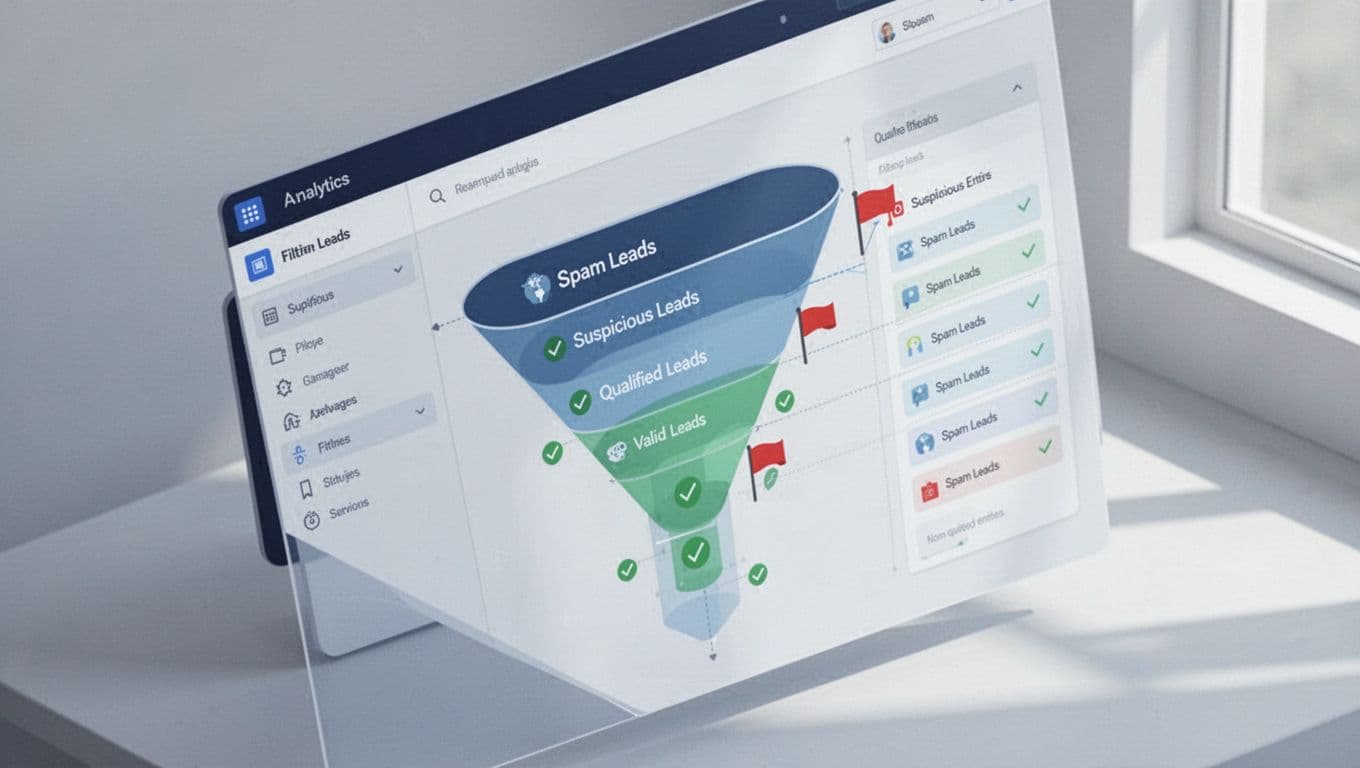
As of April 2026, Google Ads has better call-quality tools, including AI-qualified call leads. That helps with robocalls. Form spam is still your problem to manage.
When fake submissions flood GA4 and Google Ads, Smart Bidding learns the wrong lessons. Cost per lead may look better while revenue gets worse. Small businesses feel this fast, because a few junk forms can skew a whole week.
Shared definitions matter too. Across DIgital Marketing, SEO, Performance Marketing, Social Media Marketing, and Website Development, every team should agree on what counts as a raw lead, a suspicious lead, and a qualified lead.
Step-by-Step Workflow Build

Build the workflow in this order, because each step depends on the one before it:
- Fire one raw lead event only after a real success state, such as a thank-you page or confirmed form response.
- Store
lead_id,gclid, landing page, form type, source, medium, and key UTMs with the submission. - Add a spam score with simple rules before you decide what goes back to Google Ads.
- Push every record into your CRM, even suspicious ones, so you can audit mistakes later.
- Import only qualified leads back into Google Ads as the primary bidding signal.
A simple logic model works well. If honeypot_hit=true or spam_score >= 70, mark the lead as suspicious. If the score is 30 to 69, hold it for review. If sales accepts it, send a qualified conversion later.
This split is the heart of good spam filtering. Raw leads help diagnosis. Qualified leads drive bidding.
Flag Suspicious Leads with GA4 Events
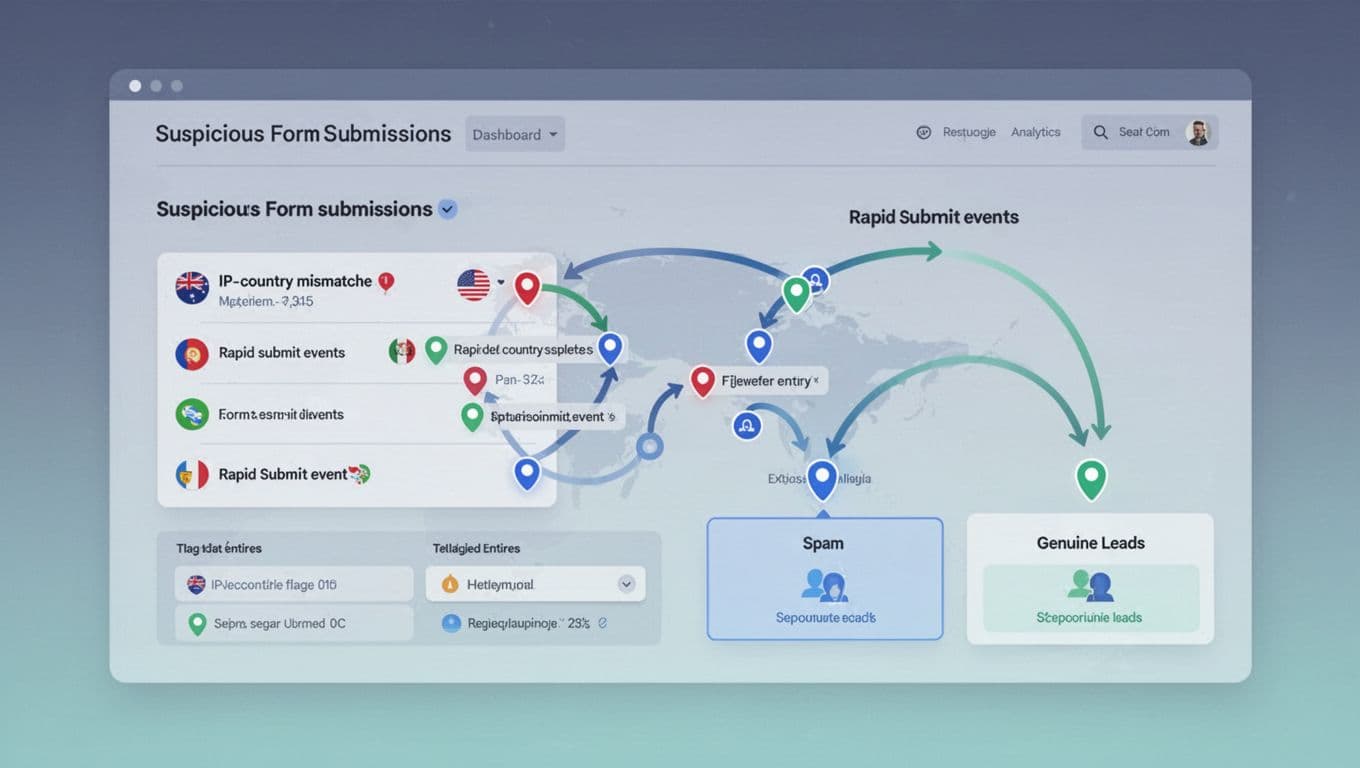
GA4 should not be your only filter, but it should be your early-warning system. Use one event for the raw submit, then attach parameters that explain why a lead looks risky.
This quick structure keeps reports readable:
| Event | Purpose | Useful parameters |
|---|---|---|
lead_submit_raw | Every confirmed form submit | lead_id, form_type, landing_page |
lead_quality_flag | Suspicious behavior detected | spam_score, geo_mismatch, rapid_submit |
lead_qualified | Sales or ops accepted the lead | crm_stage, qualified_value |
Good filtering criteria are practical, not fancy. Start with submit time under 5 seconds, duplicate phone or email within 24 hours, country outside your service area, invalid ZIP code, junk name patterns, or a filled honeypot field. Google also explains how to use unwanted traffic filters in GA4, and this GA4 spam traffic guide shows useful patterns to review.
Keep one warning in mind:
A suspicious lead is not always a fake lead. Fast submits and short sessions can come from real users on branded search.
Apply Filters Directly in Google Ads
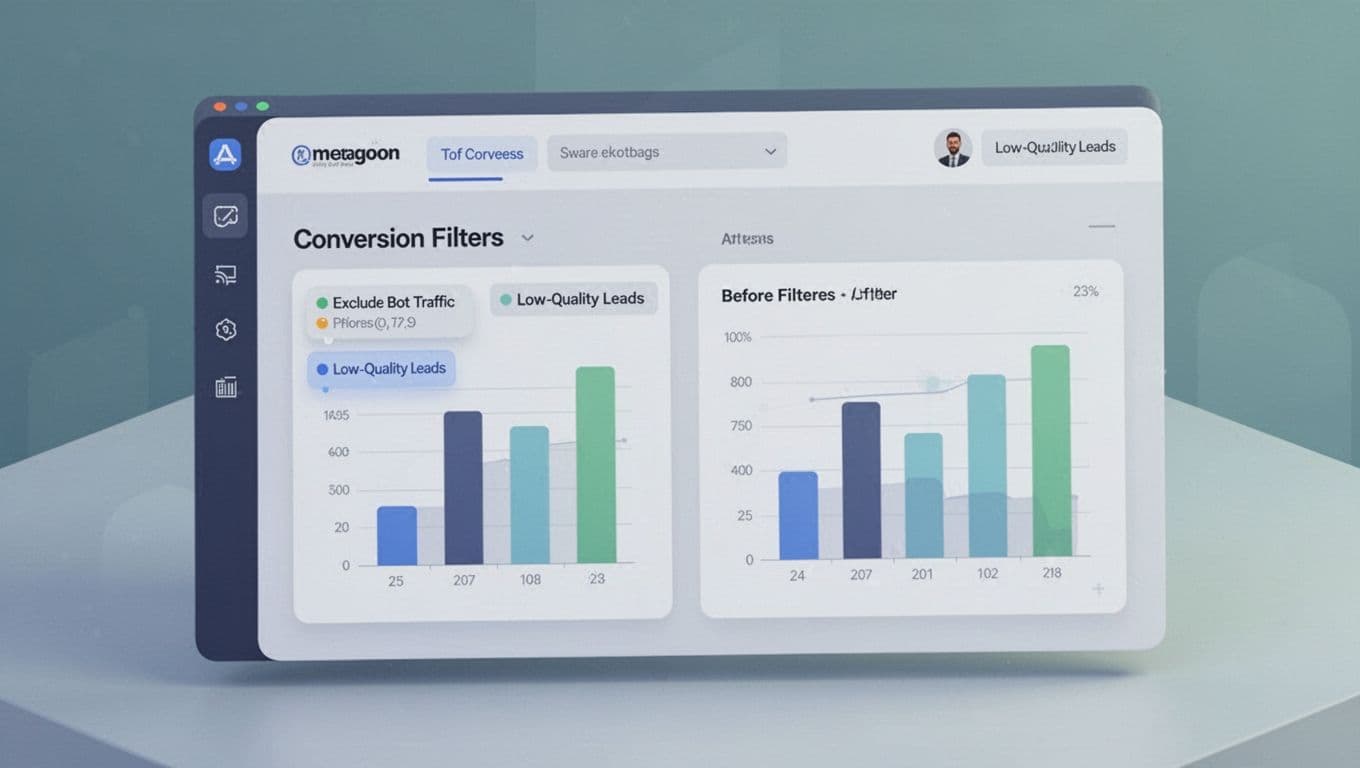
Your biggest mistake is easy to spot. If lead_submit_raw is imported into Google Ads as a primary conversion, the system will optimize toward noise.
Keep raw submits as secondary for reporting, or don’t import them at all. Instead, send back lead_qualified or sales_accepted_lead as the primary conversion. If you can tie email or phone data back to Ads, use this enhanced conversions setup for Google Ads leads.
Also review traffic by search term, device, location, and hour. If spam clusters in one state, one partner site, or late-night hours, cut that segment before it poisons more data.
For extra protection, a bot traffic prevention guide for GA4 and Google Ads is worth skimming.
Loop in CRM Data for Smarter Decisions
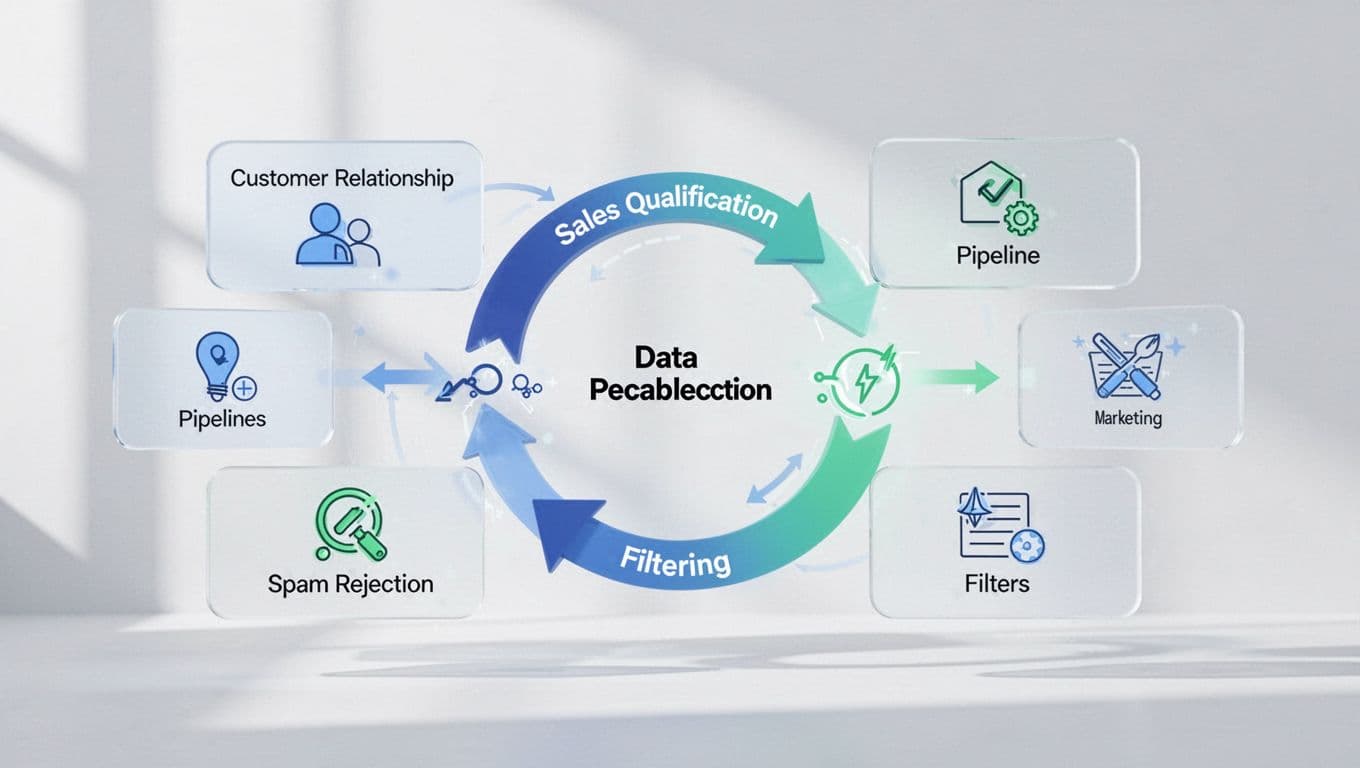
CRM feedback is where this workflow gets smarter. You don’t need a huge RevOps stack either. Even a few statuses can help: Spam, Duplicate, Bad Fit, Contacted, Qualified.
That sales outcome should feed back into marketing each week. When one campaign sends lots of “Bad Fit” leads, the issue may be ad copy or targeting, not bots. When one source sends “Spam,” the issue is likely filtering.
If GA4 and the CRM disagree, fix the mismatch before you touch bidding. A good GA4 CRM reconciliation guide will help you match lead IDs, dates, and stages so you can trust the data.
QA Checklist and Pitfalls
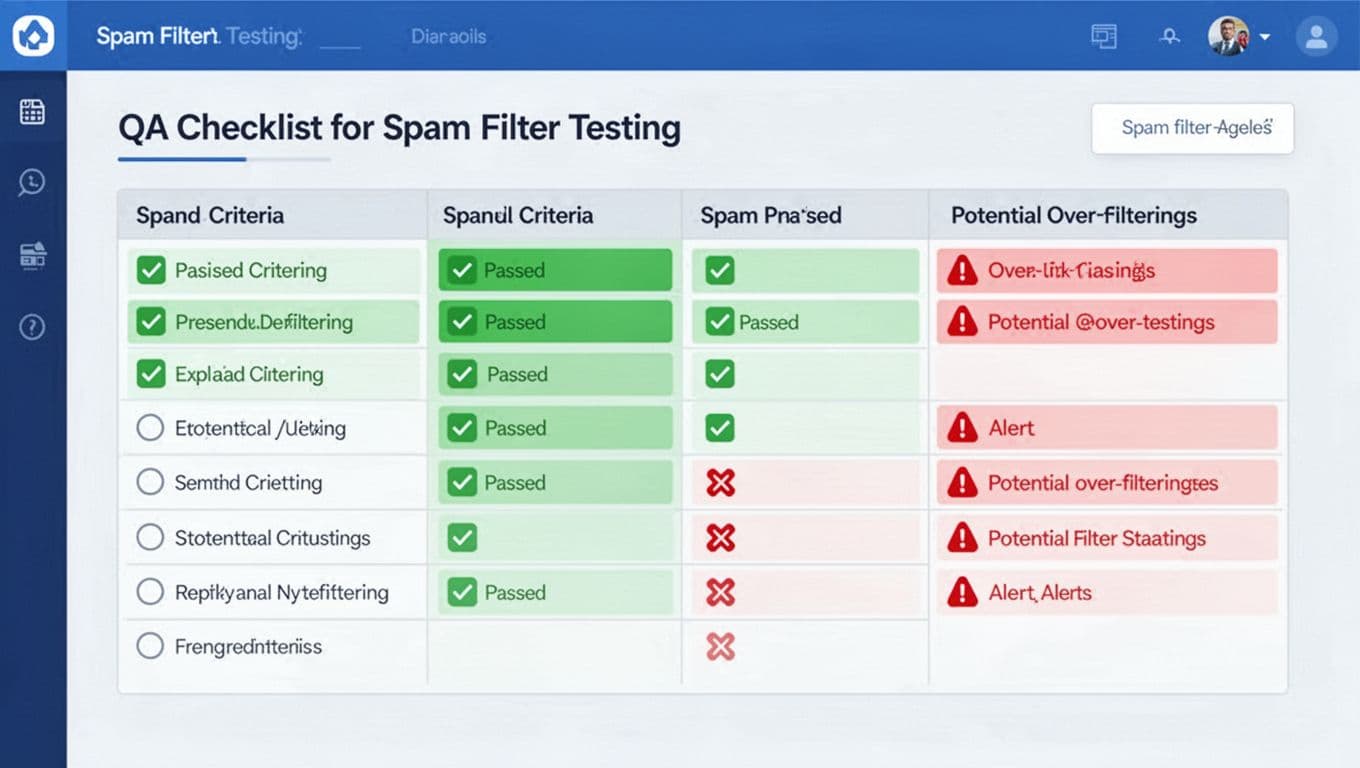
Before you trust the workflow, test it end to end:
- Submit one clean form and confirm the raw event, CRM record, and qualified import all match the same
lead_id. - Submit one fake form with the honeypot filled and make sure it never becomes a bidding signal.
- Check that button clicks do not fire lead events.
- Review top spam rules weekly, because bots change.
- Compare valid lead rate against qualified lead rate, not lead count alone.
Be careful with hard blocks. A real prospect may use a VPN, type a messy name, or submit in three seconds because they already know you. Score-based filtering is safer than blanket exclusion.
The best setup is simple: track every real submission, label quality fast, and only teach Google Ads with outcomes you trust. If your forms, GA4, and ad account aren’t lining up, Get In Touch With Us and fix the workflow before more budget drifts into junk.