

A visitor clicks “Request a Quote,” but the form rejects their phone number. If your analytics still records a lead, your cost per lead looks better than your sales inbox does. A GA4 generate_lead event should count a confirmed enquiry, not a button click.
That distinction matters when deciding which marketing campaigns, SEO pages, or services deserve more investment. Start by identifying the moment your website confirms it has accepted a submission.
What should the GA4 generate_lead event count?

Google lists generate_lead among its recommended events for lead generation. For a website form, use it when your agreed lead-capture process confirms that the enquiry was accepted. Define that point with whoever manages the form and CRM before setting up a tag.
Why a button click is not a lead

A click can precede a missing required field, a failed CAPTCHA, or a server error. Even a form that passes browser validation may fail when the website tries to save it.
Google Analytics 4’s enhanced measurement can collect form interactions such as form_start and form_submit, where supported. Those events help diagnose form use, but don’t assume either proves your business received an enquiry. Keep generate_lead tied to the confirmed outcome.
Use one event name and useful context
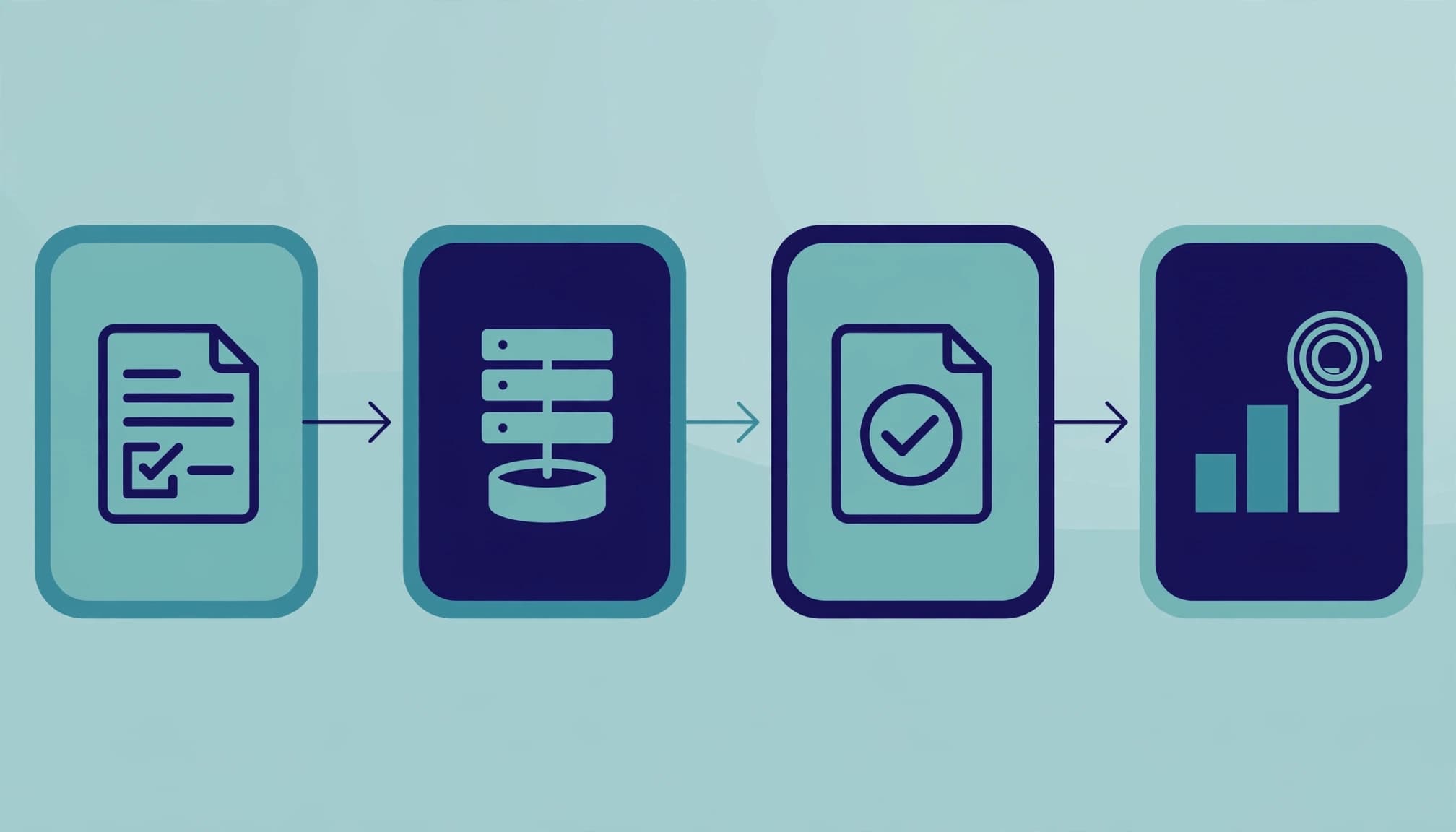
Use generate_lead across contact and quote forms, then distinguish them with event parameters such as form_id, lead_type, or service_line. This is easier to report on than separate event names for every form.
No parameter is mandatory for every generate_lead event. Google’s recommended event reference lists value as recommended and lead_source as optional; send currency when you send value. Don’t send names, email addresses, or phone numbers as GA4 parameters.
Choose a signal that proves the form succeeded
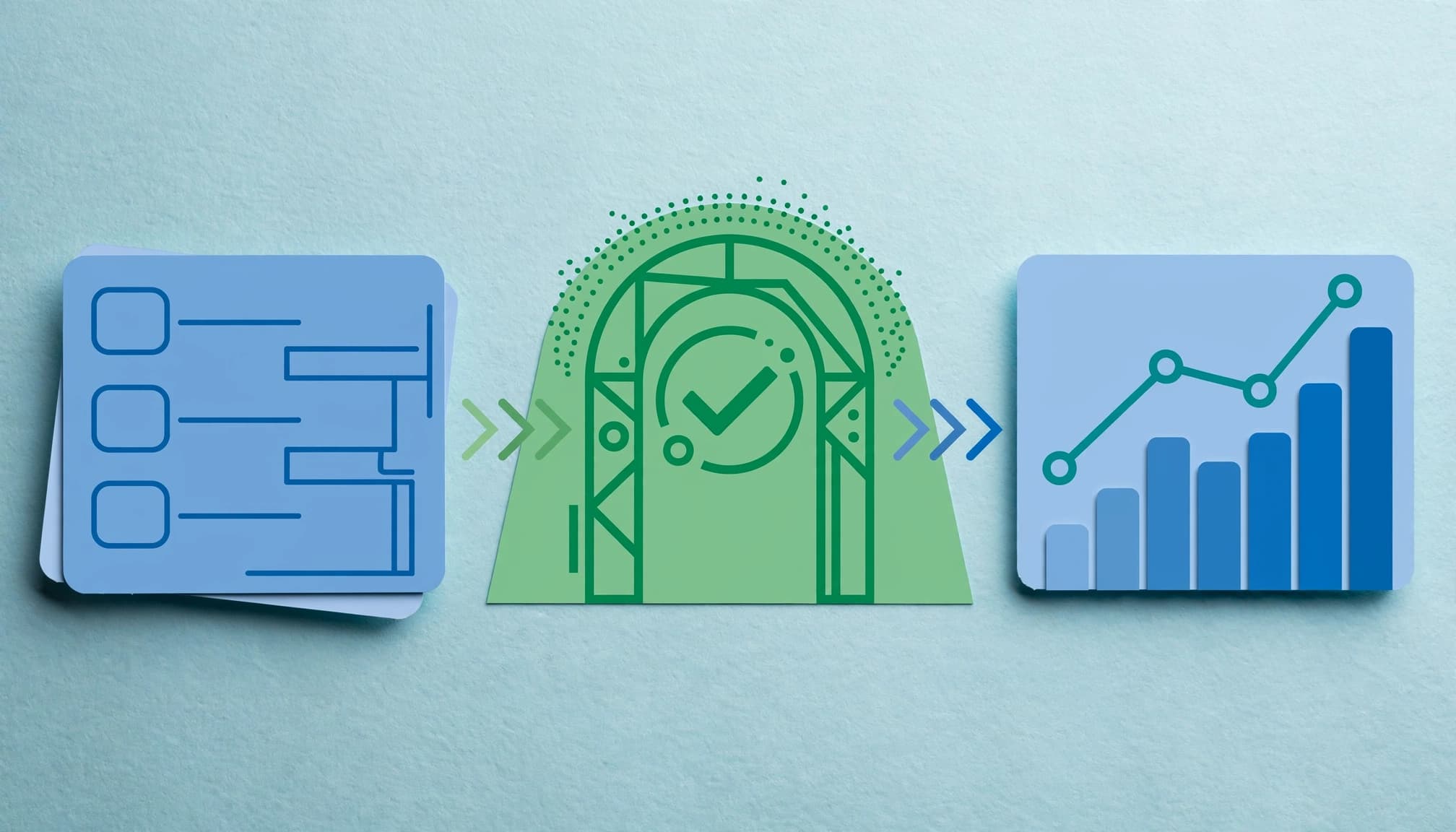
The right trigger depends on how the form works. A dedicated thank-you page is useful if visitors reach it only after successful processing. Confirm that a visitor can’t open the page directly and create a false lead.

For an AJAX form that stays on the same page, ask the developer or form provider for a success callback. Fire tracking only after the server confirms accepted form submissions, not when the loading spinner appears. For an embedded booking tool, verify what its “completed” message means and whether confirmation happens on another domain.
A success message alone may be unreliable if the form displays it before the CRM accepts the record. Test the complete path: browser confirmation, notification or CRM entry, and GA4 event. The GA4 lead tracking checklist can help keep those checks consistent across forms.
Implement the event with Google Tag Manager

In Google Tag Manager, create a Google Analytics: GA4 Event tag using your site’s Google tag or the correct GA4 Measurement ID. Set the event name to generate_lead. The trigger must represent the confirmed success signal you selected, not a generic click on the submit button.
For a dedicated thank-you page

Create a Page View trigger restricted to that confirmation page. Submit a test enquiry and check that the page appears only after the website accepts it. Then refresh the page and use the browser’s Back button: a page-view trigger may fire again.
If repeat views would inflate leads, ask the developer to provide a success event tied to the accepted submission instead. Choose one firing path for each form.
For a form that doesn’t reload

After the server confirms success, the site can push a named event into GTM’s data layer, along with a form identifier. A GTM Custom Event trigger can then fire generate_lead; Data Layer Variables can pass form_id and lead_type.
Agree on the success event name with your developer and test it against a failed response. If an embedded tool can’t expose confirmation to your site, check its native integration before relying on an earlier interaction.
Validate failures and successes in Tag Assistant and DebugView

Open GTM Preview and connect your site to Tag Assistant using Google’s container preview instructions. Keep the Tag Assistant timeline open as you test the form. It shows which trigger occurred and whether your GA4 tag fired.
Run tests that must produce zero leads
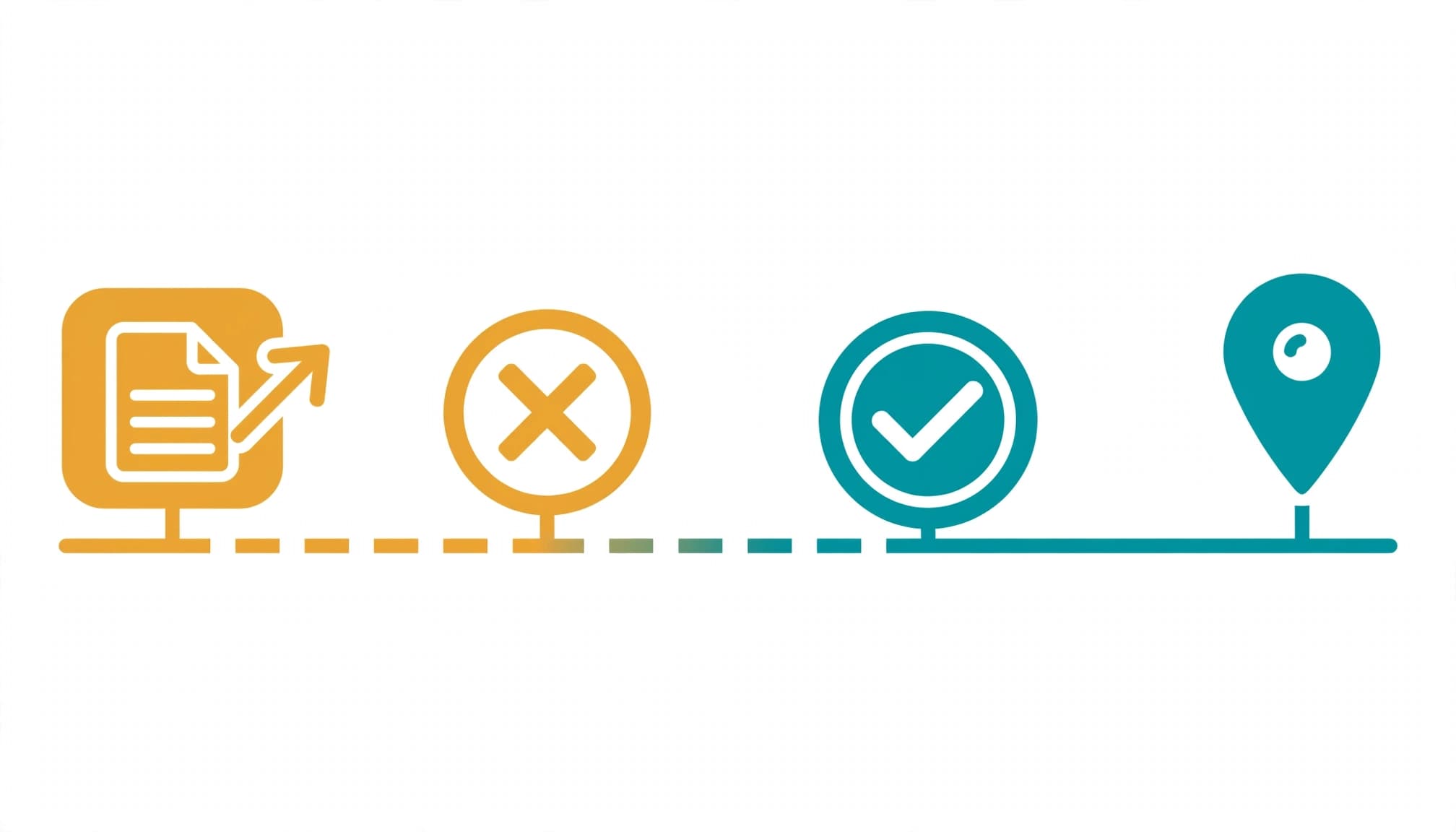
First, submit the form with required fields blank. Try an invalid email address, fail the CAPTCHA if applicable, and ask your developer to test a rejected server response. None should fire generate_lead. A click or generic submit trigger appearing in Tag Assistant isn’t a problem by itself. The GA4 lead tag firing at that point is.
Next, complete one valid submission. Find the success signal in the timeline, then confirm the lead tag fires once afterward. Repeat the test on mobile and for each form type. For a closer look at triggers and variables, use the GTM Preview lead-tracking guide.
Check what GA4 receives

In the GA4 DebugView tool, select your test device and find generate_lead. Open the event to inspect its parameters and check that form_id identifies the form you submitted. If the event appears twice, inspect both GTM tags and any hardcoded gtag.js implementation.
Finally, verify the test enquiry reached its intended inbox or CRM. DebugView confirms GA4 received an event, but it can’t prove your sales team received a usable lead. Don’t expect standard GA4 reports to update as quickly as a debug session.
Mark the confirmed lead as a GA4 key event

Once the event passes your tests, mark generate_lead as a key event in your key event configuration. If it hasn’t appeared yet, create a key event using the exact event name. Check your property’s current Admin labels, as Google changes interface wording.
Google explains the distinction between GA4 key events and Google Ads conversions. If you use Google Ads, you can use the GA4 key event for conversion tracking. Check whether a separate Ads tag already counts the same submission before setting both actions as primary. Allow for processing time when checking reports or imports.
Connect submissions to sales outcomes
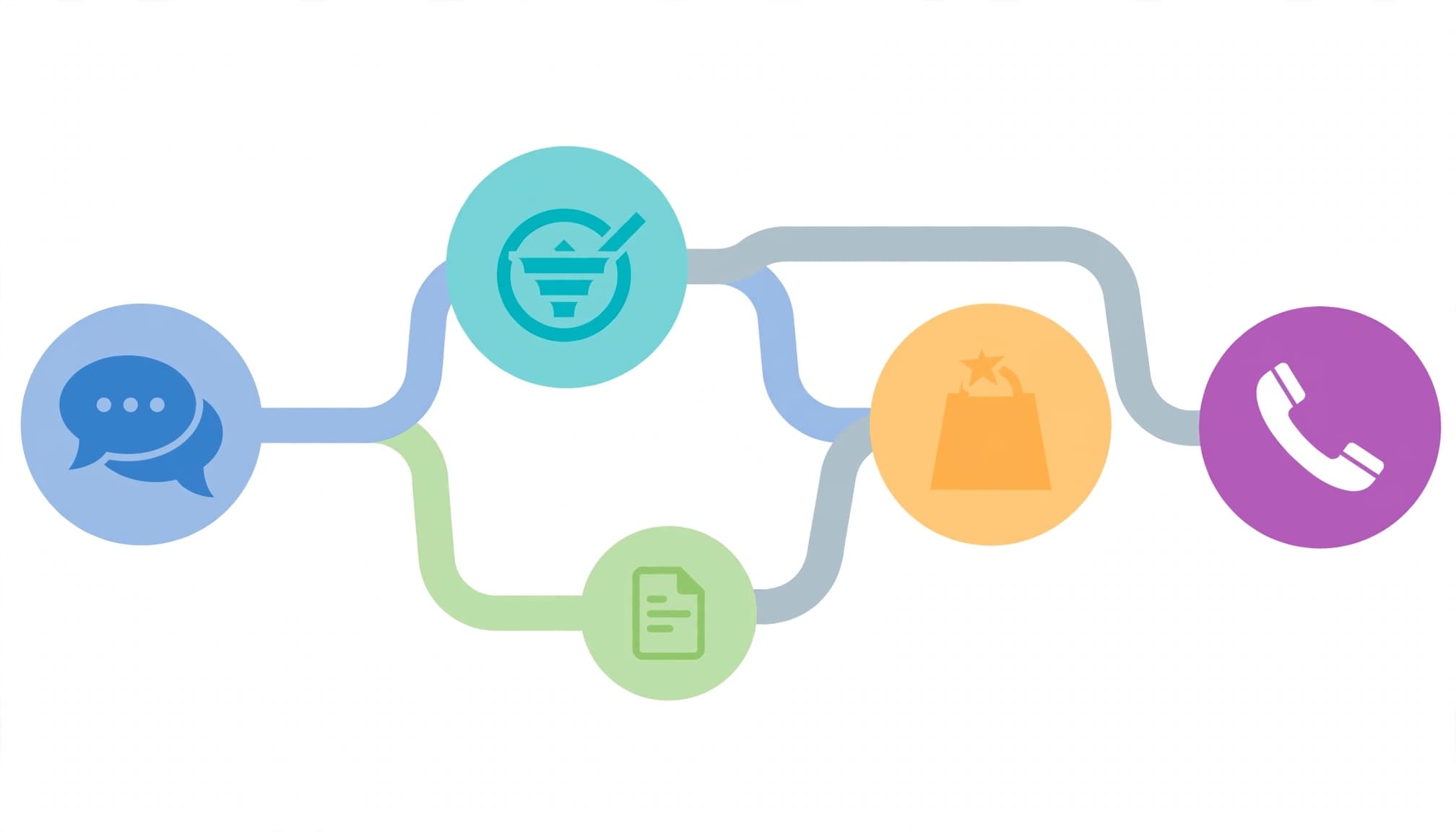
A confirmed form submission starts a lead record, not a qualified opportunity. Once the first event is trustworthy, you can assess which enquiries become sales conversations and customers.
Record later stages separately

GA4 also recommends events such as qualify_lead, working_lead, and close_convert_lead. Map each to a clear CRM status, then use an appropriate integration or Measurement Protocol setup to connect online and offline activity.
Your CRM may merge duplicate enquiries into one contact, while GA4 records separate web actions. Compare confirmed events with CRM records weekly and investigate gaps rather than expecting identical totals. The GA4 and CRM reconciliation guide provides a useful process for that review.
Judge channels by lead quality

Break down confirmed leads by form, service, and traffic source. Then compare those groups with qualified leads or opportunities. A landing page with many enquiries may still attract poor-fit requests.
For a defined quote or booking journey, GA4 funnel explorations can show where visitors stop between starting a form and submitting it. Keep the confirmed lead event as the final web step.
Fix the failures that inflate lead counts

If counts look wrong, inspect the firing path before changing reports. A thank-you page trigger and an AJAX success trigger may both send generate_lead. A hardcoded GA4 event or a separate gtag.js implementation can also duplicate the GTM tag. Keep one source for the final event and check duplicate GA4 conversions after changing it.
If events are missing, confirm the GTM container loads on the form and confirmation page. Then check the Measurement ID, consent state, trigger conditions, and embedded form behavior. Re-test after form-builder updates or website redesigns. If your setup spans several forms and a CRM, Get In Touch With Us for help auditing the full path.
Key takeaways

- Fire
generate_leadonly after the form is confirmed, never when someone clicks the submit button. - Test invalid, rejected, and successful submissions in GTM Preview and GA4 DebugView.
- Verify that one event reaches GA4 and the enquiry arrives in your inbox or CRM.
- Use parameters to identify lead sources and forms, then assess lead quality through CRM stages.
Frequently asked questions
Is generate_lead a custom event? No. It’s a GA4 recommended event to implement when it fits the action you’re measuring. You can add your own parameters for business context.
Does generate_lead require value? No. Google recommends value, particularly for a key event, but it isn’t mandatory for every lead. Send currency if you send value, and don’t present an estimated lead value as closed revenue.
Why can Tag Assistant show a fired tag while my report shows nothing? Check the destination Measurement ID and look for the event in DebugView first. Standard reporting can take longer, and consent settings or browser extensions may affect collection. Also confirm you’re viewing the same GA4 property and data stream.
Should form_submit and generate_lead both be key events? Usually, choose the confirmed lead as the primary key event for that form. Keep form-interaction events for diagnosis, especially if they can include attempts that never reach your business.
Conclusion

That rejected quote request at the start should never improve your reported cost per lead. Tie generate_lead to confirmed acceptance, test failures as carefully as successes, and verify what reaches your CRM.
Reliable lead counts give you a sound starting point for judging campaigns and sales outcomes.