
Build an automated sequence for your Shopify launch by connecting a sign-up form to an automation, delivering your promised freebie, and following up with relevant product information. Start with three emails over three days, then adjust the journey when someone buys or unsubscribes.
For Kolkata merchants, clear expectations matter: explain what shoppers receive, when the product becomes available, and where you deliver. A useful guide or early-access offer gives visitors a reason to join your email list.
Start by connecting the apps, then build and test each handoff.

Key Takeaways
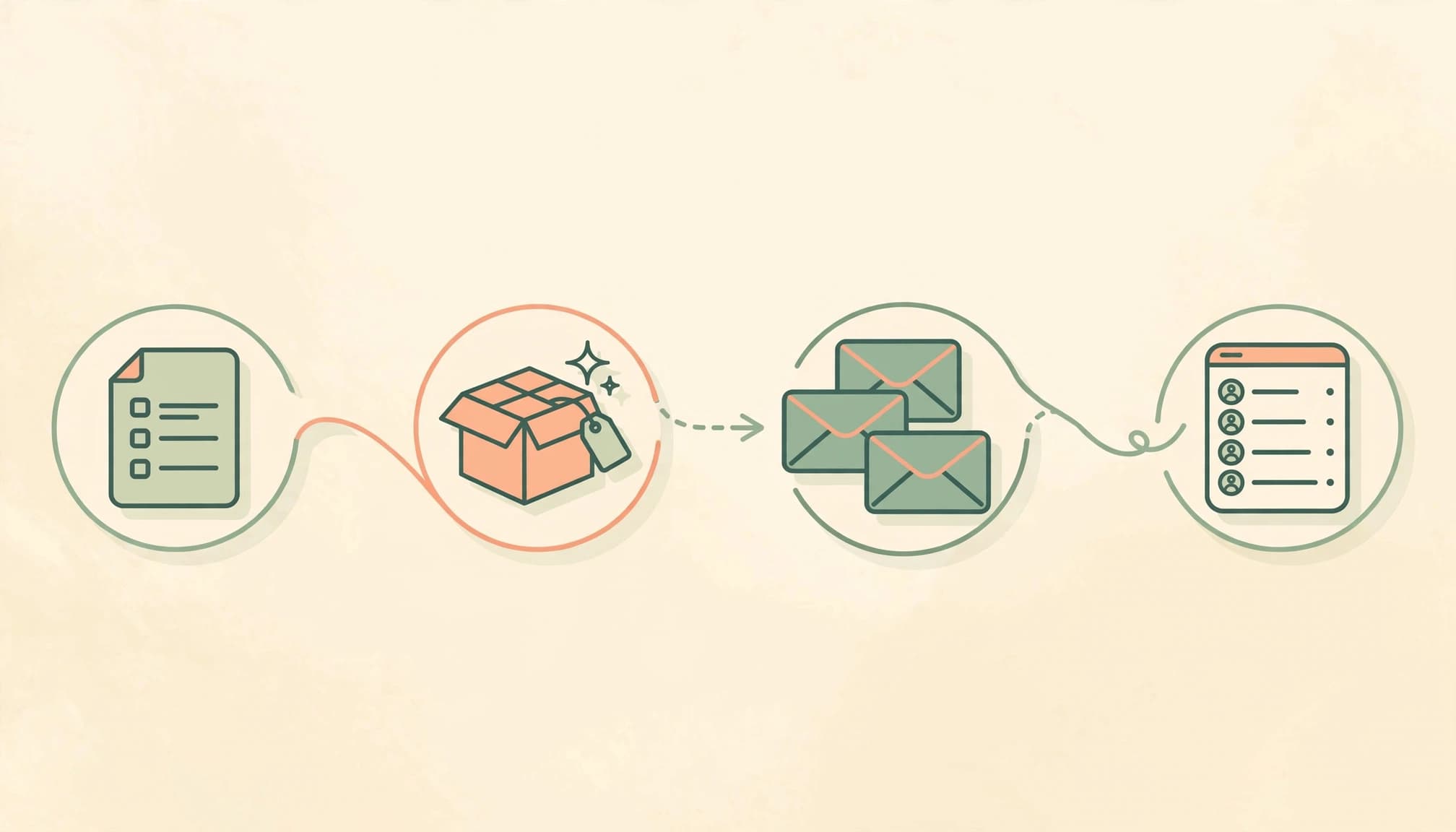
- Install Shopify Forms and Flow before building the sequence, and use your email platform to send messages.
- Track the signup source with a custom label, but record marketing permission separately.
- Test delivery, purchase exclusions, and unsubscribe handling before promoting the landing page.
1. Install the Apps and Map Your Three Emails
First, install Shopify Forms and the Flow app from the Shopify App Store. Forms collects subscriber details; Flow handles triggers, conditions, and customer tags.
You also need an email-sending platform. For Shopify’s native route, use Shopify Messaging, which handles marketing email delivery. Assign the sequence to one platform so contacts don’t receive duplicate messages.
Before opening the editors, define the signup promise. Choose a resource that helps customers evaluate your upcoming product, such as a sizing guide, care guide, or product-selection checklist.
Use this three-day framework as a starting point.
| Suggested timing | Purpose | Practical content | |
|---|---|---|---|
| 1 | Immediately after required signup confirmation | Deliver the promise | Put the download or early-access details near the top. |
| 2 | Day 2 | Help shoppers choose | Explain sizing, materials, compatibility, or product use. |
| 3 | Day 3 | Present the next buying step | Link to the available product or explain launch access. |
The sequence should follow the subscriber’s needs, while the launch announcement follows actual availability.
A signup-relative sequence doesn’t guarantee launch-day delivery. If your collection launches on a fixed date, send the availability announcement as a scheduled campaign to eligible subscribers. Don’t let a rolling automation announce products before customers can buy them.
2. Create Your Freebie Sign-Up Form
Open Apps > Forms, click Create form, choose the form type, name it, and click Create. Use an internal name that identifies the offer and launch.
Shopify’s form management guidance covers ongoing controls after setup.
Choose the Form Type and Essential Fields
Choose Inline for a dedicated landing page. It places the sign-up form within the page, so visitors arriving through Instagram or search can act without waiting for a popup.
Add a title, short description, email field, and success message. Request a first name only if you’ll use it. For Bengali and English campaigns, an optional language preference can help without relying on assumptions.
Explain what promotional emails subscribers will receive when they join your email list. SEO traffic, an enquiry, or a freebie request alone shouldn’t replace explicit marketing permission.
Add a Tracking Tag and Activate the Form
Add a source identifier such as launch-guide in the form settings. This identifier shows which customers submitted the form and lets you compare their response with other signup sources.
Set the success message to explain what happens next. If confirmation is required, mention that before promising immediate inbox delivery.
Click Save form and set it to Active before linking it to a landing page. A saved draft isn’t a live signup experience.
3. Connect the Form to Your Landing Page
Keep the page focused on one promise and one signup action. Describe the freebie, show how it helps someone choose your product, and explain the follow-up.
Our landing page copy template provides a structure for keeping those details easy to scan.
Create a New Landing Page
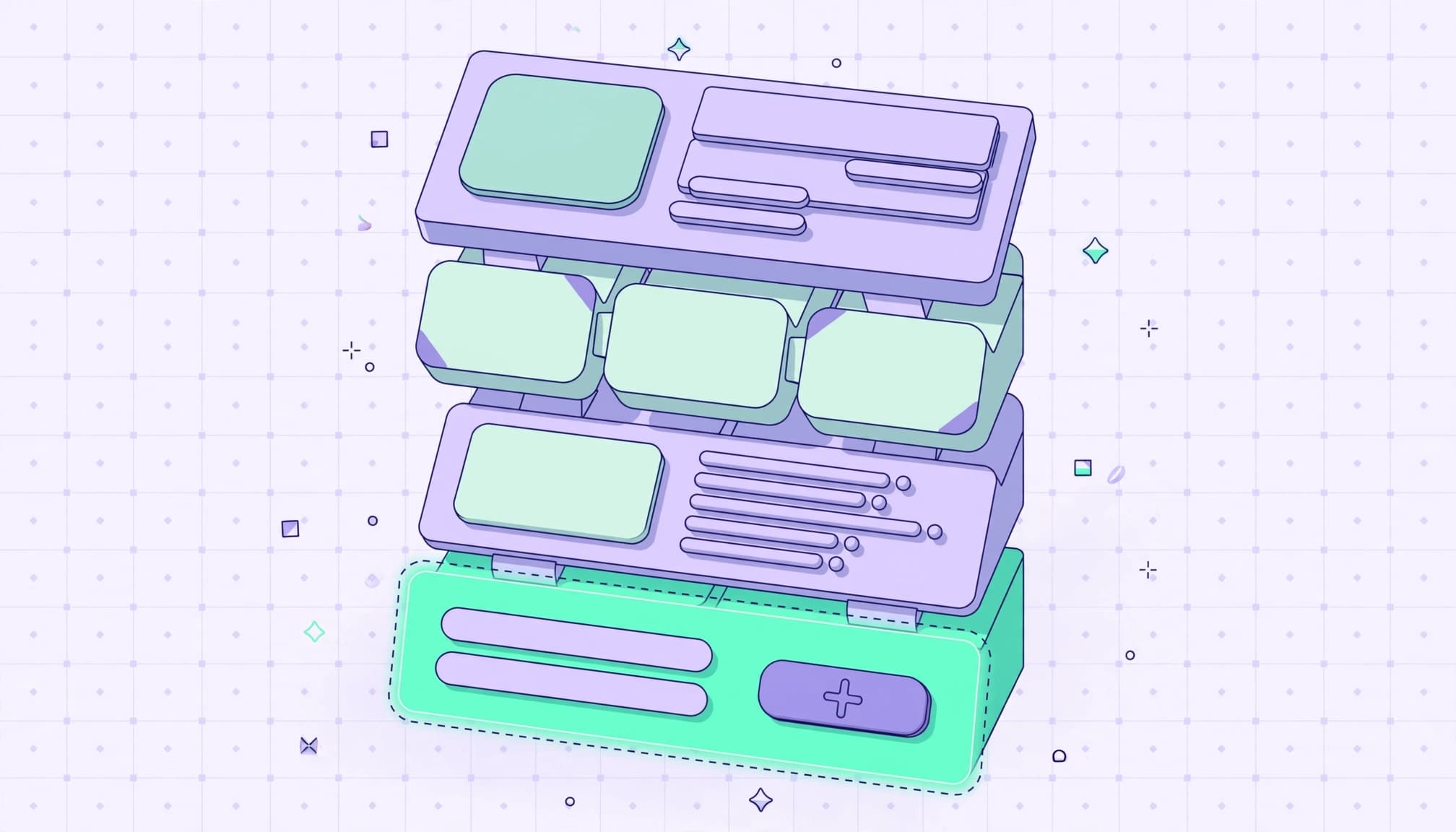
In the Forms app, open the form’s Placement section and choose Create landing page. Add the page details and connect the active inline form.
Keep delivery expectations visible. For a digital guide, make clear that customers receive a download rather than a physical sample. For early access, explain whether joining guarantees availability.
Preview the page on mobile. The signup action should be easy to find without forcing visitors through unrelated product collections or several competing buttons.
Use the Form ID on an Existing Page
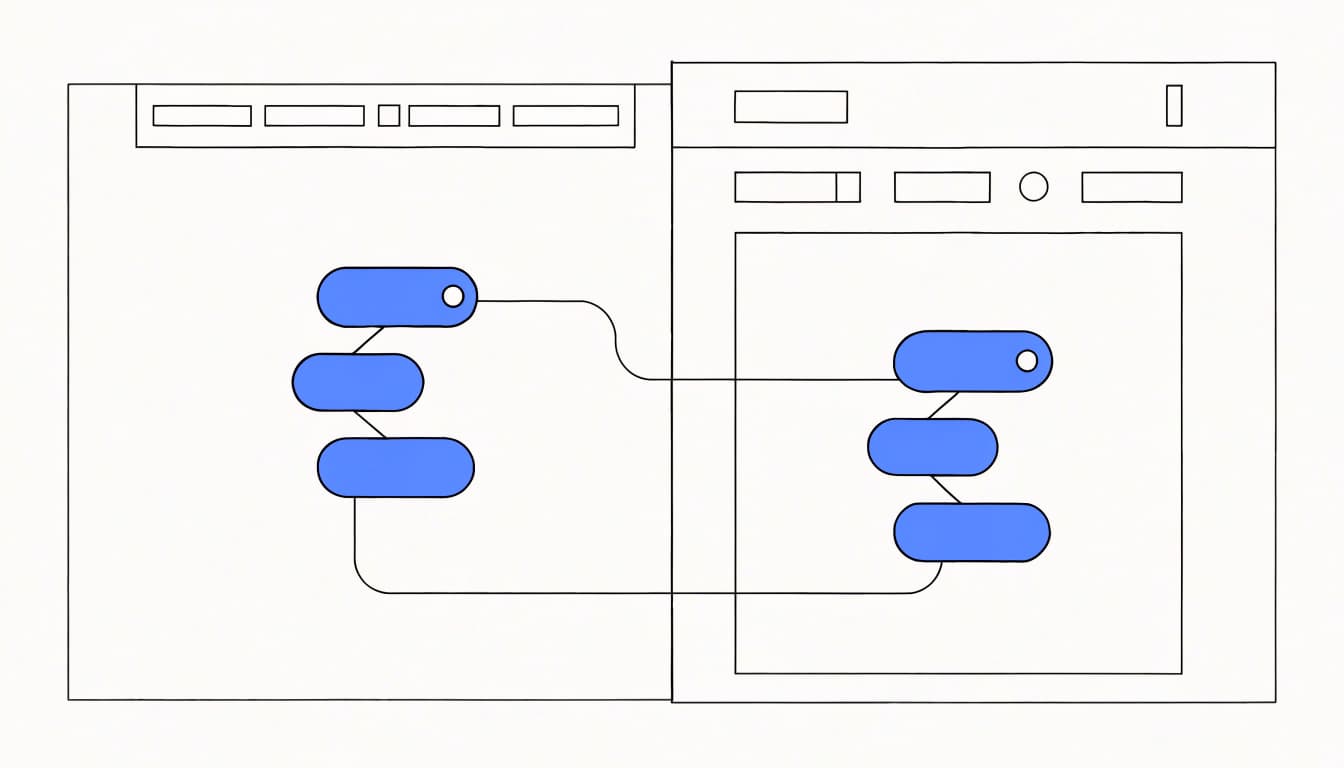
Copy the Form ID from the form’s Placement section. Then go to Online Store > Themes, select Customize theme, and choose the relevant page template.
Add or open the Forms app section or block. Paste the Form ID into its settings in the right-hand sidebar, then save.
If several pages share that template, the change can appear on all of them. Use a dedicated template when this offer belongs on one page only.
4. Build the Workflow and Connect Email Delivery
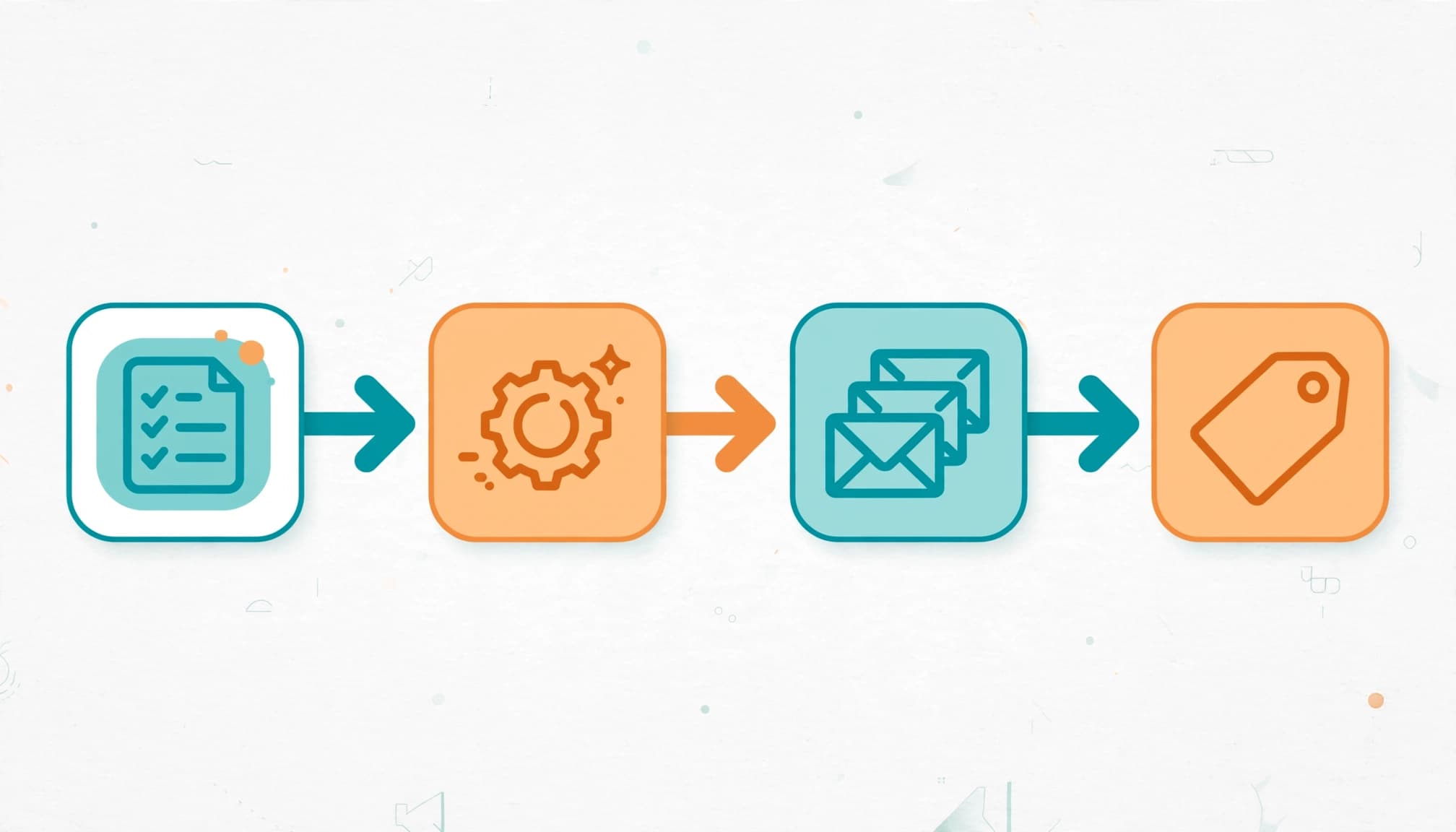
Separate subscriber processing from email delivery. The Flow app can respond to form submissions and apply customer tags; the email automation controls messages and sending eligibility.
Select the Trigger or Adapt a Template
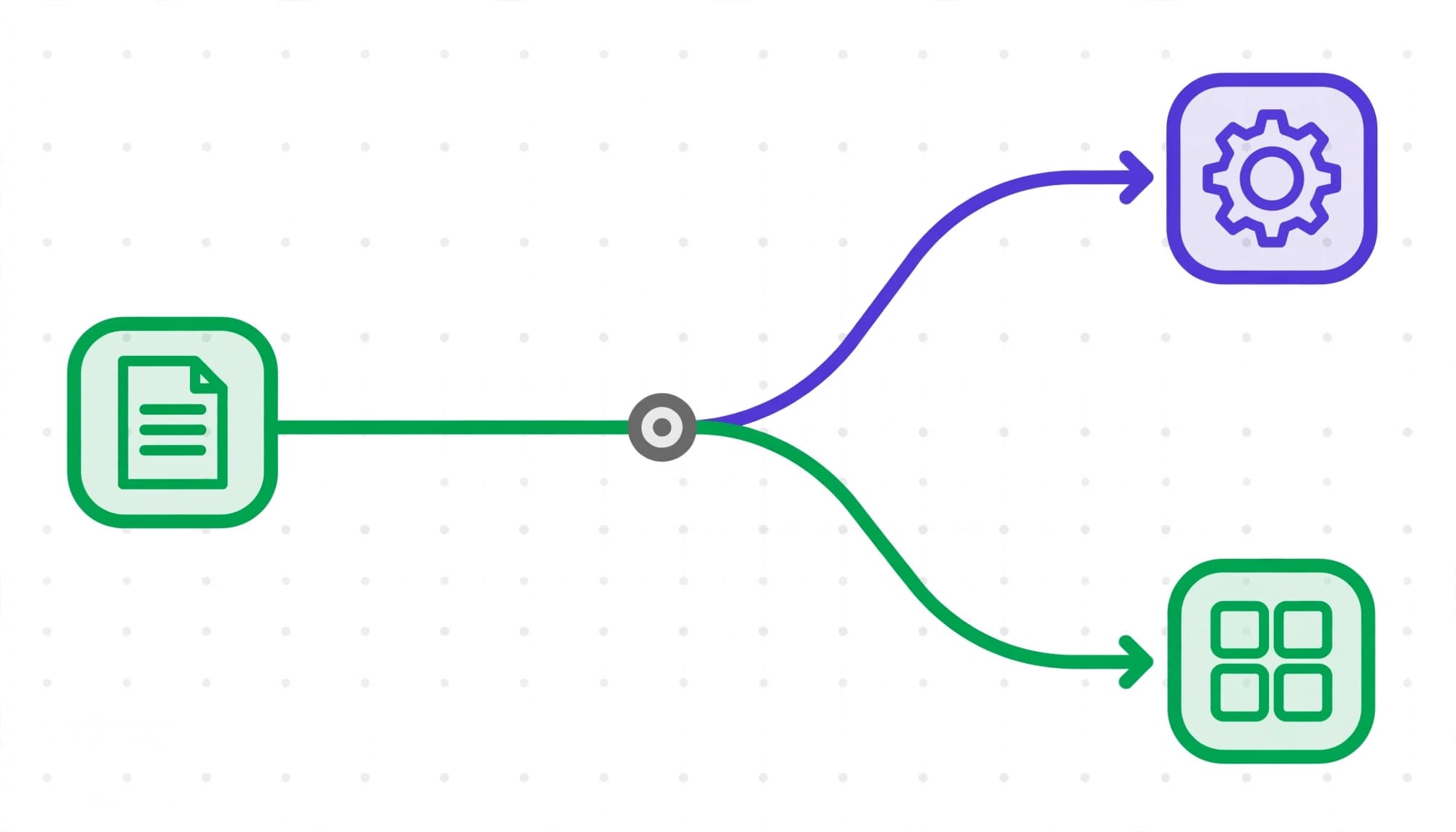
Open Apps > Flow > Create workflow. Choose Select a trigger to build from scratch, or Browse template to adapt an existing pre-built framework. Choosing Select a trigger lets you set form-specific criteria, while Browse template offers pre-configured actions.
For this Forms-based route, select Metaobject entry created as the first step. In the right-hand dropdown, select the form.
A metaobject entry is a structured record of the submission. Use its customer reference when applying customer actions, rather than treating the submission’s own ID as a customer ID.
Add an Add customer tags action with an entry label such as launch-start. Activate the automation.
Connect the Sending Automation and Completion Tag
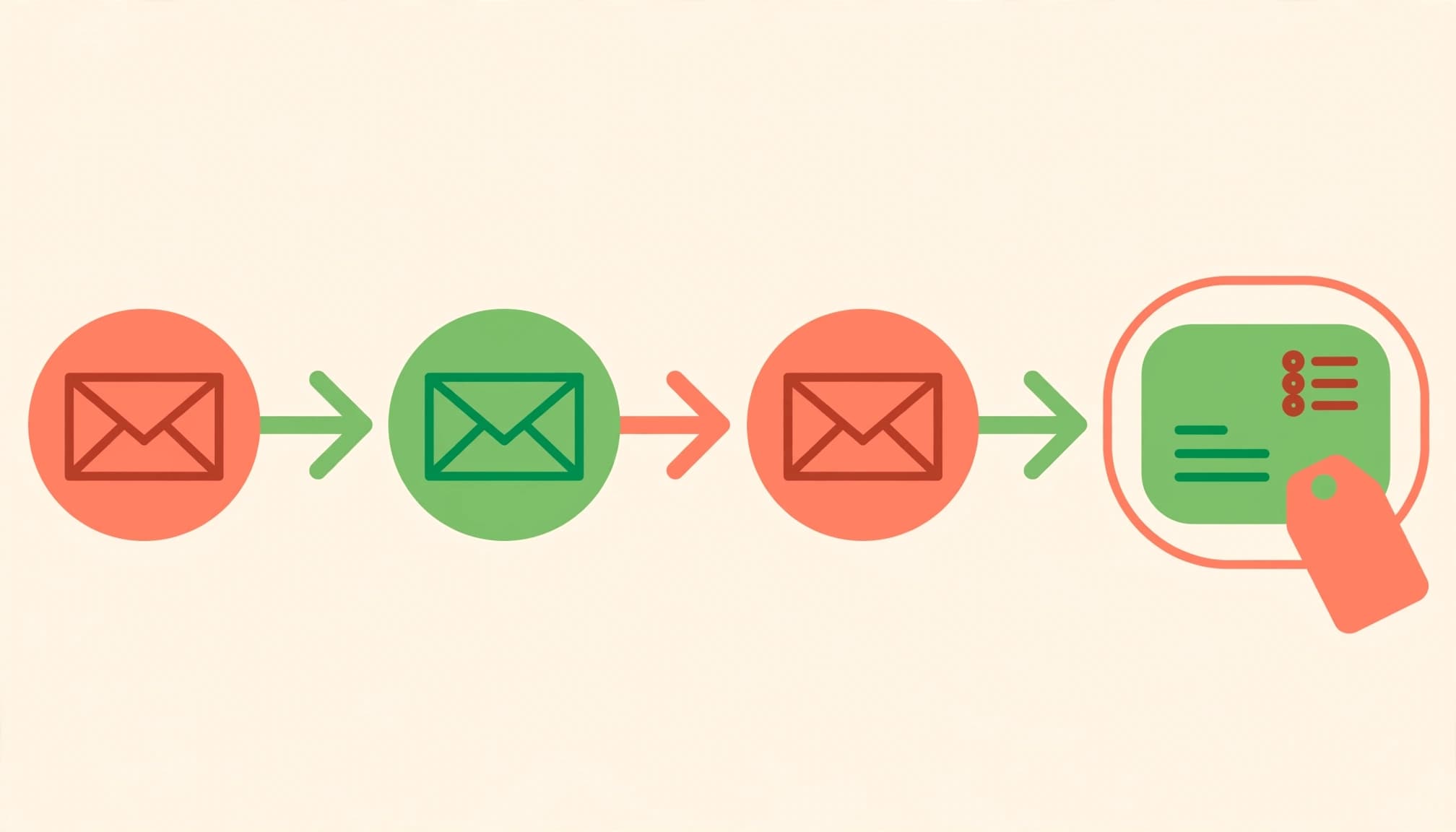
Create a customer segment requiring the launch-start marker and subscribed email-marketing status. In Apps > Messaging > Automations, build an automation using Customer joined segment, then select that segment.
Add the three marketing emails and waits. Recheck permission and purchase status before promotional sends. Buyers should leave acquisition offers and enter relevant post-purchase email guidance instead.
Finish the email automation with Add customer tags, using launch-complete. Your main newsletter segment can include that attribute alongside subscribed status.
A completion marker can control segment membership, but it doesn’t grant marketing consent.
Also suppress these subscribers from overlapping welcome promotions. Our welcome email sequence guide explains how signup promises and exit rules should work together.
5. Test the Journey Before Promoting It
Preview the landing page and form before publishing. Then test sign-up form performance by submitting a fresh email address through the live page, not just the form preview.
In Customers, inspect the profile for the source label, marketing status, and entry marker. Next, open Flow’s run history to see whether the submission started the workflow and each action completed.
Receive every email in the sequence. Test the resource link, product destination, mobile layout, and unsubscribe action. Authenticate your sending domain and use our email deliverability guidance to address sender identity and inbox-placement problems.
Repeat the test with an existing subscriber and a customer who buys during the sequence. Neither should receive inappropriate duplicate acquisition messages.
If the form is missing, inspect its Active status, Form ID, and selected page template. If tags are missing, inspect the trigger, selected form, and customer reference. Restricted staff accounts may also need appropriate Shopify store permissions.
Once the complete journey works, promote the freebie through Instagram, Facebook, your store navigation, and relevant customer touchpoints.
Track signup rate, delivered-email clicks, purchases, unsubscribes, and complaints by source. Treat opens as diagnostic because privacy features can distort them. For cash-on-delivery orders, assess delivered, paid orders rather than counting every placed order as revenue.
Frequently Asked Questions
Does adding a tag subscribe someone to marketing?
No. Tags identify customers and support segments. Marketing subscription status records permission, so require both the relevant tag and subscribed status before promotional emails.
Can I use an existing landing page?
Yes. Copy the Form ID from Placement, open the page’s template in the theme editor, and paste it into the Forms block settings. The form must be active.
Why do older tutorials show different menus?
Shopify changes its interface. Guides published in July 2025 may use older menu labels. The native sending setup described here separates Shopify Messaging’s email automation from Flow’s submission-processing logic.
Should the third email always announce availability?
Only when the product is available. For a fixed launch date, keep the rolling signup sequence educational and schedule the launch announcement separately.
Launch With a Reliable Subscriber Journey
A dependable Shopify launch email sequence connects the signup promise, useful follow-ups, and a buying opportunity. Permission and exit rules deserve as much attention as the emails themselves.
Begin with three focused messages and test every handoff. Then use subscriber actions and completed orders to improve the sequence.
If you need help connecting your Shopify landing page, automation, and measurement, Get In Touch With Us.