

To reduce Shopify payment failures, identify whether the customer couldn’t pay or your bank didn’t receive the payout. Then fix the specific fault without adding unnecessary fields, repeated payment attempts, or extra steps.
For Kolkata merchants, the distinction matters because Indian stores generally use third-party payment providers rather than Shopify Payments. Your provider’s dashboard can therefore be as important as Shopify Admin.
Start with the transaction status, then work through the relevant checks below.
Key takeaways: identify where the payment failed
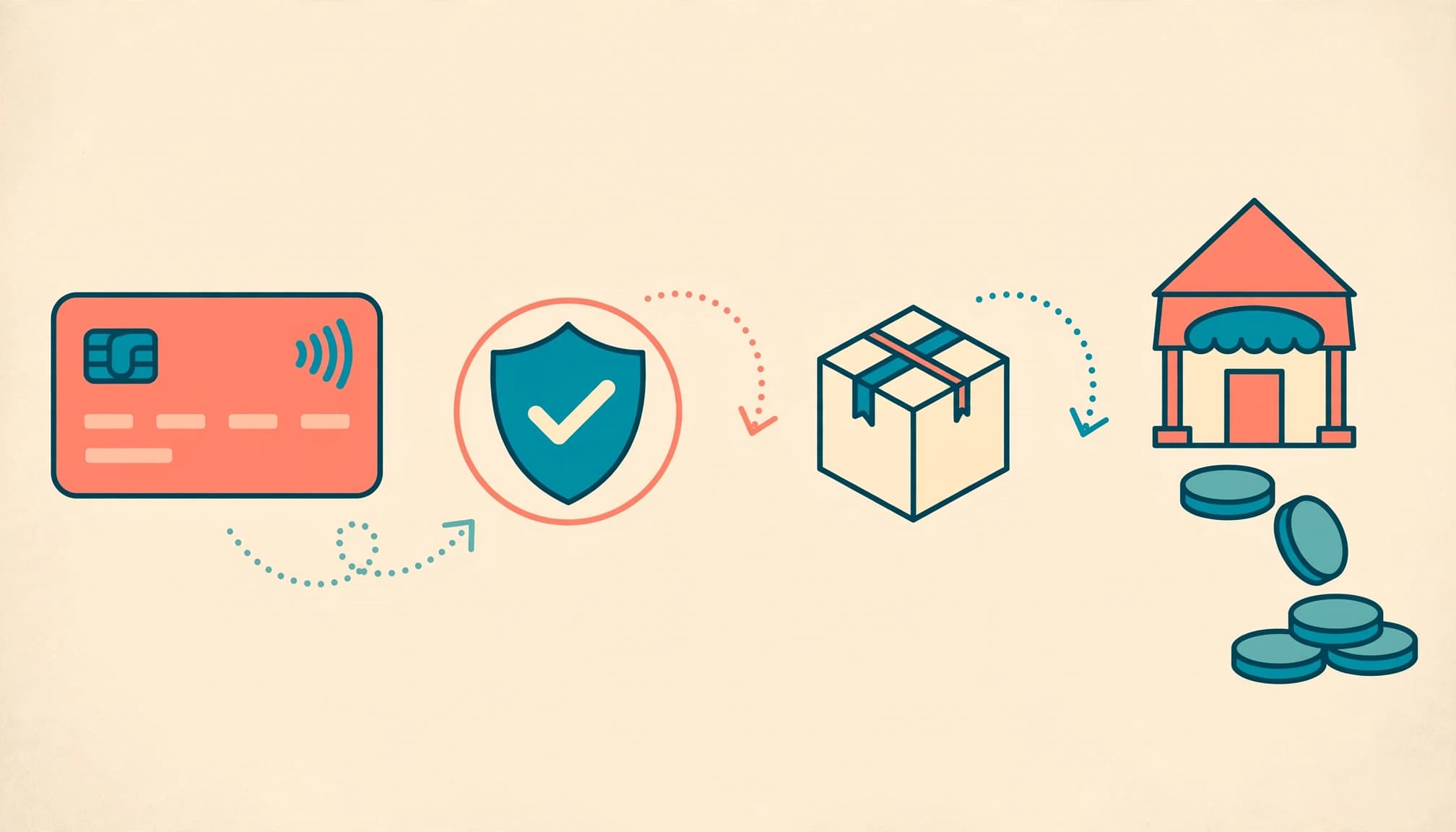
A checkout failure blocks the customer’s purchase
Checkout failures include issuer declines, failed authentication, payment loops, and unavailable payment methods. Record the error, payment method, time, device, and affected cart.
Compare several attempts. One customer’s declined card suggests a different problem than every payment method failing after a configuration change.
Open the relevant order or abandoned checkout, where available, and inspect its payment details. For external gateways, also inspect the matching transaction in the provider dashboard.
A payout failure affects your bank deposit
A successful customer payment can still produce a failed merchant payout. Don’t ask customers to pay again because your settlement hasn’t arrived.
For Shopify Payments, open Settings > Payments, then use View payouts. Read the affected payout’s status and failure reason.
With a third-party provider, settlement details usually sit in that provider’s dashboard. A missing payout alone doesn’t prove your checkout is broken.
Fix test mode and account restrictions first
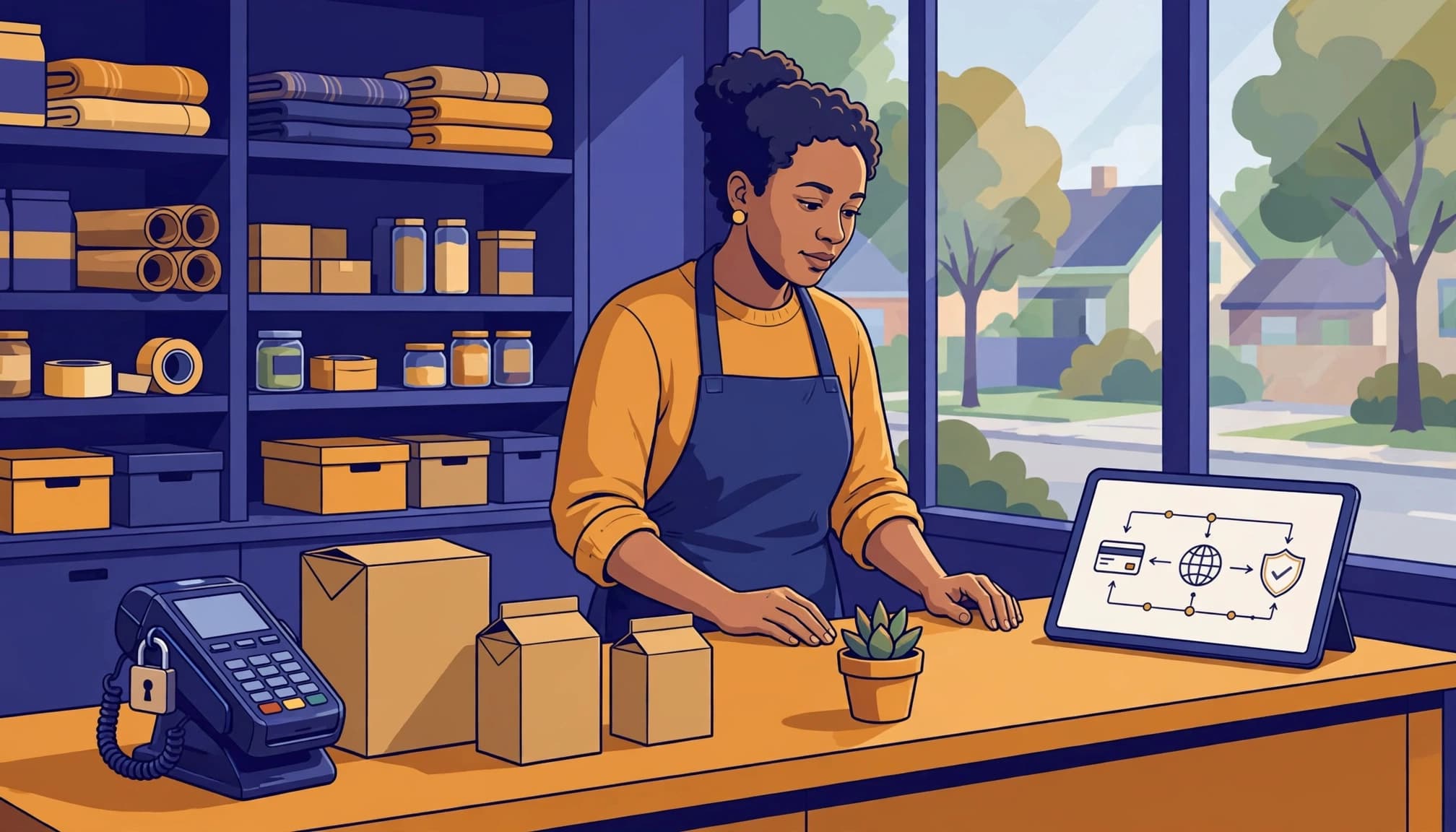
Turn off test mode before accepting real payments
In Shopify Admin, open Settings > Payments and manage the active provider. For Shopify Payments, the test-mode control appears under Manage.
Shopify’s test-order guidance explains that customers can’t place live orders while payment providers are in test mode.
After disabling it, complete a small live transaction using a real payment method. Confirm the order’s payment status, not just the confirmation page. Processing and refund fees can apply.
For external gateways, use the provider’s live environment rather than its sandbox.
Read notices before changing checkout design

Shopify may conduct a compliance review during onboarding and throughout an account’s operation. A notice may concern payouts, payment processing, or requested business information.
Read its scope carefully. A payout-only hold and a restriction on accepting payments require different responses.
Shopify’s account-hold guidance prioritizes submitting requested information and replying directly to Shopify’s email. Use the specified secure upload route for verification documents and other sensitive records.
Don’t rebuild checkout while an account restriction remains unresolved. Provider approval has no universal completion deadline.
Rule out shipping, currency, and purchase-option problems
Some apparent Shopify payment failures happen before the gateway receives an authorization request.
Rebuild the cart in a private browser window. Match the variant, quantity, address, discount, and fulfillment location. An old abandoned-checkout link can retain earlier shipping information.
For Kolkata deliveries, test PIN-code serviceability. Also inspect shipping zones, product profiles, and rate conditions. A free-shipping discount can’t create a delivery service that isn’t available.
Our guide to Shopify shipping rate setup covers these dependencies.
Next, distinguish the checkout currency from the payout currency. A provider must support the transaction currency you’re presenting.
Subscription products also need a compatible recurring-payment setup. A gateway accepting ordinary purchases doesn’t automatically support subscription renewals. Compare an ordinary product with the subscription product to isolate that difference.
If failures began after a checkout-extension change, restore the previous supported configuration and retest one change at a time.
Recover declined payments without adding friction
Give shoppers a useful next step
When an error message says a payment couldn’t be processed, ask the shopper to check their details or choose another payment method.
Inspect the transaction result before responding. Do Not Honor means the card issuer declined the transaction. The merchant can’t override that decision, so offer another payment method and suggest contacting the issuing bank.
Where supported, place an error message beside the affected field. Preserve the cart and non-sensitive information.
If a provider reports “insufficient funds,” offer another suitable payment method instead of asking the shopper to repeat the same attempt.
For an Indian audience, prioritize a working UPI journey alongside appropriate card and net-banking options. More payment buttons aren’t automatically better. Our checkout optimization guide covers reducing unnecessary steps.
Retry only when the payment status supports it
A temporary interruption may justify another attempt. An expired card or a firm issuer decline needs a different action.
A customer leaving the payment app doesn’t prove the payment failed. Inspect the recorded status before encouraging another charge.
If a payment remains pending, avoid repeated submissions. Once its status is known, offer the relevant recovery route.
For abandoned checkouts, send a recovery link after the underlying fault is fixed. Coordinate reminders so a completed purchase stops further messages. Use Bengali or English according to recorded preferences, rather than inferring language from names.
Troubleshoot Shopify Payments payout failures separately
These rules concern Shopify Payments in supported regions, not every Indian gateway. They cover transfers to merchants, not declined customer payments.
Shopify Payments requires a checking or current account that accepts the required local transfers. Its currency must meet the merchant region’s requirements. Savings, flex-currency, and wire-only accounts aren’t supported.
Incorrect account details or a closed account can prevent delivery. Correct the payout destination in Shopify Admin and read the failed transfer’s instructions.
A store’s selling currency can differ from its payout currency, as Shopify explains in its payout overview. However, the receiving account must support the configured payout arrangement. Don’t change storefront currency as a blanket repair.
There isn’t one retry deadline covering every failed payout. Follow the status and action shown for the affected transfer. Shopify’s payout-timing guidance states that changing to a new external bank account can trigger a three-to-five-business-day pause.
A hold may require information, payout reactivation, or Support assistance. Contact Shopify Support when the displayed instructions direct you to do so.
A negative payout needs separate attention. Where bank withdrawals apply, Shopify can make two additional debit attempts before pausing payouts to that account. Its withdrawal-permission guidance names Australia, Canada, New Zealand, and the United States. Check that a permitted debit won’t fail for insufficient funds, and follow the status-specific instructions.
Keep enough funds available for applicable refunds and chargebacks.
Choose a payment route that fits an Indian store
India isn’t included in Shopify’s supported-country list for Shopify Payments. Kolkata-based businesses therefore generally need a third-party payment provider.
Shopify supports third-party payment integrations. Compare each payment gateway’s support for Indian payment methods, international sales, settlement currency, refunds, and recurring billing.
Also account for provider charges and any applicable Shopify third-party transaction fees. A cheaper headline rate doesn’t compensate for an unreliable payment journey.
Unsupported business categories also need an eligible provider. Using Shopify as the storefront doesn’t override a processor’s restrictions or legal requirements.
Cash on delivery can provide another purchasing option where commercially sensible. However, account for collection charges and return-to-origin costs. A COD order confirmation doesn’t mean you’ve collected payment.
Run a closing checkout checklist after each fix
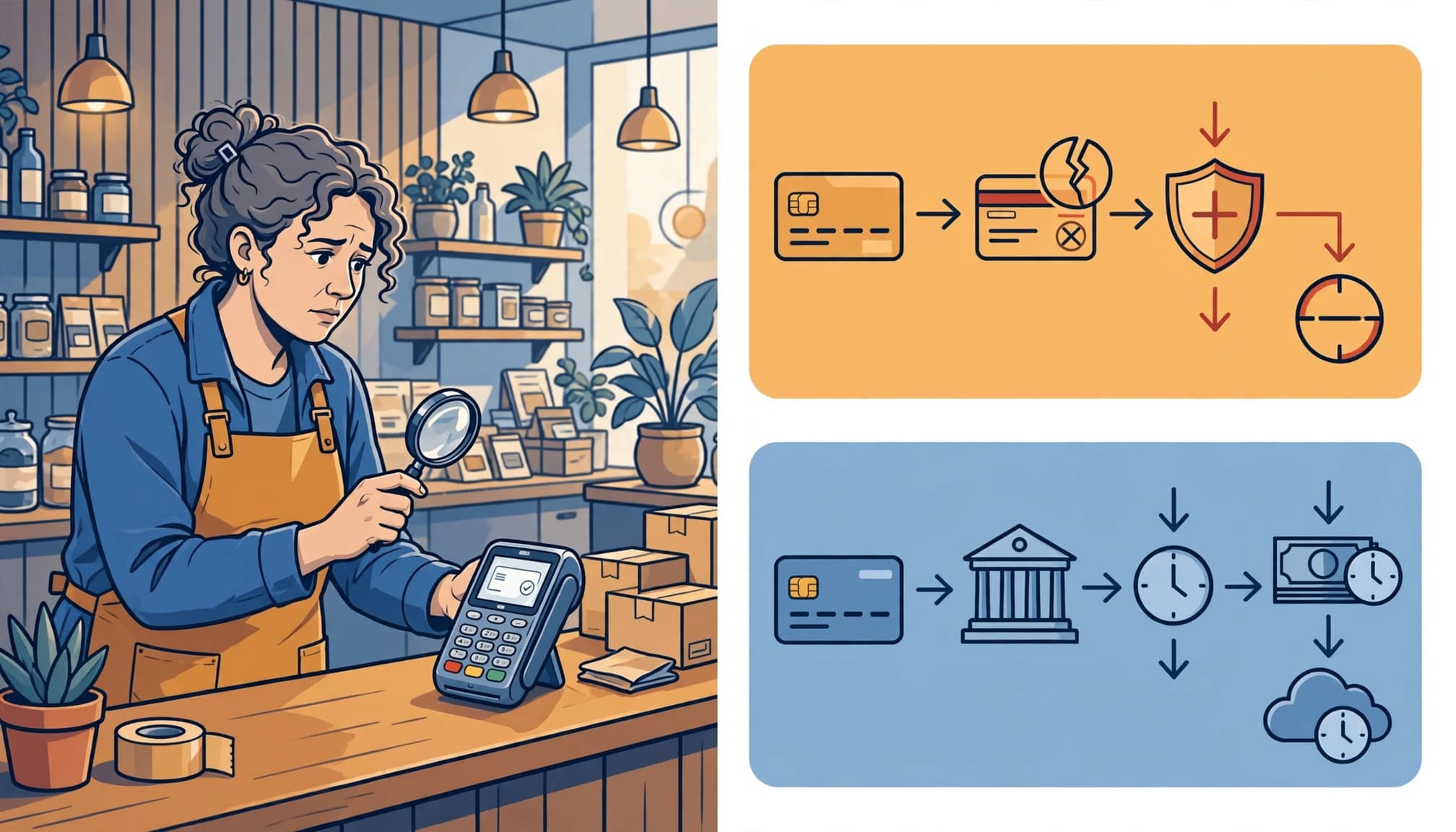
A successful test should cover the customer’s journey and the merchant’s payment record.
- Rebuild the original cart and reproduce the affected address, currency, and purchase option.
- Test on an ordinary Android phone over mobile data, including payment-app switching and the return to confirmation.
- Complete a controlled live payment after leaving test mode. Match its order identifier, amount, currency, and payment status.
- Repeat with the other payment methods you offer. Test a declined attempt and its recovery path where supported.
- Record the change and compare payment outcomes before making another adjustment.
Keep guest checkout available and remove banners that obscure payment controls.
For measurement, compare successful payments with payment attempts by method and device. Separate SEO and paid traffic when reviewing acquisition differences, but reconcile results with Shopify and provider records.
Analytics can mislead: a payment-button click records an attempt, while a purchase event may describe a completed COD checkout without collected funds.
Frequently asked questions
What does “this store can’t accept payments right now” mean?
It means payment acceptance is unavailable, but it doesn’t identify the cause. Check the active provider, test-mode settings, and account notices first. Compare another payment method before changing unrelated settings.
Why did payments stop after working normally?
Compare the first failed attempt with recent configuration changes and provider notices. If only one card fails, check the issuer’s response. If multiple methods fail, look for a broader configuration or account problem.
Should I send abandoned-cart reminders during a payment outage?
Fix payment acceptance first. Otherwise, recovery messages send customers back to a broken checkout. Once payments work, test the recovery link and suppress reminders after purchase.
Should I simplify checkout to one page?
Fix reproducible payment faults before changing the layout. Page count alone doesn’t determine completion. Clear charges, manageable forms, and reliable payment handling matter more.
Keep checkout easy while fixing the actual fault

Reducing Shopify payment failures starts with accurate diagnosis. Separate checkout declines from payout problems, repair the identified cause, and test the complete customer journey.
Keep recovery simple: preserve the cart, explain the next step, and offer suitable alternatives.
If you need help reviewing your Shopify checkout and connected customer journey, Get In Touch With Us.