GA4 User-ID Tracking for Better Lead Attribution in 2026

GA4 User-ID Tracking for Better Lead Attribution in 2026

A lead form rarely tells the whole story. A potential customer might discover your site through organic search, return later via a LinkedIn ad, read multiple service pages, and finally submit a form on a mobile device days later. Without a unified view, these touchpoints appear as separate, disconnected sessions.

GA4 User-ID tracking helps connect those disparate moments when a visitor becomes identifiable through a login, customer portal, quote request, or another consented interaction. By implementing this approach, you can bridge cross-device behavior and achieve more accurate lead attribution. Done well, it gives marketing and sales teams a clearer view of qualified demand without putting personal information into Google Analytics.

The goal is not to follow people around the web. Instead, it is to understand exactly which channels, pages, and campaigns create the high-quality leads that turn into real revenue for your business.

Key Takeaways

  • GA4 User-ID tracking uses a non-personal, unique identifier to connect a known visitor’s activity across devices and sessions, which significantly improves the accuracy of cross-device tracking.
  • Never send names, email addresses, phone numbers, form responses, or other personally identifiable information to GA4.
  • A useful setup connects GA4 events with first-party CRM records, rather than treating GA4 as the source of truth for sales data.
  • Consent, data minimization, and clear retention rules should shape the implementation before any tags go live.
  • Organic search, paid media, and answer-focused content perform better when you measure lead quality beyond the form submission.

What GA4 User-ID Tracking Actually Changes

GA4 automatically uses device-based identifiers such as cookies and app instance IDs. That works for many visits, but it has limits. A person who switches from a work laptop to a phone can look like two separate users. Cookie deletion creates another break in the journey.

User-ID adds an identifier your business controls. By passing this value via the user_id parameter, GA4 enables session unification, which links past interactions with the current session. When the same person returns through a logged-in client portal, booking system, or authenticated account, GA4 associates that activity with your ID to improve cross-device reporting and reduce duplicate user counts.

For lead generation websites, the identifier often becomes available after a visitor completes a form and enters a customer journey managed by a CRM. However, submitting a form does not automatically justify persistent tracking. Your privacy notice, consent rules, and lawful basis still matter.

A User-ID should be an opaque value that relies on unique identifiers which are pseudonymous. It should not reveal anything about the person behind it.

Good examples include a random, non-meaningful identifier generated by your own system. Poor examples include an email address, a phone number, a full name, a company name, or an encoded version of any of them.

Google Analytics policies prohibit personally identifiable information, even when it is hashed. Hashing an email does not make it suitable for GA4 User-ID tracking.

GA4 can support attribution analysis, but it should never become a storage location for lead records or sensitive customer data.

User-ID also has a reporting impact. GA4 uses a specific reporting identity setting to process your data, with options including Blended, Observed, and device-based. The Blended reporting identity combines your User-ID with Google Signals and device IDs to provide a more complete view of the customer journey, while Observed reporting relies primarily on your own identifiers and device IDs when Google Signals data is unavailable. Because these settings determine how GA4 resolves user counts, you may see fluctuations in your data depending on which configuration you choose.

That difference can surprise teams that compare a legacy dashboard with a new GA4 report. The number of users is not always a count of unique human beings. It is a measurement result shaped by the identifiers and reporting identity settings available to Analytics.

Start With a Lead Measurement Plan

A User-ID implementation fails when it begins with a tag request and ends with a dashboard. Before development begins, define the business questions the setup must answer.

A B2B software company may want to know which content paths create demo requests that become sales opportunities. A home services brand may need to compare paid calls, quote forms, and booked appointments by location. A consultancy might care more about qualified consultations than total form fills.

Write down the lead stages that matter to sales. Keep each stage clear enough to measure without exposing personal details.

Business stageGA4 event exampleFirst-party system record
Visitor begins a formform_startNone yet
Visitor submits an inquirygenerate_leadNew lead
Sales team confirms fitlead_qualifiedQualified lead
Meeting is bookedappointment_bookedMeeting record
Deal closeswon_dealClosed-won opportunity

GA4 can record the first two stages directly on the website using event parameters like form_name or lead_type to provide additional context. Your CRM, such as HubSpot or Salesforce, should remain the authority for qualification, pipeline value, and closed revenue.

For later stages, pass back only carefully selected, non-sensitive signals. A lead_qualified event can tell marketing that a lead met the sales team requirements. It does not need the person’s name, budget, job title, or private sales notes. Furthermore, you can map CRM lifecycle stages to GA4 user properties. Setting a user property such as lifecycle_stage allows you to track the persistent status of a user throughout their entire journey, providing a more accurate view of where they sit in your marketing funnel.

This planning step also prevents teams from treating every inquiry as equal. Ten ebook downloads may look impressive in a monthly report. Yet one qualified enterprise demo could create more commercial value than all ten.

A sound measurement plan separates volume metrics from quality metrics. Form submissions, calls, and chat starts show demand. Qualification rates, meeting rates, and won revenue show whether that demand fits the business.

Build a Safe Identifier and Data Flow

Your technical team needs one controlled process for creating, storing, and passing an analytics-safe ID. Avoid generating a new ID in every marketing platform, as this creates several competing versions of the same person. Whether you implement this through gtag.js or via Google Tag Manager, consistency is the foundation of accurate tracking.

For authenticated products or client portals, use the existing account process to assign a random analytics identifier. Store the relationship between that identifier and the CRM contact using unique identifiers as the backbone of your internal lead record. GA4 receives only the anonymous identifier.

For non-authenticated lead generation sites, apply extra caution. A visitor who submits a contact form may have no reason to expect a persistent identifier across future visits. In many cases, capturing the GA4 client ID alongside the form submission is enough for CRM attribution. User-ID tracking should only appear where your consent design and product experience support it.

A practical data flow for signed-in users who have consented often looks like this:

  1. A visitor grants analytics consent through your consent management platform.
  2. GA4 records page views, campaign data, and key events using its standard identifiers.
  3. When the visitor enters an authenticated or approved identified state, your site sends a pseudonymous User-ID to GA4 using your chosen implementation method.
  4. Your form or backend stores the GA4 client ID, campaign data, and internal lead record together.
  5. The CRM later returns non-sensitive lifecycle outcomes for analysis.

The identifier needs to be stable, but it should not be permanent by default. If a user deletes an account, withdraws consent, or requests deletion, your internal systems need a documented method to stop future association and handle deletion requests.

Keep the identifier out of URLs. Query parameters often end up in browser history, referral strings, logs, screenshots, and third-party tools. They are a poor place for anything tied to an identified lead journey.

The same warning applies to event parameters. Do not send free-text form fields to GA4. A message box can contain medical details, financial information, account credentials, or other sensitive content. Record that a form was submitted, not what the visitor wrote.

Configure GA4 and Google Tag Manager Carefully

The implementation process begins in the data layer, where developers ensure that the unique identifier is available only when the visitor meets your specific criteria. Proper execution within Google Tag Manager is essential for accurate lead attribution.

When the ID is available, configure your primary Google tag to include the user_id parameter globally. This ensures that the identifier is sent with every request, providing a consistent thread across the user journey. You should set this value before any relevant page views or events occur. If you attempt to send the identifier after a conversion event has already fired, that specific event will likely fail to associate with the user profile.

This timing is critical for form confirmation pages and logged-in experiences. A common technical error is firing a conversion event, such as generate_lead, before updating the user_id parameter. By doing so, the lead event loses the essential connection your reporting needs for accurate cross-device tracking.

Follow these steps to maintain a clean setup in Google Tag Manager:

  • Create a dedicated Data Layer Variable to capture the pseudonymous identifier.
  • Use a configuration tag to set the user_id parameter globally, ensuring it fires before your specific lead events.
  • Trigger tracking updates only after your consent conditions are met.
  • Map critical lead details, such as form_name or service_category, as user properties and assign them to a user-scoped custom dimension to enhance your reporting capabilities.
  • Use a separate event for lead actions rather than relying solely on page views.

Limit custom parameters to information you will actually use. Event collections often become cluttered with campaign labels or technical values that no one reviews. A smaller, streamlined event schema is significantly easier to test and maintain.

For example, a B2B lead form might send generate_lead with form_name: consultation, lead_type: business, and service_category: seo. These parameters reveal which services produce inquiries without exposing sensitive contact details. Similarly, a local business could track a quote_request with service_category: water_heater_repair, while carefully avoiding PII like street addresses or user messages.

Use GA4 DebugView as your primary validation tool during implementation. Test the setup on both desktop and mobile, ensuring you verify behavior both with consent accepted and denied. Check your browser network requests, utilize Tag Assistant, and monitor the Realtime report to confirm that events reach the correct property before you mark them as key events.

If you use server-side tagging, apply these same rigorous rules. A server container improves your control over data collection, but it does not bypass privacy requirements. Your server should always filter out personal data before any requests reach GA4.

Consent and Privacy Rules Need Real Technical Controls

A consent banner alone does not create a privacy-conscious setup. To ensure compliance, your tag behavior must strictly match the visitor’s choice. Whether you are using gtag.js or a tag management system, consent must be the technical trigger for any tracking activity.

Google Consent Mode can adjust Google tag behavior based on consent states, including analytics and advertising storage. However, your team still needs to decide when User-ID data may be sent. Do not treat a pseudonymous ID as risk-free just because it lacks a visible name. Crucially, you must ensure that all personally identifiable information is strictly excluded from all hits sent to your analytics property.

Under privacy laws such as the GDPR, pseudonymous identifiers can still be considered personal data when your business can connect them back to a person. That means your privacy documentation, vendor agreements, retention periods, and data subject request processes need to align with the system you operate.

Set default consent states before GA4 loads, then update them only after the visitor makes a choice. Test the rejected path as carefully as the accepted path; many websites test the happy path and inadvertently miss tags that send data before consent loads.

Review these areas with your legal and privacy teams:

  • The privacy notice should clearly explain the categories of analytics data collected and why.
  • GA4 data retention should align with your reporting needs and internal company policy.
  • Access should remain limited to team members who require it for analysis or implementation.
  • CRM exports and BigQuery datasets require their own dedicated access controls.
  • A deletion request process should cover identifiers stored across your website, CRM, and analytics systems.

Google Analytics includes data deletion tools, but remember that deletion is not a substitute for careful collection. The safest data is always the data you never sent in the first place.

Connect Identified Journeys to CRM Outcomes

GA4 is useful for behavioral analysis. Your CRM is better at tracking sales ownership, deal stage, deal value, and lead disposition. Connect the two through a first-party identifier strategy, not by pushing contact records into Analytics.

Capture campaign details at form submission. Common fields include source, medium, campaign, landing page, GA4 client ID, click identifiers where appropriate, and the internal lead reference. Save those values with the lead in HubSpot, Salesforce, or your preferred CRM.

Then use aggregated CRM outcomes to judge marketing quality. For example, compare qualified-lead rates for visitors who first arrived through organic search against visitors acquired through paid social campaigns. You can also review which landing pages produce opportunities, not only leads.

BigQuery export is often the strongest option for deeper analysis. GA4 exports event-level data to BigQuery, where analysts can work with user_pseudo_id, user_id where collected, event timestamps, traffic source data, and conversion events. Your internal data warehouse can join that information to CRM outcome tables through approved keys.

Do not assume that GA4’s User-ID is the right join key for every system. In many lead generation programs, the GA4 client ID captured at conversion is more useful for linking the browser session to a lead record. User-ID helps most when visitors sign in or return through known, consented experiences.

Google Ads needs its own treatment. GA4 User-ID does not replace Google Ads conversion tracking, Google Click ID capture, offline conversion imports, or Enhanced Conversions. Use each tool for its intended role.

For example, an agency running Performance Marketing campaigns may import qualified leads into Google Ads to improve bidding. At the same time, GA4 can help you gain a better understanding of multi-touch attribution by showing the pages and content paths that led to those conversions. The two systems answer related, but different, questions.

Use Reporting That Helps Teams Make Decisions

Once the tracking works, resist the urge to build dashboards around every available metric. Lead generation reporting should answer practical questions about spend, content, and sales outcomes.

GA4 Explorations can help you compare paths, segments, and conversion sequences. You can use the User Explorer report to investigate specific, high-value journeys, allowing you to see exactly how a single identified user navigates your site. Create segments for users with a User-ID, users who triggered generate_lead, and users who later reached a qualified stage. By applying these as user-scoped segments, you can compare their acquisition channels, landing pages, and engagement patterns. As you define your tracking, be careful when sending data to a custom dimension; if you use too many unique values, such as specific timestamps, you will trigger high cardinality issues that limit your reporting capabilities.

Use funnel exploration to identify friction. A common funnel might begin with a service-page view, continue through form start, and end with generate_lead. If organic traffic reaches the form but abandons at a high rate, the issue may be page clarity, form length, mobile performance, or weak trust signals.

For high-intent pages, pair GA4 findings with Search Console data. Search Console shows how people discover your content through Google Search. GA4 shows what visitors do after they arrive. Together, they reveal whether a page attracts the right query intent and moves visitors toward contact.

This matters for SEO, GEO, and AEO work. Search-optimized service pages should answer clear buying questions. Location pages need accurate local proof, realistic service details, and useful FAQs. Answer-focused content should make its claims easy to verify.

User-ID tracking does not improve rankings or force an answer engine to cite your site. Instead, it helps you see whether organic visitors who consume that content become meaningful leads.

The same approach applies across Social Media Marketing, email campaigns, and referral partnerships. A campaign that produces cheap leads may still perform poorly if few leads become sales conversations. Quality data helps teams move budget toward sources that produce real opportunities.

Common Problems That Distort User-ID Data

Most tracking errors are simple, but their reports can look convincing. Review the following issues before trusting a new dashboard.

A site may send a blank User-ID, a temporary session ID, or a different identifier on every page. This breaks cross-session analysis. Generate the ID once, validate it, and maintain it according to your retention policy.

Another frequent problem is inconsistent timing. If the page view uses one ID and the conversion event uses another, attribution becomes unreliable. Test the full path with browser debugging tools and real form submissions.

Some teams also mistake a User-ID for a CRM lead ID. The two can connect in your internal systems, but they should not expose a customer record to GA4. Keep the analytics identifier random and separate.

Data quality also suffers when marketing tags fire on internal traffic, test submissions, or spam forms. Filter known internal traffic where appropriate, use bot protection on forms, and label test records in the CRM so they do not enter revenue analysis.

Finally, treat tracking changes as controlled releases. Website Development teams should coordinate Data Layer changes, Google Tag Manager versioning, and modifications to the configuration tag. Keeping a detailed record of event names, consent logic, and rollback steps is essential. Marketing leaders need that history when a conversion trend changes after a release to ensure the attribution flow remains intact.

If your analytics, CRM, paid media, and website teams need one shared measurement plan, Get In Touch With Us.

Frequently Asked Questions

Is it safe to send my CRM lead IDs as the User-ID in GA4?

No, you should never send internal CRM identifiers, email addresses, or any personally identifiable information to GA4. Instead, use a randomly generated, non-meaningful string that acts as an anonymous handle for the user, ensuring that your analytics setup remains privacy-compliant.

Does GA4 User-ID tracking replace the need for CRM attribution?

Absolutely not. GA4 should be used to analyze behavioral paths and content performance, while your CRM remains the definitive source of truth for deal stages, sales value, and lead qualification. The best strategy is to connect these systems by passing a common, non-sensitive identifier between them.

Why do my user counts change when I enable User-ID in my reporting identity?

When you use the ‘Blended’ or ‘Observed’ reporting identity, GA4 attempts to stitch sessions together using your provided User-ID alongside other signals like Google Signals. This process often reduces the total user count by identifying that multiple sessions across different devices actually belong to the same person, leading to more accurate, lower numbers than device-based reporting.

Should I implement User-ID tracking for every visitor on my website?

User-ID tracking should only be applied to users who have provided explicit consent and have entered a logged-in or identified state. For anonymous traffic, standard device-based tracking is sufficient, and attempting to force a unique identifier on unidentified users often creates privacy risks and technical compliance issues.

A Better View of Lead Generation in GA4

Successful GA4 User-ID tracking functions best when it serves as the backbone of a disciplined first-party measurement system. To maintain accuracy and security, always utilize anonymous, non-meaningful identifiers while strictly protecting user consent choices. By ensuring sensitive customer details remain inside your CRM and secure data environment, you protect both user privacy and your analytics integrity.

The most effective approach to GA4 User-ID tracking involves connecting top-of-funnel campaign activity directly with CRM-verified outcomes, rather than relying solely on simple form submission totals. When your analytics data accurately reflects real lead quality, marketing and sales teams can make informed, strategic decisions regarding content performance, media spend, and conversion rate improvements. Ultimately, leveraging these insights provides a clearer, more actionable view of the entire lead generation lifecycle.

How to Exclude Internal Traffic GA4 Without Losing Real Users

How to Exclude Internal Traffic GA4 Without Losing Real Users

A few employee visits can make a small website look busier than it is. Add agency checks, developer testing, customer support calls, and form submissions, and your Google Analytics 4 reports can become hard to trust.

To exclude internal traffic GA4 safely, you need to filter known staff activity without blocking customers who share a network, use mobile data, or arrive through a VPN. The goal is cleaner reporting, not a smaller audience.

Key Takeaways

  • Configure GA4 internal traffic rules to filter out visits from your office, agency partners, and testing environments.
  • Start every new filter in Testing mode before changing it to Active to ensure data integrity.
  • Avoid excluding broad ranges for any single IP address, especially when managing remote connections or shared network workspaces.
  • Keep a record of every rule, its owner, and the reason it exists to maintain clean documentation.
  • Use a separate test environment for major website development work instead of relying on the live site.

Why Internal Visits Can Distort GA4 Data

Internal traffic affects more than total users. It can inflate page views, make engagement rates look stronger, and trigger conversions that never came from a prospect. A team member who visits a landing page 15 times during a campaign review should not count like 15 potential customers.

The issue grows when reporting informs budget decisions. If internal traffic is mixed into a Google Ads report, performance marketing teams may push spend toward keywords or campaigns that did not produce real leads. Likewise, SEO reporting can overstate organic traffic when content writers repeatedly review published pages.

For a local business, the distortion can be even sharper. An employee checking store hours, testing a booking form, or opening directions may appear as a nearby customer. In these cases, using a URL query parameter can serve as a reliable alternative method for identifying these sessions if IP based filtering is insufficient. These visits can muddy decisions about location pages, service areas, and conversion paths.

Google Analytics 4 filters work prospectively. They do not remove internal visits that the platform already processed.

Clean data also helps teams make better SEO, GEO, and AEO decisions. Search visibility and AI answer visibility matter, but reliable analytics tells you whether that visibility brings real people to the site.

How GA4 Identifies Internal Traffic

GA4 does not know that a visitor is an employee by name. Instead, it identifies internal activity through rules based on specific network locations. When a hit matches one of these rules, GA4 assigns a traffic_type parameter to the session, which is typically set to internal.

You can then create a data filter that excludes events with that traffic type from your reports.

Google’s internal traffic setup documentation explains the mechanics, but the decisions around network ranges need care. When defining these rules, you can specify ranges in either IPv4 or IPv6 formats. It is important to remember that the public IP address is what matters, rather than the local address assigned to a device on your office network.

For example, a company office may have one static public IP address. Every device using that office Wi-Fi will appear to originate from that same point. However, a remote employee working from a home connection may see their IP address change regularly. A developer using a VPN may even appear to visit from a completely different country.

That is why an internal traffic rule should reflect a stable, known network rather than an assumption about where employees usually work.

Set Up an Internal Traffic Rule in GA4

Start with a short inventory. Ask your IT contact, web agency, and internal teams for the public IP addresses they use while working on the website. Include office networks, fixed agency IPs, and any dedicated testing locations.

Avoid collecting personal home IP addresses unless they are static and the employee agrees to the process. Most home broadband connections use dynamic IP addresses, which can change without warning.

In GA4, follow these steps to manage your traffic exclusions:

  1. Open Admin, then choose the relevant property and the correct web data stream.
  2. Select Configure tag settings, then open the menu to Define internal traffic.
  3. Create a rule with a clear name, such as “Kolkata Office” or “Web Agency Fixed IP.”
  4. Choose an IP address matching condition and enter the approved address or range.
  5. Keep the traffic type as internal, unless your measurement plan requires separate labels.
  6. Save the rule, then create a data filter that excludes the internal traffic type based on the IP address you provided.

GA4 supports several match types, including “IP address equals,” “begins with,” “ends with,” “contains,” and CIDR notation ranges. Use the narrowest possible option.

SituationSafer rule choiceMain risk
One office with a fixed IPIP address equalsLow risk when the IP is confirmed
Agency with several fixed IPsSeparate exact-match rulesRequires updates when the agency changes networks
Company network with a documented CIDR blockCIDR notationCan capture visitors if the range is too broad
Remote workers on home internetUsually do not filter by IPIP addresses can change or overlap
Mobile testing on 4G or 5GDo not filter by IPCarrier addresses are shared and unstable

The narrowest rule is usually the most reliable. A rule based on “begins with” or “contains” can look convenient, yet it may catch real visitors whose address shares the same pattern.

Keep New Data Filters in Testing Mode First

Creating an internal traffic rule does not remove data by itself. You must also create a data filter under Admin > Data collection and modification > Data filters.

Choose the internal traffic filter type and set it to the testing state first. While in this mode, GA4 evaluates the matching traffic but does not permanently exclude it from standard reporting.

The testing state gives you time to check your configuration before it impacts your business analytics. To verify your settings, visit the website from the office network, browse several pages, and submit a harmless test action if your setup allows it. Then, compare activity across GA4 real-time reports and DebugView to ensure the traffic is tagged correctly.

Google’s GA4 data filter guide explains the available filter states. Once you move your data filter to an active state, GA4 permanently removes matching future data from your property reports. Please note that switching the filter back to testing or inactive later does not restore those previously excluded events.

Use this simple review process before activation:

  • Confirm the rule correctly identifies visits from the intended network.
  • Check that mobile users, remote staff, and customers still appear normally in your reporting.
  • Review source, device, and location data for unexpected exclusions.
  • Ask the person who supplied the IP address to confirm it remains current.

After a few business days of monitoring, move the filter to an active state if the data looks accurate. If the results appear uncertain, revise your traffic rule rather than guessing.

Separate Staff, Agency, and QA Traffic When Needed

One generic internal label works for many businesses, but larger organizations often require more granularity. You may want to identify office traffic, web agency sessions, developer traffic, and quality assurance tests separately.

By assigning a unique traffic type value to these segments, you can gain better analytical insights before deciding whether to exclude them. For instance, a business could label known agency traffic as agency, testing traffic as qa, or technical visits as developer.

This approach is particularly useful when an agency needs access to live reports, but the business wants to verify if those visits are skewing campaign metrics. It also helps when monitoring a new checkout flow or lead form after a website release.

However, only create multiple labels if someone will actively maintain them. A complicated setup with outdated rules creates more problems than a single, well-managed filter. For major updates, it is best to use a staging site with a separate measurement ID. This ensures that developer checks, test purchases, and experimental forms remain completely outside your production property. Ultimately, your live site should stay focused on genuine visitor behavior.

Don’t Accidentally Exclude Real Customers

The biggest risk is filtering a network that also carries customer traffic. Shared office buildings, co-working spaces, hotels, universities, and public Wi-Fi networks can all route many people through a limited range of IP addresses.

A clinic, for example, should not exclude an entire building network if patients use the same guest Wi-Fi. An ecommerce brand should not filter a broad ISP range because staff work remotely through that provider. Those rules can hide real purchases and damage attribution.

Server-side tagging also needs extra attention. When implementing this through Google Tag Manager, ensure that information from the data layer is accessible to help identify users accurately. In more advanced setups, you might consider using a user-scoped custom dimension to consistently mark internal users across different devices. If your setup sends GA4 events through a server-side container, confirm that client IP information passes through as intended. Otherwise, GA4 may see the server’s IP address rather than the visitor’s address.

Keep a basic rule register with:

  • The rule name and the IP address or CIDR notation range
  • The team, office, or vendor connected to it
  • The date it was added and last reviewed
  • The person responsible for confirming changes

Review the register every quarter and whenever an office moves, an agency changes, or a network provider is replaced. This is the same discipline that keeps reporting stable across Digital Marketing, Social Media Marketing, and paid acquisition work.

If analytics, tagging, and attribution need a second review, Get In Touch With Us for help diagnosing the setup without disrupting live reporting.

Validate Reports After You Activate the Filter

Once your exclude filter becomes active, watch for unusual changes in your analytics. A modest drop in direct traffic or page views is expected, but a sudden fall in conversions, paid traffic, or local visitors may indicate that the rule is too broad.

Compare the current period with a prior period that had similar traffic patterns. Look beyond total users by checking conversion rates, source and medium, landing pages, geography, and device categories. As you troubleshoot, ensure the traffic_type parameter is correctly assigned by inspecting your event parameters. If you manage multiple office locations, you can use a lookup table or regex to manage your list of IP addresses efficiently.

GA4’s DebugView can help you confirm that your test data filter name is working as expected. Use the preview mode in Google Tag Manager instead of repeatedly browsing the site as a regular user. This allows you to verify that your configurations are triggering correctly without polluting your production data.

Keep an unfiltered reference property when reporting is high stakes. Some organizations send the same events to a separate GA4 property for raw quality checks. This approach requires sound governance and consent controls, but it provides analysts with a reliable way to investigate any unexpected data loss.

Frequently Asked Questions

Can I exclude internal traffic based on something other than IP addresses?

While IP-based filtering is the standard method in GA4, you can also use custom URL parameters or cookie-based solutions. These alternatives are often more effective for remote employees or staff using mobile data who do not have a static public IP address.

Will excluding internal traffic affect my historical data?

No, GA4 data filters are prospective only. Once you set a filter to active, it will only prevent future internal visits from appearing in your reports; it cannot remove traffic that has already been processed by the platform.

How can I verify that my internal traffic filter is working correctly?

Before setting your filter to active, always use the testing state and monitor your activity through the DebugView report. This allows you to confirm that visits from your defined IP addresses are being correctly labeled as internal without permanently altering your production data.

What happens if I filter a network that customers also use?

If you inadvertently exclude a broad network range, such as a co-working space or public Wi-Fi, you risk hiding genuine customer activity. Always use the narrowest possible IP match to ensure you are only excluding staff and not potential leads or purchasers.

Final Thoughts

Internal traffic filtering works best when it stays narrow, documented, and tested before activation. A precise rule protects your reports without hiding the people you want to measure.

Mastering how you manage internal traffic is a fundamental step for any successful Google Analytics 4 implementation. GA4 data becomes more useful when staff behavior, automated testing, and customer visits remain clearly separated. Accurate measurement gives every marketing decision a firmer foundation.

How to Track Google Analytics 4 Form Abandonment for Lead Gen

How to Track Google Analytics 4 Form Abandonment for Lead Gen

A lead form can lose potential buyers long before they ever reach the submit button. In lead generation, that lost intent usually hides in the gap between the moment a user starts a form and the moment they complete a successful submission.

For demand gen teams, that gap directly affects paid spend, organic traffic, and sales follow-up. When you accurately track ga4 form abandonment, you can pinpoint which forms, specific fields, landing pages, and marketing channels waste your budget before they result in another month of lost opportunity.

Key Takeaways

  • GA4 tracks form_start and form_submit automatically when enhanced measurement is enabled, though it does not create a native abandonment event by default.
  • For simple lead forms, Funnel Exploration is often sufficient to identify drop-off points between the initial interaction and the final submission.
  • For multi-step, AJAX, or high-value forms, Google Tag Manager provides cleaner abandonment tracking and more granular field-level detail.
  • The most effective reports connect abandonment data to the source, device, landing page, and actual CRM outcomes rather than focusing on form completions alone.

What GA4 gives you out of the box

Google Analytics 4 already does more than many teams realize. If enhanced measurement is enabled in your web data stream, the platform can collect form_start when a user engages with a form field and form_submit when the form is sent successfully.

That baseline is useful, especially if you need answers fast. You can compare starts to submits, then spot which landing pages or traffic sources have the biggest drop-off. For a lot of B2B sites, that gets you moving without any custom code.

Still, native tracking has a clear limit. The system doesn’t automatically fire a true abandonment event. It records the beginning and the success, but it does not capture the moment a user stops their form field interaction. If someone fills half the form, gets distracted, and leaves, you only know they started. Analyzing this specific user behavior is essential for anyone focused on conversion rate optimization, because every team pushes visitors into the same conversion point. If the form leaks, every channel looks weaker than it is.

This quick comparison helps frame the choices for your form abandonment tracking setup:

ApproachBest forWhat you getMain tradeoff
Enhanced Measurement + FunnelSimple formsStarts, submits, drop-off rateNo true abandonment event
GTM custom listenerMulti-step or AJAX formsAbandonment event, last field, form metadataMore setup work
Server-side GTMHigh-volume lead genBetter event reliabilityExtra cost and ops

For many teams, the right path is simple. Start with native GA4, prove where the drop-off lives, then add GTM only when the form or traffic volume demands more precision.

Build a clean baseline in GA4 first

Before you touch GTM, get the default setup right. A messy custom implementation on top of weak basics creates noisy data, and noisy data leads to bad decisions.

Turn on the built-in form events

Go to Admin -> Data Streams -> Web Stream -> Enhanced measurement and confirm Form interactions is enabled. Then verify the events in Realtime and DebugView. You should also use debug mode to ensure the data is firing correctly as you interact with the page. Click into a form field, and you should see form_start. Submit the form, and you should see form_submit.

Next, mark your successful submission as a Key Event if that form is part of your lead goal. In 2026, GA4 uses Key Events instead of the old conversion label. Keep abandonment as a diagnostic event, not a success metric.

Also, extend Data Retention from the default 2 months to 14 months if you want useful trend analysis. Without that change, longer quarter-over-quarter comparisons get thin fast.

If you want a visual walkthrough of the native setup, Fishtank’s GA4 form abandonment guide is a helpful reference.

Build the funnel before you customize

Once native events work, open Explore -> Funnel exploration and create a simple path:

  1. form_start
  2. Optional field interaction event, if you track one
  3. form_submit

This gives you your first real drop-off view. You can also create an Advanced Segment within this report to isolate specific user groups, such as those coming from high-intent paid search campaigns, to see if they encounter different friction points. Break the funnel down by source / medium, landing page, device category, and form_id if you have it available.

Capturing form_id as a custom definition is essential. Without it, all forms can blur together, especially if you run a demo request, contact form, gated content form, and quote form on the same site.

That baseline often tells a bigger story than people expect. Maybe paid search submits well on desktop but falls apart on mobile. Maybe organic traffic from a high-ranking service page starts the form but quits after the phone field. Maybe one thank-you flow is broken and depresses only one campaign.

At this stage, you are not chasing perfect attribution. You are trying to find the leak.

When a custom GTM event is the better choice

Native GA4 is enough for many short forms. However, if your site uses multi-step flows, embedded tools, AJAX submissions, or heavy CRM routing, you need a real abandonment signal. Using Google Tag Manager for these complex scenarios provides the precision necessary for accurate lead generation data.

A sleek silver laptop rests on a minimalist wooden desk, displaying glowing abstract charts and growth metrics. Soft natural light illuminates the clean workspace, highlighting a professional and focused environment.

Fire abandonment after inactivity

The most robust approach involves placing a Custom HTML Tag within Google Tag Manager. This tag houses a JavaScript listener that monitors the field name attribute as the user interacts with the form. To ensure the data reaches GA4 even when the user closes their browser, the script uses the beforeunload event combined with a transport beacon. When the timer expires or the exit occurs, a dataLayer.push sends the event data to the container.

Send a few parameters with that event:

  • form_id
  • form_name
  • page_location
  • last_field_interacted
  • step_number for multi-step forms

Those details turn a vague loss into something you can act on. If 42 percent of abandonment happens on the budget field, that tells a different story than a general drop on step one. In your GTM configuration, you will need a Data Layer Variable to capture these parameters and a Custom Event Trigger to fire the tag. Always mark this as a non-interaction event to avoid inflating your bounce rate.

Analytics Mania’s GTM tutorial for form abandonment is a strong resource if you need the event logic and testing flow.

If native form interactions and custom GTM events both fire for the same action, your abandonment rate will lie.

That duplication happens often. So if your custom listener fully replaces native form logic, consider disabling native form interactions in Enhanced Measurement for that form setup. At minimum, map events carefully and test every path.

Catch the edge cases before they poison the data

AJAX forms need extra attention because they often submit without a page reload. In that case, the success event should fire from the AJAX callback or a dataLayer.push, not from a thank-you page assumption. Use a Data Layer Variable to confirm the form name so your reports remain clean.

Field-level tracking also needs restraint. Track which field was last touched, but do not send sensitive values like email addresses or phone numbers into GA4.

Then test in three places: Tag Assistant in debug mode, GA4 DebugView, and Realtime reports. If one of those looks wrong, stop there.

For bigger lead-gen programs, client-side tracking can still miss events because of ad blockers, browser limits, or page interruptions. That is where server-side GTM can help. Platforms like Stape.io are often used when accuracy matters more than quick setup. Webeyez’s practical GA4 guide also covers this more advanced layer well.

If your stack includes HubSpot, Salesforce, offline lead stages, or custom embeds, Get In Touch With Us before you publish a half-tested event model.

Report drop-off in a way sales can use

A clean event is only the start. The next step is utilizing form abandonment tracking to report data in a way that helps marketing and sales fix the right problem.

Break the data down by intent, not vanity

Start with four core cuts: form, traffic source, device, and landing page. To keep your data clean and actionable, organize your parameters by eventCategory and eventAction. Using a specific form_id as a parameter also allows you to filter your reporting by specific lead flows, answering most lead gen questions faster than a giant dashboard ever will.

If SEO traffic lands on a service page and starts the form but rarely submits, the page may rank well while failing to answer key objections. If paid search converts on desktop but not mobile, the issue may be layout, field count, or page speed. If paid social drives high starts and low submits, the offer may invite curiosity instead of buying intent.

This is where answer driven search matters too. Visitors coming from AI summaries, branded search, or local discovery often want fast confirmation. A form that asks for too much, too early, can waste that intent.

Connect GA4 to pipeline reality

GA4 tracks browser actions. Your CRM tracks people, deduped records, and sales stages. Those numbers will not match perfectly, and that is normal.

One person can visit twice on different devices. GA4 may count more than one form start. The CRM may merge both into one contact. Time lag adds another gap because a form fill can happen today while qualification happens days later.

So do not judge forms by submission rate alone. Compare abandonment against:

  • qualified lead rate
  • booked meeting rate
  • close rate by source
  • revenue by landing page or campaign

That shift keeps the analysis honest. Sometimes a shorter form boosts submits but hurts lead quality. Sometimes a tougher form cuts volume and improves pipeline. Without the CRM view, GA4 only shows half the truth.

Keep naming conventions clean across GA4, GTM, the site, and the CRM. A single source of truth makes analysis faster, and it keeps reporting stable when teams change tags, pages, or form builders.

Frequently Asked Questions

Does GA4 natively track form abandonment events?

No, GA4 does not track a specific “abandonment” event out of the box. While Enhanced Measurement automatically records form_start and form_submit, you must implement custom logic via Google Tag Manager to identify when a user leaves a form without completing it.

Why should I use a custom GTM listener instead of Enhanced Measurement?

Enhanced Measurement is perfect for simple forms, but it lacks the granular detail needed for complex multi-step or AJAX-based forms. A custom GTM listener allows you to capture specific metadata, such as the last field interacted with or the current step, which helps pinpoint exactly where friction occurs.

Should I track every field in my forms for abandonment?

It is generally best to track only key interaction points rather than every individual input. Avoid capturing sensitive user data, such as emails or phone numbers, as this violates privacy policies and security best practices.

How do I reconcile GA4 abandonment data with my CRM?

It is normal for GA4 and your CRM numbers to differ due to cross-device behavior and lag in the qualification process. Instead of seeking a perfect match, compare your abandonment rates against revenue outcomes and qualified lead rates to evaluate the true business impact of your forms.

Conclusion

The best way to approach form abandonment tracking in GA4 starts with a simple truth: native GA4 shows the gap, while GTM can show the reason. Use the built-in events first, then add custom tracking only where the form complexity justifies it.

Good lead-gen measurement is less about more dashboards and more about cleaner signals. When form_start, form_submit, and abandonment data line up with CRM outcomes, you can effectively optimize the pages and fields that cost real pipeline within Google Analytics 4.

How to Track Google Analytics 4 Form Abandonment for Lead Gen

A lead form can lose potential buyers long before they ever reach the submit button. In lead generation, that lost intent usually hides in the gap between the moment a user starts a form and the moment they complete a successful submission.

For demand gen teams, that gap directly affects paid spend, organic traffic, and sales follow-up. When you accurately track ga4 form abandonment, you can pinpoint which forms, specific fields, landing pages, and marketing channels waste your budget before they result in another month of lost opportunity.

Key Takeaways

  • GA4 tracks form_start and form_submit automatically when enhanced measurement is enabled, though it does not create a native abandonment event by default.
  • For simple lead forms, Funnel Exploration is often sufficient to identify drop-off points between the initial interaction and the final submission.
  • For multi-step, AJAX, or high-value forms, Google Tag Manager provides cleaner abandonment tracking and more granular field-level detail.
  • The most effective reports connect abandonment data to the source, device, landing page, and actual CRM outcomes rather than focusing on form completions alone.

What GA4 gives you out of the box

Google Analytics 4 already does more than many teams realize. If enhanced measurement is enabled in your web data stream, the platform can collect form_start when a user engages with a form field and form_submit when the form is sent successfully.

That baseline is useful, especially if you need answers fast. You can compare starts to submits, then spot which landing pages or traffic sources have the biggest drop-off. For a lot of B2B sites, that gets you moving without any custom code.

Still, native tracking has a clear limit. The system doesn’t automatically fire a true abandonment event. It records the beginning and the success, but it does not capture the moment a user stops their form field interaction. If someone fills half the form, gets distracted, and leaves, you only know they started. Analyzing this specific user behavior is essential for anyone focused on conversion rate optimization, because every team pushes visitors into the same conversion point. If the form leaks, every channel looks weaker than it is.

This quick comparison helps frame the choices for your form abandonment tracking setup:

ApproachBest forWhat you getMain tradeoff
Enhanced Measurement + FunnelSimple formsStarts, submits, drop-off rateNo true abandonment event
GTM custom listenerMulti-step or AJAX formsAbandonment event, last field, form metadataMore setup work
Server-side GTMHigh-volume lead genBetter event reliabilityExtra cost and ops

For many teams, the right path is simple. Start with native GA4, prove where the drop-off lives, then add GTM only when the form or traffic volume demands more precision.

Build a clean baseline in GA4 first

Before you touch GTM, get the default setup right. A messy custom implementation on top of weak basics creates noisy data, and noisy data leads to bad decisions.

Turn on the built-in form events

Go to Admin -> Data Streams -> Web Stream -> Enhanced measurement and confirm Form interactions is enabled. Then verify the events in Realtime and DebugView. You should also use debug mode to ensure the data is firing correctly as you interact with the page. Click into a form field, and you should see form_start. Submit the form, and you should see form_submit.

Next, mark your successful submission as a Key Event if that form is part of your lead goal. In 2026, GA4 uses Key Events instead of the old conversion label. Keep abandonment as a diagnostic event, not a success metric.

Also, extend Data Retention from the default 2 months to 14 months if you want useful trend analysis. Without that change, longer quarter-over-quarter comparisons get thin fast.

If you want a visual walkthrough of the native setup, Fishtank’s GA4 form abandonment guide is a helpful reference.

Build the funnel before you customize

Once native events work, open Explore -> Funnel exploration and create a simple path:

  1. form_start
  2. Optional field interaction event, if you track one
  3. form_submit

This gives you your first real drop-off view. You can also create an Advanced Segment within this report to isolate specific user groups, such as those coming from high-intent paid search campaigns, to see if they encounter different friction points. Break the funnel down by source / medium, landing page, device category, and form_id if you have it available.

Capturing form_id as a custom definition is essential. Without it, all forms can blur together, especially if you run a demo request, contact form, gated content form, and quote form on the same site.

That baseline often tells a bigger story than people expect. Maybe paid search submits well on desktop but falls apart on mobile. Maybe organic traffic from a high-ranking service page starts the form but quits after the phone field. Maybe one thank-you flow is broken and depresses only one campaign.

At this stage, you are not chasing perfect attribution. You are trying to find the leak.

When a custom GTM event is the better choice

Native GA4 is enough for many short forms. However, if your site uses multi-step flows, embedded tools, AJAX submissions, or heavy CRM routing, you need a real abandonment signal. Using Google Tag Manager for these complex scenarios provides the precision necessary for accurate lead generation data.

A sleek silver laptop rests on a minimalist wooden desk, displaying glowing abstract charts and growth metrics. Soft natural light illuminates the clean workspace, highlighting a professional and focused environment.

Fire abandonment after inactivity

The most robust approach involves placing a Custom HTML Tag within Google Tag Manager. This tag houses a JavaScript listener that monitors the field name attribute as the user interacts with the form. To ensure the data reaches GA4 even when the user closes their browser, the script uses the beforeunload event combined with a transport beacon. When the timer expires or the exit occurs, a dataLayer.push sends the event data to the container.

Send a few parameters with that event:

  • form_id
  • form_name
  • page_location
  • last_field_interacted
  • step_number for multi-step forms

Those details turn a vague loss into something you can act on. If 42 percent of abandonment happens on the budget field, that tells a different story than a general drop on step one. In your GTM configuration, you will need a Data Layer Variable to capture these parameters and a Custom Event Trigger to fire the tag. Always mark this as a non-interaction event to avoid inflating your bounce rate.

Analytics Mania’s GTM tutorial for form abandonment is a strong resource if you need the event logic and testing flow.

If native form interactions and custom GTM events both fire for the same action, your abandonment rate will lie.

That duplication happens often. So if your custom listener fully replaces native form logic, consider disabling native form interactions in Enhanced Measurement for that form setup. At minimum, map events carefully and test every path.

Catch the edge cases before they poison the data

AJAX forms need extra attention because they often submit without a page reload. In that case, the success event should fire from the AJAX callback or a dataLayer.push, not from a thank-you page assumption. Use a Data Layer Variable to confirm the form name so your reports remain clean.

Field-level tracking also needs restraint. Track which field was last touched, but do not send sensitive values like email addresses or phone numbers into GA4.

Then test in three places: Tag Assistant in debug mode, GA4 DebugView, and Realtime reports. If one of those looks wrong, stop there.

For bigger lead-gen programs, client-side tracking can still miss events because of ad blockers, browser limits, or page interruptions. That is where server-side GTM can help. Platforms like Stape.io are often used when accuracy matters more than quick setup. Webeyez’s practical GA4 guide also covers this more advanced layer well.

If your stack includes HubSpot, Salesforce, offline lead stages, or custom embeds, Get In Touch With Us before you publish a half-tested event model.

Report drop-off in a way sales can use

A clean event is only the start. The next step is utilizing form abandonment tracking to report data in a way that helps marketing and sales fix the right problem.

Break the data down by intent, not vanity

Start with four core cuts: form, traffic source, device, and landing page. To keep your data clean and actionable, organize your parameters by eventCategory and eventAction. Using a specific form_id as a parameter also allows you to filter your reporting by specific lead flows, answering most lead gen questions faster than a giant dashboard ever will.

If SEO traffic lands on a service page and starts the form but rarely submits, the page may rank well while failing to answer key objections. If paid search converts on desktop but not mobile, the issue may be layout, field count, or page speed. If paid social drives high starts and low submits, the offer may invite curiosity instead of buying intent.

This is where answer driven search matters too. Visitors coming from AI summaries, branded search, or local discovery often want fast confirmation. A form that asks for too much, too early, can waste that intent.

Connect GA4 to pipeline reality

GA4 tracks browser actions. Your CRM tracks people, deduped records, and sales stages. Those numbers will not match perfectly, and that is normal.

One person can visit twice on different devices. GA4 may count more than one form start. The CRM may merge both into one contact. Time lag adds another gap because a form fill can happen today while qualification happens days later.

So do not judge forms by submission rate alone. Compare abandonment against:

  • qualified lead rate
  • booked meeting rate
  • close rate by source
  • revenue by landing page or campaign

That shift keeps the analysis honest. Sometimes a shorter form boosts submits but hurts lead quality. Sometimes a tougher form cuts volume and improves pipeline. Without the CRM view, GA4 only shows half the truth.

Keep naming conventions clean across GA4, GTM, the site, and the CRM. A single source of truth makes analysis faster, and it keeps reporting stable when teams change tags, pages, or form builders.

Frequently Asked Questions

Does GA4 natively track form abandonment events?

No, GA4 does not track a specific “abandonment” event out of the box. While Enhanced Measurement automatically records form_start and form_submit, you must implement custom logic via Google Tag Manager to identify when a user leaves a form without completing it.

Why should I use a custom GTM listener instead of Enhanced Measurement?

Enhanced Measurement is perfect for simple forms, but it lacks the granular detail needed for complex multi-step or AJAX-based forms. A custom GTM listener allows you to capture specific metadata, such as the last field interacted with or the current step, which helps pinpoint exactly where friction occurs.

Should I track every field in my forms for abandonment?

It is generally best to track only key interaction points rather than every individual input. Avoid capturing sensitive user data, such as emails or phone numbers, as this violates privacy policies and security best practices.

How do I reconcile GA4 abandonment data with my CRM?

It is normal for GA4 and your CRM numbers to differ due to cross-device behavior and lag in the qualification process. Instead of seeking a perfect match, compare your abandonment rates against revenue outcomes and qualified lead rates to evaluate the true business impact of your forms.

Conclusion

The best way to approach form abandonment tracking in GA4 starts with a simple truth: native GA4 shows the gap, while GTM can show the reason. Use the built-in events first, then add custom tracking only where the form complexity justifies it.

Good lead-gen measurement is less about more dashboards and more about cleaner signals. When form_start, form_submit, and abandonment data line up with CRM outcomes, you can effectively optimize the pages and fields that cost real pipeline within Google Analytics 4.

Track Contact Form 7 in GA4 and Google Ads

Track Contact Form 7 in GA4 and Google Ads

Contact form 7 can collect leads all day, but your reports still fall apart if you track the wrong signal. A thank you page load can miss Ajax submissions, and a loose trigger can count failed attempts as conversions.

That is why a clean contact form 7 ga4 setup matters. In 2026, the plugin still fires the wpcf7mailsent event after a successful form submission, while the old on_sent_ok method has long been retired. By leveraging these specific DOM events, you ensure your data remains accurate as it flows into Google Analytics 4. Once you build your tracking around the actual success signal for your contact form 7, both your analytics platform and Google Ads will start telling the same story.

Key Takeaways

  • Track only a successful contact form 7 form submission, usually triggered by the wpcf7mailsent event.
  • Send one clean event to GA4, then mark it as one of your key events after you confirm the data is accurate.
  • Use the same success trigger to power your Google Ads conversion tracking, so your ad platform learns from high quality leads.
  • Store click IDs and first party data if you want better matching, stronger bidding, and cleaner CRM attribution.
  • Test with GTM Preview, GA4 DebugView, and Google Ads diagnostics before trusting any report.

Why event tracking beats thank-you pages for Contact Form 7

Contact Form 7 is a popular choice for WordPress sites, but it relies on ajax-based forms that submit data without reloading the page. Because the page URL stays the same after a successful submission, relying on traditional pageview triggers or specific destination URLs can lead to inaccurate data. You might miss real leads entirely or record false duplicates if a user refreshes their browser.

The more reliable approach is to implement event tracking. Contact Form 7 communicates status updates through specific DOM events, with the wpcf7mailsent signal acting as the cleanest starting point for your analytics. By focusing on this signal, you ensure your conversion tracking remains accurate. You should strictly ignore wpcf7invalid and wpcf7mailfailed events, as these indicate the user did not complete the form correctly and no usable lead was captured.

If you prefer to keep a dedicated thank-you page for user experience or post-submit messaging, you can still use it for segmentation. However, it should not be your primary source of truth for measuring success. When you integrate event tracking, you gain a professional standard for measuring ajax-based forms that is far more dependable for lead generation.

Across digital marketing, SEO, performance marketing, social media marketing, and website development, relying on a clean lead event prevents common reporting errors. A marketer can accurately see channel performance, a PPC manager can verify import-ready conversions for Google Ads, and the site owner gains confidence that the Contact Form 7 submission actually produced a qualified lead.

That foundation is vital. If the first signal captured from your Contact Form 7 is wrong, every report that follows will also be incorrect.

How to send Contact Form 7 submissions into GA4

Build one clean trigger in Google Tag Manager

Start by configuring your GTM container, as it serves as the central hub for managing your event tracking. To capture a form submission effectively, you should deploy an auto-event listener within a Custom HTML tag inside Google Tag Manager. This listener monitors for the wpcf7mailsent event and pushes it into the data layer. By utilizing a data layer event, you ensure that your form submission data is structured consistently for downstream platforms.

Once the auto-event listener is live, you can create a Custom Event trigger in Google Tag Manager that watches for that specific data layer event. If you need to distinguish between multiple forms, create a data layer variable for the form ID. This data layer variable allows you to filter triggers so that your Google Analytics 4 tags only fire for specific inquiries, such as a quote or support request. Using a data layer variable ensures that your tracking remains precise even when managing complex form setups.

A pair of hands rests on a clean desk next to a laptop displaying a vibrant bar chart. Sunlight illuminates the workstation, highlighting the connection between digital forms and tracking tools.

Another effective strategy involves passing detailed metadata through the data layer. By capturing the form ID using an auto-event listener, you can pass this information into your GA4 tags. This makes debugging much easier when several forms reside on the same site. Remember to keep access restricted; your Google Tag Manager, Google Analytics 4, and Google Ads accounts should be managed through a single business identity.

Turn the success event into a GA4 key event

After Google Tag Manager captures the successful form submission, you must fire a tag to send the data to GA4. When setting up your GA4 event tag, ensure you have entered your correct Measurement ID. Most lead generation sites utilize the generate_lead event name, as it aligns with recommended event standards. By sending the form ID and other parameters through a data layer variable, you provide context to your conversion data.

To ensure these details appear in your reports, map your parameters as custom dimensions within the Google Analytics 4 interface. Without configuring these custom dimensions, the data may be received but remain inaccessible in your standard reporting views. Once your generate_lead event is reporting correctly, you should mark it as a key event in GA4. This step ensures that your form submission counts are treated as high-priority key events, providing the visibility needed to track performance accurately. If you encounter complex edge cases, such as multi-step forms, ensure your tag configuration remains consistent with your Measurement ID settings to maintain data integrity across your entire measurement framework.

How to count the same lead in Google Ads

Pick the right conversion path

You have three practical ways to get Contact Form 7 conversions into Google Ads.

This quick comparison helps:

MethodBest forMain drawback
Import the GA4 key eventFast setup and consistent namingCan lag and gives Google Ads less direct signal
Fire a Google Ads tag from GTMFaster optimization and cleaner Ads diagnosticsNeeds a separate Google Ads conversion action
Import offline qualified leadsBest for lead quality and revenue-based biddingRequires CRM mapping and stored click IDs

For most WordPress lead generation sites, the best mix is simple. Fire the GA4 generate_lead event and a Google Ads conversion tracking tag from the same confirmed success trigger. Then, once your CRM process is stable, import later stage outcomes like qualified lead, booked estimate, or closed deal.

If you do not use GTM, a manual Google Ads conversion walkthrough can help you wire the tag directly for more accurate conversion tracking.

If raw form submission events become your main Google Ads conversion, Smart Bidding will optimize for noise.

That warning matters. A Google Ads campaign should not learn from spam, low-intent inquiries, or broken test leads. Accurate conversion tracking is the foundation of a healthy account.

Add stronger matching and better lead quality

A basic tag is enough to start, but better data produces better bidding.

Store the gclid, wbraid, and gbraid values when users land on the site. You should also capture the GA client id to help with cross-channel matching. Pass these identifiers into hidden fields before the form submission takes place. Your CRM should keep these values on the contact record, as you will need them later for offline imports.

Also turn on enhanced conversions for leads in Google Ads. This feature is highly effective because it relies on hashed user-provided data, such as email addresses and phone numbers, to improve matching. By sending hashed user-provided data, you ensure that no PII is sent in plain text, keeping your data secure while providing Google Ads with the signals it needs to improve conversion tracking. When click identifiers are missing or blocked, this hashed user-provided data acts as a vital bridge.

Keep your naming consistent across platforms. If GA4 tracks a form submission as a specific event, your Google Ads conversion tracking should reflect that same logic. Clean names save hours of frustration later.

Remember that using enhanced conversions does not change your privacy obligations regarding PII; always ensure your site handles user-provided data according to your policy. If you want a stronger measurement baseline before importing to Google Ads, this GA4 lead generation tracking checklist is a practical reference for mastering Contact Form 7 integration.

How to test Contact Form 7 tracking and fix bad data

Run one real form submission with a valid email. To ensure your conversion tracking is accurate, verify the data in three specific locations: GTM preview mode, GA4 DebugView, and Google Ads diagnostics. Until all three systems show consistent results, your setup is not fully ready for production.

Several problems show up frequently during the testing phase. Some sites send events from both a hardcoded tag and the GTM container, which creates duplicate leads. Others fire an event on any form interaction instead of a confirmed successful form submission. A third common issue occurs when the thank-you page and the event fire simultaneously, which doubles the reported conversion count in your GA4 property.

Consent mode settings also impact your data. If your consent configuration blocks ad identifiers, your CRM may show more leads than what appears in your Google Ads dashboard. This discrepancy does not always mean your conversion tracking is broken. It often means attribution cannot reconnect the lead to the original click. When troubleshooting, always check your GTM container to ensure no duplicate tags are firing that might disrupt your reports.

Keep your expectations realistic regarding data alignment. GA4 tracks web actions, but your CRM tracks individual people, records, and sales stages. These counts rarely match perfectly because of duplicate submissions, time lag, device switching, and deduplication rules.

If your site includes conditional flows or multiple forms, use preview mode to verify each one individually. When using preview mode, pay close attention to the DebugView tool in GA4 to confirm that every specific event parameter is captured correctly. Do not assume that one working form means the entire site is clean. For WordPress stacks with caching plugins, custom themes, or messy past tag work, a small bug can hide for months until it is caught in GA4 DebugView.

If you continue to see issues in preview mode or notice that DebugView is not receiving your data after plugin updates, Get In Touch With Us before more campaigns learn from bad data.

Frequently Asked Questions

Why shouldn’t I use a thank you page for tracking?

Because Contact Form 7 uses AJAX for submissions, the browser does not need to refresh or load a new URL to send the data. If you rely on a thank you page, you will likely miss submissions where the user leaves immediately, or you might over-count if the user refreshes the page.

Can I track multiple different forms on the same site?

Yes, you can distinguish between them by capturing the form ID as a data layer variable in Google Tag Manager. By passing this ID into your GA4 event parameters, you can create separate filters for each form in your analytics reports.

Why am I seeing duplicate form submissions in my reports?

Duplicate counts often occur if you have both a pageview trigger and an event trigger active, or if your tracking tag is firing on the wrong stage of the form process. Always ensure your trigger is set specifically to the wpcf7mailsent event to guarantee you only record successful submissions.

Should I track failed form attempts?

No, you should strictly ignore events like wpcf7invalid and wpcf7mailfailed when setting up your conversions. Tracking these events will inflate your conversion metrics with low-quality data, which eventually leads your Google Ads bidding strategy to optimize for errors instead of actual leads.

Final Thoughts

A reliable setup starts with one rule: count the successful form submission, not the page load and not the attempt. For Contact Form 7, that usually means building your event tracking around the wpcf7mailsent trigger and keeping your tags tied to that confirmed action.

By capturing this specific signal, you ensure that Google Analytics 4 and Google Ads are perfectly synced. Once both platforms share this clean data, your metrics become much more useful. You can trust your reports, improve bidding, and connect Contact Form 7 fills to qualified leads instead of guessing which numbers to believe. Ultimately, accurate conversion data in Google Analytics 4 is the foundation for driving better performance across your campaigns.

How to Capture GCLID and WBRAID on Lead Forms

How to Capture GCLID and WBRAID on Lead Forms

When you need to capture GCLID and WBRAID on your lead forms, precision is everything. If these click IDs never make it into your form submissions, your CRM cannot accurately tie a closed deal back to the original ad click.

This data gap creates significant blind spots for your conversion tracking efforts. To ensure every lead is accounted for after a click from Google Ads, you need the right form fields, a robust tag manager setup, and a reliable handoff process into your CRM.

Key Takeaways

  • Enable auto-tagging in your Google Ads account first, or the click IDs will never reach your landing pages.
  • Add hidden fields to the form before submission, then populate them with GTM or site code.
  • Store values across page loads, because redirects and multi-step journeys often strip URL parameters.
  • Prioritize accurate attribution by mapping these IDs into your CRM and offline conversion workflow, rather than relying solely on GA4.
  • Test with real form submissions, because preview mode alone will not catch every potential failure.

What GCLID and WBRAID are actually doing

The GCLID is Google’s classic click identifier. When auto-tagging is enabled, Google Ads appends this unique string to your landing page URL after an ad click. Your site can read that value, store it, and pass it into a form submission to ensure your lead data remains actionable.

The WBRAID is a newer, privacy-preserving click identifier. It emerged largely as a response to iOS 14.5 and the subsequent implementation of the App Tracking Transparency or ATT framework. Because these privacy restrictions limit traditional tracking, Google introduced braid-based attribution to help with web-to-app and app-to-web measurement. Unlike the individual tracking associated with a GCLID, braid identifiers rely more heavily on aggregated cohort reporting.

You will also encounter gbraid in your analytics logs. If you only save the GCLID, you will miss a significant portion of your paid traffic.

This quick reference helps keep the identifiers straight:

IdentifierWhere it usually appearsWhy you should save it
GCLIDDesktop and Android web ad clicksSupports offline matching and lead attribution
WBRAIDiOS web ad clicksPreserves attribution when standard tracking is limited
GBRAIDApp-to-web and privacy-restricted pathsFills remaining gaps in cross-platform click tracking

Your form does not need to understand the underlying technical complexity. It only needs to capture the value that arrives and keep it attached to the lead record. If your team wants a plain-language refresher, this GCLID, GBRAID, and WBRAID explainer is a useful reference.

Auto-tagging remains the gatekeeper here. If it is disabled in your Google Ads account settings, no field mapping or JavaScript configuration will recover the missing IDs.

Give the form a place to store the IDs

Before Google Tag Manager does anything, the form needs a destination to hold the information you intend to collect. By creating hidden inputs for gclid, wbraid, and gbraid, you establish a reliable method for capturing essential first-party data.

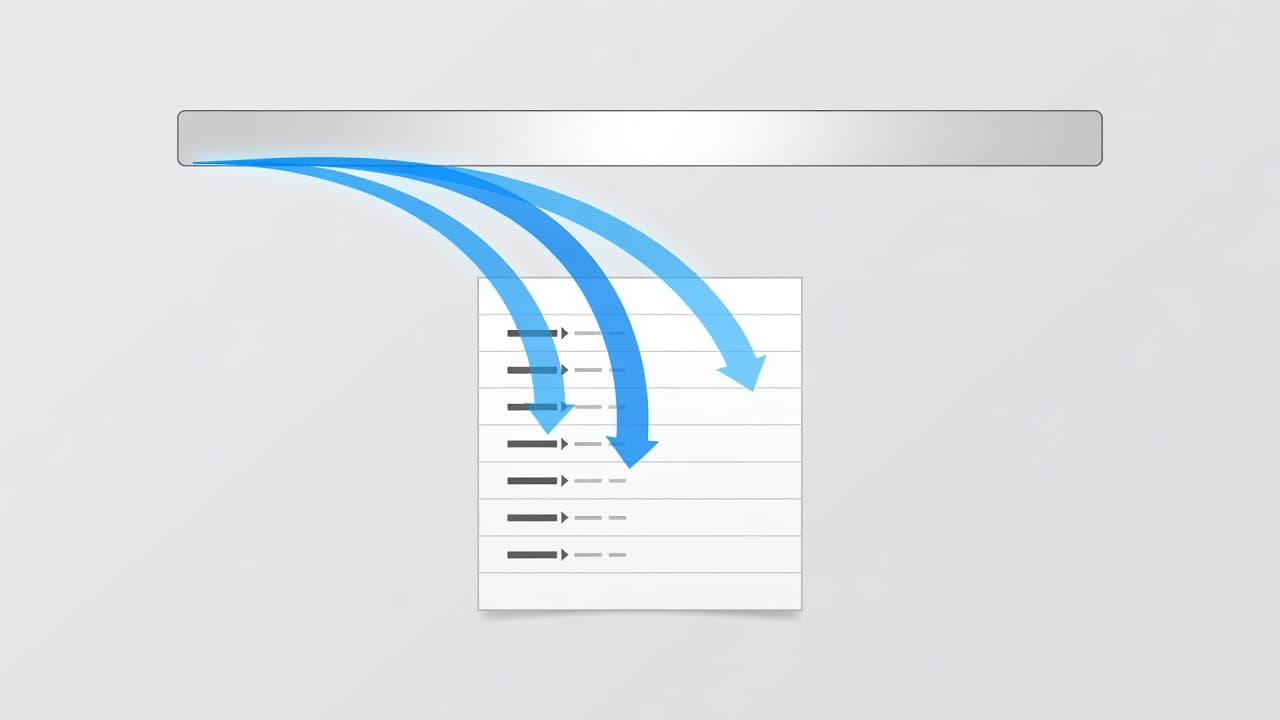
A technical schematic displays data streams originating from a browser address bar and moving toward hidden input fields. Clean geometric lines represent the invisible movement of tracking parameters through digital infrastructure.

Most form builders support this functionality. Webflow provides a hidden field component, while plugins like WPForms and Formidable Forms allow you to create hidden fields using custom names. HubSpot forms often require more attention because embedded forms may load late or live inside an iframe. However, the core principle remains consistent across all platforms: the field must exist in the form HTML before the submission fires.

Use clear, stable field names. A CRM-friendly pattern like gclid, wbraid, and gbraid is significantly easier to map during your reporting phase than arbitrary internal labels. If your CRM requires specific field names, document them carefully and maintain consistent naming across your form builder, GTM, and your CRM schema.

If the hidden field is missing at submit time, the lead record cannot store the click ID, even when GTM preview looks fine.

Persistence matters just as much as initial capture. Many visitors do not convert on the first page. They click an ad, browse several service pages, and eventually fill out a contact form. If you only look for the tracking values in the initial landing page URL and never store them, the data will disappear as soon as the user navigates to another page.

To solve this, reliable setups store these specific URL parameters in a first-party cookie or localStorage. This allows you to repopulate the hidden fields dynamically whenever the form loads, ensuring that your gclid, wbraid, and gbraid values are captured regardless of how many pages the user visits before converting.

Use GTM to read, store, and inject the values

Google Tag Manager is the cleanest option for most teams because it keeps your conversion tracking logic outside the CMS and makes testing significantly easier.

Start with the Conversion Linker tag and fire it on all pages. Google Ads uses this tag to help read and write click data in first-party cookies, which makes gclid, wbraid, and gbraid capture much more durable. Next, create variables within GTM to extract these specific URL parameters from your landing page URL.

After that, add storage logic. On the first page visit, read those parameters and save them. By storing these values, you also improve the reliability of your cross-device tracking efforts when users move between sessions. You can do this in a custom HTML tag or with site code if your team prefers a code-first setup. A simple pattern works well: if the URL contains gclid, save it. Do the same for wbraid and gbraid. On subsequent pages, read the stored value and write it into the hidden fields.

Trigger the field injection on DOM Ready or later. If your form loads with JavaScript, Window Loaded or a form-specific event may be safer. A tag that fires too early is one of the most common reasons values like gclid, wbraid, or gbraid never appear inside the form.

For multi-step forms, repeat the check on every step that contains the final submit button. Some tools rebuild the DOM as the user moves forward, which wipes the value you injected on the first step.

Redirects cause another frequent failure. URL cleaners, vanity redirects, and cross-domain hops often strip click IDs before the page finishes loading. In that case, capture the values on the earliest possible page, then store them immediately. If you run landing pages on one domain and forms on another, set up cross-domain tracking rules or pass the IDs through the redirect explicitly.

Testing should be boring and repetitive. Append ?gclid=test123&wbraid=test456&gbraid=test789 to a page URL, open GTM preview, load the page, inspect the form, and confirm the hidden inputs contain the expected values. Then submit a real test lead and verify the same values arrive in your CRM.

Send the data into your CRM and attribution stack

Saving the values in the browser is only half the job. The real win comes when your CRM integration ensures these IDs are stored against the contact, deal, or opportunity record that your sales team will actually use.

Map each field deliberately. The contact record should keep the raw click IDs, the landing page, and the original conversion timestamp. If you utilize offline conversion imports into Google Ads through Data Manager or the Google Ads API, keep those fields accessible to the workflow that sends qualified leads or closed revenue back to the ad platform.

Google’s enhanced conversions for leads has become more flexible in 2026. The platform allows multiple data sources to support your setup, and it has moved toward a single account-level switch for web and lead settings. While this helps, it does not remove the need to store click IDs properly. Hashed first-party data like email and phone numbers strengthen matching, while GCLID and WBRAID identifiers give you a direct path back to the specific ad click. When identifiers are missing, Google relies on conversion modeling to fill the gaps.

This is where clean attribution supports more than just paid search. Across digital marketing teams, this source-of-truth approach helps SEO, GEO, AEO, performance marketing, social media marketing, and website development work from consistent lead data instead of disconnected dashboards. Much like the precision required in e-commerce tracking for retail brands, lead-based businesses need this data to maintain a competitive edge.

If your paid search program already depends on qualified lead uploads, strong form capture becomes a critical part of your media engine. Teams that run serious Performance Marketing services usually find that better lead data improves bidding faster than another round of ad copy tweaks.

Google Analytics 4 will still disagree with your CRM sometimes, but that is expected. Google Analytics 4 tracks web events, while the CRM tracks people and stage changes. Click IDs narrow that gap because they give both systems a common thread.

Fix the problems that usually break capture

Most tracking failures come from a short list of technical issues.

Late-loading forms are near the top. If HubSpot, Typeform, or another embedded form appears after the page finishes loading, your injection tag may fire before the form exists. Use a later trigger or attach to the form’s render event.

Single-page apps create a similar problem. The URL changes, but the page does not fully reload, so GTM never re-runs the same way. In that case, listen for route changes and repopulate the fields when the view updates.

Consent settings also matter. Consent Mode v2 now depends on ad_storage, analytics_storage, ad_user_data, and ad_personalization. If your CMP blocks storage before user consent, expect gaps between Google Ads, Google Analytics 4, and CRM totals. You must manage user consent carefully; wire the capture logic into your consent rules instead of treating it as a separate project.

Form naming mistakes can be more damaging than tag errors. A community thread on missing GCLID values in GoHighLevel shows the same pattern many teams hit elsewhere: no hidden field means no saved click ID. Whether you are tracking a gclid, wbraid, or gbraid, you must ensure the destination field exists and is correctly mapped in your form builder.

Finally, test the full path, not only the front end. Submit from a tagged landing page, confirm the hidden fields populate, verify the values reach the CRM, and check that your end-to-end conversion tracking process can still read them later.

If your setup spans multiple domains, embedded forms, consent tools, and CRM automations, Get In Touch With Us. Small tracking gaps tend to spread into bigger digital marketing reporting problems.

Frequently Asked Questions

Do I need to capture both GCLID and WBRAID?

Yes, you should capture both. GCLID is the primary identifier for desktop and Android, while WBRAID is essential for preserving attribution on iOS devices where privacy restrictions limit traditional tracking.

What happens if my form is inside an iframe?

Tracking parameters can be stripped when moving into an iframe, making capture more difficult. You must ensure the tracking logic is configured to pass the URL parameters into the iframe or use a cross-domain tracking setup to maintain the ID visibility.

Can I rely on Google Analytics 4 for my lead data?

GA4 tracks web events, which often diverge from your CRM’s lead and revenue data. Capturing click IDs directly in your forms provides a persistent, unique identifier that reconciles your ad traffic with actual sales outcomes, offering higher accuracy than GA4’s modeled data.

Why are my hidden fields empty upon submission?

This is typically caused by the form loading after the injection script runs or by page navigation clearing the temporary storage. Always verify your injection trigger is set to fire after the form elements exist in the DOM and ensure your script persists values across page loads.

Conclusion

Click identifiers are easy to lose and hard to reconstruct later. The safest setup captures them on arrival, stores them across the visit, writes them into hidden fields, and pushes them into the CRM record that matters.

When you correctly capture the gclid, wbraid, and gbraid, your Google Ads attribution becomes significantly more precise. By ensuring each click identifier stays attached to the lead, your reporting becomes sharper and your bidding strategies become much smarter. This is the foundation for turning a simple form fill into reliable marketing data.

Track Live Chat Leads in GA4 and Google Ads

Track Live Chat Leads in GA4 and Google Ads

Live chat can fill your inbox and still leave you guessing which campaigns drove real leads. While many businesses rely on lead generation software to manage these interactions, simply monitoring page views and form fills often causes chat conversations to vanish into messy attribution.

Effective live chat lead tracking fixes that. It reveals exactly which keyword, ad, landing page, or organic visit initiated the conversation, which is critical for B2B lead generation efforts. By accurately measuring these touchpoints, teams can better analyze their conversion rates and improve the overall customer experience. The setup is not difficult, but the event choices matter more than most teams expect.

Key Takeaways

  • Track chat stages separately, because a widget opening is not the same as capturing qualified leads.
  • Use lead qualification to filter interactions, ensuring you only report on meaningful sales opportunities.
  • Send chat events to GA4 through Google Tag Manager or your platform’s native integration to improve your overall customer experience.
  • Mark the final conversion event as a GA4 key event, then import it into Google Ads with auto-tagging enabled.
  • Account for discrepancies between platforms by maintaining a consistent CRM integration to bridge the gap between your dashboard and actual sales.
  • Use chat data to refine your broader strategy across SEO, GEO, AEO, paid media, and landing page content.

Start by defining what counts as a chat lead

Most tracking problems start before GTM ever opens. Teams often import the wrong event, then wonder why Google Ads optimizes toward low-value chats.

A live chat system usually creates several actions. Some visitors only open the widget, perhaps prompted by a proactive chat or specific behavioral triggers set up by your team. Others ask a quick question and leave. A smaller group shares contact details, requests a quote, or books a demo. Only that last group, the truly qualified leads, should shape your bid strategy.

This quick breakdown helps refine your lead qualification process.

EventWhat it usually meansGood conversion for Google Ads?
Widget openCuriosity or accidental clickNo
Chat startedEarly engagementMaybe, if volume is low and intent is high
Offline messageVisitor left details in a lead capture form after hoursOften yes
Qualified lead or booked meetingSales-ready handoffYes

The event name depends on your lead generation software. LiveChat can pass events like chat_started, message_sent, and session_end. Comm100 often uses Chat and offline_message. GoHighLevel setups commonly fire generate_lead. The label matters less than the meaning.

If you run B2B lead generation for legal, healthcare, home services, or B2B, a “chat started” event is often too loose. For ecommerce support, it may matter, but for service businesses, it can inflate conversions and distort bidding. Paid search then chases chatter instead of revenue, which disrupts how you track progress through the sales funnel.

That distinction matters across channels. Your digital marketing team may compare paid search with SEO traffic, while performance marketing teams care about cost per lead. Meanwhile, website development teams need to know which page layouts trigger high-intent chats instead of casual questions.

Build live chat tracking in GA4 with GTM

GA4 does not include native live chat lead tracking out of the box. You need either a built-in integration from the chat provider or a custom event fired through Google Tag Manager to gain insights into website visitor tracking.

Two colleagues lean toward a glowing monitor displaying colorful bar charts and conversion metrics. A slim laptop sits on the mahogany desk surface, illuminated by soft natural light from nearby windows.

The cleanest setup usually follows four steps:

  1. Create or capture the chat event in your provider, such as Chat, chat_started, or generate_lead.
  2. In GTM, create a Custom Event trigger that listens for that event name.
  3. Fire a GA4 Event tag with the same event name and your web stream’s Measurement ID.
  4. Publish the container and confirm the event in GA4 Realtime.

If your provider has a native GA4 connection for chatbot automation, use it when the event mapping is clear. However, if the native setup is limited, GTM gives you more control over naming, parameters, and filtering. You can leverage automated workflows to pass specific details like page location, chat type, or service line so your reports show more than a raw event count. With intelligent routing, you can even pass parameters based on which department handles the interaction.

A short naming rule helps. Keep one event for engagement, one for lead intent, and one for completed handoff. That keeps analysis clean. For example, you might track chat_started, offline_message_submitted, and chat_lead. When measuring the customer experience, you can also include response time as a parameter to see how quickly your real-time messaging efforts pay off.

After publishing, check GA4 Realtime and watch the event count by event name. If the event does not appear, fix the trigger before touching Google Ads. Many teams rush the import step, then spend hours diagnosing a problem that started in GTM. If you want a screen-based walkthrough, this 2026 GTM conversion tracking tutorial is useful when Google’s menus look different from older guides.

Also, lock down access. Add GA4, GTM, and Google Ads to a business-owned Google account, not only a freelancer’s login. Keep a simple change log too, because tracking breaks faster when old agencies, new vendors, and in-house teams all edit the same tags.

Turn GA4 chat events into Google Ads conversions

Once the event data is flowing, mark the correct one as a key event in GA4. Google rebranded conversions as key events in GA4, but the workflow serves the same purpose: choose the event that reflects a tangible business result, rather than just a curiosity signal.

In GA4, navigate to Admin, then Data display, and finally Events. When your chat lead event appears, toggle the switch to mark it as a key event. If the event has not appeared yet, wait. New events often require up to 24 hours before GA4 lists them in the standard Events area.

Next, link GA4 and Google Ads if they are not already connected. Then, confirm that auto-tagging is enabled in Google Ads so the gclid can travel with ad clicks. Without that click ID, you lose accurate source attribution, and imported chat conversions will not fuel your bidding strategy as intended.

After the accounts are linked, go to Google Ads, open Conversions, choose a new conversion action, and select Import from Google Analytics 4 properties. Google’s own GA4 to Google Ads import guide walks you through the current menu flow.

Import the event that shows sales intent, not the event that proves the chat widget loaded.

For many businesses, that means importing a high-intent action such as meeting scheduling, generate_lead, or a custom qualified chat event, rather than a generic message_sent signal. If every minor back-and-forth becomes a conversion, Smart Bidding will struggle to optimize your conversion rates effectively because it is learning from the wrong signals.

Effective lead qualification is the final gatekeeper here. By ensuring only qualified prospects trigger an imported event, you enable more accurate ROI tracking for your campaigns. You may still want a native Google Ads website conversion for forms or calls; many PPC teams compare imported GA4 events with native Ads tags because each system has a different reporting job. Google Ads helps optimize campaigns directly, while GA4 provides broader path analysis across all your traffic channels.

QA the numbers before you trust the dashboard

A neat setup can still mislead you if you skip validation. First, test a real chat from an ad click. Then confirm the event appears in GA4 Realtime, the key event registers later in standard reports, and the conversion enters Google Ads after import.

Do not panic when totals differ across platforms. GA4 tracks web actions, while your CRM integration tracks actual people and their movement through the sales pipeline. These two data sources are inherently different.

One prospect might start a chat on mobile, return on a laptop, and submit details later with a work email. GA4 may split that path, but your CRM integration may merge it into one contact. Duplicate chats, attribution models, ad blockers, and time lag all add noise to your metrics.

That is why sales teams often say the CRM is right while analysts defend GA4. Both views miss the point because each tool answers a different question. Effective revenue attribution depends on understanding that GA4 tracks engagement, while your systems track business outcomes.

Use a simple QA routine:

  • Compare daily chat events in GA4 with the chat platform’s own logs to verify consistent response time data.
  • Check whether Google Ads imported the same lead event you marked in GA4.
  • Confirm the landing page and source dimensions make sense.
  • Review CRM records for the final count of qualified leads, lead qualification status, and closed revenue.

For higher-value pipelines, capture the gclid with the chat lead and push offline conversions back into Google Ads when the deal reaches a meaningful stage. This CRM integration is essential for long sales cycles, as an initial chat may be inexpensive, but a high-value opportunity within your sales pipeline is rare. Additionally, monitor the average response time during these tests to ensure your automated systems are not delaying the connection between customer inquiry and human interaction.

If your setup spans several chat tools, agencies, or subdomains, Get In Touch With Us before bad event data starts training your bids.

Use chat data across SEO, GEO, AEO, and other channels

Chat tracking is not only for PPC reporting. The strongest teams use this visitor intelligence to sharpen content, landing pages, and channel planning.

Chat transcripts reveal the exact language people use when they are close to action. Those phrases often become better page headings, FAQs, and service copy than anything brainstormed in a conference room. This approach helps SEO because the site starts matching real demand. It also helps GEO and AEO, because answer engines and AI summaries pull confidence from clear, question-based content.

If visitors keep asking pricing questions in chat, build a pricing explainer. If they ask whether you serve a specific neighborhood, add that detail to the page. You can even use firmographic data to inform account-based live chat, allowing you to tailor the conversation to the specific needs of high-value prospects. When the same concerns show up in chat, search queries, and lead calls, your content becomes more aligned with your target market.

This is where SEO, social media marketing, performance marketing, and website development overlap to provide true omnichannel support. A paid landing page that drives qualified chat leads may deserve a stronger organic version to improve long-term conversion rates. If a social campaign brings high traffic but no chat leads, you might need to adjust your offer or audience targeting. Furthermore, implementing proactive chat based on specific behavioral triggers can turn a passive page visit into a high-intent conversation. By setting up these behavioral triggers, you ensure that help is available exactly when the customer experience is at its most critical moment.

Ultimately, your strategy should move beyond the initial capture. Effective lead nurturing after a chat interaction is essential for turning those conversations into long-term revenue. The reporting win is simple: better tracking helps you stop guessing which content moves people from question to conversation.

Frequently Asked Questions

Why shouldn’t I track ‘widget open’ as a conversion in Google Ads?

Tracking every time a widget opens creates noisy data that includes accidental clicks and mere curiosity. Because Google Ads uses conversion data for Smart Bidding, feeding it low-intent events will train the algorithm to chase chatter rather than actual business results.

Can I use my chat provider’s native GA4 integration instead of Google Tag Manager?

Yes, native integrations are often faster to set up and ideal for standard event mapping. However, GTM provides superior control over naming conventions, custom parameters, and advanced filtering if your provider’s default settings are too limited for your reporting needs.

Why do my chat conversion numbers differ between GA4 and my CRM?

These tools serve different purposes and use distinct tracking methods to verify leads. GA4 tracks web-based engagement and anonymous sessions, whereas your CRM validates actual people and business outcomes, leading to unavoidable discrepancies based on attribution models and manual data entry.

How often should I audit my live chat tracking setup?

It is best to conduct a quick QA routine whenever you update your website, change chat providers, or rotate marketing agencies. Keeping a simple change log and verifying event counts in GA4 Realtime ensures that your ad bidding remains grounded in accurate, high-intent lead data.

Conclusion

Clean chat tracking starts with one decision: define the lead before you track it. When that event is clear, GA4 and Google Ads become far more useful tools in your marketing stack.

A strong setup does not chase every message. It tracks the moment a conversation becomes a qualified lead, validates the numbers against your CRM, and feeds better signals back into your campaigns. Whether you are using specialized lead generation software or a native chat widget, the key is consistency. When your data is accurate, you gain precise ROI tracking across your entire sales pipeline.

By connecting these technical configurations to your broader strategy, you can boost your conversion rates and provide a superior customer experience. Ultimately, when live chat data is accurate, you can improve bidding, content, landing pages, and answer-focused search visibility with a lot more confidence.

Track Calendly Bookings in GA4 and Google Ads

Track Calendly Bookings in GA4 and Google Ads

A booked meeting is often worth more than a standard form fill, yet many teams still optimize their campaigns around weaker signals. If your scheduling tool sits outside your Google Analytics 4 and Google Ads tracking setup, you might find that your advertising platform chases clicks while your sales team waits for actual conversations.

Implementing clean Calendly conversion tracking fixes that gap. It provides clear visibility into which campaigns produce scheduled meetings, which landing pages assist in the process, and exactly where your reporting data begins to drift.

Key Takeaways

  • Native Calendly to GA4 tracking is available on paid plans, but you still need to import your conversion as a key event in Google Ads to optimize your campaigns effectively.
  • If Calendly is embedded on your site, standard click tracking often fails to capture bookings because the widget runs inside an iframe, making it difficult to track interactions with standalone scheduling links.
  • Use one consistent booking event name across GA4, Google Ads, and your internal reporting dashboards to keep attribution data clean and readable.
  • Test your implementation thoroughly with GTM Preview, the GA4 DebugView, and Google Ads diagnostics before you rely on the reported data for bidding decisions.
  • Compare your GA4 conversion counts with Calendly and your CRM on a weekly basis, as web events and actual customer records rarely match perfectly due to tracking limitations.

Choose the setup that fits your booking flow

There is no universal setup because Calendly can live in several different places. Some teams send traffic to a standalone Calendly page, while others embed the scheduler directly on a landing page. A few push booking data through automation tools. To accurately measure performance, you need to properly track these interactions in Google Analytics 4.

As of July 2026, the main options include the native integration, a Google Tag Manager listener for embedded widgets, and automation through platforms like Zapier. Calendly’s own help page confirms that the native option is available on paid plans. It also highlights a significant limitation: there is still no native Google Ads conversion integration.

This quick comparison makes the trade-offs easier to see:

MethodBest whenStrengthWatch-out
Native Calendly to GA4You use a paid Calendly planFastest setup, official supportNo direct Google Ads feed
GTM iframe listenerYou use an embedded Calendly widgetCaptures on-site interactionsNeeds testing and clean tag logic
Zapier automationYou use Zapier for cross-tool workflowsHighly flexible for operationsCan drift if event names change
Thank-you page trackingBooking flow redirects after schedulingSimple to validateLess precise for embedded flows

For most marketers, the best starting point is to keep things simple. Use the native GA4 integration if the booking happens on Calendly and your plan supports it. Use GTM if the scheduler is embedded on your site. Once you have consistent data flowing into your reporting suite, you can import the finished booking event into Google Ads to optimize your ad spend against your actual scheduling links.

Set up GA4 booking events the clean way

Before changing your tags, capture the current setup. Save screenshots of your Google Tag Manager configuration, triggers, GA4 event names, and any thank-you page rules. That small habit prevents a messy rollback later if one fix creates a second problem.

A clean blue and white graphic illustrates a digital flow connecting a calendar booking icon to a multifaceted analytics dashboard. Lines represent data nodes transferring metrics between the two interface elements.

Start with one reporting decision: what counts as a conversion? In most cases, it should be the confirmed booking, not the first click on “Schedule now.” Keep the event name short and stable. Many teams use calendly_booking, while others keep Calendly’s native invitee_meeting_scheduled and map it later.

A clean setup usually follows four steps:

  1. Connect the source of the event. On paid Calendly plans, add your GA4 Measurement ID inside Calendly’s Google Analytics integration. If the widget is embedded, fire a listener code in a Custom HTML tag on pages where the iframe loads.
  2. Send a booking event to GA4. For embedded setups, the common pattern is a custom listener that catches Calendly message events and pushes event_scheduled into the Data Layer.
  3. Mark the finished event as a key event in GA4. That gives you a stable signal for reports and Google Ads import.
  4. Register useful parameters as custom dimensions if you need them later, such as meeting type, page path, or attribution data. You might also track interactions like profile_page_viewed, event_type_viewed, and date_and_time_selected.

If you are using GTM, Analytics Mania’s Calendly tracking walkthrough is a useful reference for the iframe listener pattern.

If Calendly lives inside an iframe, basic click triggers often see nothing. The event listener is the part that makes the booking visible using a Custom Event trigger.

Keep UTM parameters in mind early, not later. If a visitor comes from Google Ads, paid social, or email, pass that source context into the booking event when possible. That matters when your reporting needs to compare paid search against email nurtures, branded organic traffic, or a Social Media Marketing campaign.

For teams that run more than paid search, one consistent event becomes the shared measurement point. A Digital Marketing team handling SEO, Performance Marketing, and Website Development needs that single source of truth, because otherwise every channel claims credit in a different way.

Import bookings into Google Ads without double counting

Once your data is flowing, the next step is connecting your booking events to Google Ads. Start by linking your GA4 property directly within the Google Ads dashboard under Linked accounts. Once linked, you can import the booking key events as your primary conversion actions.

This is where many setups go sideways. Teams often import the GA4 booking event while simultaneously firing a separate Google Ads conversion tag on a thank-you page. This mistake causes Google Ads to count the same meeting twice.

To avoid this, choose one primary booking action. If your GA4 data is reliable, use that as the main conversion for bidding. You can still keep softer signals, such as calendar starts or contact clicks, as secondary actions for your analysis.

Naming conventions are critical here. If GA4 uses the term calendly_booking, keep your imported Google Ads conversion name consistent with that language. Clear naming saves time when you review smart bidding, troubleshoot conversion diagnostics, or perform offline comparisons later.

Zapier offers another powerful option for syncing data. By using Zapier to trigger an Invitee Created event, you can send that data directly to GA4 and, in updated workflows, pipe it straight into Google Ads conversion tracking. This approach is particularly helpful when your booking flow touches several different systems, though it reinforces the need for one stable naming convention across your stack.

For PPC specialists, the rule is simple: do not let one booked meeting become two conversions because you have multiple tools reporting on the same action.

Test the full path and fix reporting gaps

A tracking setup is not finished when the tag fires once. It is finished when the whole path works, from visit to booking to conversion import.

Run a real test booking with traffic using UTM parameters to simulate a live visitor. Use the Google Tag Manager Preview mode to ensure your Data Layer Variable values are populating correctly. Then, verify the data in GA4 DebugView, and check your Google Ads conversion status. Watch the event name, parameters, and page context. If the event appears in DebugView but not in your standard reports later, keep waiting before you panic, as report processing still takes time.

The common failure points are boring, but they cause most bad data. One is double tagging, where the site sends GA4 hits from hardcoded code and GTM at the same time. Another is overlapping triggers, especially when a redirect URL or thank you page load and a custom event both fire for the same booking. Enhanced Measurement can also create noise if custom form logic overlaps with automatic event capture.

Single-page applications need extra care. If the page does not fully reload, pageview based rules can miss the booking or fire twice. In those cases, the event trigger matters more than the URL.

Also, do not expect GA4 and your CRM to match line for line. GA4 counts web actions and assigns them to a direct source, whereas a CRM tracks people, deduped records, and stage changes. One prospect may book on mobile, reopen the invite on desktop, and become one record in the CRM but several sessions in analytics. Time lag adds more drift, which can impact your view of campaign performance.

Still, huge gaps mean something is wrong. Compare GA4 bookings with Calendly and CRM totals for a full week, not one afternoon. If you export GA4 to BigQuery, look for duplicate events with the same name from the same user within 30 seconds. That pattern often exposes hidden double fires. The browser Network tab can help too, because redundant GA4 requests show up there fast.

If your reports keep changing after every edit, stop making blind fixes. Keep a change log, test one adjustment at a time, and review what happened before touching bids. If the setup spans ads, CRM, and embedded booking tools, Get In Touch With Us before the tracking mess spreads into budget decisions.

Why clean booking data matters beyond paid media

Accurate booking events help far more than Google Ads. They give you a stronger way to judge landing pages, qualify leads through a routing form, and evaluate channel quality across SEO, paid media, and local visibility.

That matters even more now because teams report across SEO, GEO, and AEO, rather than focusing only on clicks and sessions. By leveraging precise attribution data, you can see exactly which sources drive booked meetings. If your data shows that branded search or AI-assisted discovery drives conversions, you can defend content, local pages, and answer-first content with real evidence instead of assumptions.

The same event also improves cross-channel reporting. When Social Media Marketing, Performance Marketing, and organic search all feed into one unified booking metric, your dashboards become easier to trust and your optimization decisions become significantly faster.

Frequently Asked Questions

Can I track Calendly bookings without a paid plan?

While Calendly offers native GA4 integration on paid plans, you can still track bookings on free plans using Google Tag Manager. By utilizing a custom iframe listener, you can capture scheduling events even without the official integration.

Why does my Google Ads conversion data show more bookings than I actually received?

This is typically caused by double counting where you import GA4 conversions and also fire a separate conversion tag on a thank-you page. To fix this, you should select one primary booking action and ensure consistent naming across your reporting platforms.

How should I handle Calendly events inside an iframe?

Standard GTM triggers often fail because the widget runs in a separate document context. You must implement a Custom HTML tag that listens for Calendly’s window-based message events to push data into your Data Layer effectively.

Should I expect my GA4 booking numbers to match my CRM exactly?

No, slight discrepancies are normal due to the different ways these systems track users and sessions. GA4 counts browser-based interactions, while your CRM deduplicates contacts and manages lead stages, leading to natural drift over time.

Conclusion

Good tracking turns a scheduled meeting into a decision-ready signal. One clean booking event in GA4, one sensible conversion path into Google Ads, and one disciplined testing process will always outperform a collection of half-working tags.

Booked meetings should never be obscured by simple pageview metrics. When your GA4 data, Google Ads performance, and CRM records all point to the same appointment, your reporting becomes sharper and your advertising budget becomes much harder to waste. By syncing these platforms correctly, you ensure every booking translates into meaningful growth for your business.

Consent Mode Reporting Gaps for Lead Gen in 2026

Consent Mode Reporting Gaps for Lead Gen in 2026

Your leads may still be coming in, even when your reports say they are not. In 2026, the implementation of Google Consent Mode v2 is one of the primary reasons Google Ads, GA4, and CRM numbers stop lining up for lead gen sites.

Google’s June 15 shift, which was heavily influenced by the Digital Markets Act and the ongoing need for strict GDPR compliance across EEA and UK territories, made consent settings the gatekeeper for ad data. A small configuration mistake can now cut measurement, weaken automated bidding, and hide real conversion paths. The first job for any marketing team is to distinguish between genuine demand loss and these persistent consent mode reporting gaps.

Key Takeaways

  • Google tightened Consent Mode in 2026, and missing signals now accelerate data loss, making accurate ad measurement significantly more difficult.
  • Lead gen sites feel the pain more because small conversion counts make every hidden lead matter.
  • Basic Consent Mode blocks data by default, while Advanced Consent Mode enables essential modeling for denied users.
  • The biggest blind spots show up between Google Ads, Google Analytics 4, call tracking, and CRM revenue reporting.
  • Better reporting starts with consent audits, weekly checks, and dashboards that separate observed from modeled conversions.

Why 2026 created bigger reporting gaps

Before 2026, many teams treated Consent Mode as a privacy layer. Now it is also a performance layer. The rollout of Google Consent Mode v2 moved advertising data control squarely into this framework, which is why the June 2026 Consent Mode update matters far beyond compliance teams.

Lead generation websites get hit harder because the funnel is narrow. You might only need 20 qualified leads a month to hit a goal. If five of those disappear from reporting, the account can look weak even when sales are healthy.

The setup now depends on four specific consent signals, not two. While ad_storage and analytics_storage remain the foundational consent signals, your implementation, which usually happens via Google Tag Manager, must account for all four. If your CMP or tag configuration sends only part of the set, Google often treats the missing fields as denied.

Consent signalsWhat it controlsWhat breaks when it is missing
ad_storageAd cookies and identifiersGoogle Ads data collection drops
analytics_storageAnalytics cookiesGA4 behavior reporting becomes partial
ad_user_dataHashed user data to Google AdsEnhanced Conversions and audience signals weaken
ad_personalizationPersonalized ads and remarketingRemarketing lists and related bidding signals drop
A clean digital interface displays a data loss funnel alongside a privacy consent banner using a professional blue and gray palette. Abstract vector elements visualize metrics within a modern analytical workspace.

A lot of current reporting loss comes from the last two fields. Teams updated for earlier versions, then never finished the Google Consent Mode v2 setup. As a result, Enhanced Conversions, audience signals, and remarketing can fail for unconsented EEA users even when forms still work.

Basic Consent Mode also creates a hard limit. When tags stay blocked after denial, Google gets no cookieless pings, so it has nothing to model. Advanced Consent Mode sends those cookieless pings without cookies or personal data. These cookieless pings allow Google to generate modeled data, giving the platform a way to estimate part of the missing conversion path.

Later in 2026, Google will move even more personalization control to ad_personalization. That means half-finished setups will keep losing ground.

Where lead gen teams lose sight of the funnel

The first blind spot sits between observed and modeled conversions. Raw reports do not show denied-user activity the way many marketers expect. Instead, GA4 behavioral modeling works to bridge these gaps. These modeled conversions appear in your summaries and segments, even while granular, user-level detail remains limited.

This creates confusion fast regarding attribution accuracy. A media manager sees fewer tracked form fills, yet sales sees booked calls holding steady. Leadership often assumes campaign quality has dropped, even though it is the measurement infrastructure that has changed. Much of this depends on your Google Analytics 4 settings, specifically your choice of reporting identity. By utilizing a blended reporting identity, you can see modeled data alongside observed data to get a clearer picture of performance.

Lead gen sites also rely on long handoffs. Someone clicks an ad, reads a page, calls later, then closes offline. If consent blocks ad identifiers or data sharing, the later revenue may never match back to the original click. Your CRM records the win, but Google Ads cannot learn from it.

If your banner blocks tags without Advanced Consent Mode, denied users do not disappear only from cookies. They also disappear from conversion modeling.

Across digital marketing teams, the fallout also reaches SEO, performance marketing, social media marketing, and website development. Landing page tests, form changes, call tracking, CRM imports, and server-side rules all affect what survives the reporting chain.

Minimalist digital charts and circular security icons float over a clean surface, representing data flow analysis. The composition emphasizes privacy compliance through geometric shapes and balanced, professional blue-toned vector elements.

There is a second blind spot in channel evaluation. Google Search Console can show impression and click shifts, but it does not show lead quality by itself. That is why teams need GA4, phone tracking, and CRM stages side by side. When consent loss hits, the funnel does not break in one dashboard. It breaks across several.

This matters for GEO and AEO too. As AI answers and zero-click search reduce some visits, every tracked session carries more weight. If your reporting loses consented and unconsented paths at the same time, budget decisions get noisy fast.

How to fix the setup before blaming the channel

Start with the consent stack, not the ads. A lot of lead gen accounts are still running cookie banners or tag templates that never fully caught up with Google Consent Mode v2 requirements. Using a certified Consent Management Platform like Cookiebot, OneTrust, Didomi, Axeptio, or Usercentrics usually makes this easier, but templates still need manual review after any platform updates.

Then check your tag order within Google Tag Manager. The default consent state should fire before marketing tags, usually through Consent Initialization. Most teams also use a wait_for_update window of around 500 milliseconds so your Consent Management Platform can load before tags decide what data they may send.

A fast audit should confirm five things:

  • Your site sends both consent default and consent update events.
  • All four consent signals are present.
  • Google Ads diagnostics show Consent Mode as active and modeling as eligible.
  • GA4 data streams show ads measurement and personalization consent signals as active.
  • Your banner changes, template releases, and geo settings are logged in one place.

For a deeper checklist, the GA4 consent split audit is a useful comparison point, and this guide on Consent Mode v2 and revenue impact is helpful when stakeholders only care about pipeline loss.

Weekly monitoring matters because consent rate has become a working KPI. A 70 percent EEA consent rate leaves a smaller modeling gap. At 30 percent, bidding often runs on thin data and lead volume looks weaker than reality.

This work also needs one source of truth. If analytics, paid media, and dev teams keep separate notes, small mismatches linger for weeks. Many brands handle that inside broader digital marketing solutions for growth because consent now touches media buying, analytics, and site code at the same time.

If your tags, CMP, and CRM still disagree after an audit, Get In Touch With Us before you change bids or pause campaigns. Treating these technical fixes as a foundational element of your privacy-first marketing strategy will ensure your data remains robust despite changing regulations.

Reporting for SEO, GEO, and AEO when data is partial

Once the setup is clean, the reporting model needs to change. The old habit of staring at platform conversions alone is no longer enough for lead generation.

Build dashboards that separate observed data from modeled data. Split these metrics by region, device, and landing page when possible. This approach helps you spot whether data loss stems from low consent rates, page friction, or a broken integration. Relying on conversion modeling is essential here, as it provides a necessary bridge when your tracking data is incomplete.

A sleek graphical funnel illustration flows from top to bottom, featuring bright digital data nodes and abstract circular indicators that represent the conversion process of anonymous web visitors into qualified leads.

Next, push quality signals back into ad platforms through transaction reporting. Cost per lead is too shallow when measurement is partial. Booked call rate, qualified lead rate, sales-accepted lead rate, and closed revenue tell a more accurate story. Offline conversion imports help because they reconnect media data to outcomes that happen after the user submits a form.

Your website still carries more weight than many teams admit. Clear CTAs, short forms, and strong message match reduce the number of missed opportunities that are often incorrectly blamed on reporting gaps. For many service businesses, a form asking only for name, phone, service, and ZIP code converts better and loses less data to friction.

Organic visibility also becomes more valuable when paid measurement gets thinner. Strong landing pages, visible business details, and accurate schema help AI search systems understand your identity and offerings. If you want traffic that does not depend on ad identifiers, B2B SEO services for qualified leads become easier to justify because they add first-party demand that your Google Analytics 4 property can track reliably.

Clean reporting for GEO and AEO follows the same rule as clean reporting for paid media. Make the page facts obvious, keep schema aligned with visible content, and track what turns into real conversations rather than just vanity clicks.

Frequently Asked Questions

How does Advanced Consent Mode differ from Basic Consent Mode regarding data loss?

Basic Consent Mode completely blocks tags if a user refuses consent, resulting in zero data capture for that visitor. Advanced Consent Mode allows tags to fire in a cookieless state, sending pings that enable Google to generate modeled data and recover estimated conversion paths.

Why do my Google Ads reports show fewer leads than my CRM records?

This mismatch often occurs because consent settings can block ad identifiers, preventing Google from connecting a form submission back to the original ad click. When these signals are missing, the CRM accurately records the lead, but Google Ads cannot attribute that success to your marketing campaigns.

What are the four mandatory consent signals required for version 2 compliance?

To maintain full functionality, your implementation must account for ad_storage, analytics_storage, ad_user_data, and ad_personalization. Missing any of these signals, particularly those added in version 2, can lead to degraded audience lists and weakened bidding signals within your Google Ads account.

How can I verify that my consent setup is working correctly?

You should regularly check your Google Ads diagnostics to ensure Consent Mode is marked as active and that modeling is eligible. Additionally, verify that your Google Tag Manager configuration fires consent defaults before marketing tags and that all four required signals are correctly passed from your CMP.

Conclusion

Lead gen reporting in 2026 breaks less from bad traffic than from bad visibility into the traffic you already have. Consent mode reporting gaps hide conversions, distort attribution, and teach bidding systems the wrong lesson.

The strongest fix is not flashy. It is a clean four-signal setup, Advanced Consent Mode, and the adoption of Google Consent Mode v2, which has become the new baseline for lead generation. Coupled with weekly audits and revenue reporting that connects Google Ads, GA4, calls, and CRM stages, you can effectively bridge the data divide.

When your dashboards admit what is observed and what is modeled, decisions get calmer. Prioritizing attribution accuracy helps you maintain control, ensuring that your team can protect performance and continue to thrive in a privacy-first marketing landscape.

How to Track Multi-Step Forms in Google Analytics 4 and Google Tag Manager

How to Track Multi-Step Forms in Google Analytics 4 and Google Tag Manager

If you only track the final submit button, you miss the most useful part of the story. A multi-step form can look healthy in Google Analytics 4 even while half your prospects quit on step two.

Effective GA4 GTM form tracking turns that blur into a clear funnel. It shows where people hesitate, where validation breaks, and which traffic sources drive real leads, rather than just inflated event counts. By setting up granular conversion tracking across each step of your process, you gain the insights necessary to optimize the user journey.

That matters across SEO, Performance Marketing, Social Media Marketing, Website Development, and broader digital marketing reporting, because bad form data spreads bad decisions fast. Accurate data collection ensures your lead generation strategies are backed by reliable evidence rather than guesswork.

Key Takeaways

  • Track the full journey: Move beyond tracking only the final submission to capture every step of a multi-step form, allowing you to identify exactly where users drop off.
  • Establish clear identifiers: Before setting up GTM, map out unique form IDs and step numbers to ensure consistent data across your reports.
  • Prioritize robust detection: Whenever possible, use Data Layer events for stability, relying on DOM-based or visibility triggers only when developer support is unavailable.
  • Protect your conversion data: Only mark the final, successfully validated form submission as a key event to keep your CPA and lead reporting accurate.

Why single-submit tracking fails on multi-step forms

A multi-step form is not one action. It is a sequence of actions, and each step can fail for a different reason.

Someone may open step one from a paid ad, stall at phone number validation on step two, then leave before the final screen. If Google Analytics 4 only records the last submit, that session disappears from the story. You see fewer leads, but you do not see the leak.

This gets worse when the form loads with AJAX, lives inside an iframe, or updates the page without a full reload. In those cases, the default Google Tag Manager form submission trigger often misses the event or catches the wrong one. The HubSpot discussion on iframe-based multi-step tracking shows how common that problem is.

Enhanced measurement in Google Analytics 4 also has limits. It can help with standard form interactions, but it is not enough for many custom forms, embedded tools, or step-by-step flows. Reform’s guide to tracking form submissions in Google Analytics 4 is a useful reference if you need a quick reminder of those boundaries.

The cleaner model is simple. Track:

  • when a user reaches each step
  • when a user attempts to continue
  • when validation fails, if that matters to revenue
  • when the form reaches a successful submission

Mark only the final confirmed submission as a key event. Step views and step advances are funnel signals, not key events.

That one rule prevents a lot of reporting damage. If you count every step as a key event, your CPA drops on paper while your real lead volume stays flat. That makes campaign optimization harder and board reporting messier.

Plan the event model before you open GTM

Open Google Tag Manager too early and you end up guessing. First map how the form behaves in the browser.

Start with three identifiers: form ID, step number, and step name. Those values should stay consistent across the full journey. If one form has five steps, step three should always be step three. Don’t rename it in the tag, the data layer, and the report. Mismatched labels create confusion later, especially when multiple teams touch analytics. Because complex flows like AJAX form tracking can behave unpredictably, a robust strategy is essential for accurate Google Analytics 4 data collection.

A professional desk features a modern laptop displaying a colorful sales funnel graph atop an analytics dashboard. Soft sunlight illuminates the workspace, highlighting the clean, focused environment for data tracking.

Next, figure out how Google Tag Manager can recognize each step. Most setups fall into one of these patterns:

Detection methodBest use caseMain risk
URL-based step pathsEach step has its own URL or hashMisses steps in single-page apps
DOM-based selectorsUsing a CSS selector for headings, wrappers, or data-step attributesFragile if the front-end changes
Data layer eventsDevelopers push a clean event on each step changeNeeds dev support

If your site uses a modern front end, a dataLayer push is usually the best option. It is cleaner, more stable, and easier to debug than DOM guessing. Real-time implementation guidance in July 2026 still points to structured dataLayer events as the most reliable method for dynamic forms, especially when steps don’t change the URL.

When developers can’t help, DOM-based tracking still works. Look for a unique wrapper, heading, button ID, or custom attribute on each step. For URL-based flows, page path or history change triggers are often enough.

Before you build anything, decide what counts as success. It should be a true completed lead, not a button click, not a step advance, and not a thank-you message that can appear after a failed postback. Defining this goal is a critical step for accurate conversion tracking.

Configure Google Tag Manager for each form step

Once your event model is clear, using Google Tag Manager becomes much easier to set up.

First, enable the built-in variables you may need, including Page Path, Form ID, Click ID, Click Classes, and Element ID. These form variables make debugging your setup much faster.

Next, create the variables that describe the form itself. If your developer pushes values into the data layer, capture them with a data layer variable such as form_id, step_number, or step_name. If you are working without developer help, create a data layer variable or a Custom JavaScript variable that reads the current step directly from the page.

After that, fire a GA4 event tag when the step changes. A common event name is form_step. Pass at least two parameters with this Google Analytics 4 event: step_number and form_id. You can also pass step_name if the labels help your reporting.

For dynamic forms, an element visibility trigger often works better than a standard form submission trigger. Instapage’s article on tracking each step of a multistep form through Google Tag Manager outlines the same approach, including the use of an element visibility trigger when a new step appears without a page reload.

A few settings matter more than most people expect:

  • Use “Some Elements” or “Some Forms” filters so unrelated forms do not fire the same tags.
  • Turn on “observe DOM changes” for visibility triggers when steps load dynamically.
  • Use validation-aware submission tracking when a native trigger is available.
  • Fire the final conversion only after a real successful submission.

That last point is where many setups go wrong. A “Next” button should never count as a lead. A true conversion should happen only after successful validation and a confirmed success response.

If the form submits through AJAX, a native form submission trigger may never fire. In that case, use a custom event, a success message visibility trigger, or a developer-pushed success event to fire your GA4 event tag. For WordPress sites using Contact Form 7, track the wpcf7mailsent event to catch successful submissions instead of relying on page loads.

Turn GA4 events into usable funnel reports

Sending events is only half the job. If Google Analytics 4 cannot report them cleanly, the tracking still fails.

Register step_number and form ID as event-scoped custom dimensions in Google Analytics 4. Without defining these custom dimensions, the data lands in your account but remains difficult to use in standard reports and explorations.

Then, build a Funnel Exploration. Use form_step as the main event and filter by one form ID at a time. Define each funnel stage with the matching step number, then add the final generate_lead completion event as the last step. That view shows where users fall out, which devices struggle, and whether certain channels bring lower-intent traffic.

For non-linear forms, use a looser report. Some forms let users jump backward, skip sections, or branch by answer. In those cases, step-by-step sequencing still helps, but you may need segment-based analysis instead of a strict funnel.

This reporting is where clean tracking starts to help the rest of the business. Better lead generation data improves SEO landing-page decisions, performance marketing bidding, social media marketing audience retargeting, and website development priorities. It also supports GEO and AEO work, because you can tie search intent and on-page questions to actual lead outcomes instead of shallow engagement metrics.

If you also track leads from local search surfaces, Google Business Profile conversion tracking in Google Analytics fits naturally into the same reporting model.

One more reality check matters here. GA4 tracks web actions, while your CRM tracks people and pipeline stages. Those totals rarely match exactly. Attribution models differ, duplicate submissions can inflate GA4, and a lead may not become an MQL until days later. Compare systems, but do not expect identical numbers.

Troubleshoot duplicate or missing form events

When your data looks inaccurate, capture your current setup before making changes. Save screenshots of your GTM tags, triggers, GA4 event settings, and the form behavior. A short change log helps ensure that one fix does not create a larger tracking issue.

The most common issue is double counting, which usually stems from one of these patterns:

  • GA4 is hardcoded on the site using the same measurement ID while also firing through GTM
  • Enhanced measurement catches form activity while a custom tag also triggers
  • Google Ads and GA4 both import the same lead as a primary conversion
  • One form step becomes visible twice, triggering the same event multiple times

GTM preview and debug mode should be your first checkpoint. Move through the form step by step to confirm that each custom event fires exactly once, with the correct form ID and step number. Once you have verified this in GTM, open GA4 DebugView to confirm the data arrives accurately in your analytics property. Using GA4 DebugView is the most reliable way to ensure your triggers are firing as expected.

If the final submit event never appears, check the browser Network tab to see if the form uses AJAX, a hidden iframe, or a JavaScript callback. This is often why standard triggers fail, and implementing AJAX form tracking is frequently necessary to capture the data. You can also verify the successful submission by checking if a redirect to a thank you page occurs, which acts as a secondary verification point if the form does not trigger an event directly.

You should also test form validation. Blank required fields, invalid email addresses, and partial phone numbers should not create lead events. If they do, your funnel will look better than reality. Always use GTM preview and debug mode to verify that these error states do not cause a false positive. If you still struggle to track a specific implementation, check if you can rely on a thank you page as a fallback for your conversion counting.

When the setup spans GTM, GA4, CRM mapping, and offline uploads, outside review often saves time. If you want a clean audit of the full measurement path, Get In Touch With Us.

Frequently Asked Questions

Why shouldn’t I count every form step as a key event in GA4?

Counting every step as a key event will artificially inflate your lead volume and lower your CPA, making it impossible to evaluate campaign performance accurately. You should only mark the final, confirmed submission as a key event to maintain reliable conversion data.

What is the most reliable way to track AJAX-based forms?

The most reliable method is using dataLayer events pushed by your development team when a step change occurs. If you cannot use the data layer, an element visibility trigger is often the best alternative for detecting dynamic changes that do not cause a full page reload.

How can I verify that my tags are firing correctly?

Always use Google Tag Manager’s Preview and Debug mode to trace your steps in real-time, then cross-reference those hits in the Google Analytics 4 DebugView. This workflow ensures that events fire only once per step and that parameters are being passed correctly before they reach your main reports.

Will my GA4 form data match the leads in my CRM?

It is normal for these numbers to differ due to differences in attribution models, processing time, and the handling of duplicate submissions or test data. Use your analytics and CRM as complementary tools for insight rather than expecting identical totals across both systems.

Conclusion

Multi-step forms require event tracking that follows the real user journey, rather than just capturing a single success message at the end. When each step has a clear identifier, Google Tag Manager fires only on the right actions, and your data flows correctly into Google Analytics 4, your metrics become actionable once again. By implementing a robust GA4 GTM form tracking strategy, you ensure that every interaction is captured until the successful submission of the form.

The biggest win is clarity. You stop guessing where leads disappear and you start fixing the exact step, page, or channel that causes the drop.