Performance Max for Service Leads: Campaign Setup Guide for 2026

A performance max service leads campaign can feel like handing the wheel to automation and hoping it takes the right road. Sometimes it does. Sometimes it drives straight into junk calls, weak forms, and wasted spend.

The fix is better setup, not blind trust. In 2026, Google Ads gives you more control than the early PMax years, including data exclusions, stronger negatives, placement visibility, and cleaner testing. If you feed the system strong signals, it can find real prospects across Search, Maps, YouTube, Display, Gmail, and Discover.

This guide walks through the setup that matters most for service businesses, especially if calls, quote requests, and booked jobs are your real goal.

Prepare Your Account Before Launch

A professional marketer at a modern desk with dual monitors showing Google Ads Performance Max campaign setup screen, soft lighting, keyboard and notebook nearby.

Start with structure. Don't put plumbing, HVAC, roofing, and electrical into one campaign unless the leads have the same value and geography. PMax learns from patterns, so mixed services often muddy the signal.

Before you build anything, lock in three basics:

  1. Clear conversion goals, calls, forms, and booked jobs.
  2. Clean landing pages, one main service intent per page.
  3. Real budget logic, enough spend to generate learning data.

Google's own lead generation guidance for Performance Max lines up with this approach. Also, if your team needs broader support, working with performance marketing experts can help tighten tracking before launch.

Build High-Quality Asset Groups
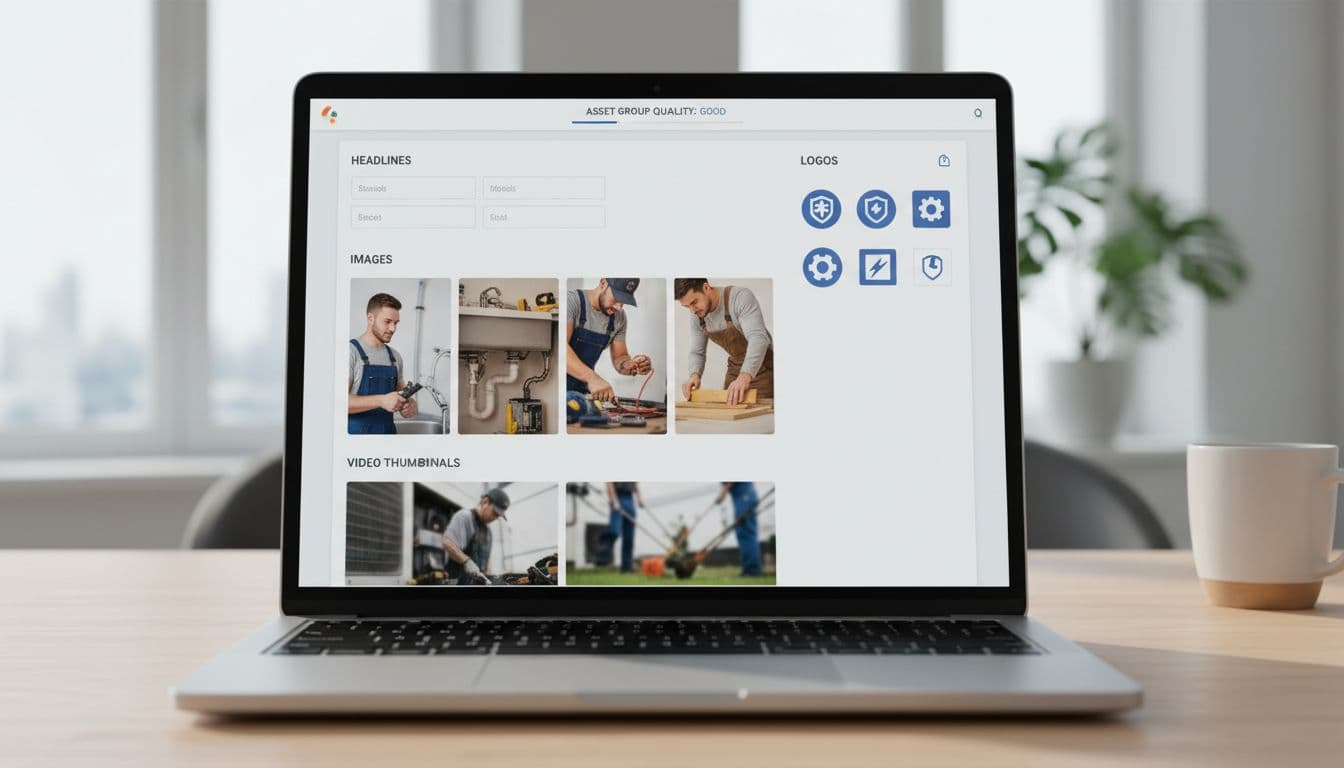
Close-up of a laptop screen displaying neatly arranged creative assets for Google Ads, including headlines, images of service professionals like a plumber at work, logos, and video thumbnails, in a modern workspace with bright natural light.

Treat asset groups like tightly themed ad sets. One asset group per service category usually works better than one giant catch-all. For example, “emergency plumber” and “drain cleaning” may sound close, but buyers often act differently.

Use real photos, short videos, and headlines that match the landing page promise. Custom creative matters more for service lead gen because trust drives the click. In 2026, short video assets still help PMax open more inventory, and custom videos often outperform auto-generated ones.

Keep the message simple: problem, proof, action. A broader PMax campaign handbook is useful, but the main rule is this, make each asset group easy for Google to understand.

Set Targeting and Audience Signals

Digital marketer in cozy home office reviewing audience signals and targeting options in Google Ads interface on computer screen, charts showing customer segments for service leads, realistic photo.

Audience signals don't limit PMax, but they give it a smarter starting point. That matters when you want local service leads, not random clicks from broad traffic.

Upload first-party lists from your CRM, especially past customers, qualified leads, and repeat buyers. Then add custom segments based on high-intent searches, such as “same day AC repair” or “water heater install near me.” Keep the location settings tight around your actual service area.

Use URL controls carefully. For service campaigns, it's safer to start narrow and test expansion later. Google's 2026 experiment tools make that easier, so you can compare controlled traffic versus wider URL expansion without guessing.

Boost Lead Quality with 2026 Controls
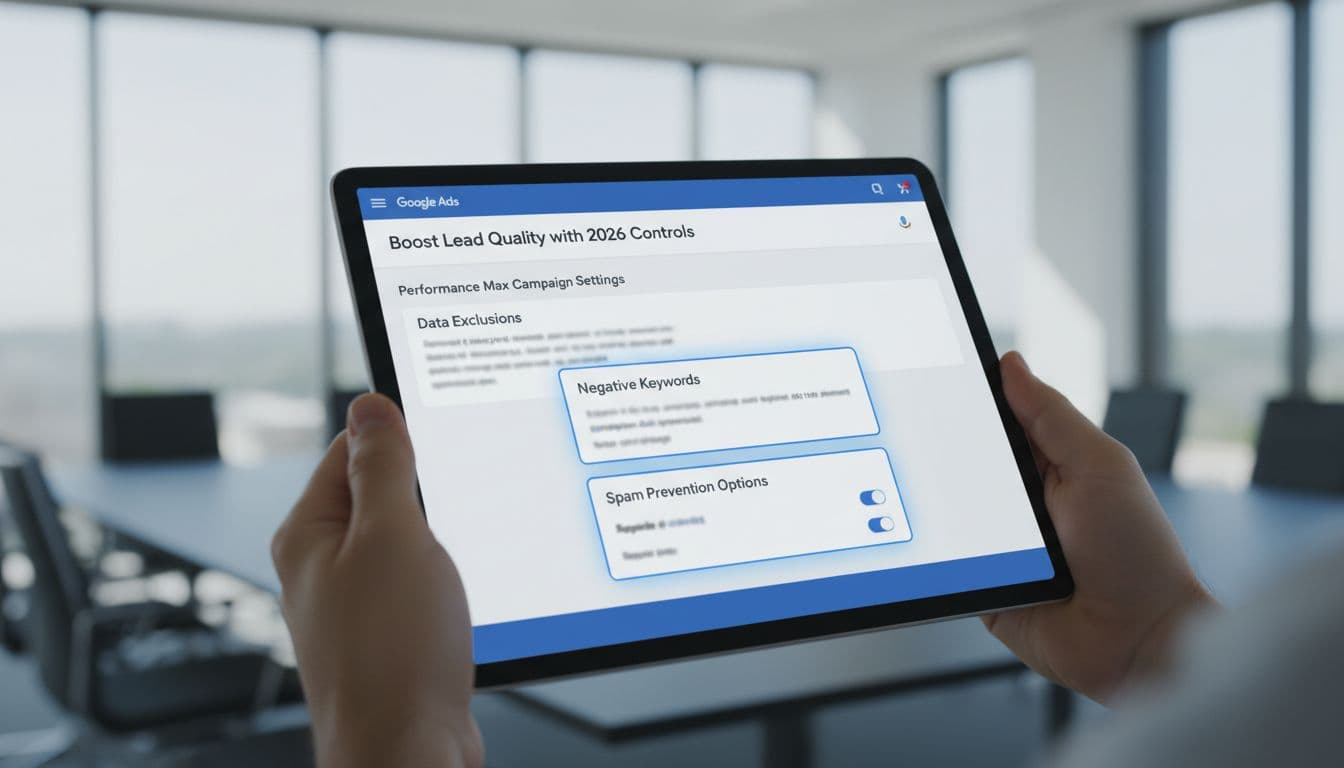
Screenshot-like view of Google Ads settings panel on a tablet held in hands in a conference room, highlighting data exclusions, negative keywords, and spam prevention for Performance Max, natural daylight, clean modern style.

This is where most service campaigns win or lose.

In 2026, PMax gives advertisers better ways to filter bad traffic. Use campaign-level negative keywords to block junk intent like “free,” “DIY,” “jobs,” or “training.” Add brand exclusions when branded traffic belongs elsewhere. Review placement reports and cut low-quality app traffic if it sends weak leads.

Data exclusions are the big one. If old customer lists, spam leads, or bad remarketing pools keep getting pulled in, exclude them. You can also trim device or demographic segments that never become real jobs.

If Google learns from bad leads, it gets better at finding more bad leads.

For a useful outside view, see these Performance Max best practices in 2026. The theme is consistent, better controls lead to better lead quality.

Track Calls, Forms, and Offline Conversions
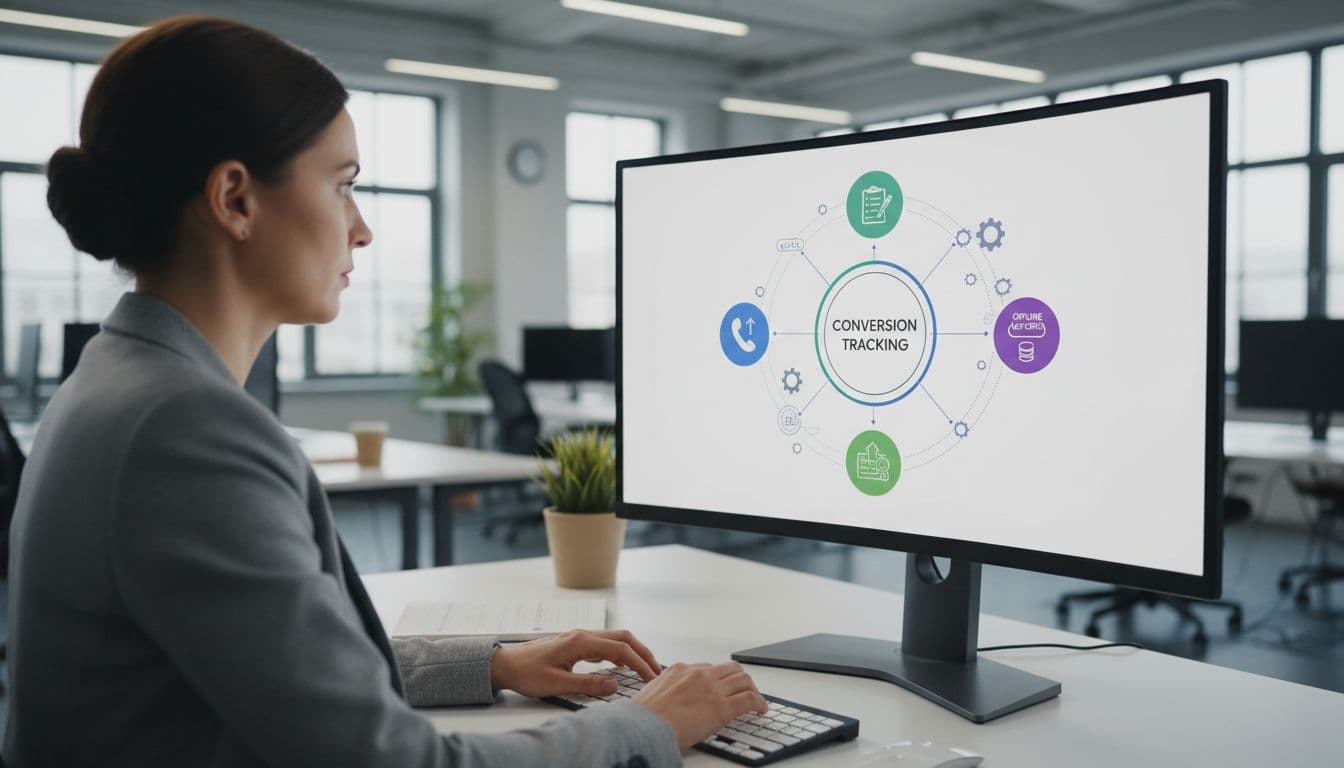
A marketer in a professional office sets up conversion tracking in Google Ads for calls, forms, and offline imports, surrounded by icons of phone calls, web forms, and CRM uploads on a central computer screen under soft lighting.

Don't let PMax optimize to every hand-raise equally. A junk form and a booked job are not the same thing.

Set up call tracking through Google call assets or your call platform, then count only meaningful calls as primary conversions. For forms, filter spam before those leads train the campaign. If you use lead form assets, test them against landing pages instead of assuming they're better.

This quick setup rule keeps the signal clean:

Conversion typeCount as primary when
Phone callIt lasts long enough to show real intent
Web formIt passes spam checks and required fields
Booked appointmentIt reaches a qualified CRM stage
Closed job or saleIt has real revenue value attached

Most importantly, import offline conversions from your CRM. When Google sees which leads turn into jobs, bidding gets much sharper.

Avoid These Common Setup Pitfalls

Visual metaphor of a splitting path with warning signs around Google Ads mistakes like spam leads and poor tracking, service van heading correctly in sunny suburban street, vibrant illustrative style.

A bad PMax launch usually comes from a few repeat mistakes.

Too many goals: If calls, chats, page views, and form opens all count, the campaign chases noise.
Loose geography: Service ads outside your real coverage area waste budget fast.
Weak landing pages: Slow pages and vague offers hurt both lead rate and lead quality.
No feedback loop: Without offline import, Google can't tell a booked service from a dead lead.

Also, don't judge performance too early. Give the campaign enough time to learn, but don't ignore obvious spam. If you're splitting budgets across platforms, this Google Ads vs Bing Ads comparison can help frame channel decisions.

A strong setup makes automation useful. A sloppy one makes it expensive.

When lead quality is the goal, build PMax like a filter, not a funnel with holes in it. Keep the campaign focused, feed it real outcomes, and block bad signals early. That's how service businesses turn automation into booked jobs, not just busy dashboards.

Looker Studio Reporting Dashboard Template for Lead Gen Campaigns (2026)

If your lead gen reporting feels like cooking the same meal every day, you're not alone. Most marketing teams still stitch together google ads, Meta, LinkedIn, GA4, and CRM numbers by hand, then argue about what's “real.”

A reusable looker studio dashboard template fixes that, because it turns manual reporting into automated reporting. You'll spend less time exporting CSVs and more time spotting where CPL is rising, which forms are converting, and whether those “leads” ever become MQLs and SQLs.

This guide walks through a practical 2026 template layout, with exact charts, fields, and build steps you can copy.

Why a Looker Studio dashboard template saves time (and reduces reporting fights)

Image prompt suggestion: A marketer reviewing a clean marketing dashboard on a laptop in a bright office, no readable text.

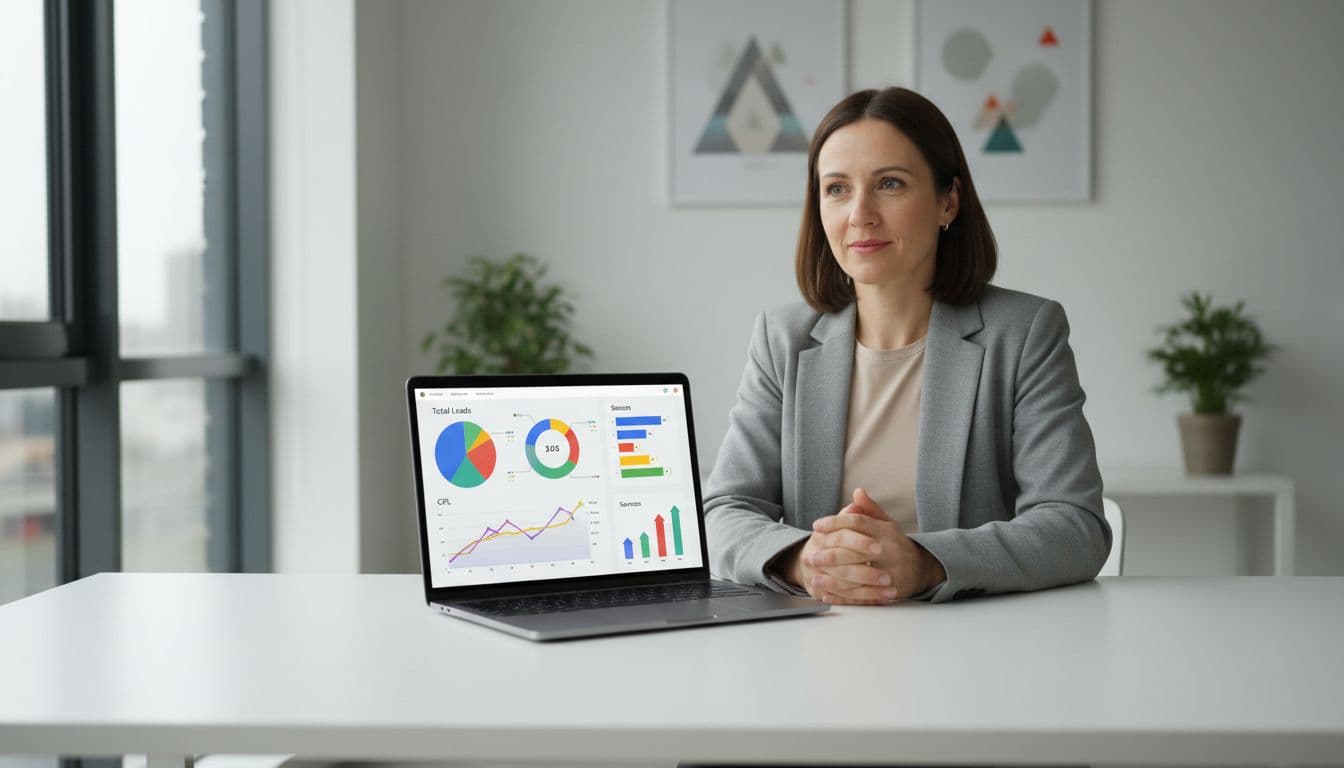
Professional marketer sitting relaxed at a modern desk with natural office window light, reviewing vibrant marketing dashboard on laptop displaying charts for lead metrics like total leads, CPL, and sources.

A Looker Studio dashboard template helps because it forces consistent definitions. “Leads” means one thing, not five. It also standardizes filters (date, channel, campaign, geo), so every stakeholder sees the same slice.

In 2026, the best setups blend paid media, google analytics 4 on-site conversions, and CRM stages. You can keep it light inside Looker Studio, a powerful data visualization tool, at first, then move to a warehouse later if you need more control. If you want inspiration for structure and layout, skim these Looker Studio dashboard examples or check out free Looker Studio templates to save even more time, and note how they separate exec KPIs from drill-down pages.

Gotcha: templates don't fix messy tracking. If your form event fires twice, your pretty dashboard will double-count, too.

Key marketing metrics to track in your lead gen dashboard (the ones teams actually use)

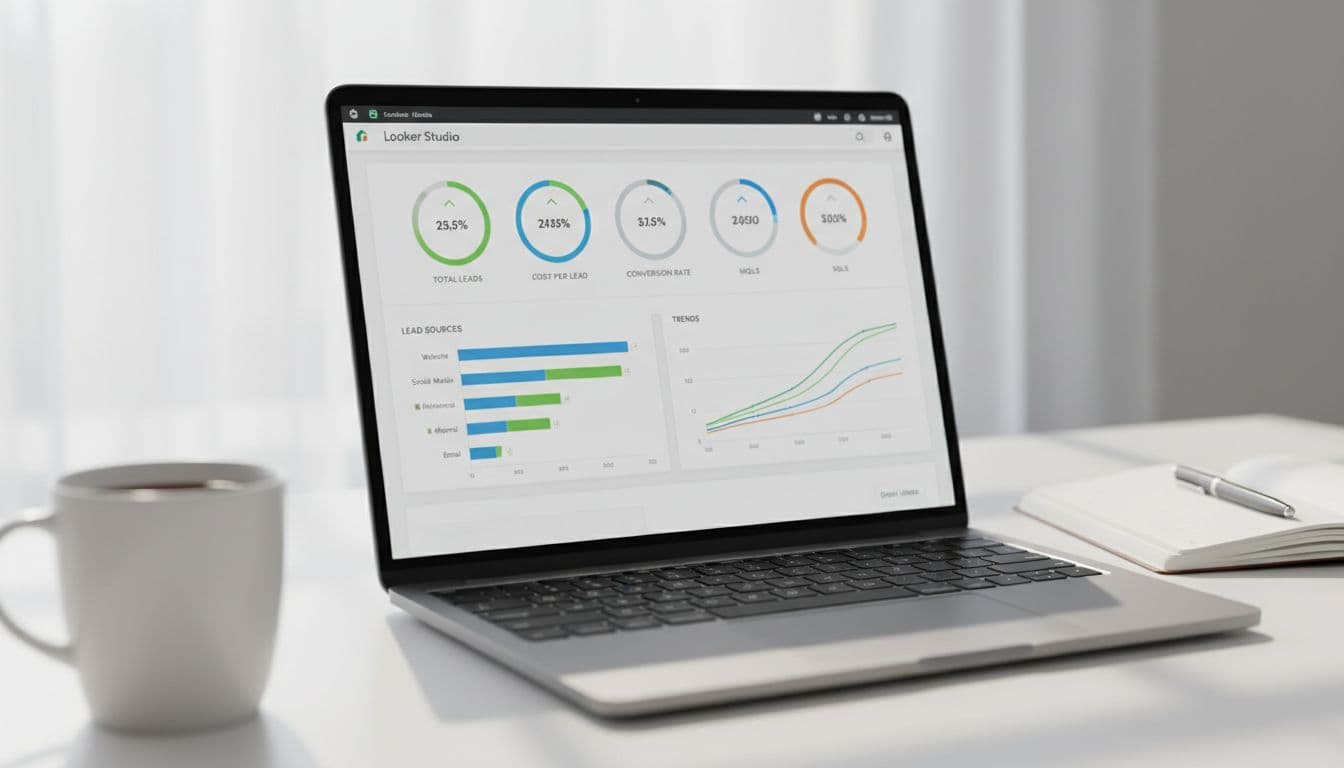
Image prompt suggestion: A desk scene with a laptop showing KPI tiles for leads, CPL, MQL, SQL, plus trend lines, no readable text.

Close-up laptop screen in a bright workspace showing Looker Studio dashboard with KPI scorecards for total leads, cost per lead, conversion rate, MQLs, SQLs, bar chart for lead sources, and line chart trends; coffee mug and notebook nearby.

Start with metrics that lead to decisions. Keep vanity numbers (like impressions) available, but not center stage.

Use this as your “north star” set for tracking campaign performance:

KPIWhere it comes fromRecommended calculation
LeadsGA4 event or Ads platform lead objectiveCount of generate_lead or form_submit
CPLAds platformsSpend / Leads
Conversion rate (click to lead)Ads + GA4Leads / Clicks
MQL rateCRMMQLs / Leads
SQL rateCRMSQLs / MQLs
Cost per SQLAds + CRMSpend / SQLs

Build steps (field picks):

  • Use GA4 for on-site conversions (form submits, demo requests, click-to-call).
  • Use google ads, meta ads, linkedin ads connectors for spend, clicks, impressions.
  • Use CRM data (HubSpot, Salesforce, or a clean export in Sheets/bigquery) for lifecycle stages.

To avoid chaos, name metrics the same across charts (for example, “Leads (GA4)” vs “Leads (CRM)”) and show both when they differ.

Build the overview page step-by-step (one page your execs will open)

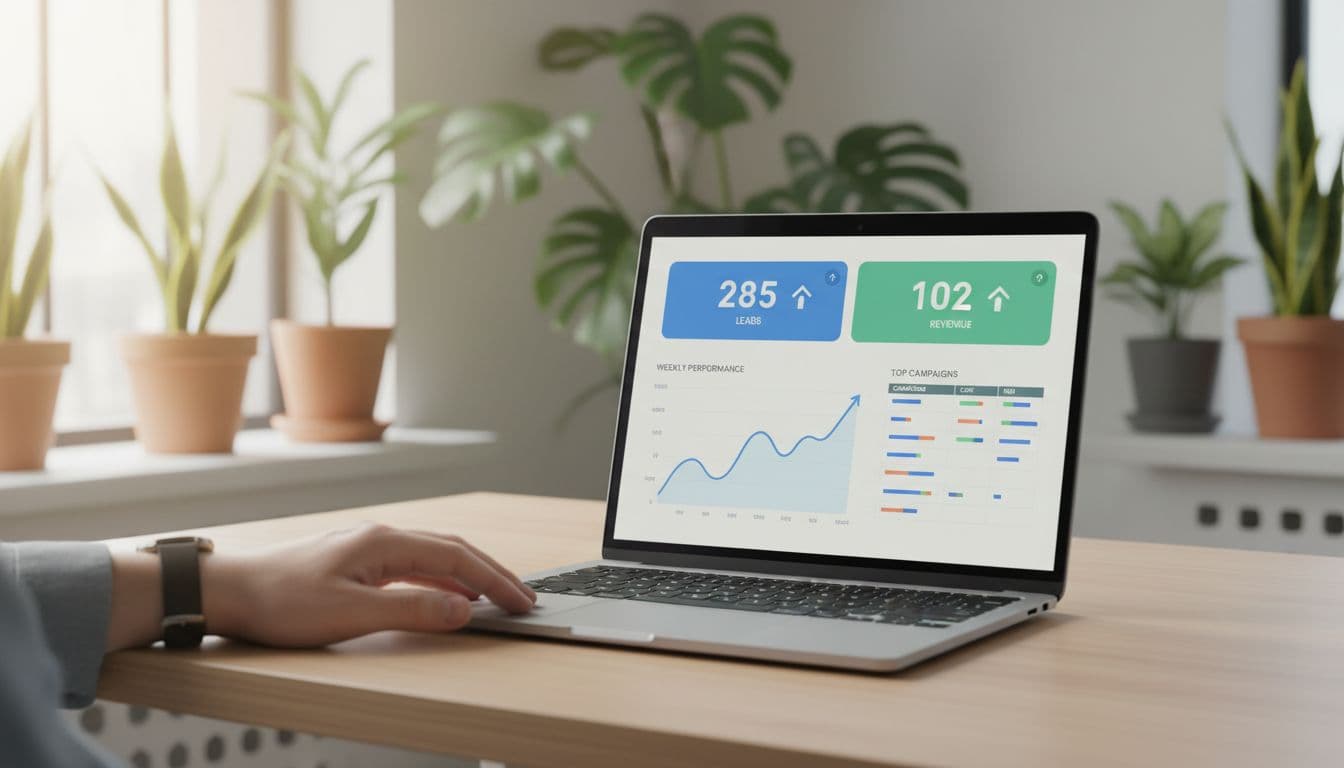
Image prompt suggestion: A laptop showing an overview dashboard with KPI tiles and a weekly trend chart, no readable text.

Laptop on a modern desk displaying Looker Studio overview page with large KPI tiles for leads and revenue, trend line chart for weekly performance, and top campaigns table in a relaxed office setting with plants and warm daylight lighting.

Think of the overview page, your marketing dashboard, like a car dashboard. It shouldn't explain everything; it should show what needs attention.

Build steps (recommended components):

  1. Add a Date range control (default: last 28 days) and a Data control if you manage multiple accounts.
  2. Add 5 to 7 Scorecards: Spend (for budget tracking), Leads, CPL, MQLs, SQLs, Cost per SQL, and (if available) Pipeline value.
  3. Add a Time series chart: dimension = Date, metrics = Spend and Leads (dual-axis).
  4. Add a Table called “Top campaigns”: dimension = Campaign, metrics = Spend, Leads, CPL, MQLs, SQLs. Sort by SQLs (desc) for actionable insights.
  5. Add drill-down on the campaign table: Campaign -> Ad group -> Keyword (Google Ads) or Campaign -> Ad set -> Ad (Meta).

If your conversion setup is still evolving, use this internal guide to stabilize it: track website conversions in Google Analytics. For extra layout ideas, this collection of report templates is useful for page structure.

Lead sources and ad platform breakdown (where CPL rises first)

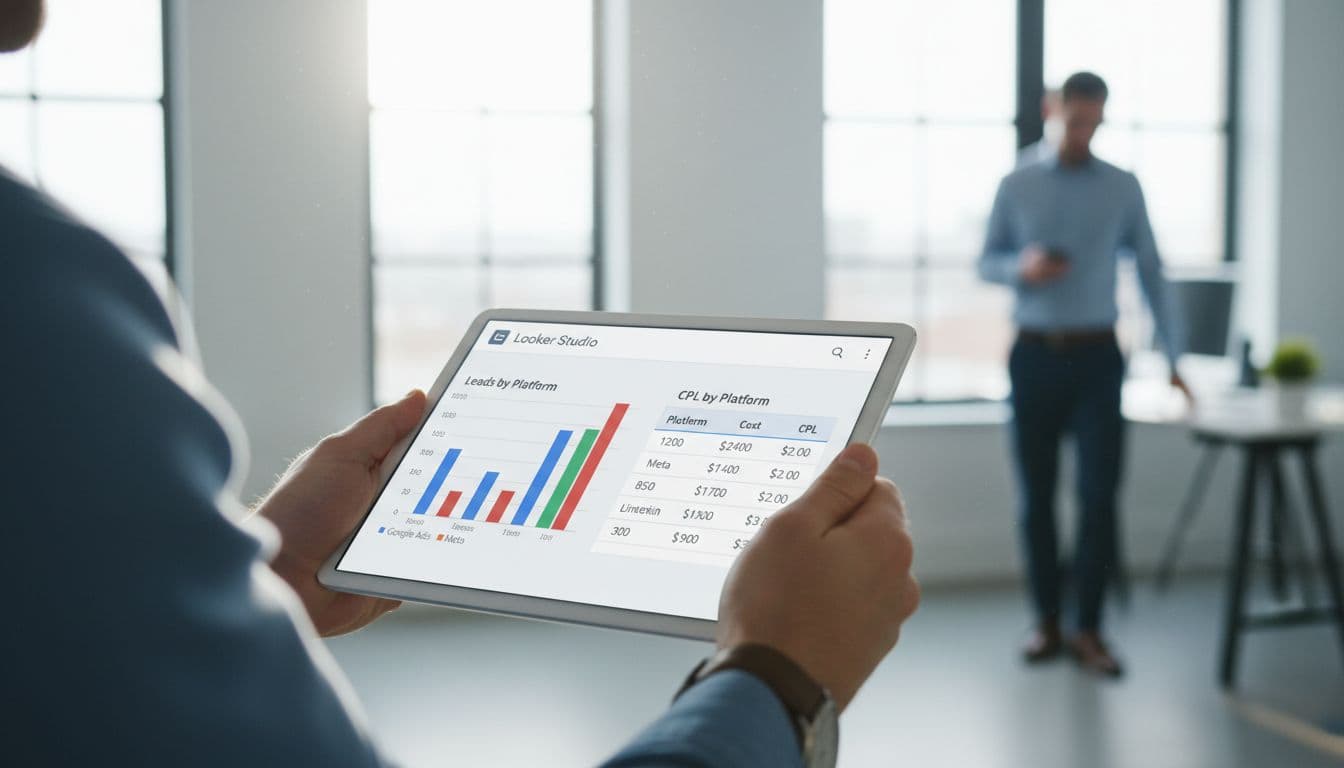
Image prompt suggestion: A marketer holding a tablet showing stacked bars for leads by channel and a CPL table, no readable text.

A single marketer in business casual holds a tablet displaying Looker Studio charts: a stacked bar graph for leads from Google Ads, Meta, and LinkedIn, plus a performance table with CPL by platform, set against a blurred office background with natural light.

This page analyzes cross-channel performance to answer a simple question: which channel is producing real leads at a sane cost?

Build steps (charts that work well):

  • Stacked bar chart: dimension = Week (or Date), breakdown dimension = Platform (Google Ads, Facebook Ads, Meta Ads, TikTok Ads, LinkedIn Ads), metric = Leads.
  • Bar chart: dimension = Campaign, metric = CPL (use a filter for min spend to avoid tiny-sample noise).
  • Scatter chart: X = CPL, Y = Leads, bubble size = Spend, dimension = Campaign (great for spotting waste).
  • Detail table: dimensions = Platform, Campaign, Landing page (if available), Instagram Insights; metrics = Spend, Clicks, Leads, CPL, GA4 CVR.

Add cross-filtering so clicking “Meta Ads” updates the whole page. Also include a landing page filter when you can, because one weak form page can make a good campaign look bad.

Blend CRM data for full-funnel tracking (MQL and SQL, not just form fills)

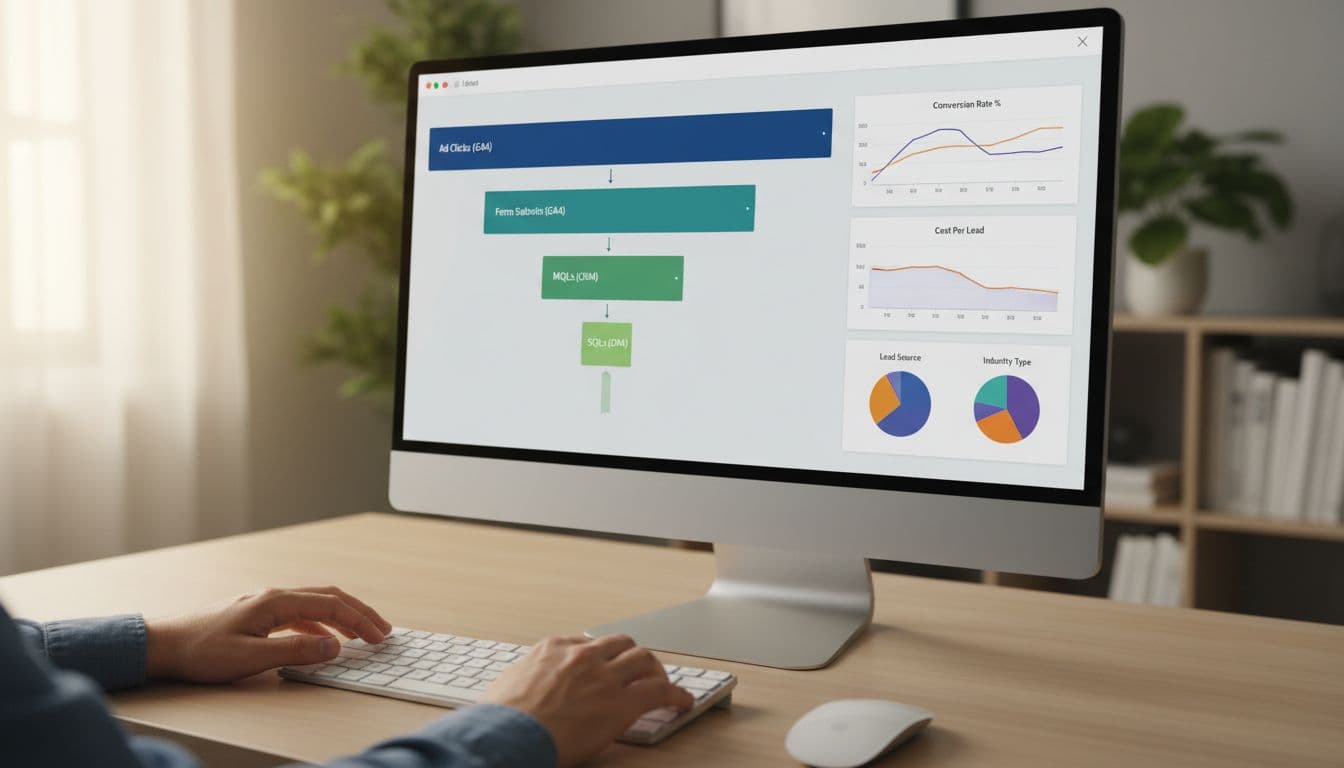
Image prompt suggestion: A desktop screen showing a funnel from clicks to form submits to MQL and SQL, no readable text.

Desktop screen displaying Looker Studio funnel visualization with horizontal bars tracking ad clicks to form submits (GA4), MQLs, and SQLs (CRM), alongside blended data charts. Modern desk setup includes keyboard, mouse, and one person's relaxed hands under soft lighting.

Ad platforms optimize to what you feed them. If you only report form fills, you'll often buy more low-quality leads. This full-funnel approach is essential for both lead gen and ecommerce analytics.

Build steps (a clean join plan using data source connectors):

  1. In your CRM export, include: Lead ID, Created date, Stage (Lead, MQL, SQL), Source, Campaign, UTM fields, and click IDs (gclid, fbclid) when possible.
  2. In Google Analytics 4, capture a lead_id on submit (or a stable dedupe key like email hash), plus UTMs.
  3. In Looker Studio, blend data on Lead ID (best), or on Email (risky), or on Date + Campaign (least accurate).
  4. Build a funnel chart: metrics = Clicks (Ads), Leads (GA4), MQLs (CRM), SQLs (CRM).

For tracking hygiene that holds up over time, keep this bookmarked: GA4 lead tracking checklist for B2B.

Attribution caveat: CRM stages often happen days later. Use both “lead created date” and “stage change date,” then report with clear labels.

Quick implementation checklist (copy this and ship the template)

Image prompt suggestion: Simple icons showing connectors, charts, blends, and filters as a visual checklist, no readable text.

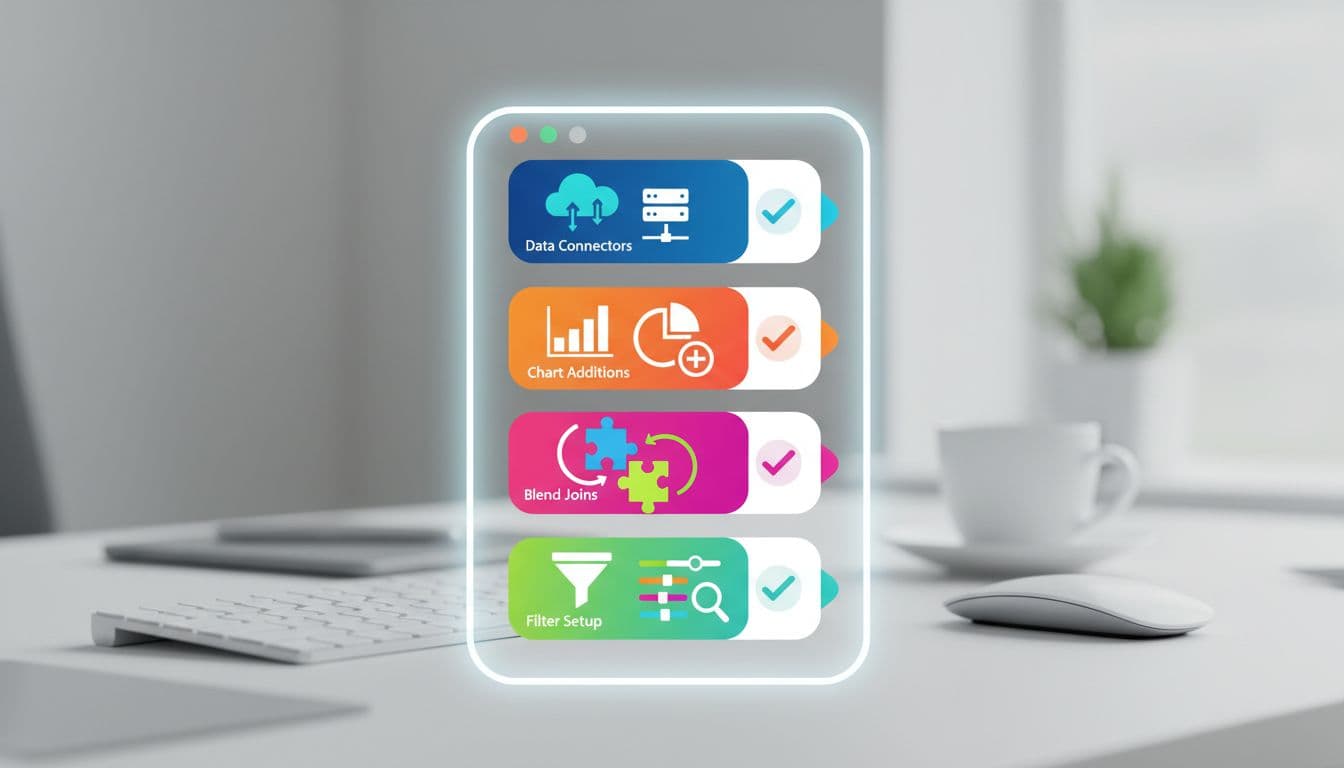
Abstract icons on a screen illustrating dashboard building steps including data connectors, chart additions, blend joins, and filter setups in a vibrant infographic style with blurred desk background.

This checklist helps data analysts create white-label report templates for clients.

Copy this checklist:

  • Define lead events in Google Analytics 4 (form_submit, demo_request, click_to_call) and test in DebugView.
  • Connect sources using data source connectors: Google Analytics 4, Google Ads, Google Search Console, Meta, Amazon Ads, LinkedIn, Shopify, and CRM (native connector or a clean Sheets export).
  • Build 3 pages: Overview, Source and Platform, CRM Funnel.
  • Add global controls: Date range, Platform, Campaign, Geo, Device.
  • Add drill-downs: Campaign -> Ad group -> Keyword (or Ad set -> Ad).
  • Data analysts should verify dedupe rules in CRM exports (one row per Lead ID, latest stage).
  • Label metrics clearly (Leads GA4 vs Leads CRM) and document definitions in a small text box.
  • Set refresh expectations (15 minutes to daily) based on data source speed.

If you prefer starting from an established layout, this campaign dashboard report template can help you compare page structure before you finalize yours.

Conclusion

A dependable looker studio dashboard template should do one job well: connect spend to pipeline for digital marketing performance. When you standardize KPIs, build a tight overview page, and blend CRM stages, reporting stops being a weekly debate and provides real-time insights for the team.

Set it up once, then improve it monthly. If you want help building a version that matches your exact ad mix and CRM workflow, skip generic free looker studio templates; start with ClickyOwl's performance marketing agency team and make the dashboard part of the campaign process, not an afterthought.

Consent Mode v2 GA4 Setup Guide for 2026 (GTM, gtag, CMP, Testing)

Cookie consent for website visitors in 2026 feels like traffic lights at a busy junction. If the signals are wrong, everything still moves, but you can't trust the counts.

Consent Mode v2 GA4 is the practical way to keep measurement useful while respecting user choice and ensuring GDPR compliance. It doesn't replace your cookie banner, it connects it to Google tags so GA4 and Google Ads behave correctly.

This guide is a step-by-step, checklist-first setup for Google Tag Manager and gtag.js you can hand to a marketer, analyst, or developer, then QA with confidence.

What Consent Mode v2 GA4 is, and why it matters in 2026

Clean, modern landscape hero illustration for a 2026 technical guide, featuring a central shield with cookie icon, consent signals (analytics_storage, ad_storage, ad_user_data, ad_personalization) flowing via arrows to GA4 chart and Ads server icons, with a bottom consent banner in flat-isometric hybrid style.
An overview of how consent signals flow from a banner to GA4 and ad measurement, created with AI.

Consent Mode v2 is an API that tells Google tags what they're allowed to do, based on the visitor's consent choice. In practice, it controls whether GA4 and ads storage can write cookies, and whether ad data can be used for personalization.

In v2, you manage four consent signals:

  • analytics_storage (GA4 measurement cookies)
  • ad_storage (ad cookies)
  • ad_user_data (sending user data to Google for ads)
  • ad_personalization (remarketing and ad personalization)

Why it matters in 2026: for EU, European Economic Area (EEA), and UK traffic, Google has required advertisers to pass these consent signals to keep key ads features like Personalized advertising and Remarketing working since the March 2024 deadline, and that expectation continues. If you don't implement it, you may lose parts of remarketing, conversion measurement, or personalization workflows. For a policy-level summary and what teams typically lose when consent signals are missing, see this Consent Mode v2 implementation guide on the EU user consent policy. This approach is essential for a Privacy-centric strategy.

Consent Mode has two behaviors you'll hear a lot:

  • Basic Consent Mode: blocks tags until consent. If the user denies, you collect nothing.
  • Advanced Consent Mode: tags load, but behave safely when consent is denied (cookieless pings). Google can model gaps. Advanced Consent Mode enables Behavioral modeling and Conversion modeling to recover data.

The biggest win in 2026 is trend stability. With Advanced Consent Mode, your reporting doesn't flatline when users say “no”.

Prerequisites checklist (before you touch GTM or code)

Clean, modern landscape hero illustration for the prerequisites section of a Google Consent Mode v2 setup guide for GA4, featuring checklist icons with checkmarks for GA4 property, GTM container, CMP banner, Measurement ID tag, and server, connected by data flow arrows with shield and cookie icons in a flat-isometric hybrid style.
The core items you need ready before implementation, created with AI.

Before setup, lock down the basics. Consent Mode problems often come from timing and duplicates, not the consent banner design.

Prerequisites you should confirm

  • A GA4 property and web data stream: you need the Measurement ID, and a clear plan for which domains you track. Google's developer docs are a good reference point for the tagging side of GA4: Google Analytics for developers.
  • One tagging approach per site area: pick Google Tag Manager or hardcoded gtag.js for the main site experience. Avoid double installs (CMS plugin plus GTM).
  • A Consent Management Platform that can update Consent Mode v2: ideally a Google-certified CMP if you run Google Ads in regulated regions. This short overview helps explain why CMP choice matters: Certified CMP and reporting accuracy.
  • A consent decision model: decide what “Accept all”, “Reject all”, and “Save preferences” mean in your banner.
  • A rollback plan: publish changes in a versioned way (GTM workspace or release branch).

If your GA4 foundation is shaky, fix that first. This internal guide pairs well with consent work because it focuses on stable conversions and clean tags: GA4 lead tracking checklist.

Consent mapping you'll implement

Set expectations with stakeholders using a simple mapping like this:

Banner choiceanalytics_storagead_storagead_user_dataad_personalization
Reject alldenieddenieddenieddenied
Accept allgrantedgrantedgrantedgranted
Analytics onlygranteddenieddenieddenied
Ads only (rare)deniedgrantedgrantedgranted

The takeaway: if your CMP offers category toggles, you must map them cleanly to the four core Consent signals.

Google Tag Manager implementation checklist (recommended for most teams)

Clean, modern hero illustration of GTM panel with consent configuration template, default denied settings, triggers to GA4 tag and CMP event, featuring cookie shield, checkmarks, and data flow icons in flat-isometric style.
Google Tag Manager handling default consent and tag firing rules, created with AI.

Google Tag Manager is usually the easiest way to control timing, because you can centralize consent defaults, tag sequencing, and debugging.

Step-by-step GTM setup

  1. Turn on GTM Consent Overview (Admin). This lets you see and manage consent requirements per tag.
  2. Set the Default consent state early using the Consent Initialization trigger. Your goal is “default denied before any Google tag runs.”
    • Default: analytics_storage=denied, ad_storage=denied, ad_user_data=denied, ad_personalization=denied.
  3. Configure your GA4 tags to respect consent.
    • GA4 Configuration and GA4 Event tags should require analytics_storage.
    • Google Ads tags should require ad_storage, plus the v2 signals as applicable.
  4. Listen for CMP events and update consent.
    • Most CMPs push an event or dataLayer state (for example, cmp_consent_update).
    • When the user accepts, use the “Update consent state” action to set to granted for the mapped signals.
  5. Choose Basic Consent Mode vs Advanced Consent Mode behavior intentionally.
    • If you use Advanced Consent Mode, you still set defaults to denied, but allow Google tags to load and send cookieless signals.
    • If you use Basic Consent Mode, block the tags entirely until consent.

Default denied vs granted (what “good” looks like)

  • Before choice: GA4 may send cookieless pings (Advanced Consent Mode), but it should not set analytics cookies when consent is denied.
  • After Accept all: GA4 can set cookies, enable full data collection, and measure normally, and ads signals can support remarketing and conversion measurement.

A common gotcha: teams set defaults inside a tag that fires after the GA4 config tag. That's too late.

Treat consent defaults like a seatbelt. Put it on before you start the engine, not at the first turn.

gtag.js implementation checklist (when you can't use GTM)

Clean, modern landscape hero illustration for gtag implementation in Google Consent Mode v2 setup for GA4, showing code snippets for consent default and update, GA4 config tag, arrows to browser and server, shield-protected cookie, checkmark, in flat isometric hybrid style with subtle gradients and Google-like accents.
A code-first setup where default consent and updates wrap GA4 tagging, created with AI.

If your site hardcodes tags, you can still implement Consent Mode v2 reliably with gtag.js. The key is placement and timing.

Step-by-step gtag setup (minimal, correct order)

  1. Load gtag.js as you normally do.
  2. Set the Default consent state immediately after the gtag init, before config calls. Use a single default call that sets all four signals to denied.
    • Example shape (keep yours exact): gtag('consent','default', {analytics_storage:'denied', ad_storage:'denied', ad_user_data:'denied', ad_personalization:'denied'});
  3. Fire GA4 config after defaults.
  4. On CMP choice, call consent update to provide the Update consent state using your mapping. Optionally add the wait_for_update parameter (like 'wait_for_update': 500) to improve data accuracy by delaying tags until consent processes.
    • Example shape: gtag('consent','update', {analytics_storage:'granted', ad_storage:'granted', ad_user_data:'granted', ad_personalization:'granted'});
  5. Avoid manual “resend hits” hacks. In Advanced mode, Google can reprocess hits on the same page after consent is granted. Simo Ahava explains this behavior clearly: Consent Mode v2 for Google tags.

Validation checklist (GTM or gtag)

Use two quick layers of checks, then one deeper check. Proper implementation prevents measurement loss in GA4.

  • Tag Assistant / GTM Preview: confirm consent state shows denied on first load, then flips after interaction.
  • GA4 DebugView: confirm events appear when expected, and don't double-fire.
  • Network checks (browser dev tools): open requests to Google endpoints and verify consent parameters change after choice (look for the gcd parameter attached to requests).

Common errors and fixes (fast triage)

  • Default consent fires late: move the default call earlier, or fix GTM firing order.
  • Only two signals mapped: update your CMP mapping to include ad_user_data and ad_personalization.
  • Duplicate GA4 installs: remove the extra plugin or tag. Then re-test DebugView.
  • Consent never updates: your CMP event name or dataLayer keys don't match. Confirm the exact event in the console.
  • Regions mis-handled: apply stricter defaults for EU/EEA/UK traffic if needed, but keep logic simple so you can test it.

What to expect in GA4 reporting, and how to monitor

After rollout, don't panic when numbers shift. With more users declining cookies, observed sessions and conversions can drop. At the same time, trends often become smoother with modeling (more so in ads platforms).

Monitor like this:

  • Add an annotation date for the rollout.
  • Compare key events week over week, not day over day.
  • Watch audience sizes and conversion counts in both GA4 and Google Ads.
  • Keep a single source of truth for conversions. This internal guide helps align GA4 events with business outcomes: track conversions in Google Analytics.

Conclusion

Consent Mode v2 GA4 is less about banners and more about signal quality. Set defaults to denied, map all four signals, and make updates fire instantly on choice. Then validate with Preview, DebugView, and a quick network check.

Once it's stable, you can finally trust your GA4 trends again, even when consent rates swing. This setup ensures responsible data collection and helps businesses navigate the evolving privacy landscape.

Local Services Ads Setup Guide for Home Service Leads in 2026

When a homeowner searches “plumber near me” on the search results page (even via voice search) with water on the floor, Local Services Ads are what they see first. They're not browsing. They're hiring. Local services ads setup is still one of the fastest ways to get those high-intent phone calls in 2026, but it only works when your account is tight, verified, and responsive.

This guide is written for busy home services owners and managers. It covers what changed in 2026, the clean setup steps, and a simple playbook to improve lead quality (not just lead volume).

What changed with Local Services Ads in 2026 (and why it affects setup)

A confident plumber technician in realistic uniform stands next to a verification shield icon and business documents on a modern desk, with a branded service van visible through the window in a clean editorial style.
Verification and trust signals are central to LSA performance in 2026, created with AI.

In March 2026, the biggest shift is that Google is treating LSAs more like a trust and service experience than a simple ad unit. Verification is still required, and a background check along with screening and verification are being enforced more strictly. Small mismatches (business name, address format, owner details) can slow approvals or trigger re-checks.

A second change matters for new businesses: Google has removed the “customer reviews requirement” from the verification flow, so you can get verified and earn the Google Verified badge without hitting a minimum review count first. Reviews still matter for rank, but they're no longer a setup gate.

Finally, responsiveness has become a ranking signal you can feel. If you miss calls, reply late to messages, or let leads age out, responsiveness affects your ad rank and visibility tends to slide.

Fast response isn't just “good customer service” in 2026. It's part of how you earn placement.

For Google's official overview of how LSAs connect you with customers, keep Local Services Ads help documentation bookmarked.

Pre-setup checklist: eligibility, proof, and profile basics

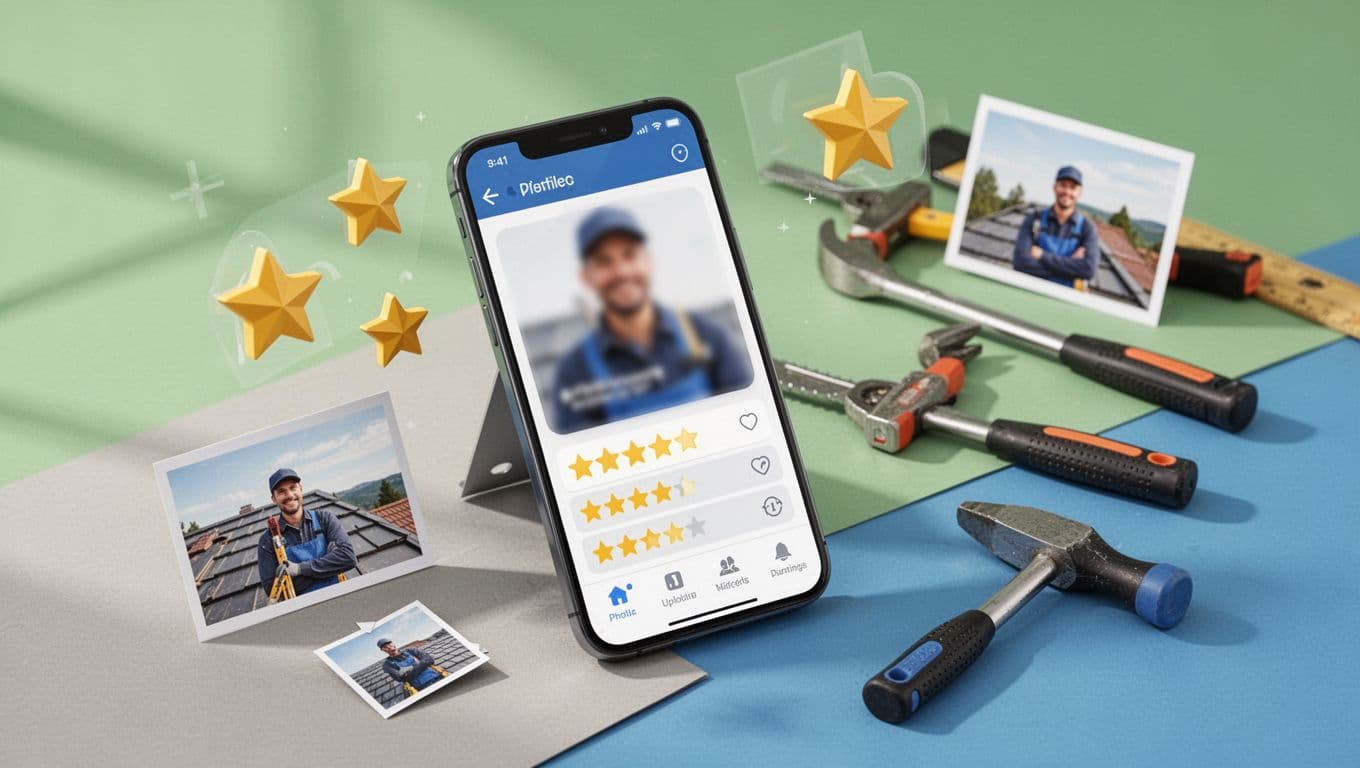
A roofer technician optimizes their online profile on a propped phone screen featuring blurred generic interface with star ratings icons and photo uploads. Isometric elements like stars and frames, tools in the background, bright natural lighting, neutral background with green blue accents, clean modern style.
Profile completeness and real reviews support better lead quality, created with AI.

Before you touch bidding or budgets, start with an eligibility check and get your “proof stack” ready to create a strong business profile. Think of it like showing up to a jobsite with the right tools, you'll finish faster and avoid rework.

Here's the short checklist most home service businesses need:

  • Business identity consistency: Same legal name, DBA (if used), address, and phone everywhere (website, invoices, directory listings).
  • Licenses and insurance: Have current license and insurance documents ready to upload if your category requires professional licenses.
  • Ownership and staffing details: Use accurate owner/officer info, because background checks can validate it.
  • Hours and service types: Don't claim 24/7 unless someone truly answers 24/7.
  • Photos that prove you're real: Team shots, trucks, uniformed techs, before/after work (no stock photo vibes). These visuals serve as a trust badge for customers.

Also, don't run LSAs in a vacuum. Pairing LSAs with Google Ads and strong local organic visibility makes your brand look “everywhere” in the same zip codes. If you want a real example of local visibility compounding results, see this boosted local rankings example.

For a broader third-party view of LSA requirements and how the channel has evolved, this LSA guide for 2026 is a solid reference.

Local Services Ads setup in 2026: the clean step-by-step flow

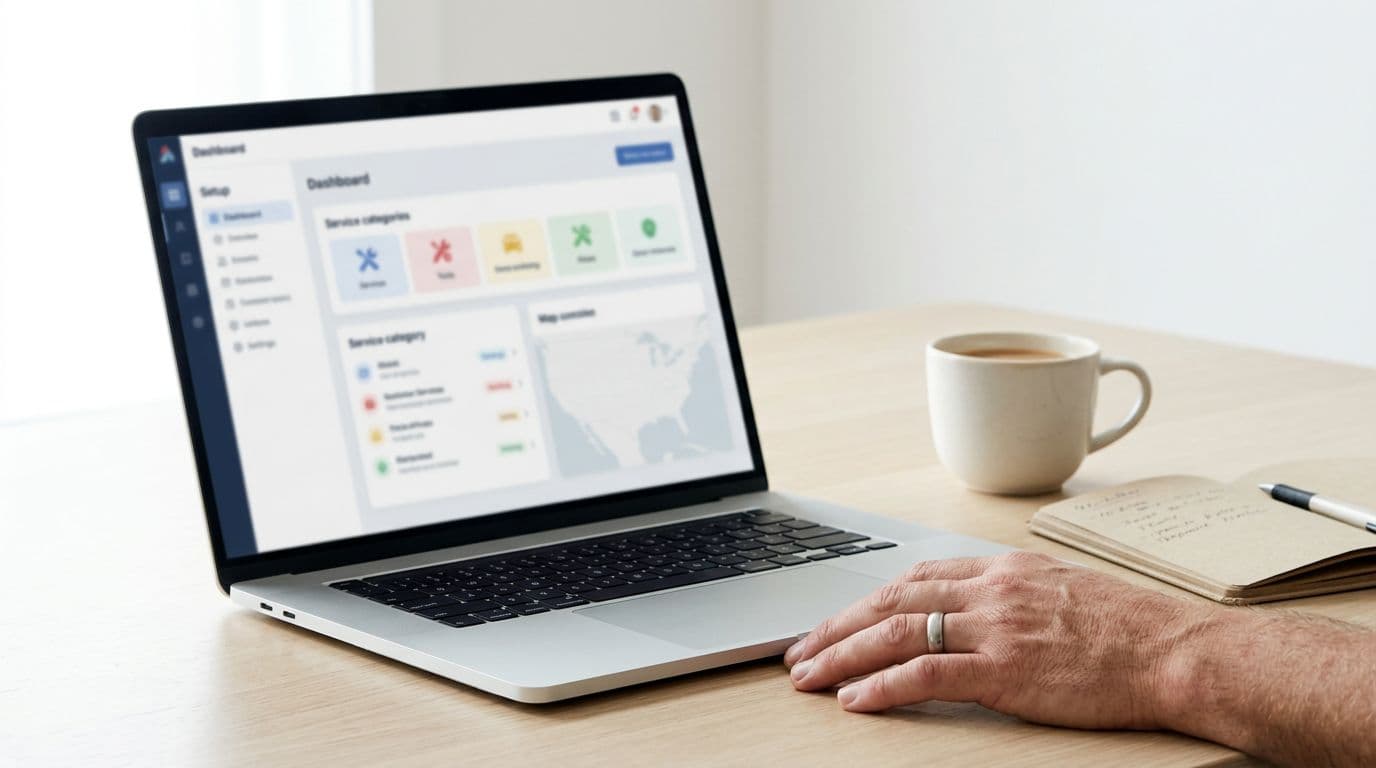
Subtle isometric view of a generic ad dashboard on a laptop screen at an angle with blurred details, HVAC technician's hand resting on desk nearby, coffee mug and notebook, clean modern editorial style with bright lighting.
LSA setup should be treated like a system build, not a quick toggle, created with AI.

Use this order so you don't paint yourself into a corner later. The goal is simple: get verified, define what you want, then control lead quality.

  1. Choose the right business and category Pick the primary service category that matches your best jobs. Add secondary services later, after you've proven lead quality.
  2. Complete your profile like a “sales page” Use plain language. Describe what you do, where you do it, and what you won't do. Add photos and confirm hours.
  3. Finish verification and background checks Expect stricter validation in 2026, including Google Guarantee checks. Keep documents handy, and don't rush entries that must match legal records.

  4. Set lead types and contact routing Decide whether you want phone calls only, direct message, or both. Then route leads to a dispatcher, office line, or dedicated phone.
  5. Turn on lead tracking habits on day one Mark booked, completed, and unqualified leads consistently to manage leads. That data helps you spot patterns fast.
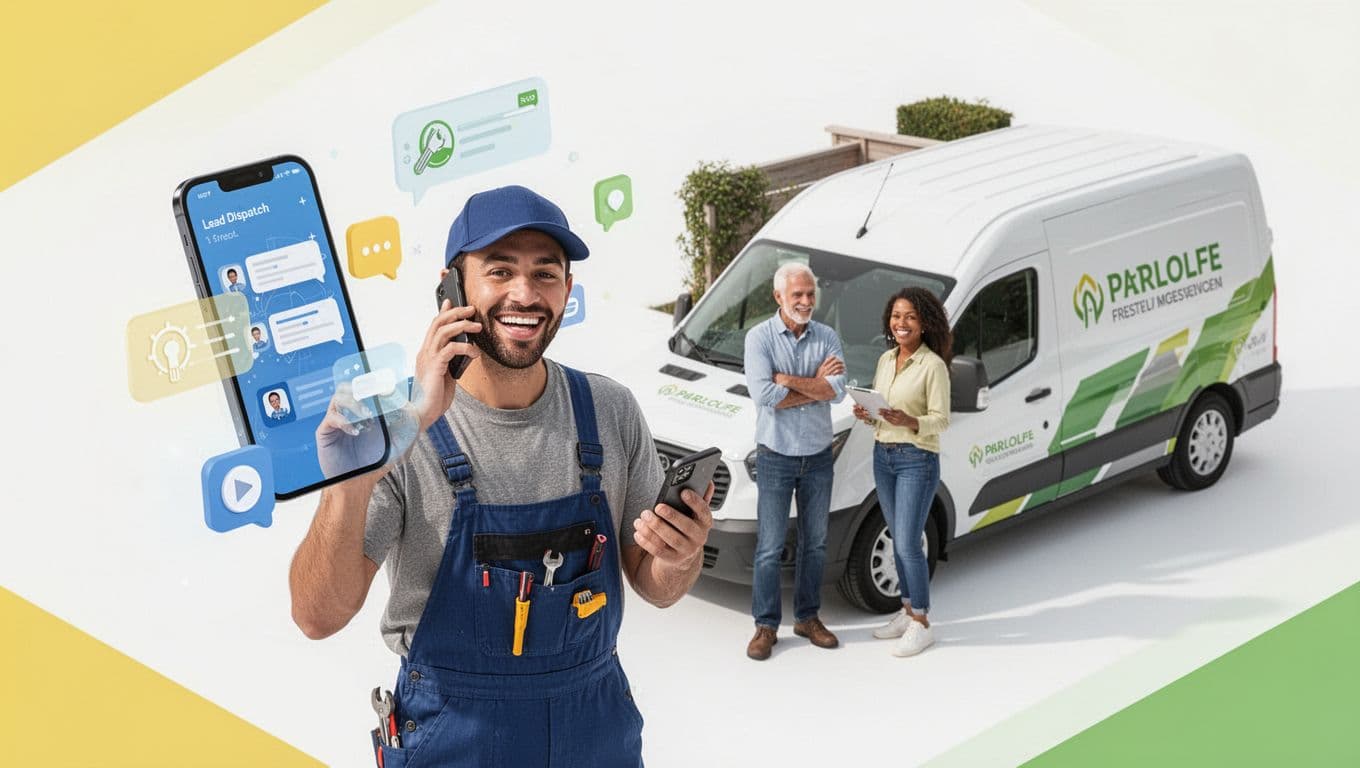
An isometric illustration of a plumber on a phone call receiving a lead dispatch from a happy diverse homeowner, with floating phone and notification icons, service van parked nearby, in a clean modern editorial style with bright lighting and yellow-green accents on white background.
Lead handling speed and routing affect outcomes as much as ad settings, created with AI.

One more 2026 note: if you still rely on call-only search ads outside LSAs, plan your shift. Google is sunsetting call-only ads by February 2027, so move to Responsive Search Ads with call assets for that part of your mix.

If you're also running traditional PPC, a quick refresher on channel fit can help align spend. This comparison of Google Ads vs Bing Ads is useful when you're deciding where LSAs sit in your lead stack.

Service areas and job types: the fastest way to improve lead quality

One electrician in realistic uniform adjusts the service area radius on a subtle isometric city map with pins and circle tool, tools and phone on wooden desk, clean modern editorial style with bright natural lighting.
Service area tightening reduces junk leads and improves close rates, created with AI.

A wide service area feels like more opportunity, but it often acts like a leak in your bucket. You get more calls, yet fewer good ones, because response time and travel time get ugly.

Start tighter than you think you should. Then expand only after you hit your answer-rate and booking targets.

Use “screenshots-style” thinking when you set this up: imagine a map view with a clear radius circle or zip code settings for your service area. Ask, “Can I get a tech to any point inside this circle fast, most days?” If not, shrink it.

Job type control matters just as much. Exclude work you don't want (or can't schedule quickly). The goal isn't to be everything to everyone. It's to be the obvious choice for the jobs you actually want. This targeting drives effective lead generation with better close rates.

For another modern walkthrough on Local Services Ads targeting and setup steps, this step-by-step LSA guide lays out additional examples.

Budget, bidding, and lead disputes in 2026 (simple rules that hold up)

A relaxed HVAC technician views subtle isometric bidding charts and budget graphs on a blurred laptop screen prop, with a mug and calculator on the desk, in a clean modern editorial style with bright natural lighting.
Budget control and consistent bidding habits keep LSAs stable week to week, created with AI.

Local Services Ads can feel “set and forget,” until spend jumps or lead quality dips. Operating on a pay per lead model, they result in a specific cost per lead that demands careful financial management. In 2026, treat budgeting like a thermostat. Make small changes, then wait long enough to see the effect.

A practical approach:

  • Set a weekly budget you can support for at least 2 to 3 weeks, while monitoring your monthly budget for overall accountability.
  • If you need more volume, expand hours first (if you can answer), then expand service area, then raise budget.
  • If quality is poor, tighten job types and geography before lowering budget.

Also, protect your ROI with disputes. When a lead is clearly wrong (outside your area, wrong service, spam), dispute charges quickly and keep notes. Several vendors track patterns and qualification workflows well, including this 2026-focused perspective on LSAs and disputes in LeadTruffle's LSA guide.

Mini playbook: improve LSA lead quality (and ranking) in 30 days

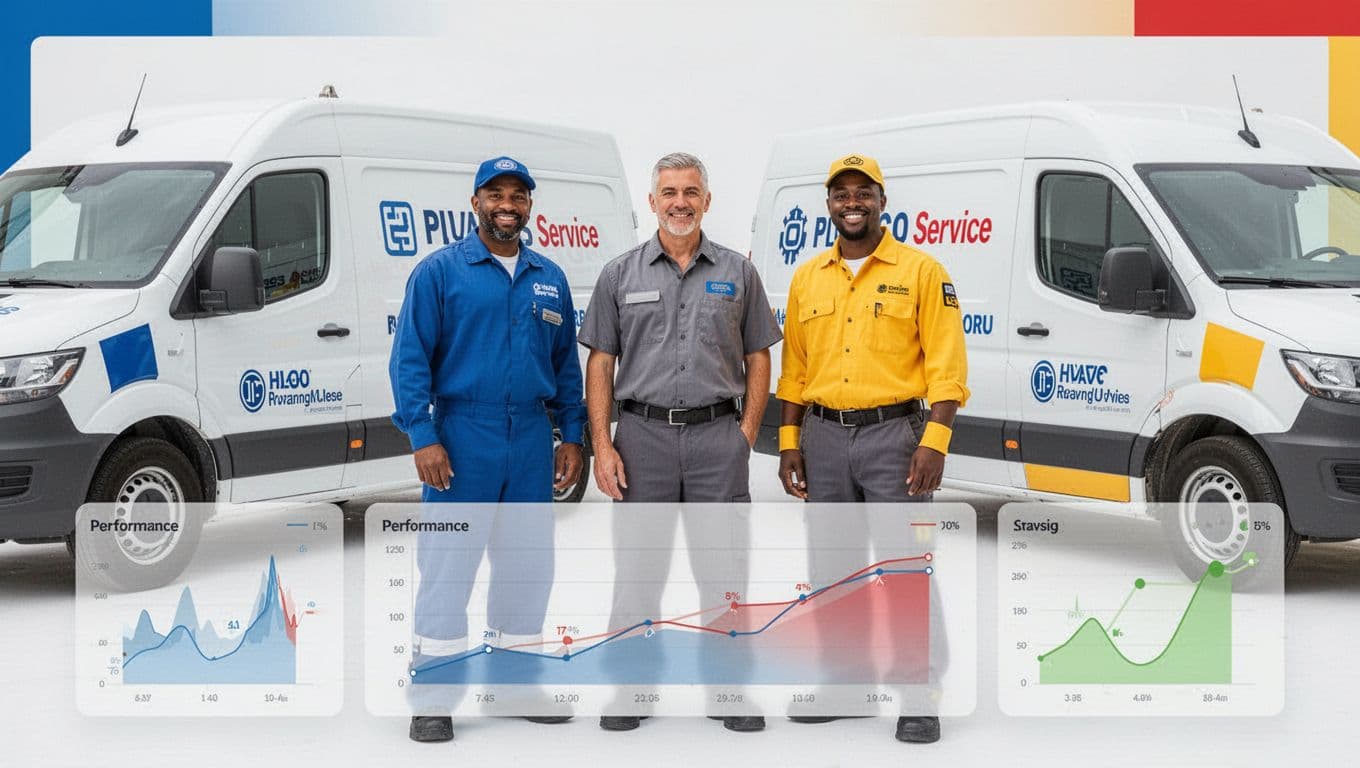
Three diverse home service technicians in uniforms (HVAC in blue, plumber in gray, electrician in yellow) standing together near branded vans, with subtle isometric performance analytics dashboard in foreground, clean modern style.
Lead quality improves when ops, reviews, and targeting work together for Local Services Ads, created with AI.

If Local Services Ads are the faucet, operations are the water pressure. Here's a simple 30-day rhythm that improves quality without fancy tricks, including steps to manage leads through screening and verification:

  • Service area tightening: Reduce coverage until your average arrival promise is realistic.
  • Job type exclusions: Remove low-margin work that clogs the schedule (and triggers price shoppers).
  • Responsiveness SLA: Aim to answer calls fast and return missed calls quickly. If you can't, use a backup answering plan.
  • Customer reviews velocity: Ask for customer reviews from your best customers weekly, not in random bursts. Reply to customer reviews in a human tone.
  • Profile freshness: Add new photos monthly, especially real work and team shots.

If you want better leads, first build a system that answers, qualifies, and books fast.

To make this concrete, here are example settings you can start with and adjust after two weeks while tracking booked jobs as a key metric:

TradeService area starting point“Yes” job types (examples)“No” job types (examples)Response SLA targetWeekly budget starting point
HVAC10 to 15-mile radius around dispatchNo-cool, no-heat, maintenance, system replacement estimatesWindow units, handyman work, long-distance service callsAnswer live or call back within 5 minutesSet to what you can sustain for 2 to 3 weeks
Plumbing8 to 12-mile radius, tighter in traffic-heavy metrosLeak repair, water heater, drain clearing, sewer diagnostics“Quote shopping,” out-of-area emergencies, small fixture installs (if low-margin)Answer live or call back within 5 minutesStart stable, then scale after quality holds
Electrician10-mile radius plus specific nearby zip codesPanel upgrades, troubleshooting, EV charger installsLow-cost “swap a bulb” calls, out-of-scope low-voltage jobsAnswer live or call back within 10 minutesHold steady, adjust after 14 days

If you'd rather have a team handle the full paid and organic mix, including Local Services Ads tracking, Google Ads, lead generation, and landing-page support, see ClickyOwl's PPC management services.

Conclusion

In 2026, local services ads setup is less about pushing buttons and more about proving trust with the Google Verified badge, controlling coverage, and answering fast. Start with clean verification, tighten service areas, exclude the wrong jobs, and commit to a response SLA you can actually hit. Then track lead quality like you track callbacks and warranties. The best LSA accounts don't chase every lead; they build a system that earns the right ones for effective lead generation in Local Services Ads.

Call Tracking Setup Guide for Lead Gen Websites in 2026

If you spend money to get leads, website call tracking means phone calls no longer have to be a mystery. Yet many teams still see “Calls” as a single bucket, with no source, no quality signal, and no clear owner.

A solid call tracking setup fixes that. You'll know which Google Ads, marketing campaigns, pages, and keywords drive qualified conversations, not just dials. You'll also stay on the right side of privacy rules that got stricter again in 2026.

Below is a practitioner-focused setup you can ship, test, and maintain.

The 2026 call tracking architecture (what you're building)

Flat-isometric view of call tracking architecture: lead-gen website with dynamic number insertion swapping phone numbers, connecting via server to call tracking dashboard, GA4 charts, and CRM icons. Clean modern professional SaaS aesthetic with navy teal violet accents on white background.
An architecture view of how dynamic numbers, Google Analytics, and CRM attribution connect, created with AI.

Think of call tracking like a “return address” on every phone lead. The site shows a number, a visitor calls it, and the system maps that call back to the session that saw the number, delivering visitor-level insights.

At a minimum, your stack needs five parts:

  • Number inventory (local and toll-free numbers), with a plan for static and dynamic use.
  • DNI script (dynamic number insertion) to swap numbers per visitor.
  • Attribution storage to hold UTMs, gclid, landing page, and referrer.
  • Event output into GA4 (and ad platforms), plus offline conversion sync if you can.
  • CRM handoff so sales outcomes feed back into “qualified call” reporting.

In 2026, measurement breaks most often at the seams. For example, your landing page is on one domain, scheduling is on another, and the call happens after a return visit. So the real goal is not “track a call.” It's stitch identity and intent across the customer journey without collecting risky data to boost marketing ROI.

Gotcha: if you only report “calls,” you'll optimize for spam and wrong numbers. Track qualified calls as the primary conversion, and raw calls as a diagnostic metric.

DNI vs Static Call Tracking, Plus Pool Sizing Math That Won't Burn You

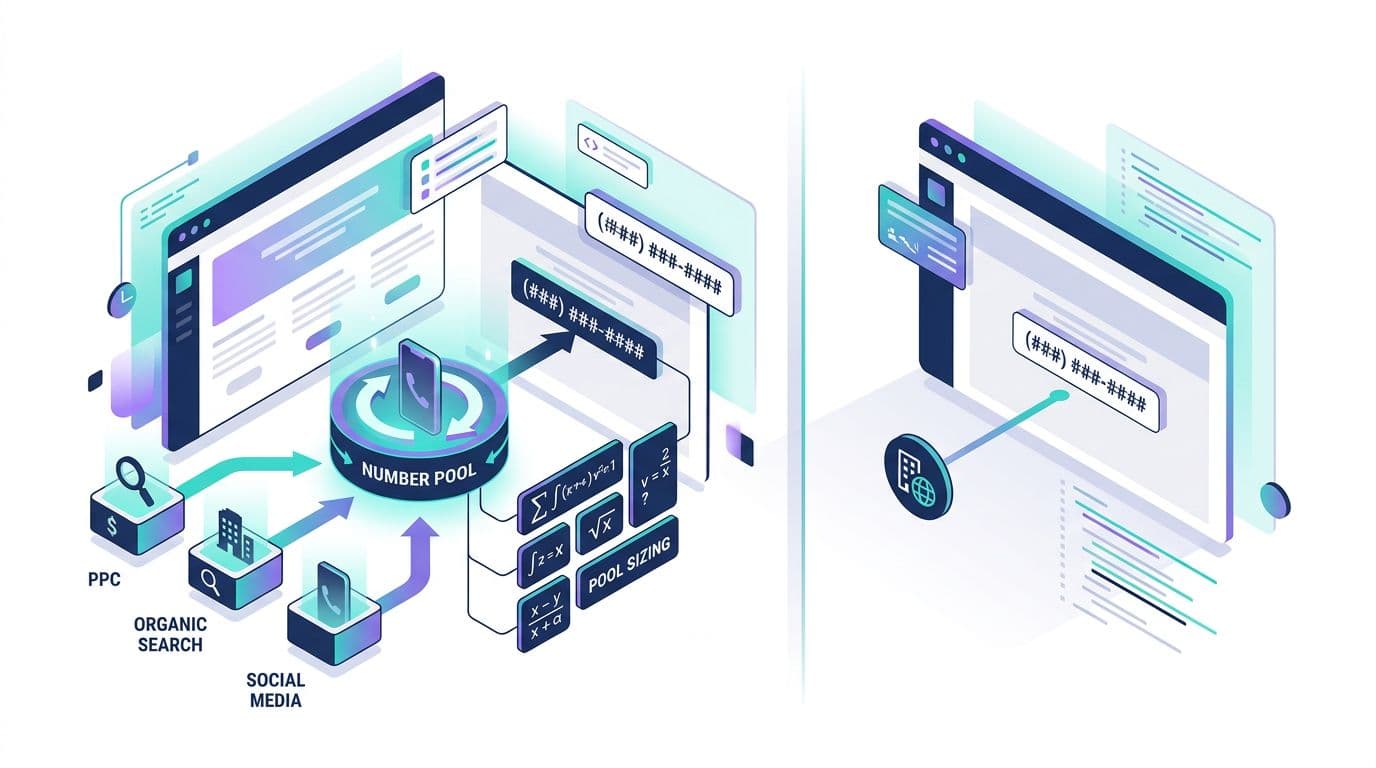
Flat-isometric split-view diagram comparing Dynamic Number Insertion (DNI) dynamic numbers with static numbers for call tracking on lead-gen websites, featuring number pool rotation for PPC/organic sources and pool sizing math icons.
DNI versus static number use cases, including number pool sizing concepts, created with AI.

Use static call tracking with static numbers when you don't need per-visitor attribution. Good examples are Google Business Profile (using Google forwarding numbers or the phone snippet), billboards, or a specific partner page.

Use DNI (dynamic call tracking) when you need source, campaign, keyword, landing page, and returning-visitor mapping with a unique tracking number. That typically means PPC landing pages and high-intent SEO pages.

Pool sizing is where teams stumble. If the pool is too small, two visitors can share one tracking number. Attribution becomes random.

A practical way to size the pool is to plan for concurrency:

Pool size (minimum) ≈ peak concurrent sessions eligible to see DNI × safety factor

“Eligible” means sessions where you display the swapped number (often all sessions on key pages). Use a safety factor of 1.5 to 2.0 until you've observed collisions.

Here's a quick example to calibrate:

Traffic pattern (example)Peak concurrent eligible sessionsSafety factorSuggested pool size
Low-volume local service81.512
Mid-volume PPC burst251.845
High-volume multi-campaign602.0120

Recommended defaults that work for most lead gen sites:

  • DNI cookie duration: 30 days (match your sales cycle if longer).
  • Session hold time for a number: 30 to 60 minutes.
  • Separate pools for brand PPC vs non-brand PPC marketing campaigns, if budget allows.
  • Fallback static number if the script fails or consent blocks DNI.

Common pitfall: using one static number site-wide, then hoping GA4 “source” explains calls. It won't, because the phone system can't see the session.

Call tracking setup in GTM and GA4 (including SPAs and cross-domain)

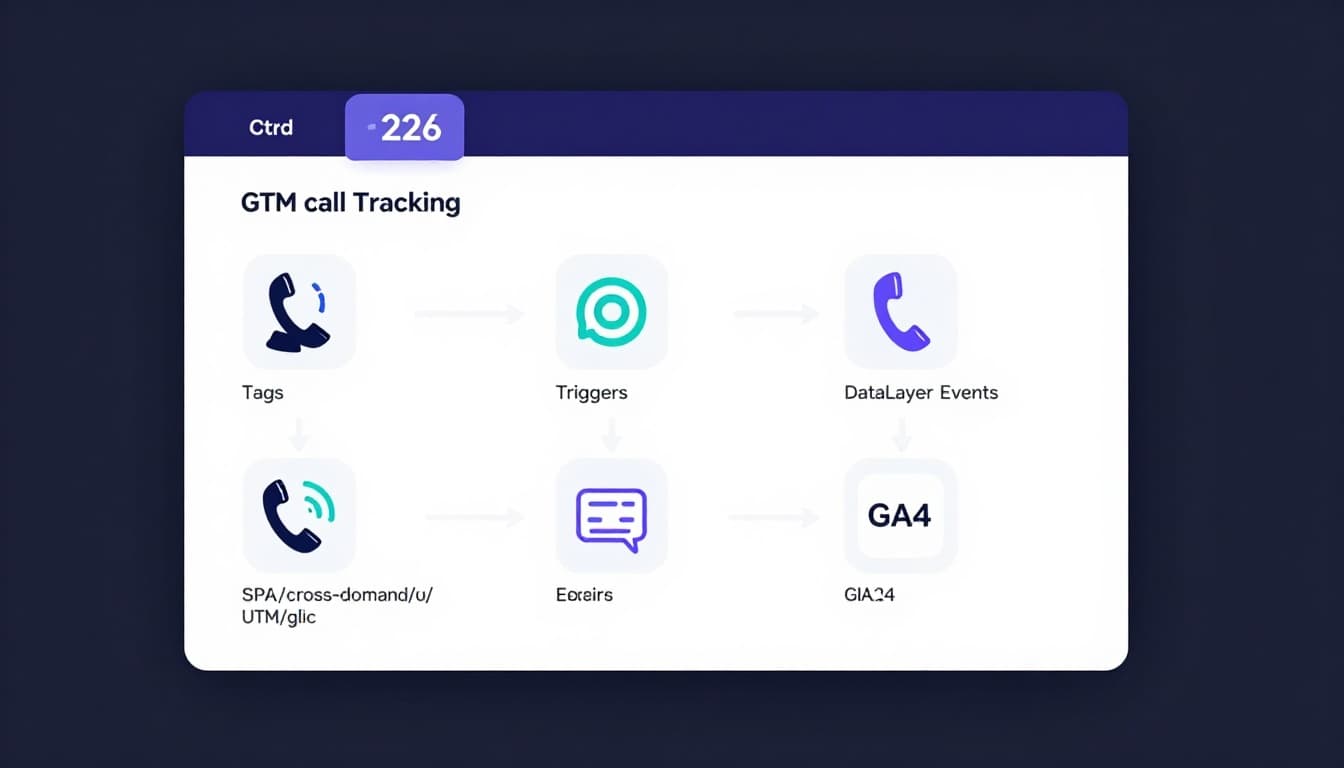
Clean, modern flat-isometric illustration of step-by-step GTM call tracking setup for lead-gen websites, featuring tags, triggers, dataLayer events, and phone icons flowing to GA4 on a tilted GTM interface.
How GTM tags and events flow into GA4 for call tracking, created with AI.

Your call tracking vendor handles DNI, but you still need clean analytics events. The simplest model is: send “call events” to Google Analytics, then send “qualified call” as offline conversions later from the CRM.

Start with a clear event map for conversion tracking:

  • click_to_call (user taps a tel link)
  • call_start (vendor detects an inbound call)
  • call_connected (optional, answered call)
  • call_qualified (conversion action sent later from CRM based on outcome)

Implementation steps (ship in this order):

  1. Define attribution fields you care about: utm_source, utm_campaign, gclid, landing page, referrer, plus a lead_id.
  2. Enable cross-domain in GA4 if any step uses another domain (scheduler, payment, subdomain). For GA4 hygiene, keep a reference like this GA4 lead tracking checklist.
  3. Persist UTMs and gclid in a first-party cookie (or localStorage if allowed). Refresh on each landing.
  4. SPA support: trigger DNI swaps on route changes, not just initial load. In Google Tag Manager, that usually means a History Change trigger plus a DOM-ready guard.
  5. Push events to the dataLayer so Google Tags don't depend on fragile CSS selectors.

Example dataLayer push patterns for conversion tracking (keep them small and consistent):

  • dataLayer.push({event:'click_to_call', placement:'sticky_header'})
  • dataLayer.push({event:'call_start', call_id:'<vendor_id>', source:'dni'})
  • dataLayer.push({event:'call_qualified', call_id:'<vendor_id>', reason:'sales_accepted'})

Then, in Google Tag Manager:

  • Create a GA4 Event tag for each event name.
  • Use Custom Event triggers that match click_to_call, call_start, and so on.
  • Pass only non-sensitive parameters (never send phone numbers to GA4).

For more conversion wiring patterns, this guide on how to track conversions in Google Analytics is a useful cross-check.

On server-side tagging: if you run a tagging server, forward call events server-to-server (or via Measurement Protocol). That reduces loss from blockers and gives better control over identifiers.

Recording, transcription, AI spam filtering, and lead scoring workflows

Flat-isometric illustration featuring icons for consent banners, first-party cookies, server-side tagging, privacy shields, and spam filter AI, arranged in a table-like grid highlighting compliance pitfalls for lead-gen websites.
Privacy, retention, and quality controls that often surround call tracking, created with AI.

Call recordings boost coaching and dispute handling, but they also raise risk. In 2026, treat them like sensitive data by default.

Practical compliance basics:

  • Disclose recording at call start (and respect two-party consent regions).
  • Set retention to the shortest window that still supports operations (often 30 to 90 days).
  • Avoid collecting PCI or PHI in recordings. If payments happen by phone, use pause or stop recording.
  • Restrict access by role, and log exports.

Transcription helps, but don't store more than you need. Many teams store:

  • A short summary,
  • Intent category (sales, support, wrong number),
  • Qualification fields (budget, timeline, service fit),
  • A spam flag.

For AI-powered spam filtering and lead scoring, a reliable workflow looks like this:

  1. Run basic filters first (repeat callers, very short duration, known spam patterns).
  2. Transcribe, then classify intent and sentiment.
  3. Assign a lead score based on lead quality and handle call routing in the CRM (sales queue vs nurture).
  4. Mark qualified calls only after a human outcome, not just a model guess, and feed outcomes back through CRM integration to refine the scoring model.

QA test cases and a troubleshooting matrix you can hand to a team

Clean, modern 2026-style flat-isometric illustration of a QA test dashboard for call tracking on lead-gen websites, showing charts for test calls from different sources, attribution models, and conversion windows on a single monitor with white background and navy teal violet accents.
QA checks across channels, windows, and attribution outcomes, created with AI.

Run QA like you're testing a checkout. Small tracking bugs become expensive fast.

High-value test cases (do these on desktop and mobile):

  • Google Ads call-only ads with gclid: number swaps, call maps to the correct campaign.
  • Google Ads call extensions: number swaps, call maps to the correct campaign.
  • GMB call tracking: calls from local sources map to the correct listing.
  • UTM-only visit: no gclid, still attributes to source and campaign.
  • Return visit within 7 days: same visitor sees a number and attribution holds.
  • SPA route change: number stays correct after navigation, no flicker to fallback.
  • Cross-domain hop: user goes to scheduler domain, comes back, then calls.
  • Consent denied: site shows fallback number, analytics does not fire blocked tags.
  • Qualified outcome: CRM marks the call qualified, GA4 receives call_qualified.

Use this troubleshooting matrix when something looks off:

SymptomLikely causeFast fix
Tracking calls show as “direct”UTMs not persisted, or cross-domain breaks sessionStore UTMs first-party, add GA4 cross-domain linker
Wrong campaign on conversion trackingPool too small, number collisionsIncrease pool, shorten session hold time, add safety factor
DNI doesn't work on SPA pagesSwap runs only on page loadAdd History Change trigger, re-run swap on route updates
GA4 events double-fireMultiple tags or triggers overlapAdd once-per-page guards, tighten trigger conditions
Recording missing or partialConsent flow or IVR step blocks recordingVerify recording settings, add disclosure timing check

Conclusion

A modern call tracking setup is part analytics, part operations, and part compliance. When you size the DNI pool correctly, support SPAs and cross-domain journeys, and optimize your marketing efforts for qualified calls, attribution stops being a debate, even for high-volume Google Ads campaigns.

If your next Google Ads campaign doubles traffic tomorrow, will your call tracking still hold up, or will it blur phone call leads into noise?

Google Ads Account Setup Checklist for Lead Generation in 2026

If your leads are messy, your account will get messy too. In 2026, Google's automation can scale fast, but it can't fix weak setup choices. The fastest way to waste budget in lead generation is to optimize without proper conversion tracking.

This google ads account setup checklist focuses on what lead-gen teams actually need: clean access and billing, reliable GA4 and Google tag tracking, privacy-safe measurement, call and form attribution, and a feedback loop from your CRM so Google learns what a good lead looks like.

Get the Google Ads account structure fundamentals right for lead generation before you touch keywords

Start with the parts that are painful to change later. A strong foundation keeps reporting stable and reduces account risk.

Lock these in first:

  1. Time zone and currency: Choose based on finance and reporting needs, not convenience. You can't change them without creating a new account.
  2. Auto-tagging: Keep it on so GCLID flows into GA4 and your CRM. Without it, offline attribution becomes guesswork.
  3. User access and security: Use the least privilege approach. Give Admin only to owners, keep Standard for day-to-day operators, and use Read only for stakeholders. Require 2-step verification on every user.
  4. Google Ads account structure: If you run multiple clients or multiple brands, set it up under an MCC from day one. It prevents access chaos later.
  5. Billing, tax, and payment profile: Add a backup payment method, confirm invoicing details, and align tax settings with your legal entity. Don't wait until launch day to find a card block.
  6. Advertiser and business verification: Build time for it. Verification delays are a common reason campaigns don't serve.
  7. Brand safety defaults: For lead gen, keep early traffic tight. Avoid expanding reach until tracking and lead quality are proven.
  8. Campaign settings: Establish campaign settings early since they play a key role in lead generation success. Align bidding strategies, locations, and ad schedules with your target audience to drive quality leads.

A quick note on channels: if you're considering expanding beyond Google, it helps to understand the tradeoffs in a PPC platforms: Google vs Bing for leads comparison, because tracking and lead intent often differ by network.

Finally, set expectations with your team using a simple naming system. Before diving in, leverage the Google Keyword Planner to identify opportunities and define keyword match types; this step is essential for organizing ad group themes effectively. Consistent names make audits and scripts easier, and they reduce mistakes during handoffs.

Use a pattern like: Region | Service | Network | Match Type | Objective | 2026. Keep it boring. Boring scales.

Build conversion tracking you can trust using Google Analytics 4 and Google Tag Manager

For lead generation, conversion tracking is your steering wheel. If it's loose, every optimization drifts.

Set your measurement plan before campaign creation:

  • Define your primary conversions: lead form submits, qualified calls, and booked appointments. Landing page optimization is critical for maintaining a high click-through rate and conversion tracking accuracy. Everything else is secondary (scroll depth, page views, time on site).
  • Pick one “source of truth” per action: duplication is the silent killer. If the same form submit fires from Google Analytics 4 import and Google Ads tag, you'll inflate conversions and train bidding on noise.
  • Use Google tag or Google Tag Manager: Either is fine, but keep it consistent. Google Tag Manager is usually easier for agencies and multi-step funnels.

Enhanced Conversions for Leads should be treated like a default in 2026, not a bonus. It improves matching when cookies drop, as long as you pass first-party data correctly (email, phone) and only after the user submits. Google's setup details are here: Enhanced Conversions for Leads configuration.

Consent also matters now because measurement quality depends on how you handle opt-outs. If you operate in regions with consent requirements, implement Consent Mode through your CMP and tag setup, then validate behavior in Tag Assistant.

If you wouldn't bet your budget on the data, don't ask smart bidding to bet on it either.

Offline conversion tracking is a prerequisite for smart bidding success.

Here are practical default settings most lead-gen accounts should start with:

Setup area Recommended default Why it matters for leads
Conversion actions 1 to 3 primary actions (Form Submit, Qualified Call, Booked) Keeps bidding focused on outcomes
“Include in Conversions” Yes for primary, No for micro-events Prevents optimizing to fluff
Count One for forms and booked appointments Stops repeat submits from inflating results
Attribution model Data-driven Better credit assignment across devices and touchpoints
Enhanced Conversions On for lead forms Improves match rate with privacy limits
Google Analytics 4 link + auto-tagging On Enables cleaner reporting and imports

Call tracking needs equal care. For ad extensions and call ads, use Google forwarding numbers where available so calls can become conversions with a clear source; ad extensions help lower the cost per lead through precise attribution. For website calls, use a tracked number on landing pages, and set a minimum call length that matches intent (for example, 45 to 90 seconds, depending on your sales cycle). If you need a broader view of setups and pitfalls, use this phone call conversion tracking guide as a reference.

Feed lead quality back into Google Ads (CRM, offline imports, spam control, QA)

Most lead generation accounts fail for one reason: they optimize for volume over cost per lead, then wonder why sales is angry.

Fix that with a tight feedback loop for better lead generation results.

First, capture click IDs and store them in your CRM. At minimum, collect GCLID on form submit and pass it into your lead record. If you rely on scheduled appointments, store the same ID on the booking event as well. This clean data supports a robust bid strategy like Target CPA or maximize conversions, powering Smart Bidding with quality signals to lower your cost per lead.

Next, import offline conversions based on quality milestones, not just raw leads. Common import events include:

  • Qualified lead (passed validation, correct location, correct service need)
  • Sales accepted lead (accepted by sales team)
  • Closed won (final revenue)

Google's rules and requirements can trip teams up, so keep this open while building: offline conversion import guidelines.

Calls can also be imported when they happen outside Google's native call reporting, like in a contact center or call tracking platform. If you use the API route, reference: import call conversions via Google Ads API.

Now protect your account from junk leads in lead generation campaigns. Form spam doesn't just waste follow-up time, it poisons Smart Bidding. A few practical safeguards:

  • Add reCAPTCHA or an invisible challenge, plus a simple honeypot field.
  • Block obvious bot patterns server-side, not only in the browser.
  • Validate phone and email formats, then stop “[email protected]” style submits.
  • Focus on high-intent keywords, tighten geo targeting, and review the search terms report early, because broad match keywords invite spam.
  • Build negative keywords from day one to filter broad match keywords effectively.
  • If you use lead form assets, review answers and lead quality daily at the start.

Importing “Qualified Lead” often beats importing “Lead”, because it teaches Google what you actually want.

Common setup mistakes to avoid

  • Counting every form submit as success, even when spam is high and Quality Score suffers.
  • Importing duplicate conversions from both GA4 and Google Ads tag.
  • Leaving location targeting on Presence or interest for local services (it pulls in out-of-area leads).
  • Running ads 24/7 when your team only answers calls 9 to 6.
  • Skipping negative keywords until spend climbs (start building them day one; use the search terms report to spot issues with high-intent keywords).
  • Giving too many Admin users, then losing control of settings and billing.
  • Neglecting Quality Score by ignoring responsive search ads relevance or weak ad group themes.
  • Failing to leverage audience targeting for B2B lead generation or account-based marketing scenarios.
  • Overlooking ad extensions and landing page optimization, which boost Quality Score and responsive search ads performance.

Launch-day verification checklist (do this before scaling)

  • Submit a test lead form, confirm the conversion fires once in Google Ads.
  • Check Enhanced Conversions status, confirm it shows as recording.
  • Validate Consent Mode behavior with and without consent, if applicable.
  • Place a test call, confirm call reporting and conversion logic (duration threshold).
  • Confirm “Include in Conversions” only contains your primary lead actions.
  • Confirm attribution model and conversion windows match your sales cycle; review bid strategy like Target CPA or Target ROAS.
  • Verify location setting uses presence for local campaigns, review ad schedule, and ensure Performance Max campaigns receive quality signals.
  • Confirm leads land in the CRM with GCLID captured, then test an offline import flow.
  • Check remarketing list populations are growing and audience targeting layers align with ad group themes.
  • Scan for policy or verification warnings, fix them before increasing budgets; audit landing page optimization and responsive search ads for Quality Score impact.

Conclusion

A solid Google Ads account structure is the engine for effective lead generation in 2026. It's less about fancy campaign types and more about dependable measurement. Set tight access and billing, build GA4 and tag tracking you can trust, then send lead quality signals back through offline imports. Regularly refine negative keywords as a key maintenance task. Once the feedback loop works, scaling feels a lot less like gambling, especially with smart bidding helping maintain a high click-through rate for long-term lead generation success. The real question is simple: are you optimizing for leads, or for revenue-grade outcomes?


Google Ads vs Bing Ads – Which Is Better For Your Business In 2024?

Google Ads vs Bing Ads - Which Is Better For Your Business In 2024?

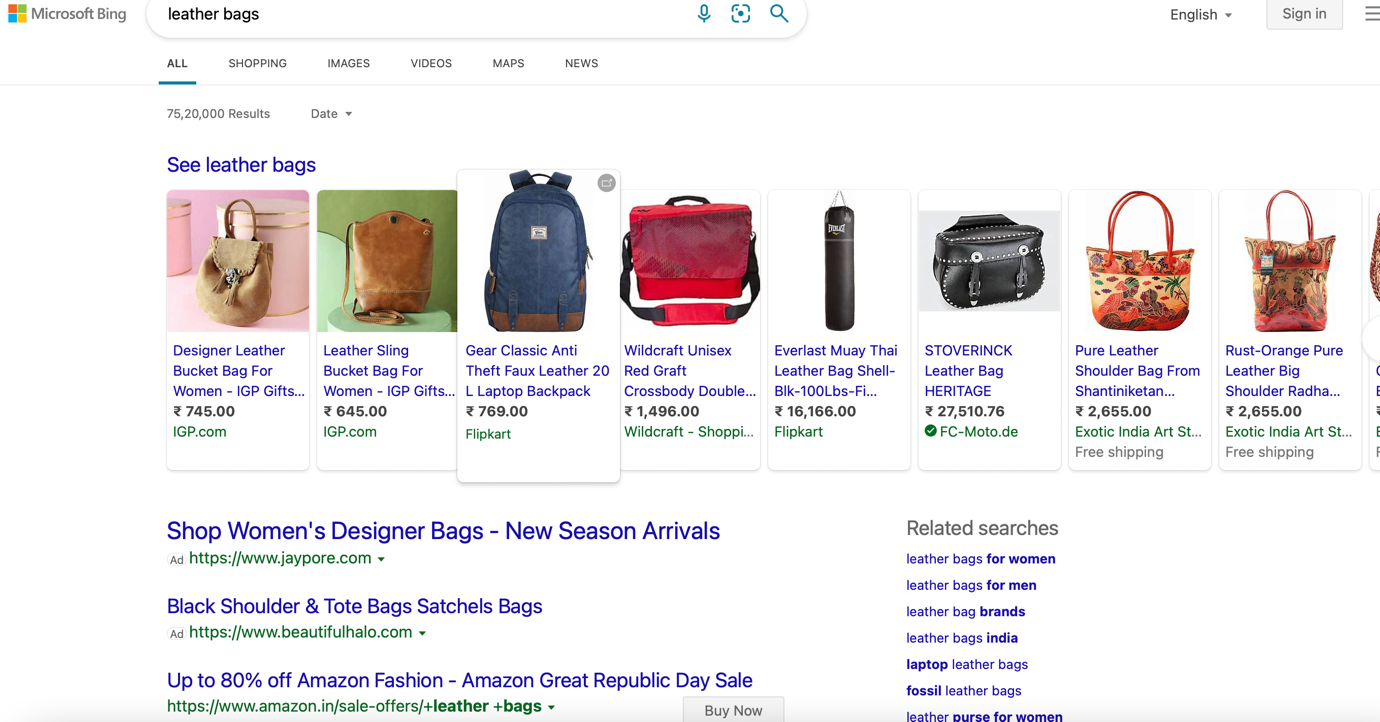
In the landscape of online advertising, businesses constantly seek the most effective platforms to reach their target audience. Two major players in this arena have long been Google Ads vs Bing Ads. As we step into 2024, the debate about which platform reigns supreme continues to spark interest among marketers and business owners alike.

In this blog, we delve into the comparative strengths of Google Ads and Bing Ads, examining their features, audience reach, performance metrics, and ultimately, which platform might better serve your business objectives in the current digital climate.

Whether you're a seasoned advertiser or just dipping your toes into online marketing, understanding the nuances between these platforms is essential for making informed decisions about where to invest your advertising budget.

Let's navigate the Google vs. Bing Ads landscape together to discover which platform could be the game-changer for your business in 2024.

Table of Contents

What Are The Major Differences Between Google Ads And Bing Ads?

What Are The Major Differences Between Google Ads And Bing Ads?

Google Ads and Bing Ads are both powerful advertising platforms, but they differ in several key aspects that may influence where you choose to allocate your advertising budget. Here are some of the major differences between the two:

Audience Reach

Google Ads

Google processes over 3.5 billion searches per day, making it the undisputed leader in search engine market share. With such a vast audience, Google Ads offers unparalleled reach and exposure.

Bing Ads

While Bing has a smaller market share compared to Google, it still commands a significant portion of the search engine market, particularly in certain demographics and regions. Bing Ads can be particularly attractive for businesses targeting older demographics or specific niche markets.

Cost Per Click (CPC)

Google Ads

Generally, CPC on Google tends to be higher compared to Bing Ads due to the fierce competition for keywords and placements. However, the potential return on investment (ROI) can also be higher given the larger audience size and higher click-through rates.

Bing Ads

CPC on Bing Ads is often lower than on Google, making it an attractive option for businesses with limited advertising budgets. Lower CPC can also lead to a more cost-effective advertising campaign, especially in industries with less competition.

Ad Formats and Extensions

Google Ads

Google offers a wide range of ad formats, including text ads, display ads, video ads, shopping ads, and more. Additionally, Google provides various ad extensions such as sitelinks, callouts, and structured snippets to enhance the visibility and effectiveness of your ads.

Bing Ads

Bing also supports various ad formats, including text ads, shopping ads, and app install ads. However, the selection may not be as extensive as Google's. Bing also offers ad extensions like call extensions and location extensions to improve ad performance.

Demographic Targeting

Google Ads

Google provides robust demographic targeting options based on factors such as age, gender, location, device, and even interests. This level of granularity allows advertisers to tailor their campaigns to specific audience segments effectively.

Bing Ads

While Bing Ads also offers demographic targeting options, the granularity may not be as refined as Google's. However, Bing does provide targeting options based on factors such as age, gender, and location, allowing advertisers to reach relevant audiences.

Search Partner Network

Google Ads

Google's Search Partner Network extends the reach of your ads beyond Google's search results to include other search engines and websites that partner with Google. This can increase the exposure of your ads but may also result in lower conversion rates compared to ads displayed on Google's own search results.

Bing Ads

Bing's search partner network operates similarly to Google's, extending the reach of your ads to partner sites and search engines. While Bing's network may not be as extensive as Google's, it still provides additional opportunities for exposure.

Understanding these differences can help you make informed decisions about where to allocate your advertising budget based on your business goals, target audience, and advertising objectives. Whether you choose Google Ads, Bing Ads, or a combination of both depends on various factors such as your budget, audience demographics, and the nature of your products or services.

What Are The Types Of Google Ads?

What Are The Types Of Google Ads?

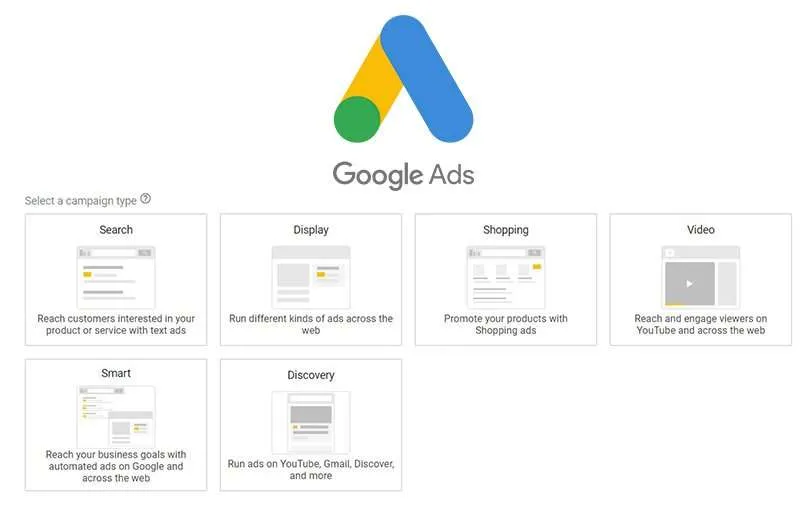
Google Ads offers a variety of ad types to suit different marketing objectives and target audiences. Here are some of the main types of Google Ads

Search Ads

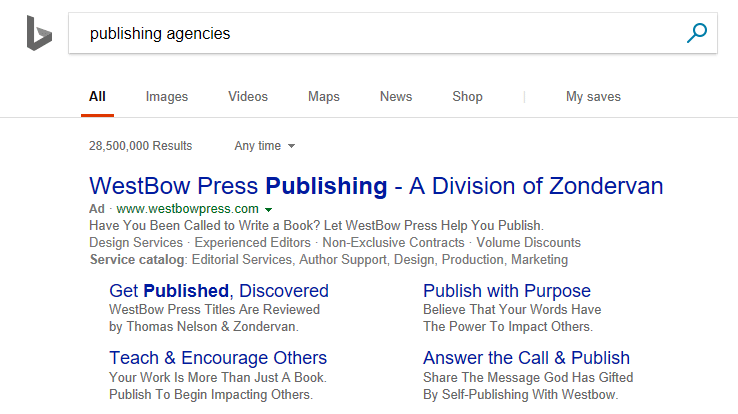
Text-based ads that appear at the top or bottom of Google search results when users search for keywords related to your business. They typically include a headline, display URL, and description, and are triggered by specific search queries.

Display Ads

Image-based ads that appear on websites within Google's Display Network, which includes millions of websites, blogs, and apps. Display ads can be static or animated and can be targeted based on demographics, interests, or specific websites.

Video Ads

Video ads that appear on YouTube and across Google's Display Network. They can be in-stream ads that play before, during, or after YouTube videos, or they can be video discovery ads that appear alongside YouTube search results or on the YouTube homepage.

Shopping Ads

Product-based ads that appear at the top of Google search results when users search for specific products. Shopping ads feature product images, prices, and store names, making them highly visual and actionable for users looking to make a purchase.

App Ads

Ads that promote mobile apps across Google's network, including search, display, YouTube, and within other apps. App ads can drive app installs or encourage users to take specific in-app actions.

Local Ads

Ads that appear in Google Maps and local search results, targeting users based on their location. Local ads can promote physical locations, such as stores or restaurants, and include information like addresses, phone numbers, and directions.

Smart Campaigns

Automated ad campaigns designed for small businesses with limited time or resources. Smart campaigns use machine learning to optimize ad performance and reach relevant audiences across Google's network, simplifying the advertising process for businesses with less experience.

Discovery Ads

Native ad formats that appear across Google properties such as Gmail, YouTube, and the Google Discover feed. Discovery ads are highly visual and engaging, designed to capture users' attention as they browse content relevant to their interests.

Each type of Google ad offers unique features and benefits, allowing advertisers to tailor their campaigns to specific marketing goals, target audiences, and budget constraints. By leveraging the right mix of ad types, businesses can maximize their reach, engagement, and ultimately, their return on investment (ROI) from Google Ads.

What Are The Types Of Bing Ads?

What Are The Types Of Bing Ads?

Bing Ads, now known as Microsoft Advertising, offers a range of advertising options to help businesses reach their target audience across the Bing search engine and its network of partner sites. Here are the types of Bing Ads:

Search Ads

Text-based ads that appear alongside Bing search results when users search for keywords related to your business. Similar to Google Ads, Bing search ads include a headline, ad copy, and a display URL. They are triggered by specific search queries entered by users.

Shopping Ads

Product-based ads that appear on the Bing search results page when users search for specific products. Bing Shopping ads feature product images, prices, and store names, providing users with relevant information to make informed purchasing decisions.

Microsoft Audience Ads

Formerly known as Bing Native Ads, Microsoft Audience Ads appear on Microsoft-owned properties such as MSN, Outlook, and Microsoft Edge. These native ads blend seamlessly with the content on the page, providing advertisers with an opportunity to reach a broader audience beyond Bing search.

App Install Ads

Ads that promote mobile apps across the Bing network, including search and partner sites. App install ads encourage users to download and install mobile applications directly from the app store, driving app installs and user engagement.

Dynamic Search Ads

Dynamic Search Ads (DSAs) automatically generate ad headlines and landing pages based on the content of your website. DSAs are particularly useful for advertisers with large inventories or frequently updated websites, as they dynamically target relevant search queries without the need for keyword management.

Remarketing

Bing Ads offers remarketing capabilities that allow advertisers to target users who have previously visited their website but did not convert. Remarketing ads can help re-engage potential customers and drive conversions by displaying tailored ads to users as they browse the web.

Local Ads

Similar to Google's local ads, Bing Ads offers location-based targeting options to help advertisers reach users in specific geographic locations. Local ads appear in Bing search results and on Bing Maps, providing information such as addresses, phone numbers, and directions to nearby businesses.

LinkedIn Profile Targeting

Microsoft Advertising offers LinkedIn Profile Targeting, allowing advertisers to target users based on their LinkedIn profile information, such as job title, company, industry, and more. This feature leverages Microsoft's integration with LinkedIn to reach professionals with relevant ads.

By leveraging these different types of Bing Ads, advertisers can effectively target their desired audience, promote their products or services, and achieve their advertising objectives across the Bing network and its partner sites.

Why Google Ads Is Better Than Bing Ads?


Why Google Ads Is Better Than Bing Ads?

While both Google Ads and Bing Ads have their strengths, many advertisers consider Google Ads to be superior for several reasons:

Audience Reach

Google processes over 3.5 billion searches per day, giving advertisers access to an unparalleled audience base. With such a vast reach, Google Ads offers businesses the opportunity to connect with potential customers at every stage of the buying journey.

Market Dominance

Google dominates the search engine market with over 90% global market share, making it the go-to platform for online search. As a result, businesses can benefit from increased visibility and exposure by advertising on Google.

Advanced Targeting Options

Google Ads provides robust targeting options based on demographics, interests, behaviors, and more. Advertisers can fine-tune their campaigns to reach specific audience segments with precision, increasing the relevance and effectiveness of their ads.

Comprehensive Ad Formats

Google Ads offers a wide range of ad formats, including search ads, display ads, video ads, shopping ads, and more. This variety allows advertisers to choose the most suitable ad format for their goals and target audience, maximizing their campaign performance.

Integration with Google Services

Google Ads seamlessly integrates with other Google services such as Google Analytics, Google Merchant Center, and YouTube, providing advertisers with valuable insights and additional advertising opportunities. This integration streamlines campaign management and optimization, enhancing overall efficiency and effectiveness.

Advanced Tools and Features

Google Ads offers a plethora of advanced tools and features, including automated bidding strategies, audience targeting options, ad extensions, and performance reports. These tools empower advertisers to optimize their campaigns for better results and ROI.

Continuous Innovation

Google is known for its commitment to innovation and regularly introduces new features and updates to improve the advertising experience for both advertisers and users. This continuous innovation ensures that Google Ads remains at the forefront of digital advertising technology, providing advertisers with cutting-edge tools and capabilities.

While Bing Ads certainly has its merits, particularly for specific demographics or niche markets, many advertisers prefer Google Ads for its unparalleled reach, advanced targeting options, comprehensive ad formats, integration with Google services, advanced tools and features, and continuous innovation.

Ultimately, the decision between Google Ads and Bing Ads depends on factors such as target audience, advertising goals, and budget constraints, but for many businesses, Google Ads offers the most effective platform for reaching and engaging with potential customers online.

Why Bing Ads Is Better Than Google Ads?

Why Bing Ads Is Better Than Google Ads?

While Google Ads is the dominant player in the online advertising space, Bing Ads offers unique advantages that may make it a better choice for certain advertisers:

Lower Cost Per Click (CPC)

Bing Ads often have lower CPC compared to Google Ads, particularly in industries with less competition. This can make advertising on Bing more cost-effective, especially for businesses with limited budgets or those operating in niche markets.

Less Competition

With Google's overwhelming market dominance, competition for ad placements can be fierce, driving up CPC and making it challenging for smaller businesses to compete. Bing Ads, on the other hand, have less competition, allowing advertisers to achieve better ad placement and visibility at a lower cost.

Bing's Audience

While Google has a larger overall audience, Bing's user base tends to skew older and more affluent. This demographic profile may be more aligned with certain businesses' target audiences, particularly those targeting older demographics or specific niche markets.

Integration with Microsoft Products

Bing Ads seamlessly integrates with other Microsoft products and services, including Microsoft Advertising Intelligence and LinkedIn. This integration can provide advertisers with valuable insights and additional advertising opportunities, particularly for B2B marketing and targeting professional audiences.

Bing's Syndicated Partnerships

Bing has syndicated partnerships with various search engines and websites, including Yahoo and AOL. This expands the reach of Bing Ads beyond Bing's own search results to additional platforms, increasing the exposure and potential reach of advertisers' campaigns.

Ease of Use for Beginners

Some advertisers find Bing Ads easier to use, particularly for beginners or those transitioning from traditional advertising channels. Bing's interface may be less complex and more intuitive for newcomers to navigate, making it easier to create and manage advertising campaigns.

Stronger Click-Through Rates (CTR) in Some Industries

While Google generally boasts higher overall traffic volume, Bing Ads may deliver stronger click-through rates (CTR) in certain industries or for specific types of products/services. This can result in a higher ROI for advertisers targeting these audiences.

Customer Support

Bing Ads often receives praise for its customer support, with many advertisers reporting positive experiences and responsive assistance from Bing's support team. This level of support can be valuable for advertisers seeking guidance or troubleshooting assistance with their campaigns.

While Bing Ads may not offer the same scale and reach as Google Ads, its lower CPC, less competition, specific audience demographics, integration with Microsoft products, syndicated partnerships, ease of use, potentially higher CTR in certain industries, and reliable customer support make it a compelling choice for advertisers looking to diversify their online advertising efforts or target specific niche markets.

Ultimately, the decision between Bing Ads and Google Ads depends on factors such as target audience, advertising goals, budget constraints, and the competitive landscape within your industry.

Which Businesses Are Suited To Which Platform Google Ads vs Bing Ads?

Determining whether Google Ads or Bing Ads is better suited for your business depends on various factors, including your target audience, advertising goals, budget, and industry. Here's a breakdown of which businesses are suited to each platform

Google Ads


Why Bing Ads Is Better Than Google Ads?


Businesses with Broad Audience Appeal

If your products or services have broad appeal and target a wide range of consumers, Google Ads is an excellent choice due to its massive reach and diverse user base.

E-commerce and Retailers

Google Shopping Ads are particularly effective for e-commerce businesses and retailers looking to promote their products to users actively searching for specific items online.

Local Businesses with Multiple Locations

Google Ads' local ad features, including location extensions and Google Maps integration, make it well-suited for local businesses with multiple physical locations, such as restaurants, stores, and service providers.

Tech Companies and Startups

Given Google's dominance in the tech and innovation space, tech companies, startups, and software-as-a-service (SaaS) businesses can benefit from targeting tech-savvy audiences on Google's platforms.

Businesses Targeting Younger Audiences

Google's user base skews younger, making it ideal for businesses targeting millennials and Generation Z audiences, particularly for products or services in industries such as technology, fashion, and entertainment.

Bing Ads


Why Bing Ads Is Better Than Google Ads?


Businesses Targeting Older Demographics

Bing's user base tends to skew older and more affluent, making it a better choice for businesses targeting baby boomers and older demographics, including healthcare, finance, and retirement services.

Niche Markets with Less Competition

Bing Ads' lower CPC and less competitive landscape make it well-suited for businesses operating in niche markets or industries with less competition, allowing for more cost-effective advertising campaigns.

B2B and Professional Services

Bing's integration with LinkedIn and its audience demographics make it a valuable platform for B2B marketers and businesses targeting professional audiences, including business services, consulting, and software companies.

Local Services and Contractors

Bing Ads' local ad features, including location targeting and Bing Maps integration, make it a good choice for local services and contractors, such as plumbers, electricians, and home repair professionals.

Financial Services and Insurance

Bing's user base includes a higher proportion of users interested in financial planning, investments, and insurance, making it an attractive platform for businesses in these industries.

Ultimately, the best platform for your business depends on your specific goals, target audience, and budget. Many businesses find success by diversifying their advertising efforts across both Google Ads and Bing Ads, leveraging the unique strengths and audiences of each platform to maximize their reach and ROI.

Conclusion On Google Ads vs Bing Ads - Which Is Better For Your Business In 2024?

In 2024, determining whether Google Ads or Bing Ads is better for your business hinges on several factors. Google Ads boasts unparalleled reach, advanced targeting options, comprehensive ad formats, and seamless integration with Google services, making it ideal for businesses with broad audience appeal and diverse marketing objectives. 

Conversely, Bing Ads offers advantages such as lower CPC, less competition, specific audience demographics, and integration with Microsoft products, catering well to businesses targeting older demographics, niche markets, or seeking cost-effective advertising solutions.

Ultimately, the choice between Google Ads and Bing Ads depends on your target audience, advertising goals, and budget constraints, with many businesses finding success by leveraging the unique strengths of both platforms to maximize reach and return on investment.