

Offering Shopify pre-orders lets customers buy before a product launches or stock returns, but customers need to understand the wait before paying. Display an estimated shipping window beside the purchase button, distinguish dispatch from delivery, and repeat the timing in order updates.
For Kolkata businesses taking advance orders for apparel, gifts or made-to-order items, a clear delivery promise sets customer expectations and reduces avoidable confusion. Start with payment and inventory rules, then build the customer-facing message around them.

Key Takeaways

- Separate preorder availability from ordinary in-stock purchasing.
- Show the shipping estimate, payment timing and cancellation terms before checkout.
- Send confirmations immediately, but trigger tracking and review requests from actual dispatch and delivery.
An email alert alone doesn’t reserve stock or create a paid order.
When Shopify Preorders Make Sense

Preorders accept purchases before products are ready to ship. They’re useful for a new product launch, limited-edition runs, restocks and made-to-order ranges. In normal retail usage, a preorder concerns an unreleased item; backorders concern a previously available product that’s temporarily sold out. Apps may label both arrangements as preorders.
Advance sales help validate product demand before a full production run, forming the basis of an effective pre-order strategy. Full payments or deposits can support manufacturing costs, although pay-later orders don’t provide upfront cash.
The inventory stakes are real. McKinsey reported $740 billion in unsold goods across US retailers in May 2023. That figure describes inventory, not goods that were all worthless.
Nike’s 2012 Nike+ FuelBand preorder sold out in minutes. A small merchant can use the same demand signal to gauge customer demand without assuming similar results.
When timing remains uncertain, offer back-in-stock email alerts instead of accepting money. Keep the product page useful for SEO, but explain that a signup doesn’t reserve an item.
1. Choose Payment Terms Before Installing an App
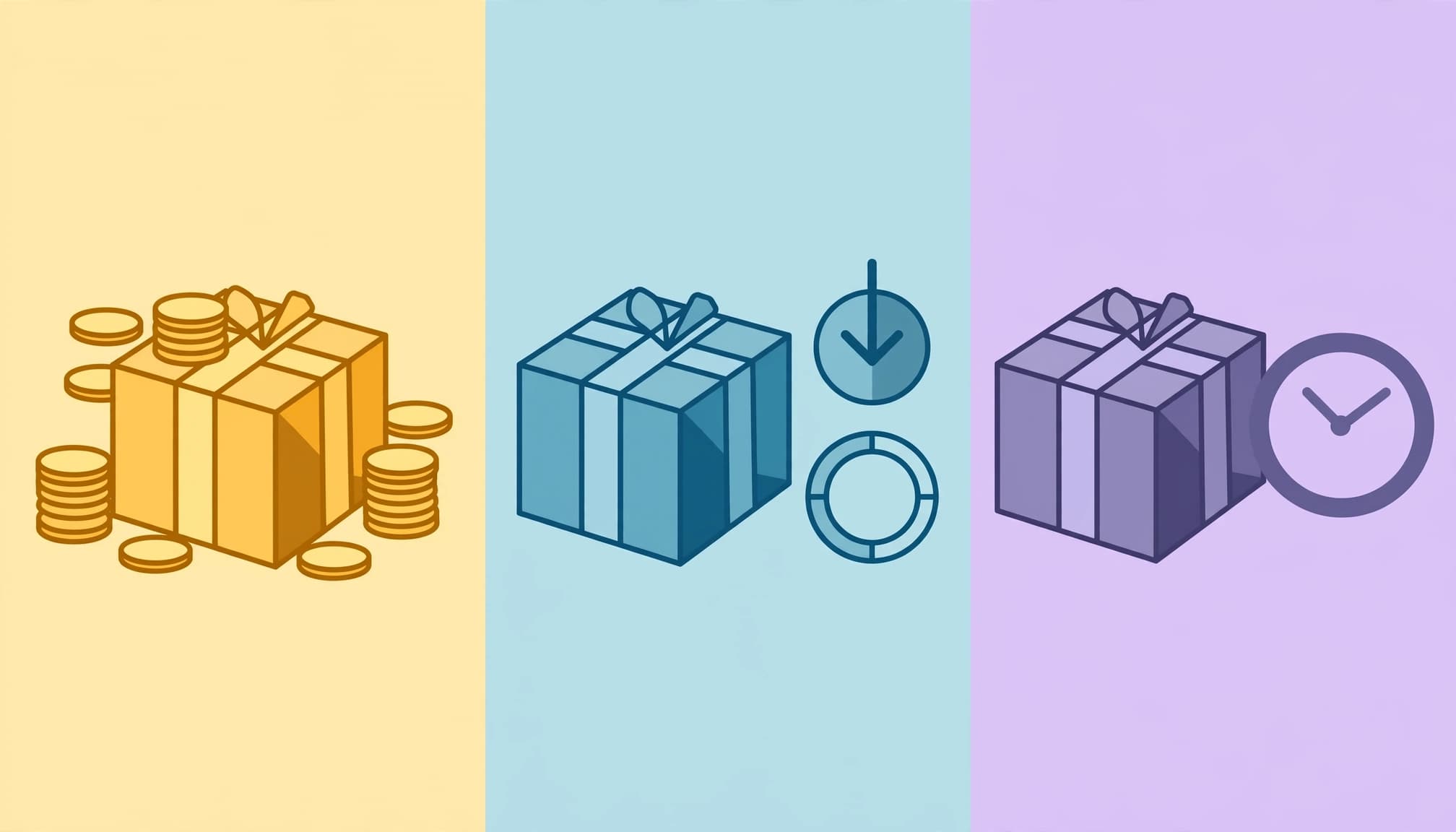
Your payment promise belongs beside the shipping estimate. Shopify supports three distinct payment options through compatible apps and payment setups.
Choose based on the funding you need and the wait customers will accept.
| Payment option | When customers pay | Merchant implication |
|---|---|---|
| Full payment | Entire price at checkout | Provides upfront funding |
| Partial deposit | Part now, balance later | Requires clear balance terms |
| Pay later | When the item is ready to ship | No upfront revenue |
Upfront payment options can generate vital cash flow to fund manufacturing costs, whereas pay-later orders provide no immediate funds. However, customers carry more risk during a long wait, so your cancellation terms need equal prominence.
Shopify’s preorder eligibility rules require Shopify Payments or PayPal Express. For a Kolkata store, those requirements matter more than whether its usual checkout accepts local payment methods.
Also, ordinary card authorization isn’t a long-term reservation. Shopify Payments’ standard authorization period is seven days, so delayed collection needs a supported preorder workflow.
For deposits or a partial payment, show today’s charge, the remaining amount and the planned collection timing. Explain how an unpaid balance affects fulfilment and cancellation.
Protecting your ongoing cash flow requires keeping enough reserve funds for refunds rather than treating every advance payment as money you can immediately spend.
2. Set Up Your Shopify Preorder Product

Shopify’s preorder setup is app-based. Configure the app’s purchase option, then connect it to the relevant products and theme.
Configure Inventory for Each Selected Variant
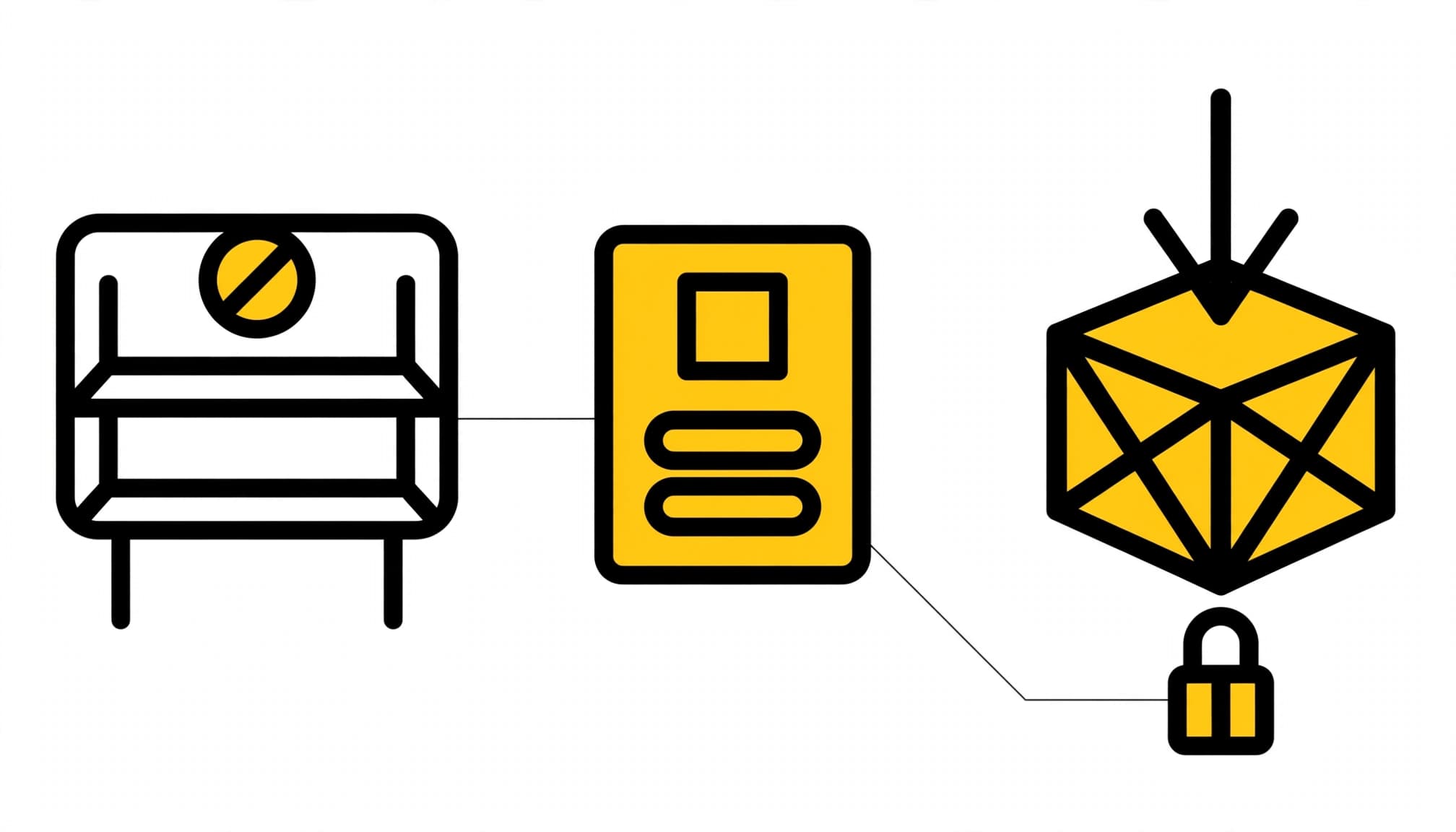
Open the product in Shopify admin and enable inventory tracking. Enter accurate quantities at the locations that can fulfil online orders.
Zero inventory with “Continue selling when out of stock” disabled blocks ordinary purchases. That combination alone doesn’t create a preorder button or make the product purchasable.
Use the chosen app’s inventory rules for advance sales. Keep available variants purchasable, exclude discontinued items, and monitor stock levels to distinguish warehouse stock from stock unavailable for delivery.
Capture the selected size and colour accurately. A preorder for one shoe size must never become an order for another variant.
Choose an App and Activate Clear Purchase Labels
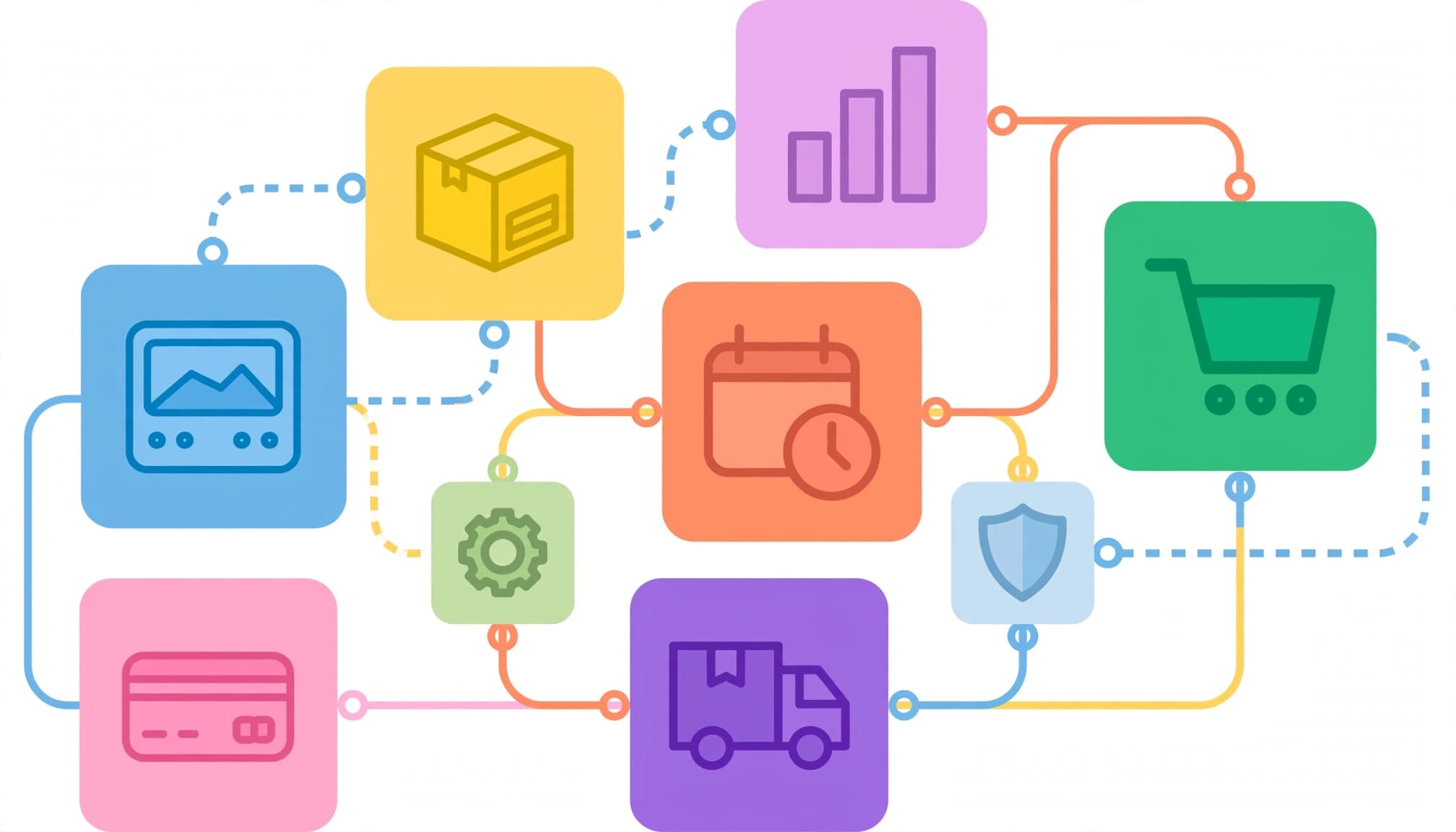
Selecting the right pre-order app is essential. Popular options available in the Shopify App Store include PreOrder Globo, Stoq, PreProduct, PreOrder Now, Notify Back in Stock Pre-Order, and Easy Pre-Order with Wishlist.
PreProduct’s app listing describes deposit, pay-at-shipment and mixed-cart controls. Compare those capabilities with your payment needs rather than assuming every app handles balances identically.
Enable the required app embed or product-template block. Replace “Add to Cart” with an unmistakable pre-order button displaying “Pre-Order Now” for eligible variants, and place the shipping estimate beside it.
Set a quantity cap based on confirmed supply capacity. Stop accepting orders when that allocation is committed.
3. Make Delivery Expectations Visible Before Customers Buy

Display clear estimated shipping dates beside the price, variant selector and preorder button. On mobile, customers should see them without opening an accordion or scrolling through a long description.
Repeat the promise in the cart and supported checkout messaging. Explain whether mixed carts ship together or separately, including any extra charges.
Use a Realistic Range, Not a Vague Promise

Build your estimate around supplier confirmation, production time, freight, receiving and quality checks. Allow time for known holidays or dispatch backlogs that affect your operation.
Use “estimated dispatch” for when goods leave your warehouse. “Estimated delivery” means arrival at the customer’s address. If transit takes additional time, state it separately.
Publish a bounded date range only when you have a defensible basis. When timing isn’t confirmed, say so and offer a notification signup instead of a reassuring guess.
Explain that estimates may change, what triggers an update, and what choices customers receive if a delay occurs.
Don’t label a changing estimate as a guaranteed delivery date. A short disclaimer cannot repair a prominent promise your operations cannot meet.
Keep the Estimate Accurate for Each Variant

Different sizes, colours or production batches can have different schedules. Update the displayed date when a customer changes the selected variant.
Carry that variant-specific estimate into the cart and confirmation. Retain the estimate shown at purchase in the order record, so later page changes don’t erase the original promise.
Also, make cancellation and refund terms accessible before payment. Explain deadlines, deposit treatment, refund initiation timing and the support route without limiting statutory consumer rights.
4. Test the Journey and Maintain Useful Updates
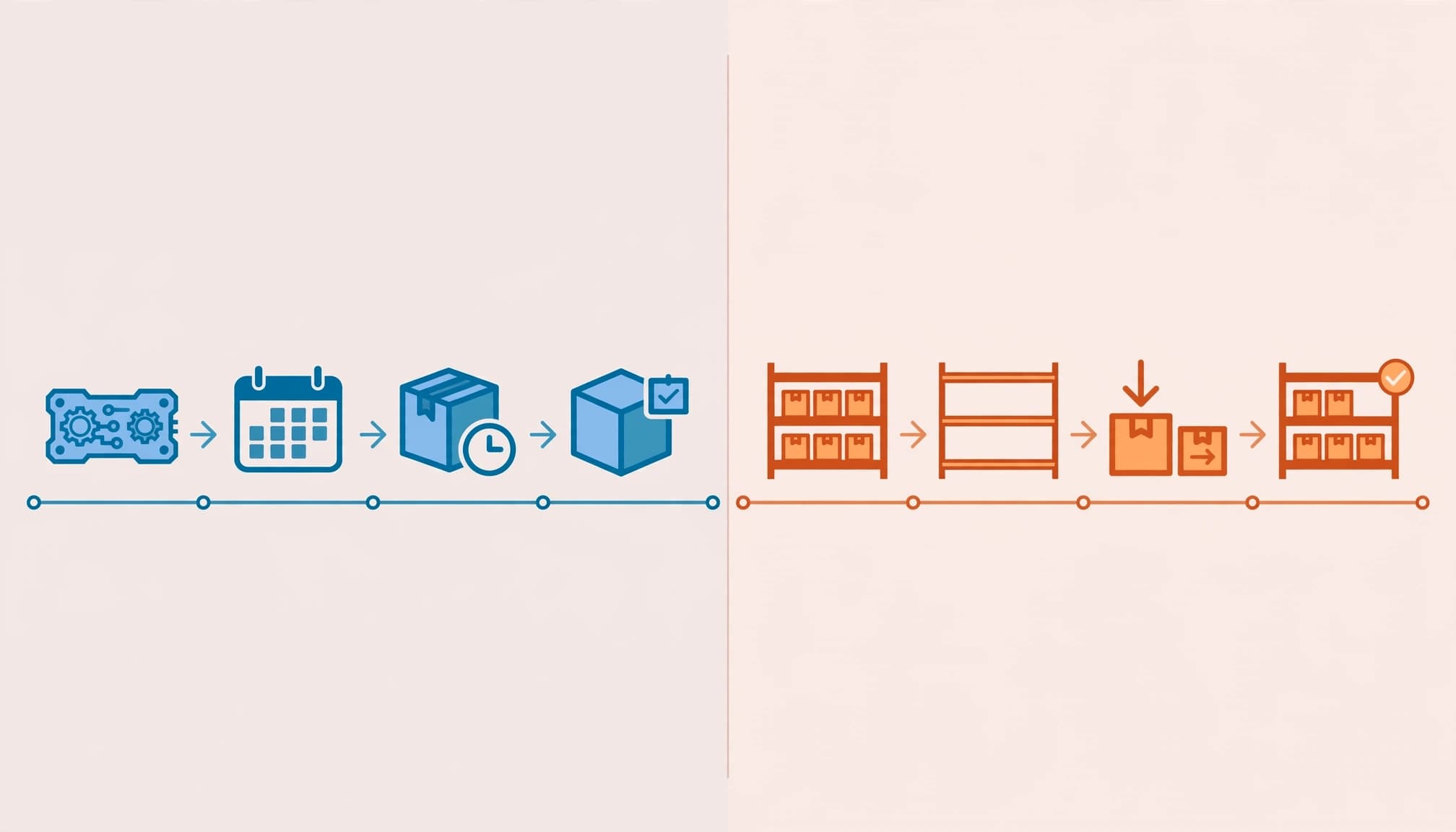
A working button is only one part of a dependable preorder experience. Test the complete journey before advertising the offer.
Test Checkout on Desktop and Mobile

- Switch between available, unavailable and preorder variants. Confirm that the correct button, price and ship window appear.
- Place preorder-only and mixed-cart test orders. Include express checkout where supported, so it doesn’t bypass important timing information.
- Review payment status, shipping charges, confirmation emails and order records. The selected variant and promised window should match throughout.
- Test cancellations and refunds, plus any deposit or later-payment workflow your setup supports. Keep unpaid orders out of fulfilment.
Our guide to Shopify shipping rates covers unexpected checkout charges that can undermine an otherwise clear preorder offer.
Send Updates From Actual Order Events

Send the order confirmation immediately with purchased variants, payment status, the shipping estimate and a support contact. As production scales to meet buyer demand, publish and follow a realistic update cadence, even when the estimate hasn’t changed.
Notify customers as soon as a delay becomes known. State the reason, revised range and cancellation options, rather than waiting for the original deadline to pass.
Then send tracking at dispatch. Schedule product reviews after delivery and useful product experience, not a fixed number of days after checkout.
Our post-purchase email flow explains that event-based timing. Keep transactional messages separate from promotions, assign each message to one platform, and stop abandoned-cart reminders once an order exists.
Shopify Preorder FAQs

Can I enable Shopify preorders without an app?
Shopify’s documented preorder purchase option uses an app. Simply allowing sales below zero stock doesn’t add delivery messaging, deposit handling or preorder-specific customer updates.
Which preorder app is best for a small store?
Choose by the workflow you need: full payment or deposits, variant-specific dates, mixed-cart handling, cancellation controls and reliable emails. A longer feature list doesn’t automatically justify more complexity.
How should preorder data influence restocking?
Track committed orders at SKU level, including size and colour, to guide inventory planning. Separate paid orders, unpaid reservations, cancellations and refunds. Integrate net sales figures into your demand forecasting model alongside supplier lead times to set production quantities.
Popular variants may deserve a larger allocation, but don’t count every reservation as guaranteed revenue. Continue tracking actual fulfilment and margin after launch.
What if supplier timing is unknown?
Use a back-in-stock signup until a credible window exists. An alert captures interest without promising a reserved unit or charging for an undefined wait.
Make the Delivery Promise Part of the Purchase

Effective Shopify preorders connect a clear shipping estimate with accurate inventory, explicit payment terms and dependable follow-ups. Customers should understand the wait before they commit.
Start with one product and a tested workflow. Expand only when your store can keep its shipping information and updates consistent.
For help connecting your Shopify storefront, checkout and customer messaging, Get In Touch With Us. We can discuss the setup your business needs.