


To track Shopify purchases in GA4, connect your web data stream through Shopify’s Google & YouTube channel, then test a completed order. For most small stores, this gives you Shopify GA4 tracking without custom code.
The connection is straightforward, but reliable reporting depends on one purchase sender, correct transaction details, and payment-flow testing. Start with the native integration before adding more tracking tools.
Key takeaways

- Use the Google & YouTube channel for a no-code installation.
- Test purchase parameters and payment journeys, rather than stopping when page views appear.
- Compare Shopify orders with GA4 transactions before judging channel revenue.
- Remove overlapping tracking implementations before considering server-side tools.
Shopify records orders; GA4 measures customer behaviour and marketing performance. Their totals need reconciliation, rather than a forced match.
Choose your Shopify GA4 tracking method
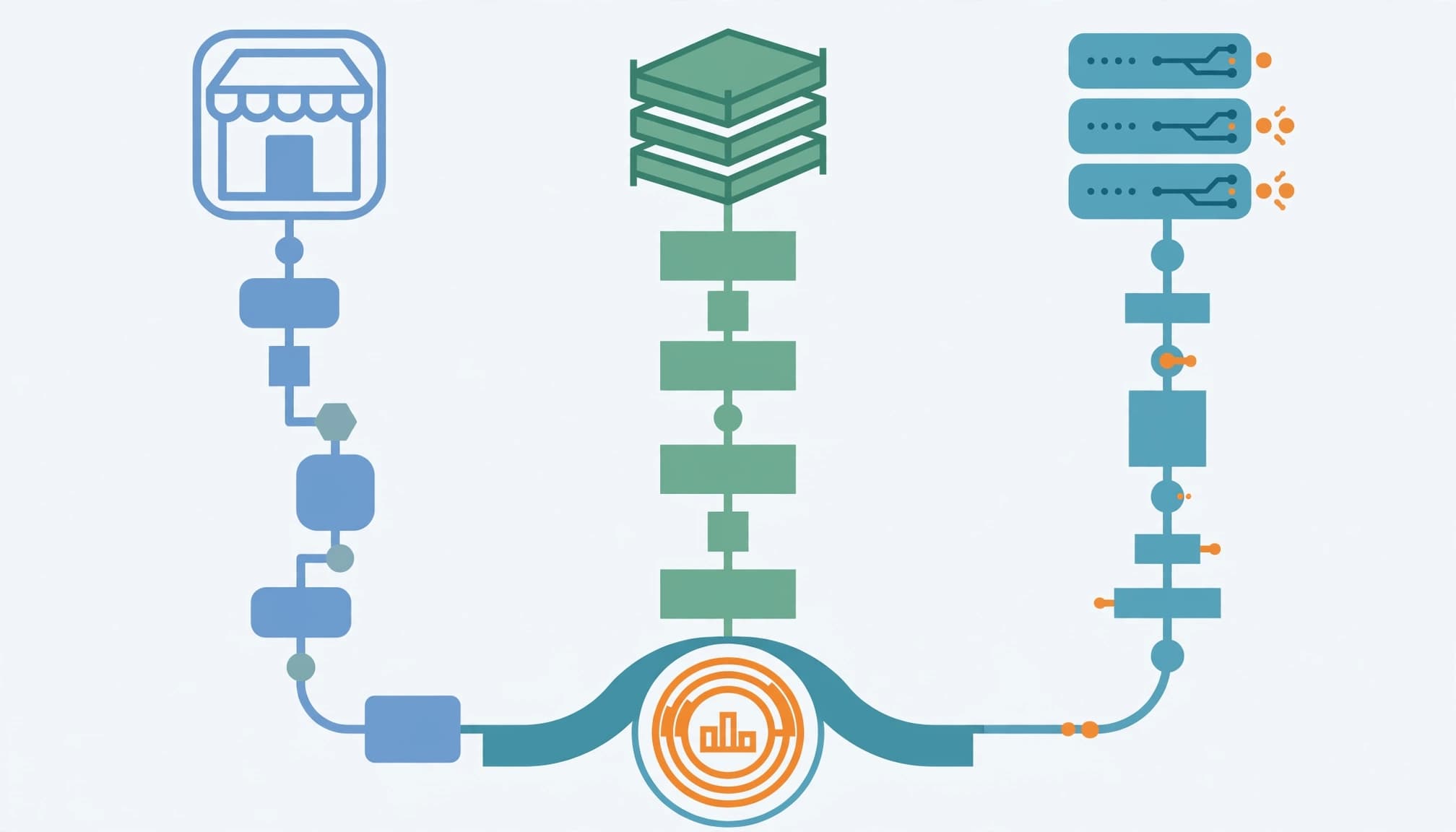
Choose a method based on your ecommerce tracking needs and access to technical support.
| Method | Suitable situation | Main consideration |
|---|---|---|
| Google & YouTube channel | Small store needing standard ecommerce events | Simplest starting point |
| GTM with custom pixels | Custom events and developer support | Sandbox restrictions complicate debugging |
| Dedicated tracking app | Managed setup or server forwarding | Subscription costs and implementation quality |
| Manual gtag installation | Specialist, maintained implementation | Easy to miss checkout events or duplicate tracking |
For a Kolkata business with limited technical support, start with the native channel. Higher traffic or advertising spend alone doesn’t justify replacing it.
Apps such as Analyzify and Analyzely offer alternative implementations. Choose an app for a defined requirement, such as managed event mapping, rather than installing several tools together.
Hardcoded gtag requires ongoing maintenance. Adding a Measurement ID to your theme doesn’t automatically create complete ecommerce tracking.
Connect Shopify to GA4 without code
Use a Google account your business controls. Keep administrator access with your business, even when an agency handles implementation.
1. Create your property and web stream

In Google Analytics, create an account and GA4 property, or select your existing property. For an India-focused store, set the reporting time zone to India and currency to INR.
Under Admin > Data streams, create a web stream using your storefront URL. Its Measurement ID starts with G-.
Each account can hold up to 2,000 properties. Each property supports up to 50 combined web and app streams, including a maximum of 30 app streams. A single Shopify storefront usually needs one web stream.
2. Connect the Google & YouTube channel
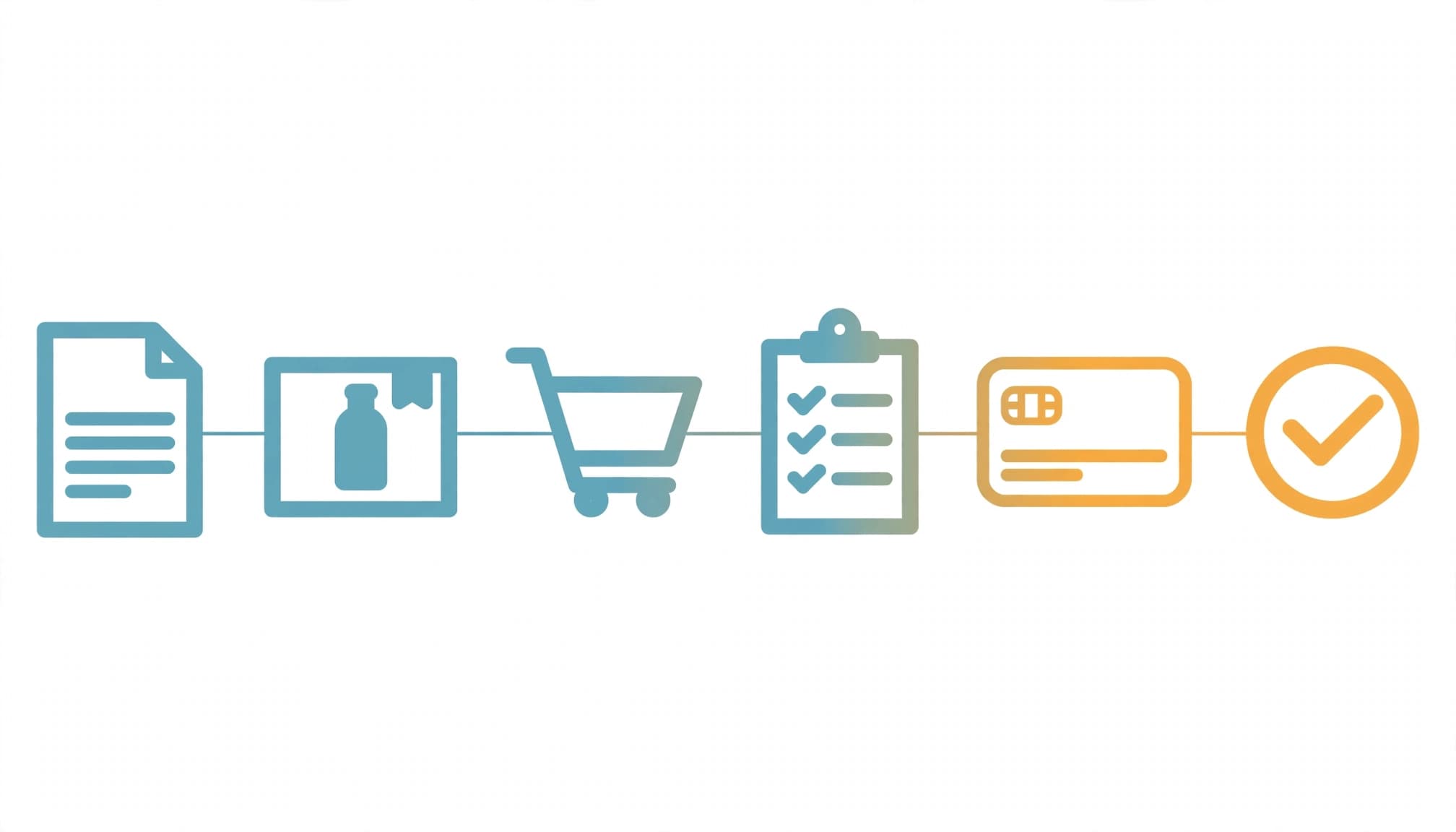
Install the Google & YouTube channel in Shopify and connect your Google account. In its Analytics setup, select your GA4 property and the matching web stream from your data streams. Shopify’s official GA4 setup instructions describe this supported route.
The integration automatically sends ecommerce events, including page_view, view_item, add_to_cart, begin_checkout, add_payment_info, and purchase, when those interactions occur.
Accelerated checkout can skip intermediate interactions, so a purchase may not include every preceding event. GA4 Enhanced Measurement alone doesn’t create ecommerce purchase tracking.
Understand checkout and custom pixel limits
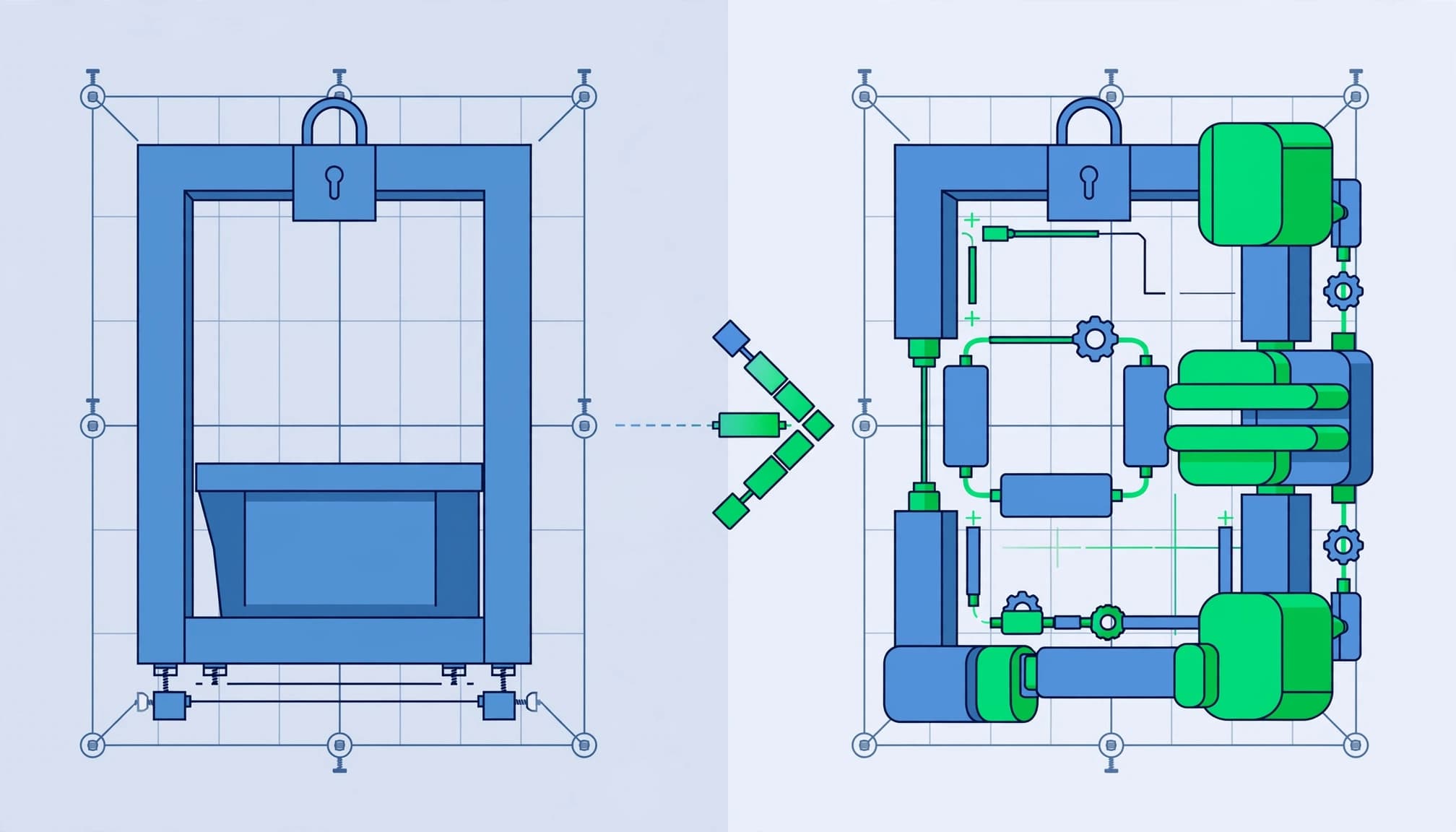
Checkout tracking requires Shopify-supported integrations. Theme code doesn’t automatically run throughout checkout, thank-you pages, and order-status pages. The Google & YouTube channel can send native checkout events to GA4 on standard Shopify plans.
Use GTM for defined custom requirements
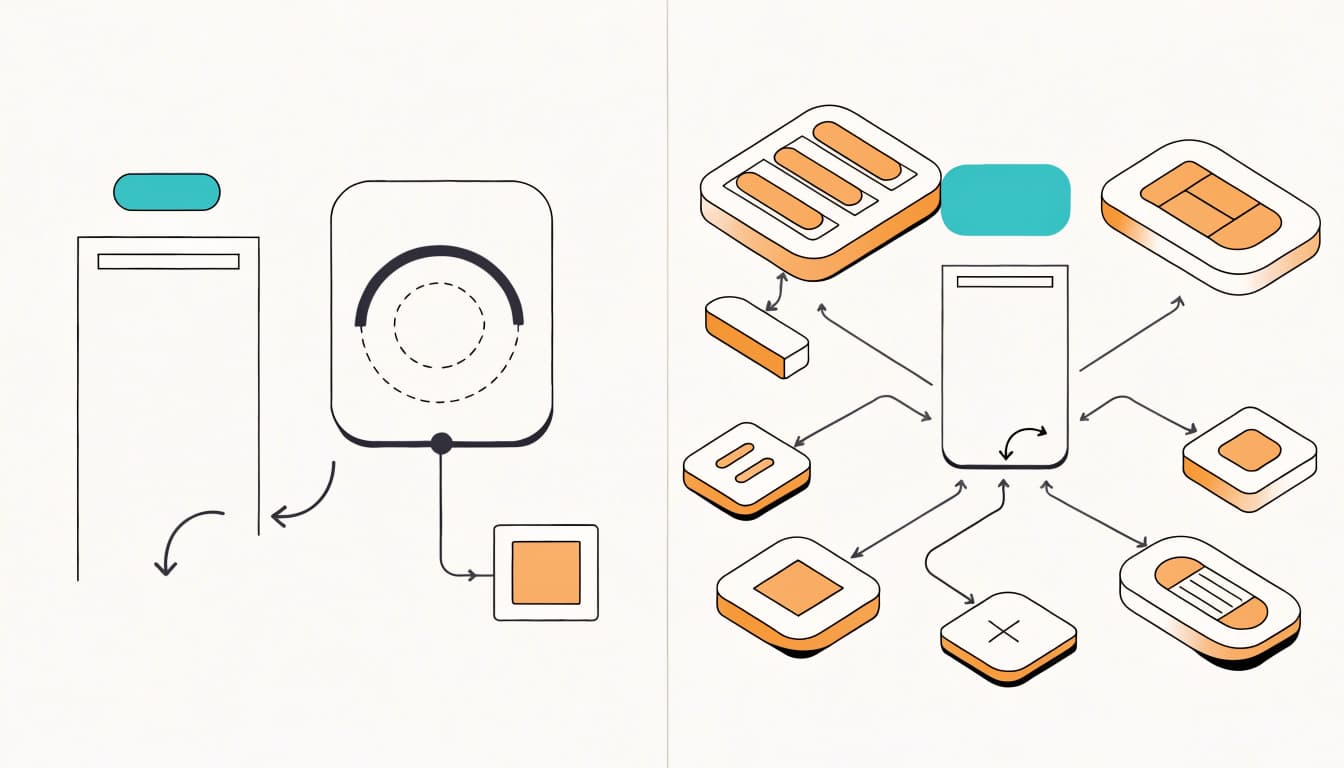
Shopify’s GTM custom pixel tutorial explains how to connect a container through Customer events. This requires mapping Shopify customer events to GA4 events and parameters.
Use Google Tag Manager (GTM) through a custom pixel only when native tracking doesn’t meet a defined requirement. A custom pixel runs inside a sandbox, so ordinary GTM Preview and Tag Assistant connections don’t reliably inspect checkout.
Test the custom pixel with Shopify’s pixel-testing tools and GA4 debugging after publishing controlled changes. Analytics Mania describes non-Plus checkout-step limitations, but standard-plan stores can still receive native checkout events. Distinguish standard event collection from access to custom checkout code.
Retire legacy checkout tags
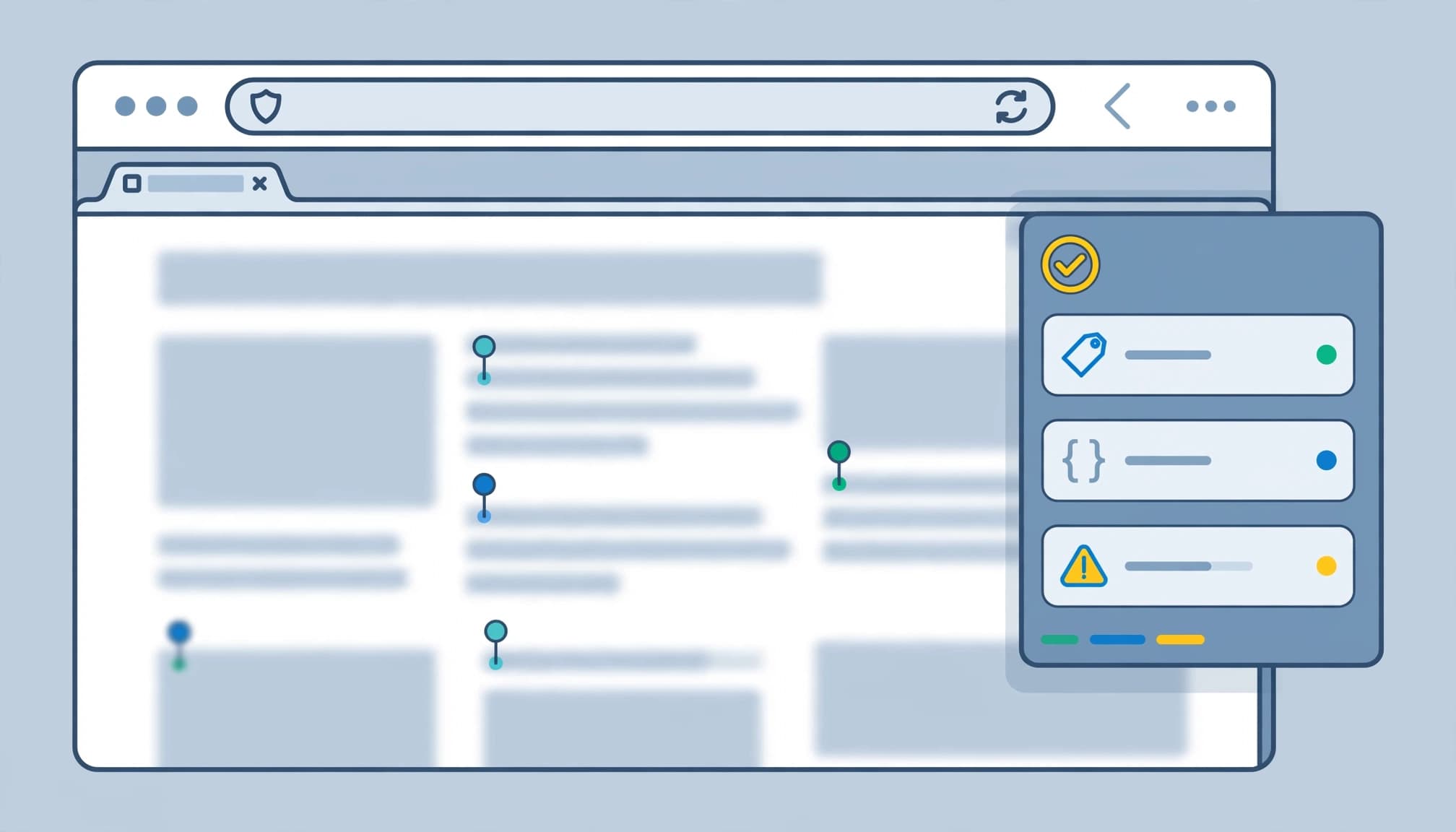
Checkout Extensibility replaces legacy checkout.liquid customisations. Analytics Mania cites August 13, 2024 and August 28, 2025 as earlier migration deadlines. These are historical milestones, not future setup options.
As stores adopt Checkout Extensibility, audit old checkout scripts, additional scripts, theme snippets, and custom pixels before enabling replacement tracking. Review each implementation against Shopify’s Checkout Extensibility requirements.
An old implementation may stop working after a checkout upgrade. Multiple active implementations can also create duplicate events. Keep a short change log showing which tool owns each purchase event and its destination property.
Verify one purchase from click to report

A page view proves connectivity, not purchase accuracy. Complete a controlled order through your normal checkout, then record its order identifier and value to confirm the purchase event.
Test with Realtime and DebugView
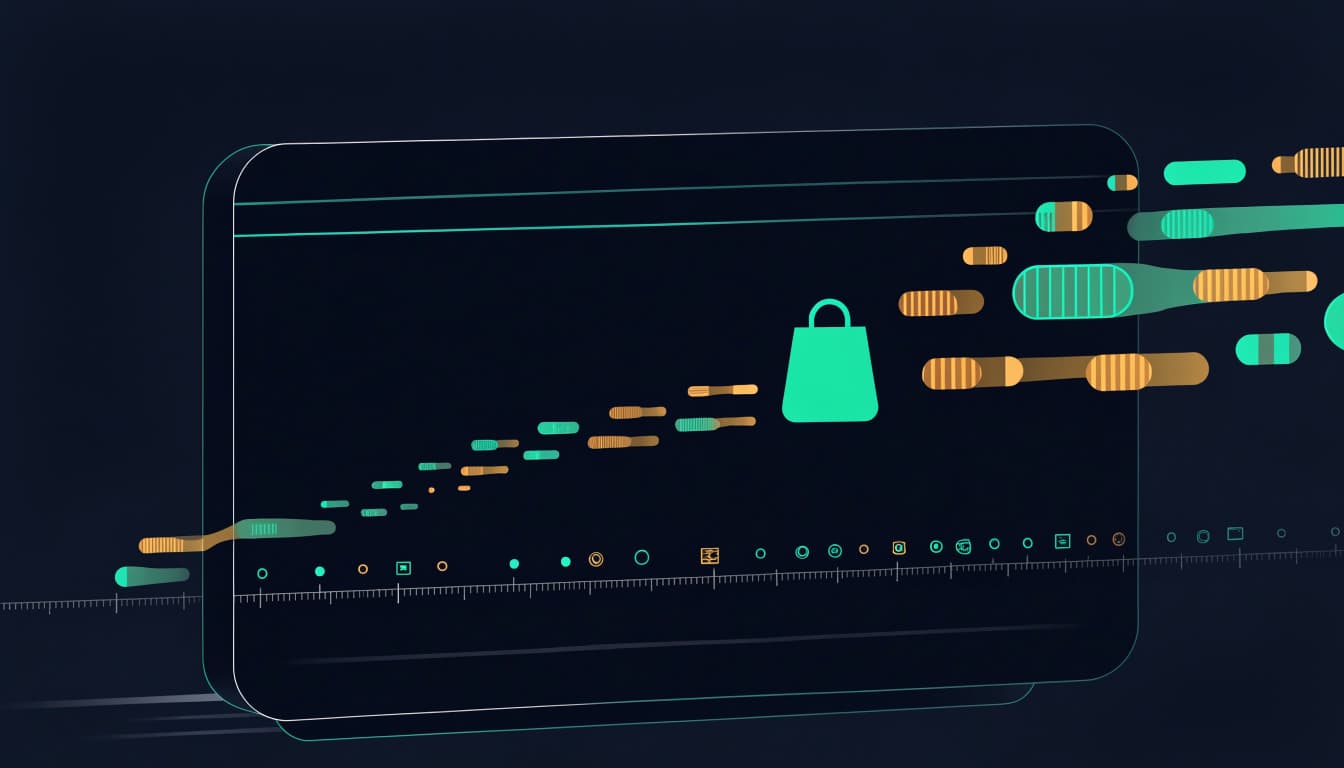
Open GA4’s Realtime overview to confirm incoming activity. Browse a product and add it to the cart while watching for events in Realtime overview.
For parameter-level inspection, enable the Google Analytics Debugger Chrome extension and open GA4 DebugView. Use DebugView to inspect event details.
Inspect purchase for transaction_id, value, currency, and the items array. Check the completed test in Realtime overview, then verify its parameters in DebugView. Ensure the order identifier matches Shopify and INR orders send INR.
Test the payment methods you offer, including UPI, cards, cash on delivery, and accelerated checkout. For cash on delivery, a checkout purchase event doesn’t mean payment has been collected.
Standard reports can take 24 to 48 hours to populate.
Inspect tags and prevent duplicates
The Tag Assistant Chrome extension helps inspect firing Google tags and diagnose issues, subject to Shopify’s sandbox limitations.
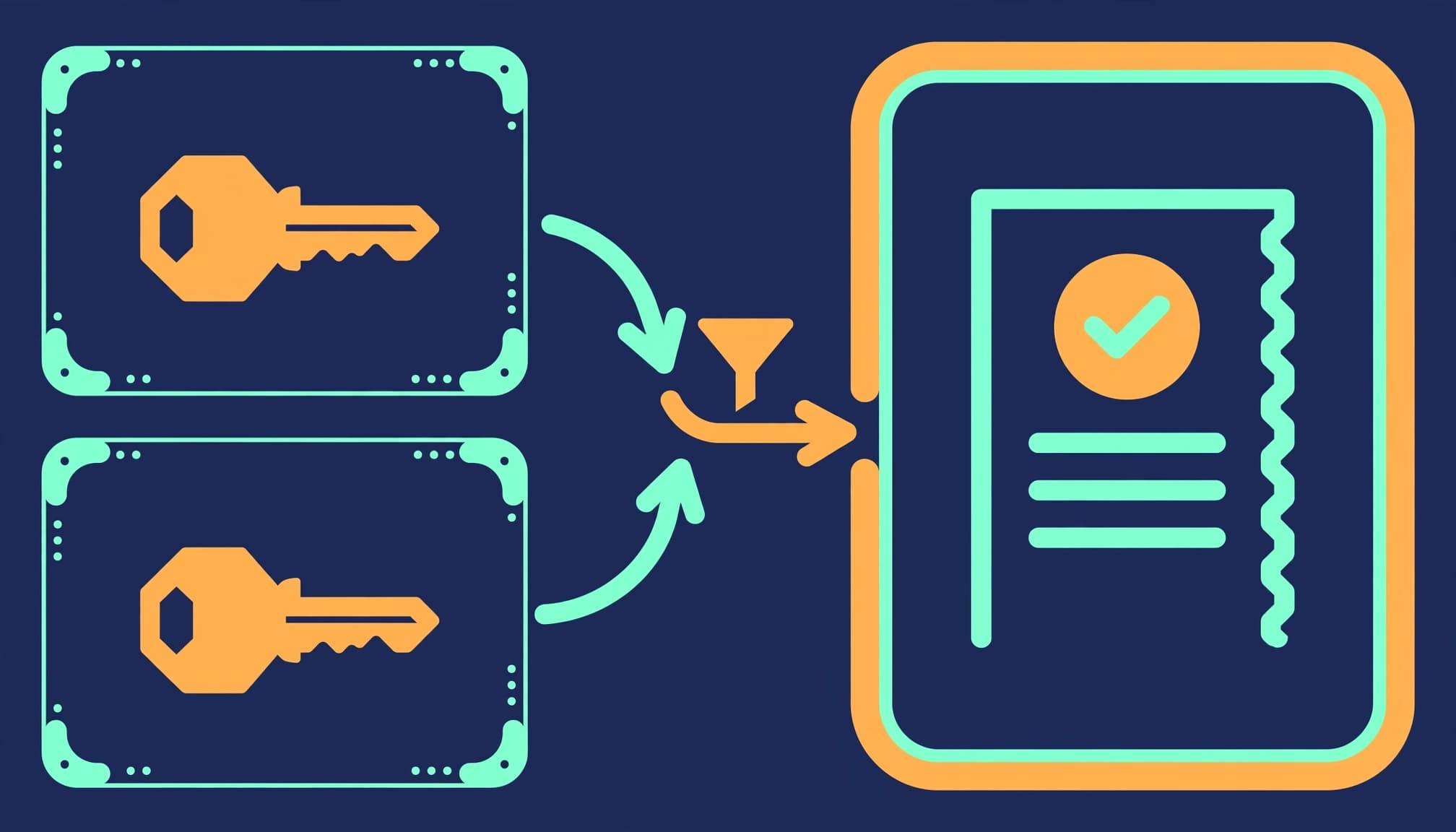
A manual purchase tag alongside the Google & YouTube channel can send the same order twice. Remove the overlapping manual sender. Our guide to fixing duplicate GA4 conversions covers common overlap patterns.
GA4 deduplicates purchases sharing the same transaction_id for web streams only. Different IDs for one order defeat deduplication; reused or empty IDs can suppress legitimate purchases.
In Google Ads, avoid making both a native purchase action and the equivalent GA4 import primary for the same bidding goal.
Explain revenue gaps before changing tags
Shopify records orders in its commerce backend. GA4 relies on the events it receives, consent settings, and reporting rules. Consequently, missing browser events can reduce GA4 purchases without reducing actual orders.
Putler describes revenue gaps of 10% to 20% as common. It also cites roughly 29.5% global ad-blocker usage and 36% average consent rejection. WeltPixel cites tracking vendor Stape’s claim of up to 40% event loss for some properties. These are third-party estimates, not a loss allowance for your store.
Investigate sudden changes, even when the difference falls within those ranges. Compare equivalent metrics, accounting for GST, shipping, discounts, cancellations, refunds, and reporting dates.
Attribution changes which channel receives credit. It doesn’t, by itself, explain a missing transaction.
Putler contrasts Shopify’s 30-day last-click reporting with GA4 data-driven attribution across up to 50 touchpoints over 90 days. Those aren’t universal platform rules: Shopify offers multiple attribution models, and GA4 lookbacks depend on settings.
Also inspect payment-provider referrals, redirects, and cross-domain continuity. Broken handoffs can make paid campaigns or SEO landing pages appear weaker. Add unwanted referrals only after diagnosing the journey.
Server-side tracking may recover some signals, but it still requires consent controls, valid identifiers, and deduplication.
Run a practical reconciliation checklist
Compare order-level records before debating dashboard totals. Review the same reporting period after GA4 processing has finished.
- Align time zones, currency, order statuses, and revenue definitions.
- Match Shopify order identifiers against GA4 transaction IDs and amounts.
- Separate missing orders, repeated transactions, and incorrect values.
- Test affected browsers, consent choices, and payment methods.
- Repeat testing after checkout, app, theme, or tracking changes.
Also configure GA4 data retention. The data retention setting controls how long event-level exploration data remains available. Standard properties default to two months for event-level exploration data, including ecommerce events, and support up to 14 months. Changing data retention doesn’t delete standard aggregated reports.
GA4 Explorations can sample queries exceeding 10 million events. That affects analysis results, rather than proving purchases were never collected.
For operational reporting, use Shopify as the order record, Shopify Analytics for store-level analysis, and GA4 for behavioural and acquisition reporting.
Shopify GA4 tracking FAQ
Can I install GA4 without hiring a developer?
Yes. The Google & YouTube channel supports a no-code connection. Custom pixels, unusual checkout journeys, and server-side implementations need more technical work.
Does Shopify already have analytics?
Yes. Shopify Analytics reports store activity and sales. GA4 adds acquisition analysis and customer journeys across marketing channels; neither replaces your accounting records.
Do I need paid Google Analytics?
Usually not. Standard GA4 is free. Shopify’s ecommerce analytics guide quotes Analytics 360 starting around $50,000 annually, rather than a universal fixed price. Most small stores should fix implementation and reporting definitions before considering that expense.
Make purchase reporting dependable

Reliable Shopify GA4 tracking starts with one integration and a tested purchase journey. Reconcile transaction identifiers before using revenue differences to change marketing budgets.
If your setup has overlapping tags or unexplained gaps, Get In Touch With Us for an analytics audit. We can help separate tracking problems from reporting differences.