

Slow Shopify product pages usually suffer from oversized images, heavy apps, or JavaScript that delays rendering and interactions. Improving Shopify product page speed starts with identifying which element causes the delay, rather than installing another optimization app.
A page can look complete while its variant selector or add-to-cart button remains unresponsive. Start with a repeatable test, the first step in website speed optimization, then connect the symptoms to specific images, scripts, and product-template sections.
Start with a controlled product-page test
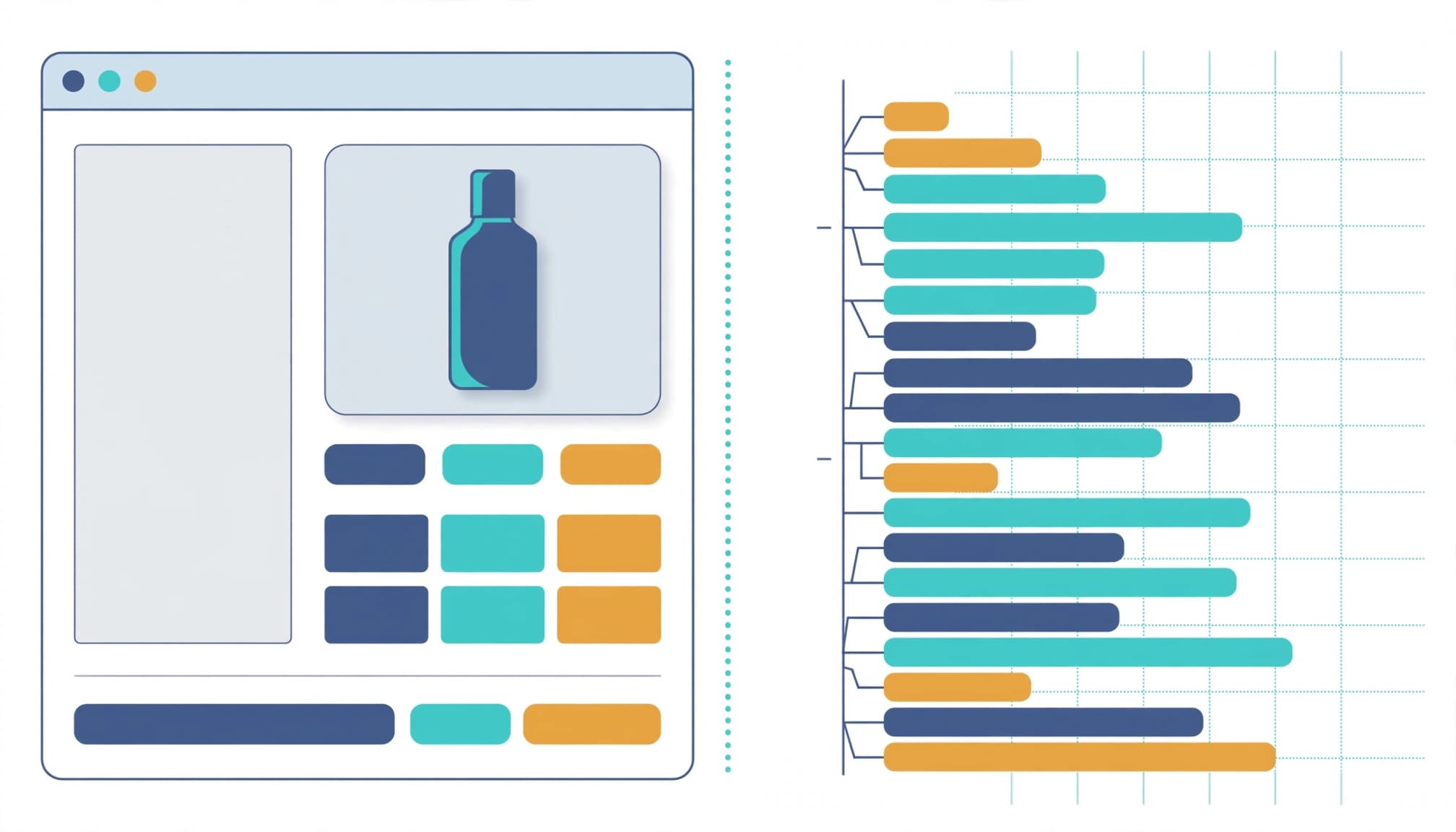
Choose a high-traffic product, a media-heavy product, and a simpler listing. Include different product templates where your store uses them, plus a collection page for comparison.
Run each URL through PageSpeed Insights on mobile and desktop. Repeat tests under matching conditions, because a single result can fluctuate. Record the main loading element, blocking time, layout-shift sources, First Contentful Paint, and Total Blocking Time.
For a Kolkata store selling across India, test mobile site speed on an actual Android phone using mobile data. Open the gallery, select variants, and add an item to the cart.
Then use Chrome DevTools with consistent network and CPU throttling. Its Network waterfall shows request timing and helps you record Time to First Byte. The Performance panel reveals expensive JavaScript and delayed interactions.
Keep lab data and field data separate. Google Lighthouse simulates a visit under controlled conditions; field data reflects actual shoppers. PageSpeed Insights may show origin-wide field data when an individual URL lacks enough samples.
Finally, save the tested URL, device settings, theme version, and date. This makes later comparisons useful.

Read Shopify’s reports before chasing a score

Shopify replaced its former single Shopify speed score with the Web Performance Dashboard. It shows three Core Web Vitals metrics and the percentages of good, moderate, and poor experiences.
The old Lighthouse-based score rated 90 to 100 Good, 50 to 89 Needs Improvement, and 0 to 49 Poor. It assessed the homepage and the most-trafficked product and collection pages over seven days.
Know the Core Web Vitals thresholds

Google’s Core Web Vitals guidance distinguishes loading, responsiveness, and visual stability.
Shopify’s metric summary uses these bands:
| Metric | Good | Moderate | Poor |
|---|---|---|---|
| Largest Contentful Paint, LCP | ≤2,500 ms | >2,500 to 4,000 ms | >4,000 ms |
| Interaction to Next Paint, INP | ≤200 ms | >200 to 500 ms | >500 ms |
| Cumulative Layout Shift, CLS | ≤0.1 | >0.1 to <0.25 | ≥0.25 |
Meet the good thresholds for at least 75% of visits, assessed separately for mobile and desktop. A good desktop result doesn’t cancel a poor mobile experience.
Isolate product pages in Shopify’s data

In Shopify admin, open Online Store > Themes, then the web performance summary and detailed reports. Compare product page types with collections and the homepage, using consistent device and date filters.
Shopify’s Web Performance reports use real-user measurements. The summary covers the past 30 days, reports can lag by 36 hours, and history extends to 90 days.
PageSpeed Insights field data comes from the Chrome User Experience Report. If a URL doesn’t have enough data, PageSpeed Insights uses origin-level data instead.
If products perform worse than collections, investigate product-specific features. Reports reveal patterns, but they don’t prove which app caused them.
Trace the slow product-page element
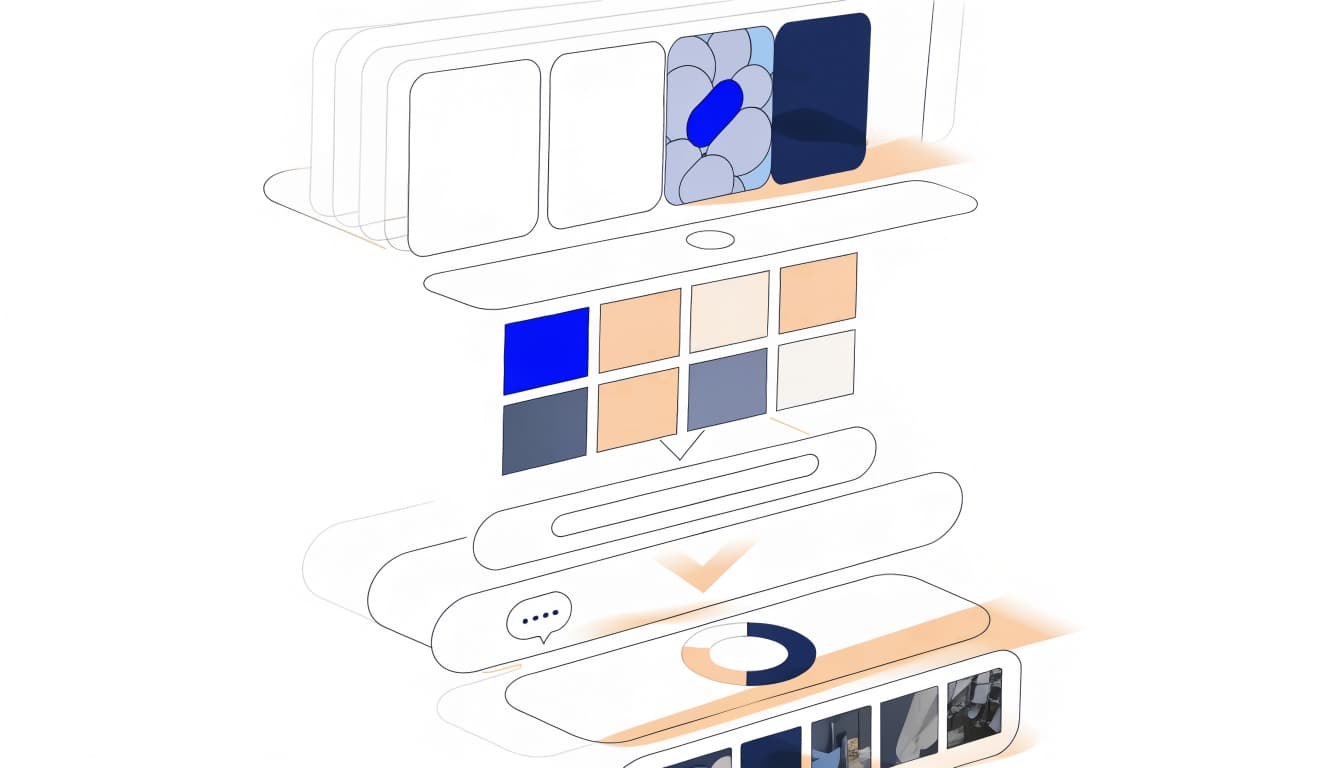
Match the failing metric to the affected component before changing code. Shopify’s 2026 store analysis associates every additional 100 milliseconds of LCP with roughly 3.5% lower conversion rate. That’s an association, not a guaranteed result from any particular fix.
Find what delays the main content

Open the LCP diagnostic in PageSpeed Insights or a Chrome Performance recording. The largest element may be the main product image, a promotional banner, or text.
For an image, separate a slow download from a late request. A large file needs resizing or compression. A request that starts late may point to lazy loading, JavaScript insertion, or another resource that delays discovery.
If text determines LCP, inspect font loading, render-blocking styles, and render-blocking JavaScript.
Test taps and watch for movement

Record interactions with swatches, quantity controls, and add-to-cart. Long JavaScript tasks can keep the browser busy after a shopper taps. Inspect the task’s script source before blaming the button itself.
For CLS, watch reviews, payment badges, recommendation blocks, and sticky purchase bars. Late-injected content can move the buying controls. Reserve space for images and widgets so their arrival doesn’t push surrounding content down.
Isolate app and tracking costs

HTTP Archive’s 2025 Web Almanac recorded a median of 83 third-party requests on desktop pages, five more than in 2024. A single app can generate several requests, so the number of third-party apps alone doesn’t explain performance.
In DevTools Network, inspect request domains and the Initiator column to trace third-party scripts to the feature or service that loads them, such as reviews, chat, recommendations, or tracking. Check transfer size, page weight, and execution time, because request count alone misses expensive JavaScript.
Duplicate the theme before experimenting. In its preview, disable one app embed or product-template app block, rerun the same test, and compare. Keep consent settings consistent. Theme previews may not isolate every app integration, so investigate any remaining requests further.
Prioritize unused tools, duplicate features, and widgets loading on pages that don’t need them. For replacements, the Built for Shopify badge indicates Shopify’s quality requirements, including performance standards. It doesn’t guarantee zero performance cost.
Google Tag Manager also adds work through its tags. Remove unused tags, limit triggers, and check whether apps and GTM both install the same tracking. Keep required consent controls and validate purchase tracking after changes.
Deliver lighter images and video
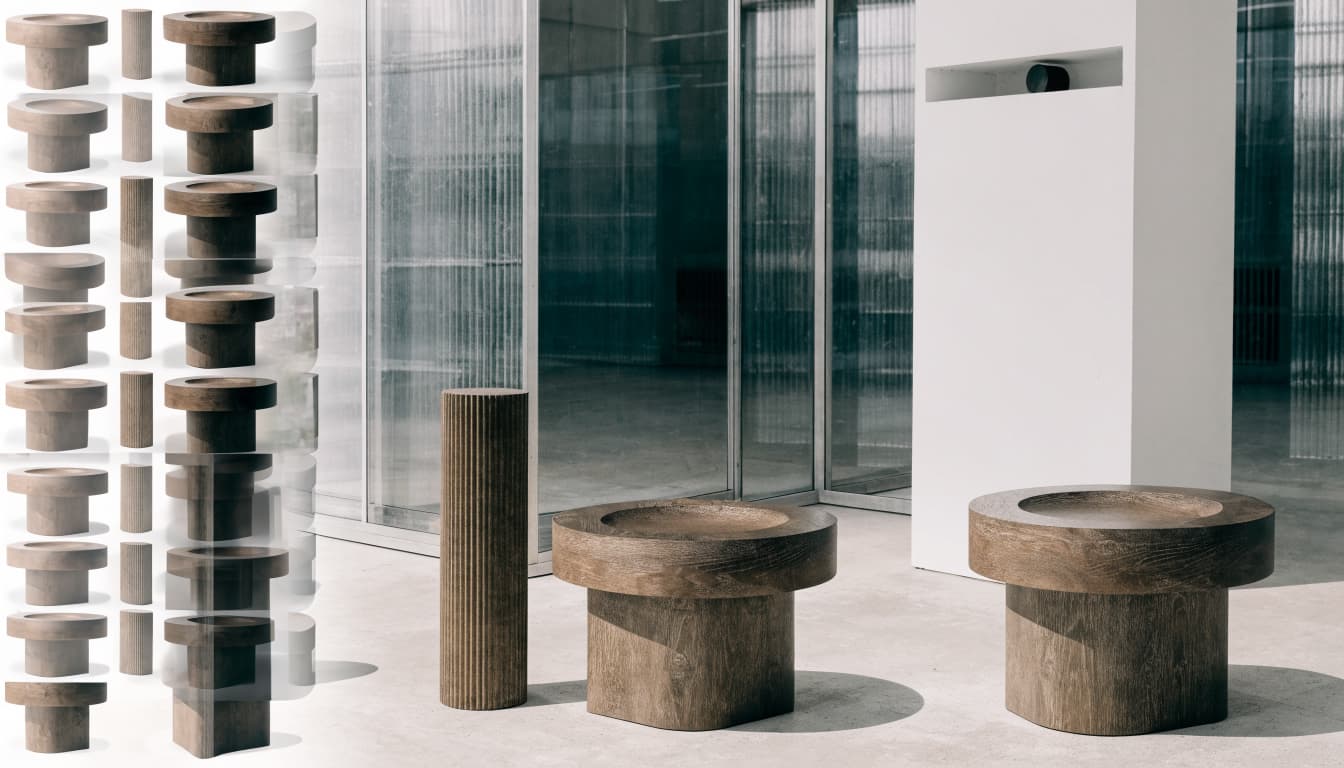
Image optimization starts with removing duplicate shots and decorative images that add little information. Keep useful detail views so shoppers can judge the item.
Request the right image dimensions

Use Shopify’s image_url filter with a width or height to request an appropriately sized asset. Pair responsive image sizes with dimensions that reserve layout space.
Shopify’s image CDN delivers the WebP format or AVIF according to browser support. Shopify cites WebP file-size savings of about 26% to 34% compared with PNG and JPEG, though results vary.
Efficient formats can’t fully compensate for excessive dimensions. Inspect what the browser actually downloads, including gallery thumbnails.
Lazy-load content that can wait

Lazy-load below-the-fold gallery images, recommendations, and embedded media. Don’t lazy-load the first visible product image or another above-the-fold LCP candidate.
Keep variant selection and add-to-cart functionality ready when shoppers need them. Delaying essential scripts can make a visually complete page unusable.
For YouTube demonstrations, a lite embed can initially load an approximately 15-kilobyte thumbnail. It downloads the player and its JavaScript after someone clicks play.
Reduce theme and network delays

Shopify includes a Cloudflare-powered content delivery network at no extra cost, one-year browser caching for cacheable assets, gzip compression, and automatic CSS and JavaScript minification. For Shopify theme performance, start with storefront code before considering a platform migration.
Remove unused theme weight, such as a hero slider or animations, and check Liquid code for unused sections and leftover app snippets. Compare the same product against a clean theme preview to distinguish theme overhead from product content.
Shopify’s theme performance recommendations support loading only the code a page needs.
For suitable external scripts, use async and defer. Async executes as soon as it’s ready and can interrupt HTML parsing. Defer waits until parsing finishes and preserves document order. Test dependencies before changing either attribute.
Redirects add network round trips and delay data transfer. Investigate 302 temporary redirects and chains, then link directly to the final destination where possible. Shopify’s built-in URL redirects use 301s by default, but those still add a hop.
Key takeaways: apply fixes in a safe order

Prioritize demonstrated bottlenecks rather than every audit warning.
- Fix delayed discovery or excessive weight in the main product image when LCP fails.
- Disable unused apps and duplicate tracking, then retest the same product and interactions.
- Reduce expensive JavaScript affecting variant selection or add-to-cart.
- Reserve space for shifting widgets and defer nonessential below-the-fold media.
Release one meaningful change at a time. Afterward, test purchasing functionality and record the deployment date. Compare lab results immediately, then watch field data as new visits enter the reporting window.
Keep useful sizing, care, availability, and delivery information. Removing buying information can hurt the store even when the page becomes lighter.
FAQ: Shopify product page speed

Does a high PageSpeed score guarantee better SEO?
No. Google’s guidance on Core Web Vitals places these metrics within broader search considerations. Relevant content and indexing still matter. Our guide to Shopify product visibility separates indexing problems from weak rankings.
Which app should I remove first?
Start with an unused app or overlapping feature that demonstrably adds requests or execution time. Preserve revenue-critical functionality until you’ve tested a replacement.
How much will lazy loading improve performance?
There’s no fixed improvement. It depends on how much unnecessary media loads initially. It helps most when substantial below-the-fold content competes with the main product image.
Make the next fix evidence-led

Better Shopify product page speed comes from finding the bottleneck, changing its cause, and retesting the buying experience. A better score matters when shoppers can see products sooner and use controls without delays.
For help reviewing your Shopify templates, apps, and tracking, Get In Touch With Us.