

If your ads report 50 leads but your CRM shows 37, the missing 13 often vanished before the hit left the browser.
In 2026, browser limits, stronger blockers, and tighter consent rules make browser-only tracking less dependable. A solid server-side GTM setup gives lead gen websites cleaner conversion data, better attribution, and more control over what gets shared.
That matters most when every form fill, call, and qualified lead can change budget decisions.
Why server-side GTM matters on lead gen sites
A server-side GTM setup sends tracking data to a server container you control, then forwards it to GA4, Google Ads, Meta, LinkedIn, or other tools. That extra stop often cuts data loss and reduces messy duplicate logic.
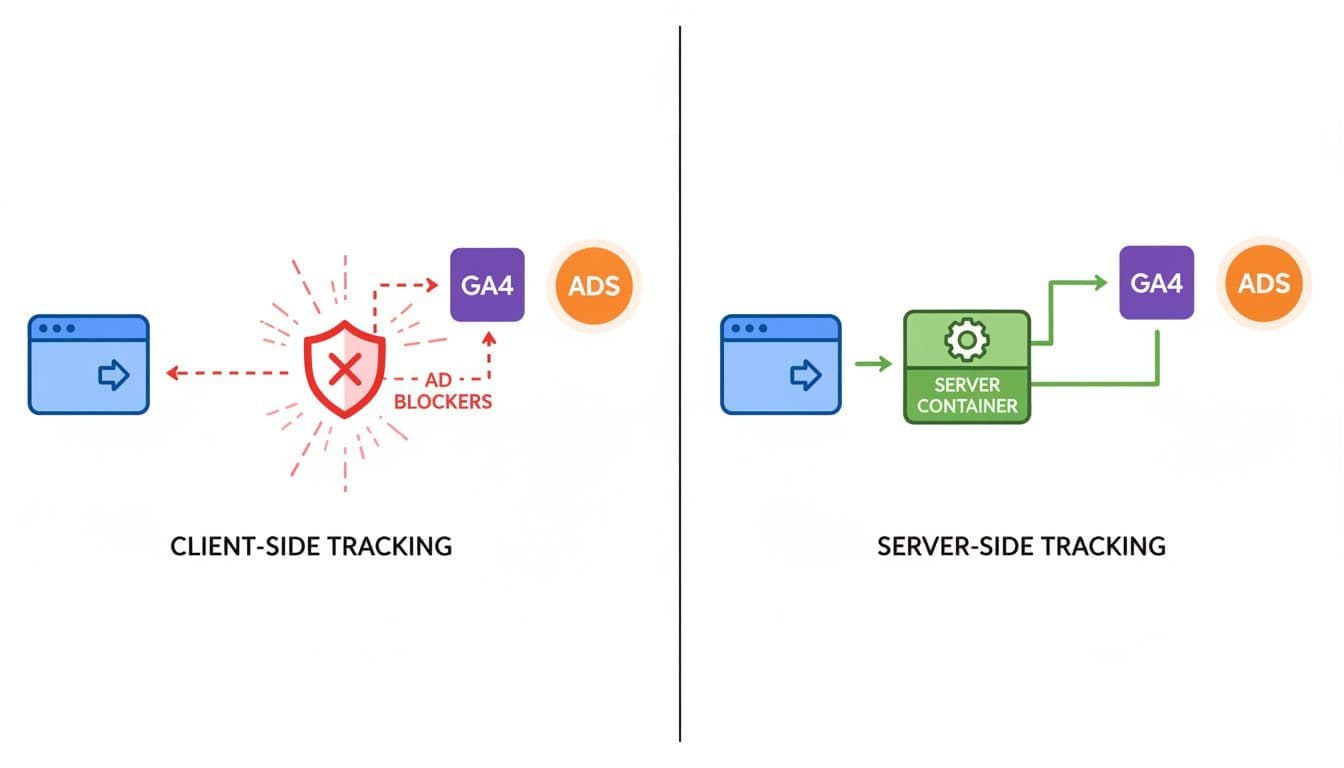
For lead gen sites, the gain is simple. You protect high-value actions like successful form submits, click-to-call events, and later-stage qualified leads. You also get a cleaner path between analytics and CRM reporting, which makes a GA4 lead tracking checklist far easier to keep stable.
Recent server-side tagging best practices for 2026 point to the same issue: browser-side loss is growing, not shrinking. For small teams, DIgital Marketing, SEO, Performance Marketing, Social Media Marketing, and Website Development all depend on the same source data. When that data breaks, every report starts to argue with the next one.
Server-side tracking won’t make data perfect, but it removes a lot of avoidable loss.
What you need before you touch the container
Start with a clean base. You need one web GTM container, one new server container, a GA4 property, and a plan for where lead data should end up after the website collects it.
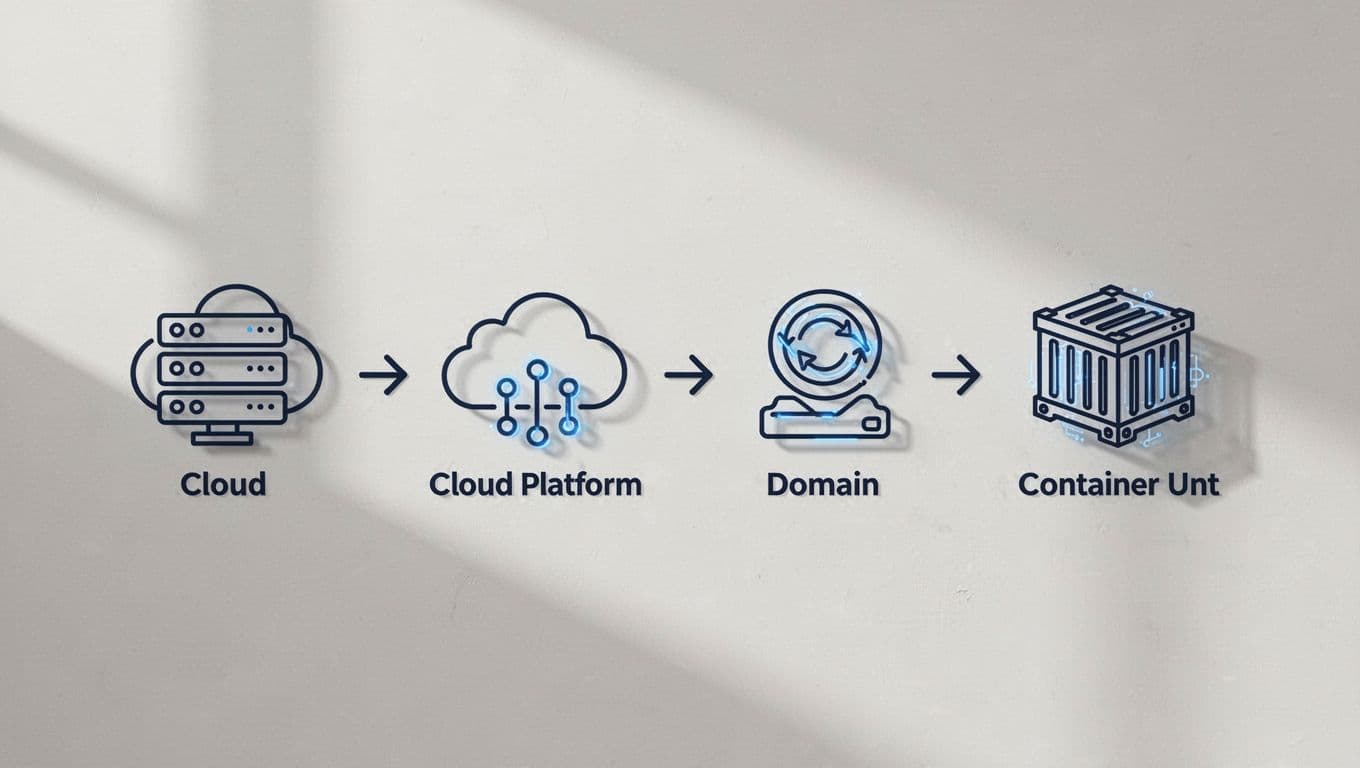
Hosting choice matters too. Managed options like Stape are faster for small teams. Google Cloud Run gives more control, but it asks more from your technical setup. Either way, use a same-site subdomain such as analytics.yoursite.com, not a third-party hostname. That keeps tracking closer to your own domain and helps first-party context.
Also decide three things before launch: your consent rules, your event names, and your lead_id strategy. If the lead record in your CRM can’t match the web event later, attribution still breaks. For a broader reference, Trackingplan’s sGTM guide is a useful outside read.
The core server-side GTM setup steps
The actual build is not hard, but the order matters.
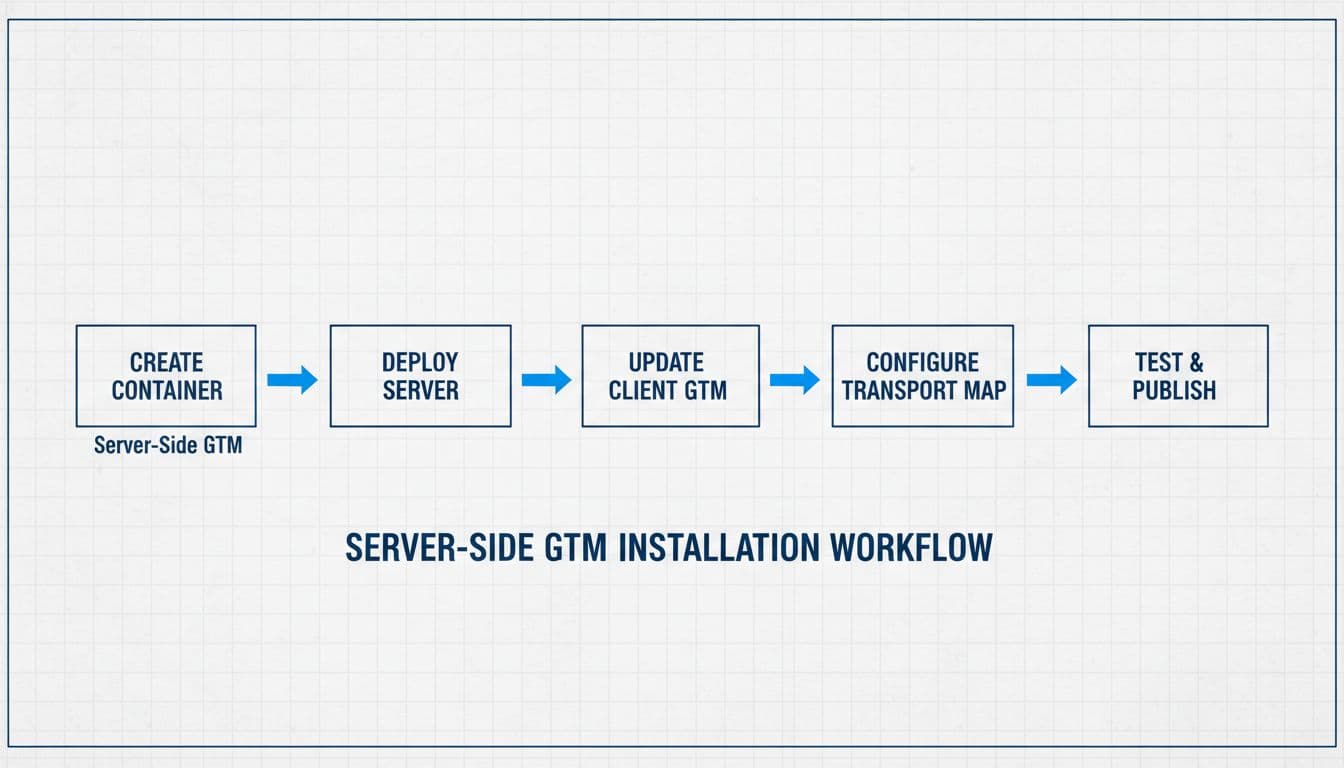
- Create a new Server container in GTM.
- Deploy it to your chosen host, then connect your custom subdomain.
- In the server container, confirm the GA4 client is available and receiving requests.
- In your web container, update the GA4 tag so hits route through the server endpoint, commonly with
server_container_url. - Preview both containers before you publish anything.
If your team last touched server-side tagging a while ago, review current templates and client behavior. A lot changed during 2025, so old screenshots can mislead. After the server receives GA4 traffic, keep your web container light. Let the browser capture intent, and let the server decide what each vendor should receive.
A practical build walk-through for lead capture flows is available in this GA4 server-side tracking for lead generation guide.
Configure tags for real lead events, not vanity actions
This is where many setups go off track. Fire on success, not on hope. A form button click is not a lead if validation fails or the request never reaches the backend.
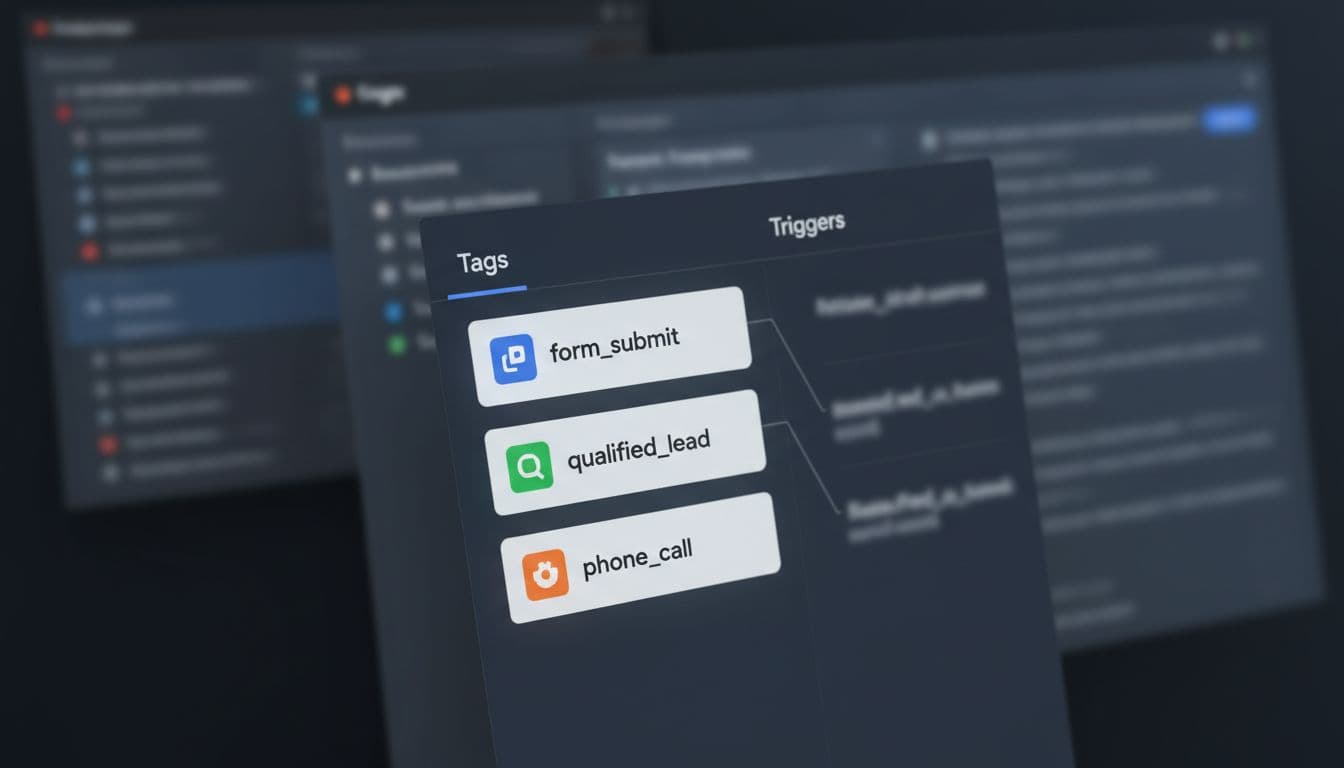
Use this simple event map:
| Event | Fire when | Helpful parameters |
|---|---|---|
form_submit |
Success message, thank-you page, or confirmed XHR | form_id, lead_type, page_type, lead_id |
phone_call |
Click on tel: or connected call from call platform |
placement, page_type, call_source |
qualified_lead |
CRM or backend marks the lead as valid | lead_id, value, currency, lead_stage |
Keep personal data out of GA4. Don’t send names, email addresses, or phone numbers there. If you need stronger ad matching, pair the setup with enhanced conversions setup for Google Ads leads. For qualified_lead, send the event from your CRM or backend into the server container, then forward it where needed.
Test consent and data flow before launch
Preview mode is not optional. Test the web container, the server container, and the final hit in GA4. Then test again on mobile, because click-to-call behavior often differs from desktop.
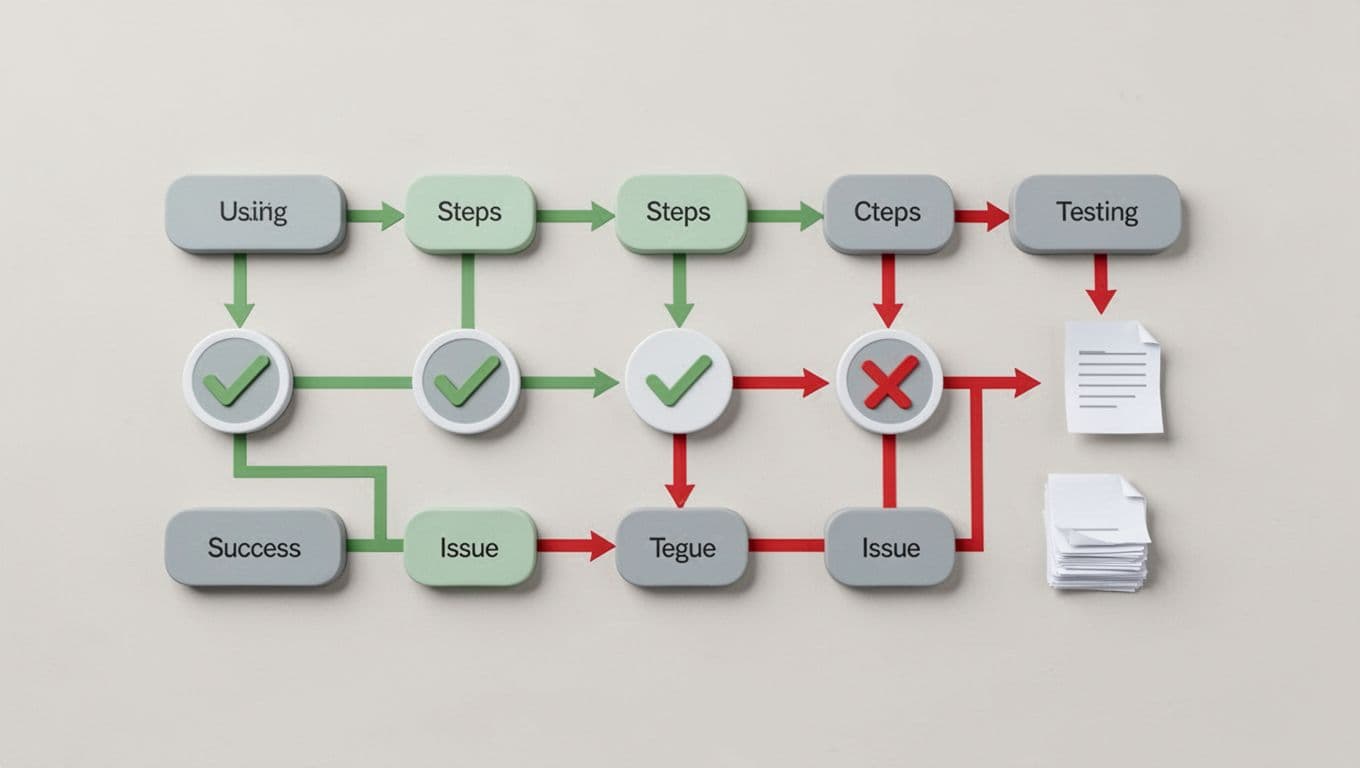
Check four things every time: the event fires once, the right parameters are present, consent state is respected, and no self-referrals appear from booking or form tools. Consent Mode v2 still matters with server-side tagging. Your server can filter and control data better, but it should not ignore consent choices. This 2026 Consent Mode v2 guide is a helpful comparison point.
If a redesign is coming, keep this website migration SEO checklist nearby, because new templates often break working triggers.
What gets better after launch
After launch, watch the gap between platform leads, GA4 leads, and CRM leads. The goal is not perfect matching. The goal is a smaller, explainable gap.
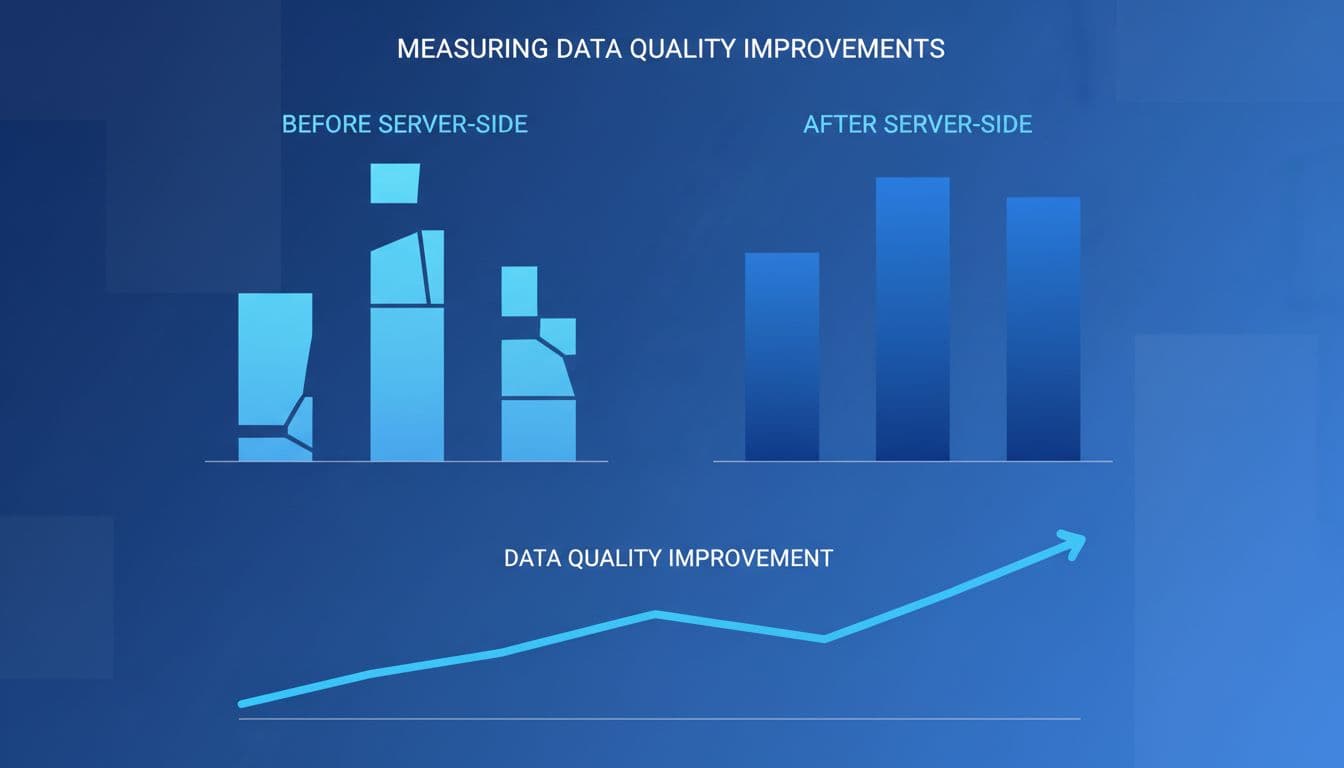
A good server-side GTM setup usually improves lead capture consistency, reduces unassigned traffic, and gives ad platforms cleaner conversion signals. It also gives you more control over privacy filtering before data leaves your stack. When reporting still disagrees, use a GA4 CRM reconciliation guide to find whether the problem sits in attribution, identity, or sales-stage logic.
The missing leads from the start of this post usually come from setup gaps, not campaign failure. Fix the tracking path, and your numbers become much easier to trust.
If you want help building or auditing the setup, Get In Touch With Us before the next form update or campaign launch.