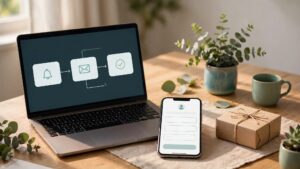

Shopify back-in-stock emails bring shoppers back when the product or size they requested becomes available again. To set them up, connect a notification app, capture variant-specific requests, and trigger an email when sellable inventory returns.
For Kolkata retailers, these alerts preserve interest while popular products are unavailable. However, recovery depends on accurate availability, clear permission, and a working purchase link.
Start with one dependable notification before adding reminders or extra channels.
Key Takeaways

- Capture the exact unavailable variant, rather than registering interest in every option.
- Send alerts only when customers can purchase, with safeguards for limited inventory.
- Judge results through completed orders and contribution margin, rather than opens alone.
Restock alerts reach shoppers before they can add an unavailable item to their basket. Our Shopify abandoned cart email flow addresses the later stage, when an identified shopper leaves checkout.
Choose and Connect a Restock App

Choose around your inventory workflow first. Exact-variant subscriptions, theme compatibility, and sending controls matter more than the number of template designs.
Compare Costs and Useful Features
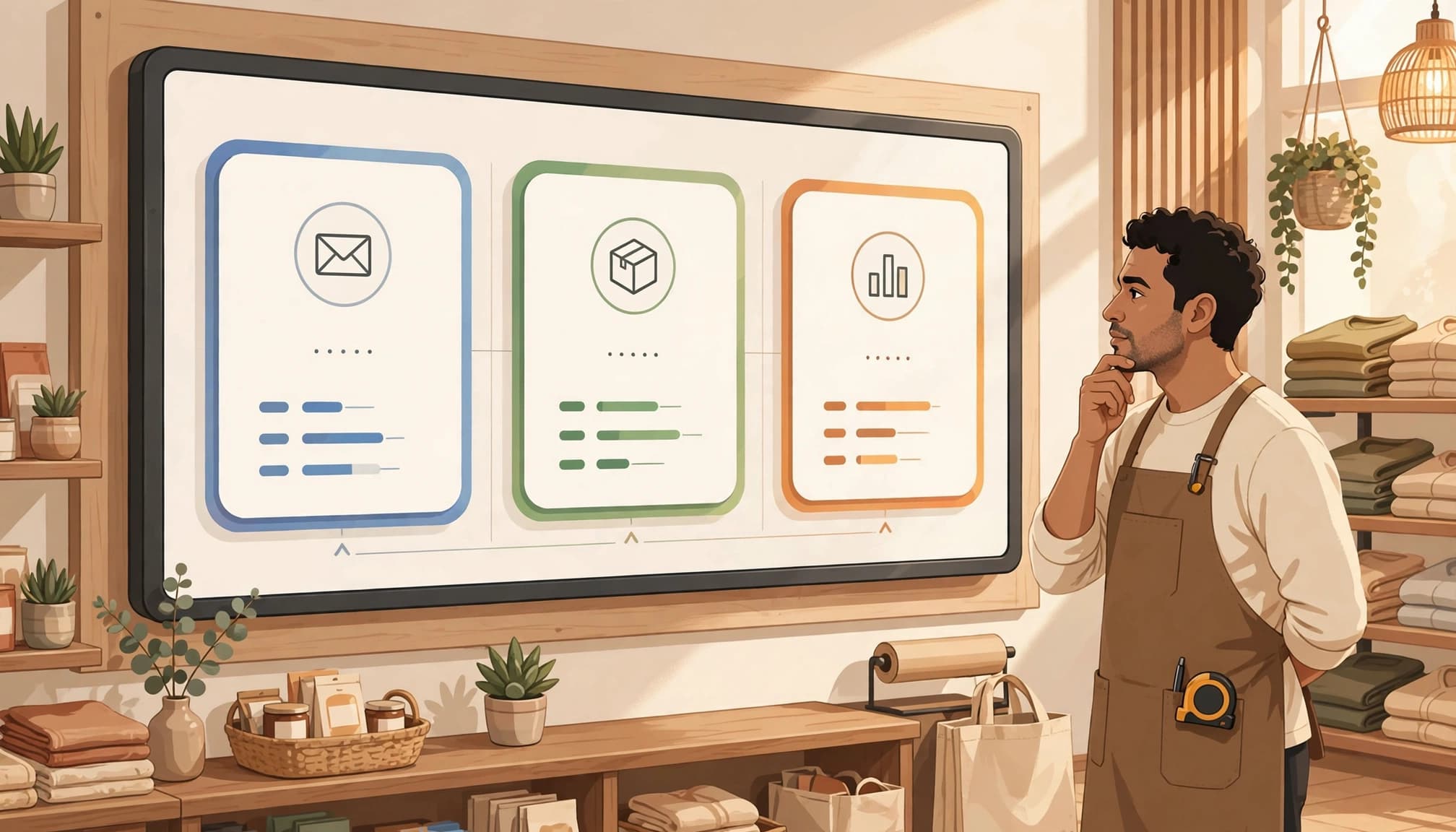
These November 2026 options illustrate different starting costs.
| App | Free allowance | Paid starting option |
|---|---|---|
| STOQ | 30 emails monthly | $10 monthly for 1,000 email/SMS alerts |
| Restock Alert by StoreBuddies | 50 emails monthly | $4 monthly for unlimited alert sends |
| Back In Stock Alert- Notify Me | 50 email alerts monthly, up to 10 products | $4.99 monthly for 500 alerts and variant support |
For a small store, variant support can outweigh a larger sending allowance. StoreBuddies also lists exact-variant subscriptions. Meanwhile, Stok’s notification options include email, SMS, and WhatsApp if you need multiple channels.
Install and Activate the Storefront Integration
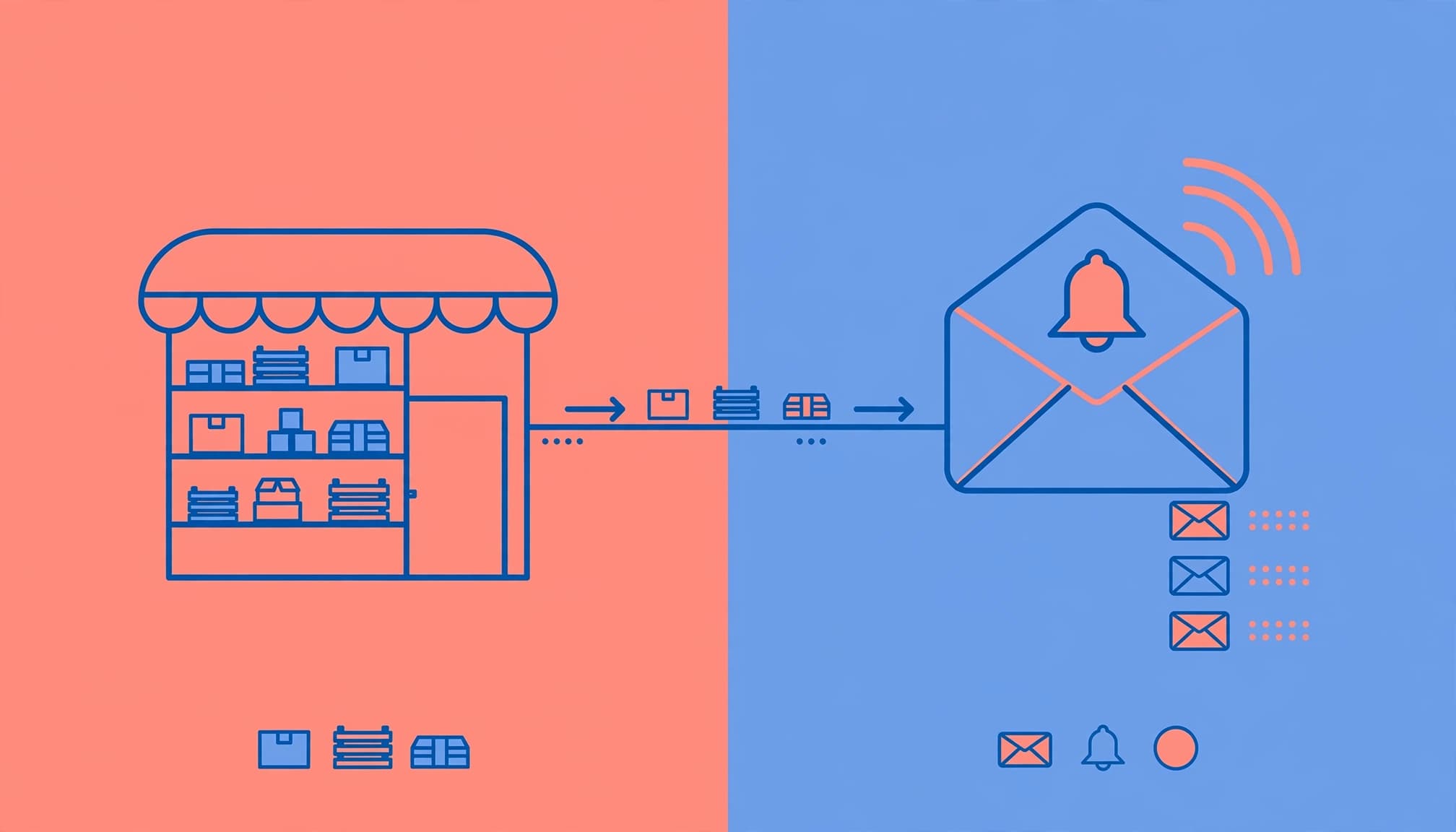
Open the selected Shopify App Store listing, select Install, and complete the prompts. The app then appears under Apps in Shopify admin.
Next, open Online Store and edit your theme. If the app uses an embed, open App embeds, enable it, and save. If it uses an app block, open the product template, select Add block, then Apps.
Enable only the integration the app requires. Theme support determines available blocks, and switching published themes requires activating the integration again.
Track Variants and Place the Signup Form
Keep temporarily unavailable product pages useful. They can retain SEO traffic and collect demand while customers wait for replenishment.
Connect Requests to the Selected Variant
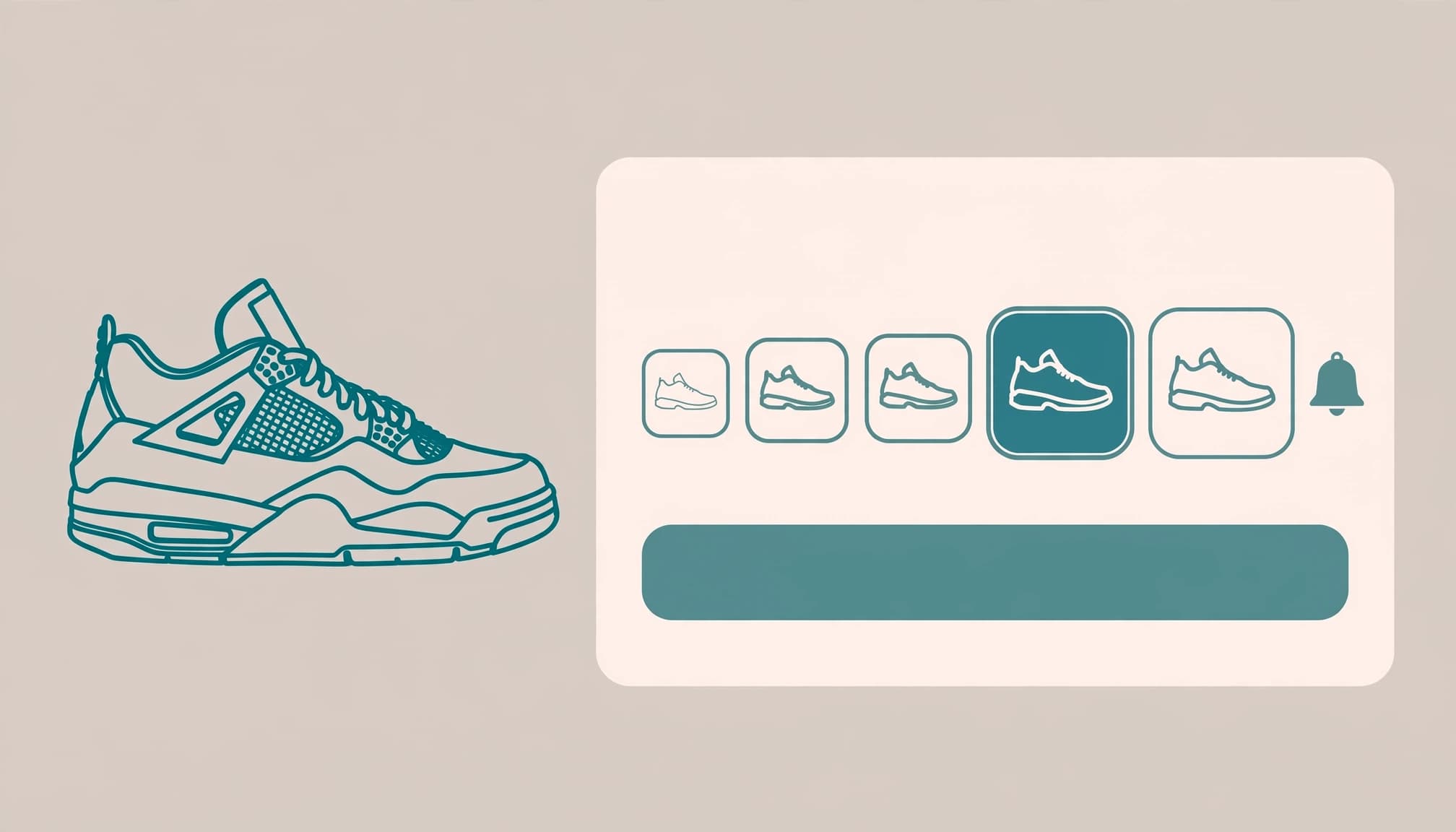
In Shopify Products, open the item and its variants. Enable inventory tracking and enter accurate quantities at the relevant fulfillment locations.
If you don’t accept backorders, disable “Continue selling when out of stock.” Otherwise, the storefront may continue accepting orders instead of displaying an unavailable state.
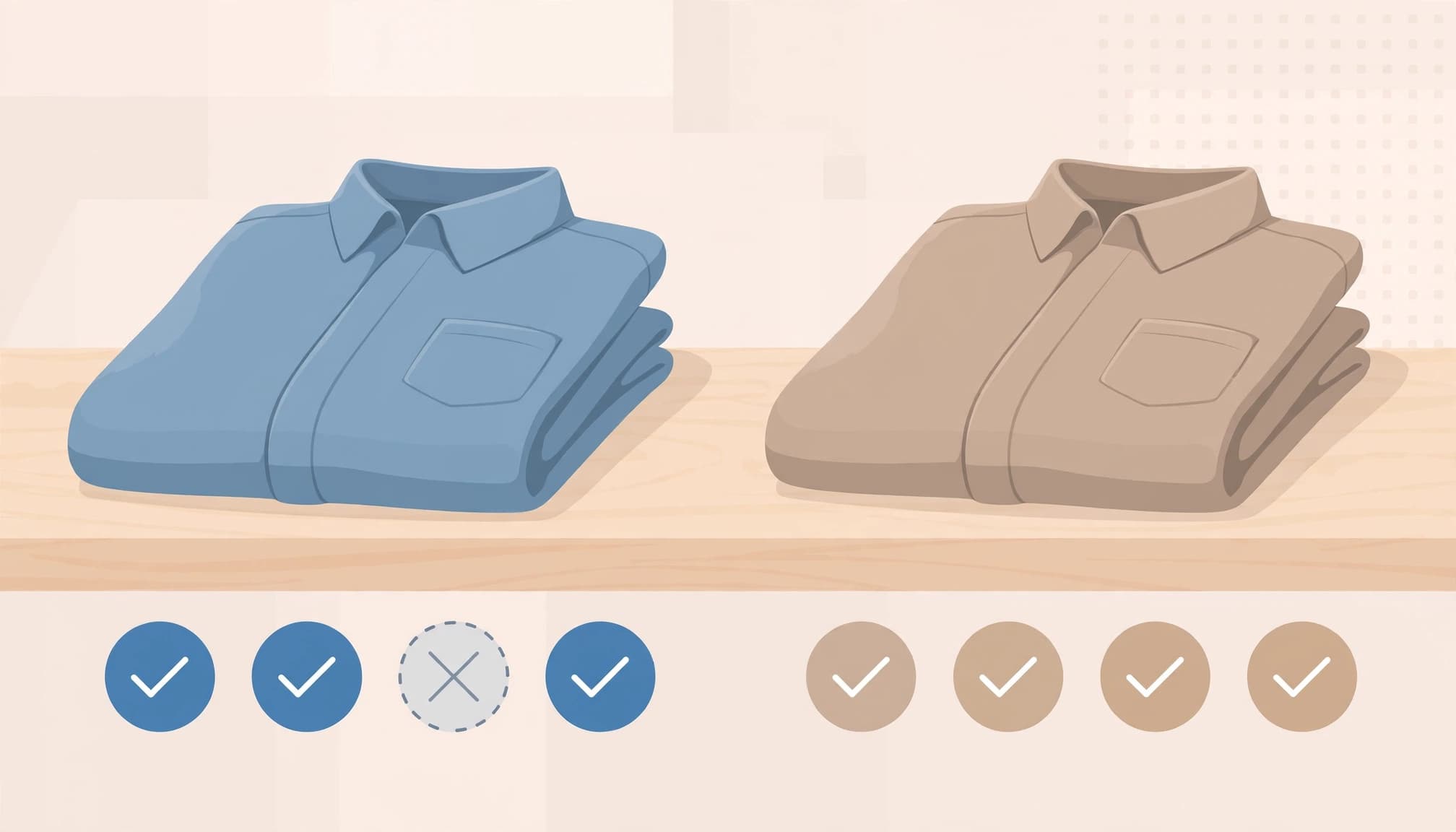
Configure the app to register the selected size and colour. A request for one shoe size must remain separate from other sizes. Keep available variants purchasable, and exclude discontinued products.
For stores with several locations, choose an app that can distinguish online-fulfillable stock from inventory unavailable for delivery.
Make the Form Visible and Specific

Place the signup beside the unavailable purchase controls, rather than below a long description. Restocked’s product-page form illustrates this notification-signup approach.
Use “Email me when available” for the button. Ask for an email address, display the selected variant, and confirm that the request succeeded.
Explain that the alert doesn’t reserve stock. Only publish a restock date when your purchasing team has confirmed it.
Keep promotional newsletter consent separate and optional. Requesting one availability alert shouldn’t automatically start your welcome email sequence. For bilingual stores, use recorded Bengali or English preferences.
Configure the Restock Trigger and Email
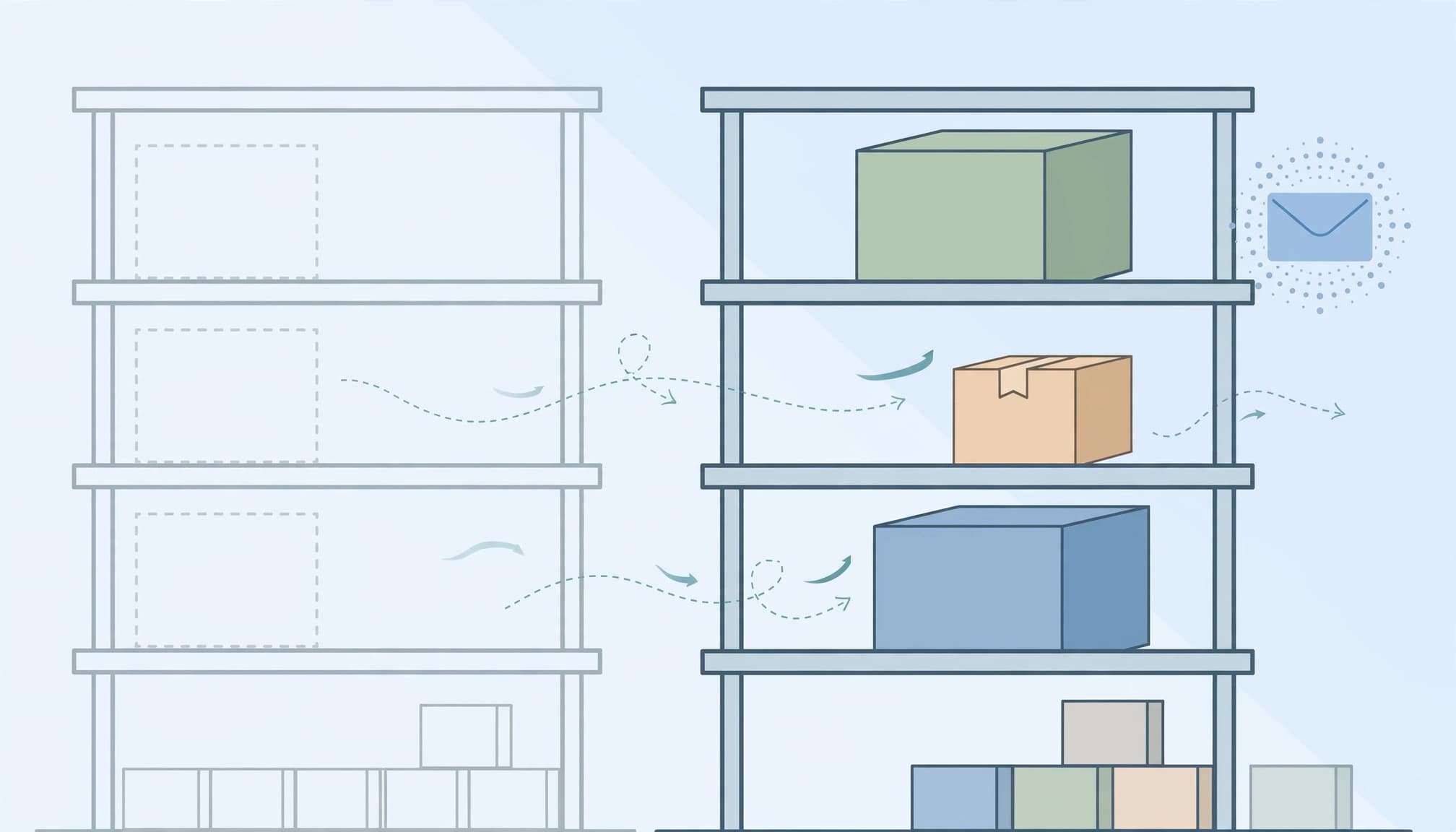
The automation needs an inventory event and an eligible waiting list. A scheduled campaign alone can’t reliably connect both.
Trigger Only When Stock Is Purchasable
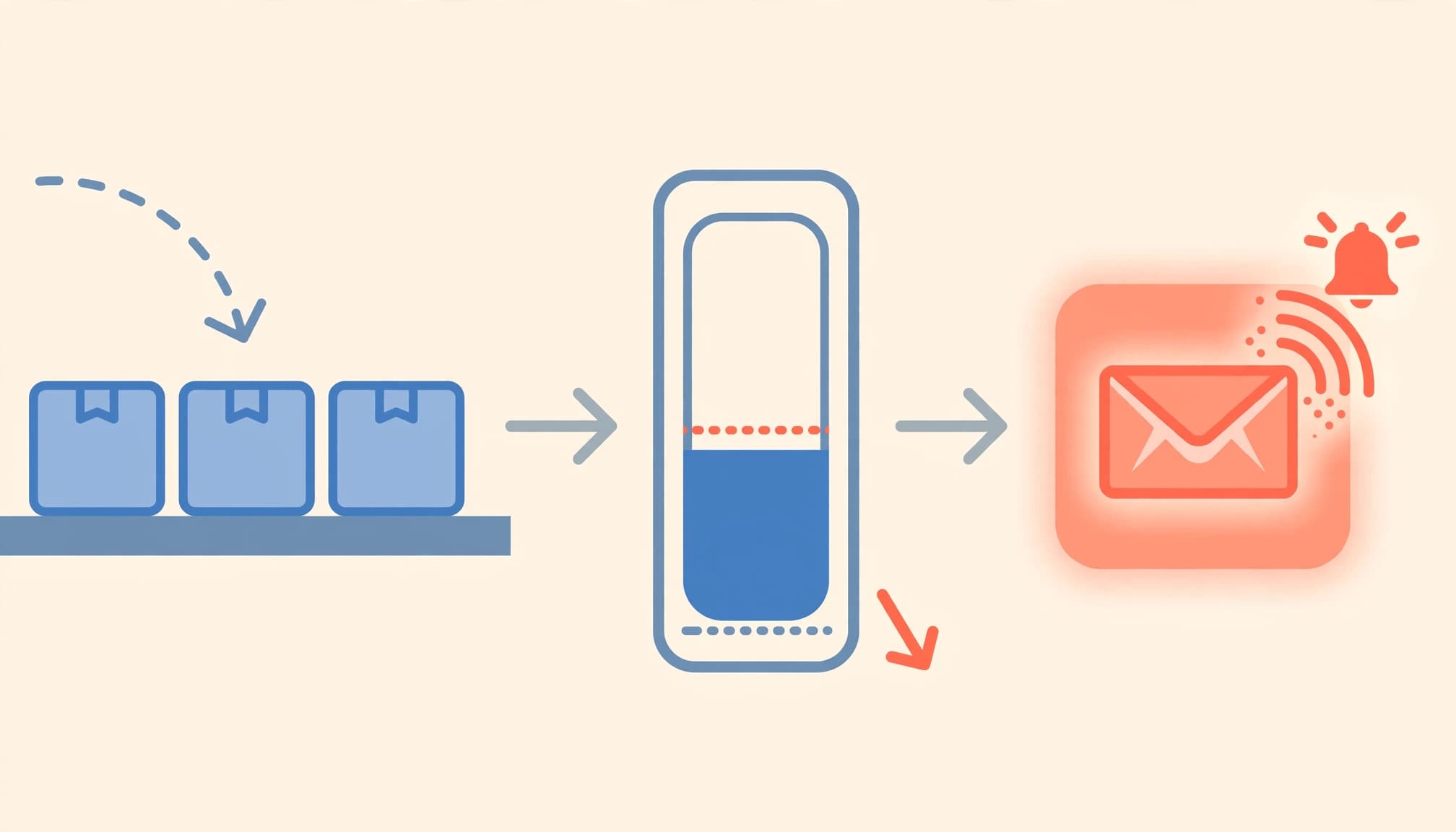
Activate the app’s automatic restock notifications. Restock SWT’s notification workflow follows the signup-then-restock model, although individual apps offer different controls.
Where supported, set a minimum inventory threshold and stagger sends when demand exceeds available units. Recheck availability before any delayed message.
For custom workflows, Shopify Flow’s Product variant back in stock trigger fires when tracked inventory changes from zero or below to one or more. Flow provides the trigger logic, not a complete native restock-email service.
Suppress unsubscribed addresses, remove duplicate requests, and stop pending reminders after the customer buys the requested variant.
Write an Email That Restores Buying Context

Use the product name in the subject: “[Product name] is available again.” In the message, show its image, requested variant, current price, and one prominent purchase button.
Suggested copy: “You asked us to email when this option returned. It’s available now. View the product for current availability.”
Link directly to the requested variant. Also include useful delivery information, such as PIN-code coverage, without inventing urgency or promising reservations.
Authenticate your sending domain and use a monitored reply address. Begin without a discount so you can assess demand without reducing margin.
Test the Complete Flow Before Launch

A preview email tests appearance. An end-to-end test also tests inventory, registration, eligibility, and the purchase destination.
Use a test product or controlled variant so you don’t change live stock unexpectedly.
- Set its available quantity to zero and open the storefront in a private browser window.
- Select the unavailable variant, submit your email, and confirm that the app records that exact request.
- Restore inventory at the online-fulfillment location and wait for the configured trigger.
- Open the received email on a phone, tap the button, and confirm the correct variant is purchasable.
- Complete a test purchase using your store’s testing setup, then confirm that pending reminders stop.
Repeat the journey with another variant that remains unavailable. It shouldn’t receive an alert when only the first variant returns.
Also test duplicate signups, unsubscribe handling, and stock falling back to zero before a delayed send. Essential details should remain readable when email images are blocked.
Finally, assign each alert to one sending platform. Running matching automations in both the restock app and your email platform can produce duplicate messages.
Measure Recovered Orders and Profitable Revenue

Track the journey from registration through delivery and purchase. Use stable campaign tags, then reconcile attributed orders with Shopify transaction IDs.
Define your metrics consistently before comparing products or campaigns.
| Metric | Calculation |
|---|---|
| Signup rate | Unique alert requests divided by eligible sold-out product-page visitors |
| Unique click-through rate | Unique email clickers divided by delivered emails |
| Recipient purchase rate | Unique purchasing recipients divided by delivered recipients |
| Revenue per recipient | Attributed revenue divided by recipients |
Use a fixed attribution window for every comparison. Keep first-time buyers separate from returning customers, and avoid counting the same order once for each reminder.
Open rates are diagnostic because privacy features can generate opens without a person reading. Clicks and confirmed purchases provide stronger evidence of customer action.
However, attributed purchases don’t prove the email caused every sale. Where volume permits, compare a randomized no-email holdout with eligible recipients. For smaller lists, gather several comparable restock cohorts before drawing conclusions.
For cash-on-delivery orders, track delivered, paid orders and return-to-origin outcomes. Assess contribution margin after product costs, discounts, shipping subsidies, returns, and messaging fees.
Finally, use request counts to inform stock planning. Repeated demand for an unavailable variant deserves attention, even when low replenishment quantities limit email revenue.
Frequently Asked Questions

Can I start with a free app plan?
Yes. STOQ includes 30 monthly emails, while StoreBuddies includes 50. Free allowances suit low-volume launches, but the required variant and sending controls should guide your choice.
Should every subscriber receive the alert immediately?
Only when inventory supports that demand. If stock is limited, use an app with batching or threshold controls. An email mustn’t imply that joining the list reserves an item.
Should I send another reminder?
Begin with one alert. Add a reminder only when the product remains available, the recipient remains eligible, and no purchase has occurred. Test its additional completed orders against messaging costs.
What happens after someone purchases?
Stop restock reminders for that request. Then let your post-purchase email flow handle appropriate order, delivery, and customer-care messages without overlapping recovery offers.
Build a Reliable Route Back to Purchase

Effective Shopify back-in-stock emails connect an exact request with genuine availability. Accurate inventory and purchase-aware stop rules make that connection dependable.
Start with one tested alert. Improve it using completed orders and margin rather than email activity alone.
If you need help connecting your Shopify storefront, automation, and reporting, Get In Touch With Us to discuss your recovery workflow.