

Shopify discount codes usually fail because the cart, customer, timing, or discount combination doesn’t match the offer’s rules. The fastest fix for a rejected Shopify promo code is to reproduce checkout and identify the failed condition. Change that setting rather than creating another discount code.
For Kolkata businesses selling across India, mobile checkout, delivery eligibility, and subscription settings also deserve attention. Start with the code setup, then work through the checks below.

Create Shopify discount codes in the admin

Shopify’s discount setup guidance covers manually entered codes and automatic offers. Build the promotion around a clear customer promise.
Set the discount rules

- Open Shopify Admin, select Discounts, then Create discount. Choose a discount type and select Discount code as the method. Choose Buy X Get Y when a customer must buy a qualifying item to receive another.
- Enter or generate the code. Set a percentage or fixed amount, such as 10% or $5, for an amount-off offer.
- Select eligible products or collections where applicable. Add a minimum purchase amount, such as $50, or a minimum quantity, such as 3 items.
- Set customer eligibility and maximum discount uses. You can allow 100 total uses, one use per customer, or both.
For an INR store, confirm the store currency in Shopify Admin before entering monetary values. Make sure the promotion wording matches the selected products and minimum requirements.
Schedule it and save

- Under Combinations, choose whether the offer can combine with product, order, or shipping discounts. Keep unnecessary combinations disabled.
- Set the start date and optional end date. Make sure the active dates match the advertised offer, including start and end times for timed promotions.
- Click Save discount, then build an eligible cart and apply the code at checkout.
Next, test a cart that should fail, such as one below the minimum. This catches overly broad settings before customers use the offer.
Record the intended audience, qualifying products, and exclusions alongside the campaign. Your email, advertisement, and checkout should describe the same deal.
Key takeaways: diagnose a rejected code

Before editing Shopify discount codes, capture the exact error message and cart contents.
Quick diagnostic checklist
- Copy the saved code and review its active dates.
- Match products, variants, and qualifying subtotal to the offer.
- Review customer eligibility and remaining uses.
- Remove other codes, then check automatic discounts and delivery restrictions.
Check spelling, dates, and customer eligibility

In Shopify Admin, open the saved offer and copy the discount code directly. Remove accidental spaces and check ambiguous characters, such as zero and the letter O.
Review whether the code is active, scheduled, expired, or manually deactivated. Correct the dates or reactivate it only if the promotion should remain available.
For customer-restricted offers, compare the checkout email or phone number with the eligible customer record or segment. Enter those details before applying the code. If the shopper doesn’t qualify, explain the restriction rather than widening eligibility to everyone.
Check products, minimums, and usage limits
Open the offer’s product selection and compare the exact variant. A similar item or a product outside the selected collection won’t qualify.
Shopify’s amount-off discount rules calculate a minimum purchase from product prices, excluding shipping and taxes. Only eligible items count toward the qualifying subtotal.
A ₹1,450 qualifying subtotal misses a ₹1,500 minimum purchase, even with ₹100 delivery. A three-item requirement also needs three qualifying items.
Finally, inspect total redemptions and previous customer use. Increase a cap only when the campaign budget supports it.
Fix discount conflicts and checkout problems

When eligibility looks correct, isolate the offer before changing apps, themes, or checkout settings.
Resolve automatic discounts and code conflicts

Customers normally enter codes at checkout; automatic discounts apply when their cart qualifies. An existing automatic offer can explain an unexpected total or a rejected combination.
Remove other codes first. Then inspect the Combinations settings on each discount, because enabling a category on only one offer doesn’t establish compatibility.
Shopify’s discount combination rules allow up to five product or order codes plus one shipping code, subject to compatibility.
However, enabling combinations can reduce margins unexpectedly. A 10% product discount followed by a 10% order discount can reduce a ₹1,000 eligible amount to ₹810. Calculate the combined result before publishing.
Test shipping, subscriptions, and checkout behavior
For free shipping, enter the delivery address first. Then check eligible countries, minimum spend, excluded shipping rates, and whether a delivery service covers that address. A free shipping discount can’t create a shipping rate that’s unavailable for the entered address.
For subscriptions, inspect purchase-type eligibility where available. A one-time-purchase code won’t cover subscription items. Also review whether the subscription app applies the offer to the initial purchase, renewals, or both.
Finally, rebuild the cart in a private browser window and test standard checkout on an Android phone using mobile data. Repeat with the same customer, variant, quantity, and address. If only the cart drawer fails, investigate its app or theme integration through a controlled preview.
Our checkout optimization guide covers broader payment and delivery failures.
Choose the right discount type
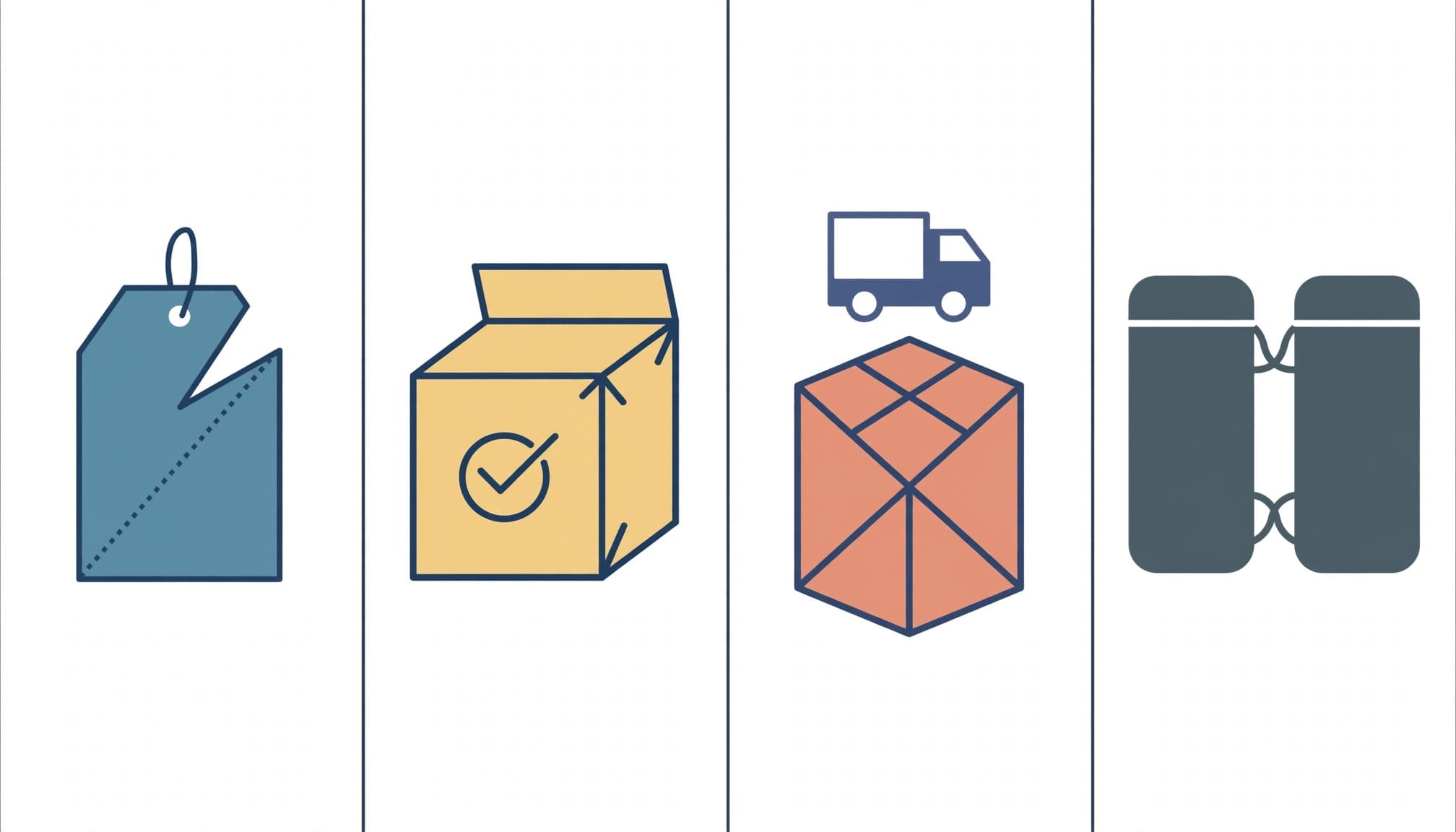
Shopify offers four built-in discount types, including Buy X Get Y, each suited to a different promotion.
| Discount type | Suitable use | Common mistake |
|---|---|---|
| Amount off order | A basket-wide percentage or fixed amount reduction | Setting an unintended minimum |
| Amount off products or collections | Selected merchandise | Excluding the purchased variant |
| Free shipping | Reducing delivery costs | Excluding the destination or rate |
| Buy X Get Y | Rewarding qualifying purchases | Leaving the reward item out |
Choose the smallest scope that delivers the advertised promise. This makes troubleshooting easier and limits unintended discounts.
For a percentage discount, test the rate in a sample cart with eligible items before publishing. Confirm the discount applies as expected.
For Buy X Get Y, customers must add the qualifying items and reward products to their cart. Shopify doesn’t automatically add the free item.
A free-shipping threshold changes the purchase decision. With a ₹1,500 threshold and a ₹1,450 basket, another ₹50 of qualifying merchandise closes the gap to free shipping. Whether that improves profit depends on product margin and delivery cost.
Measure discount performance beyond redemptions

In Shopify Analytics, open the sales by discount report (displayed as “Sales by discount codes”). Review orders, total sales, discount amounts, and other discounts to understand how the promotion affected sales.
Review redemption counts alongside customer limits. For a consistent average order value comparison, divide net sales by completed orders within the same reporting window. Don’t treat code uses, orders, and customers as interchangeable measures.
Also, compare contribution margin after discounts, shipping subsidies, payment fees, and messaging costs. A larger basket can still leave less money after fulfilment.
For cash-on-delivery orders, track delivered, paid orders and return-to-origin outcomes separately. An accepted checkout doesn’t establish collected revenue.
When testing a different threshold or incentive, change one variable at a time. Compare similar customer groups over the same period. Where order volume permits, retain a randomized group without the incentive to measure additional purchases.
Segment results by mobile versus desktop, new versus returning customers, and SEO versus paid traffic. An overall improvement can hide a weaker mobile checkout.
Finally, reconcile analytics with confirmed Shopify orders and unique transaction IDs. Our Shopify GA4 tracking guide covers purchase validation and duplicate-event checks.
Shopify discount code FAQs
How does a customer apply a code?
They add eligible items, proceed to checkout, enter the code in the discount field, and apply it before paying. On mobile, they may need to expand the order summary. The updated total should show the accepted discount.
How do I limit a code to one use per customer?
Open the discount and enable Limit to one use per customer under Maximum discount uses. You can also set a total redemption cap. Shopify’s discount code FAQ explains these usage controls.
When should I use a third-party discount app?
Use third-party apps when native settings don’t cover bulk unique codes, exit-intent triggers, post-purchase offers, or complex conditions. For example, an app can send a cart abandonment reminder with an offer. Test how it interacts with existing promotions, and stop purchase-reminder incentives after an order. An app won’t fix an expired native code.
Can a store discount reduce my Shopify subscription bill?
Store-issued codes apply to customer orders, not your merchant subscription. Shopify advertises separate introductory offers. Its pricing page lists a three-day free trial followed by $1 per month for the first three months on most plans. That offer isn’t a discount you create under Discounts, and dollar-denominated advertising shouldn’t be treated as an INR subscription quote.
Make every promotion work as promised

A reliable promotion starts with matching rules and messaging. Reproduce the rejected cart, correct the failed condition, and test both eligible and ineligible purchases.
Then judge the offer by profitable completed orders, rather than redemptions alone. Keep payment failures and delivery problems separate from discount eligibility.
If your store has recurring checkout errors or conflicting promotions, Get In Touch With Us for help reviewing the customer journey.